 ProMapRanker
Best Data Recovery Software in 2026

Key takeaways
- Stop using the affected drive at once, since new writes can overwrite deleted files.
- Free tiers help for small losses, but large or damaged drives usually need a paid license.
- Recuva and PhotoRec are the best free starting points, while Disk Drill and EaseUS suit beginners who want guidance.
- Physically damaged drives should go to a professional service rather than repeated home scans.
Quick comparison
| Pick | Great for | Pricing starts at | Free tier | |
|---|---|---|---|---|
 Disk Drill Disk Drill | Beginners who want guided recovery | $89 | Yes | Visit |
 EaseUS Data Recovery Wizard EaseUS Data Recovery Wizard | Largest practical free tier for beginners | $99.95 per year | Yes | Visit |
 Recuva Recuva | Quick free recovery on Windows | Free | Yes | Visit |
 Stellar Data Recovery Stellar Data Recovery | Photos, video, and damaged media | $59.99 per year | Yes | Visit |
 Wondershare Recoverit Wondershare Recoverit | Corrupted video and camera media | $59.99 per year | Yes | Visit |
 R-Studio R-Studio | Technicians, RAID, and network recovery | $79.99 | Yes | Visit |
 PhotoRec PhotoRec | Free open-source recovery for any budget | Free | Yes | Visit |
 DMDE DMDE | Budget professional-grade recovery | $48 per year | Yes | Visit |
The best data recovery software
We compared recovery tools for deleted files, formatted drives, and damaged media. The right tool depends on your operating system, the size of the loss, and how comfortable you are with technical settings. Start with a scan and preview before paying, whenever that option is offered.
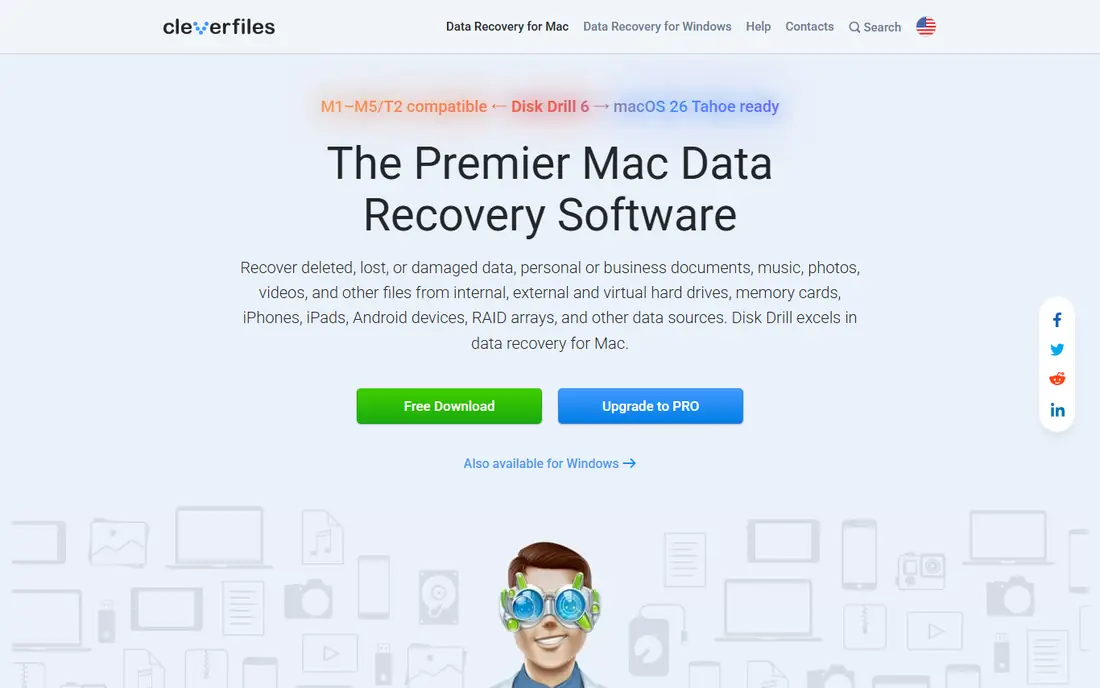
For many buyers, Disk Drill is the first name that comes up, and there is a reason for that. Disk Drill is our pick for most home users who want a clear recovery workflow. It guides you from drive selection to scan to preview, and it can image a failing drive before you scan it.
The catch is the free limit, since the free tier is best for previewing rather than recovering a large folder. Before you commit, check the current plan details, any contract or cancellation terms, and what is included at the price shown on the vendor site. If that fit matches your routine and your budget, Disk Drill is a sensible shortlist pick. If it does not, one of the other options below may suit you better.
- Clear guided workflow
- Drive imaging
- Preview before recovery on many file types
- Free recovery limit is small on Windows
- Deep scans on large drives take time
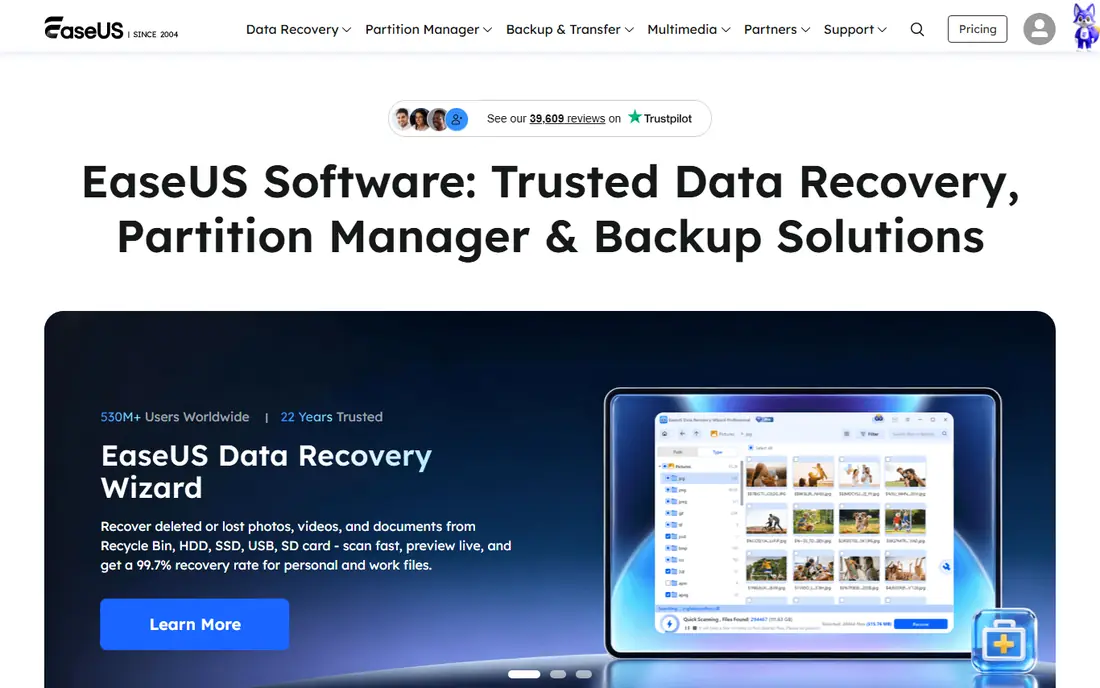
If your priority is Largest practical free tier for beginners, EaseUS Data Recovery Wizard deserves a close look before you decide. EaseUS suits beginners who deleted a folder of documents or photos and want a guided fix. Its free tier covers many small losses without payment, and the workflow stays simple throughout.
The catch is pricing structure, since you should compare yearly and lifetime options before buying for one job. Before you commit, check the current plan details, any contract or cancellation terms, and what is included at the price shown on the vendor site. If that fit matches your routine and your budget, EaseUS Data Recovery Wizard is a sensible shortlist pick. If it does not, one of the other options below may suit you better.
- Up to 2 GB free recovery in its free tier
- Simple three-step workflow
- Windows and Mac versions
- Monthly pricing is poor value for one-time use
- Advanced features sit on higher tiers
Recuva suits buyers who want a clear trade between price, features, and effort. Recuva is the best first try for a simple deletion on Windows. It is light, fast, and free for basic recovery, which makes it ideal before you pay for another tool.
The catch is scope, since formatted or badly damaged drives may need a deeper tool. Before you commit, check the current plan details, any contract or cancellation terms, and what is included at the price shown on the vendor site. If that fit matches your routine and your budget, Recuva is a sensible shortlist pick. If it does not, one of the other options below may suit you better.
- Free version recovers files without a small cap
- Simple interface
- Low system load
- Windows only
- Weaker on heavily damaged drives and complex RAID setups
Start with Stellar Data Recovery if you want a practical option without a long setup process. Stellar suits users who lost photos or video and want repair tools alongside recovery. It handles common media formats and offers preview before purchase, which helps you judge the result.
The catch is tier limits, since advanced recovery types sit above the entry plan. Before you commit, check the current plan details, any contract or cancellation terms, and what is included at the price shown on the vendor site. If that fit matches your routine and your budget, Stellar Data Recovery is a sensible shortlist pick. If it does not, one of the other options below may suit you better.
- 1 GB free recovery
- Photo and video repair features
- Windows and Mac versions
- RAID recovery needs higher tiers
- Yearly pricing adds up for rare use
We put Wondershare Recoverit on this list because it answers a specific need well. Recoverit suits camera users and video editors who lost clips from a card or drive. Its video repair and deep scan tools target corrupted footage that simpler tools may skip.
The catch is the free tier, since you will usually need a paid license to recover a useful amount of video. Before you commit, check the current plan details, any contract or cancellation terms, and what is included at the price shown on the vendor site. If that fit matches your routine and your budget, Wondershare Recoverit is a sensible shortlist pick. If it does not, one of the other options below may suit you better.
- Strong video repair focus
- Camera card recovery
- Guided workflow
- Free tier is mainly scan and preview
- Paid tiers rise with features
R-Studio is worth shortlisting when Technicians, RAID, and network recovery matters more than having every extra feature. R-Studio suits technicians and advanced users who need RAID or network recovery. It gives detailed control over disks, partitions, and RAID layouts that beginner tools do not offer.
The catch is complexity, since the interface assumes you know disk structure and recovery basics. Before you commit, check the current plan details, any contract or cancellation terms, and what is included at the price shown on the vendor site. If that fit matches your routine and your budget, R-Studio is a sensible shortlist pick. If it does not, one of the other options below may suit you better.
- RAID and network recovery
- Cross-platform support
- Detailed disk tools
- Steep learning curve
- Demo limits file size for recovery
Among the options here, PhotoRec stands out for a simple reason: it is easy to understand what you get. PhotoRec suits users with no budget who are comfortable with a technical tool. It recovers files by signature across many formats and costs nothing to use.
The catch is usability, since the interface is plain and file names may not be preserved in every case. Before you commit, check the current plan details, any contract or cancellation terms, and what is included at the price shown on the vendor site. If that fit matches your routine and your budget, PhotoRec is a sensible shortlist pick. If it does not, one of the other options below may suit you better.
- Completely free and open source
- Works on Windows, Mac, and Linux
- Many file types
- Command-line style interface
- No polished preview workflow for beginners
Consider DMDE if you want a dependable choice for everyday use. DMDE suits advanced users who want professional features at a low price. Its disk editor and partition tools go beyond basic undelete tools, while the price stays modest.
The catch is the learning curve, since the interface expects more technical knowledge than Disk Drill or EaseUS. Before you commit, check the current plan details, any contract or cancellation terms, and what is included at the price shown on the vendor site. If that fit matches your routine and your budget, DMDE is a sensible shortlist pick. If it does not, one of the other options below may suit you better.
- Low price for professional features
- Disk editor
- Partition recovery
- Interface is technical
- Free edition limits files per folder
How we picked these
We compared official pricing pages, free tier limits, and platform support for each tool, and we focused on tools that are still maintained and that work on current Windows or Mac systems. We favored tools with a free scan or preview, clear file type support, and honest limits. We did not claim hands-on recovery tests, and we treated vendor free limits as starting points because they can change by version.
How to recover files without making the loss worse
Stop writing to the affected drive as soon as you notice the loss. Do not install recovery software on the same drive, do not save recovered files back to it, and do not keep using it for downloads or new files. Install the recovery tool on a different drive, and recover files to a different drive as well. This single habit protects more files than any tool choice.
Scan, preview, then pay
Run a quick scan first for recent deletions, then a deep scan if the quick scan finds nothing. Preview files before you pay, since a tool that cannot preview your photos or documents is unlikely to recover them well. Compare the free recovery limit with the size of your loss, and check whether the license is yearly, monthly, or lifetime before checkout.
When to stop and get help
If a drive clicks, grinds, or is not detected at all, stop scanning and contact a professional recovery service. Repeated scans on a failing drive can cause more damage. The same applies to RAID arrays and to drives with water or fire damage. Professional recovery costs more, but it is the safer path when the data matters and the hardware is failing.
Frequently asked questions
What is the best data recovery software for PC?
Disk Drill and EaseUS are strong defaults for most PC users because they guide you through recovery. Recuva is the best free first try for a simple deletion on Windows. R-Studio and DMDE suit advanced users with RAID or partition problems.
Is there free data recovery software that works?
Yes, Recuva offers free recovery on Windows, and PhotoRec is free and open source on Windows, Mac, and Linux. Disk Drill, EaseUS, and Stellar offer free tiers with limits. Free tools work best for small, recent losses on healthy drives.
Can I recover files from a formatted drive?
Often yes, if the drive has not been overwritten since formatting. Use a deep scan, recover to a different drive, and preview before paying. A quick format is more recoverable than a full format followed by heavy new use.
How much does data recovery software cost?
Free tools cost nothing, while paid tools in this list range from about $48 to about $100 for entry licenses. Check whether the price is yearly or lifetime, since that changes the long-term cost. Professional lab recovery is separate and usually costs far more.
What is the best software for video recovery?
Stellar and Wondershare Recoverit both focus on photo and video recovery and repair. Disk Drill also handles camera cards well. For corrupted video, check whether the tool offers a dedicated video repair feature, not only file recovery.
Should I recover to the same drive?
No, always recover to a different drive. Writing recovered files to the same drive can overwrite other deleted files you still need. Use an external drive or a second internal drive with enough free space.
Sources
See where you really rank - block by block
ProMapRanker scans Google Maps across a grid of your service area. Simple monthly plans from $19, white-label on every plan.
Start freeKeep reading
 zendesk alternatives
Best Zendesk Alternatives in 2026
Compare the best Zendesk alternatives in 2026, from budget help desks to AI-first support tools, with current pricing, free plans, and honest trade-offs.
Read → wordpress alternatives
Best WordPress Alternatives in 2026
Looking for the best WordPress alternatives? We compare 8 free and paid options for blogs, business sites, stores, and developer-led projects in 2026.
Read → which real estate company has the best training
Best Real Estate Company Training in 2026
Compare which real estate company has the best training, from Keller Williams and eXp to Compass and Coldwell Banker, by program, mentor, and fit in 2026.
Read →