 ProMapRanker
Best Company for Image to AI Video Conversion in 2026

Key takeaways
- Runway and Kling give the most complete image-to-video workflows for creators who want editing tools beside generation.
- Adobe Firefly suits brand and agency work where training-data provenance and Adobe file workflows matter most.
- PixVerse and Pika suit fast social clips on a budget, with free credits for testing before you pay.
- Only animate images you own or have permission to use, and never animate a real person without their consent.
- Credit math matters more than the monthly price, since resolution, clip length, and retries burn credits at different rates.
Quick comparison
| Pick | Great for | Pricing starts at | Free tier | |
|---|---|---|---|---|
 Runway | directed shots with editing tools | $15 per month | Free trial | Visit |
 Pika | short, effect-driven social clips | $10 per month | Yes | Visit |
 Kling AI | longer keyframed clips at good value | See website | Yes | Visit |
 Hailuo AI | expressive character motion | See website | Free trial | Visit |
 Luma Dream Machine | cinematic motion for post work | $30 per month | No | Visit |
 Adobe Firefly | brand-safe video in Adobe workflows | $9.99 per month | Yes | Visit |
 PixVerse | fast social clips with daily credits | $10 per month | Yes | Visit |
 Kaiber | music visuals and stylized animation | See website | Yes | Visit |
The best company for image to ai video conversion
Image-to-video tools take a still image and a text prompt, then generate motion, camera movement, and sometimes sound. The best tool depends on whether you need a short social clip, a product shot, a music visual, or a clip that fits into a larger edit. Use only images you own or have permission to use, and never animate a real person without their consent.
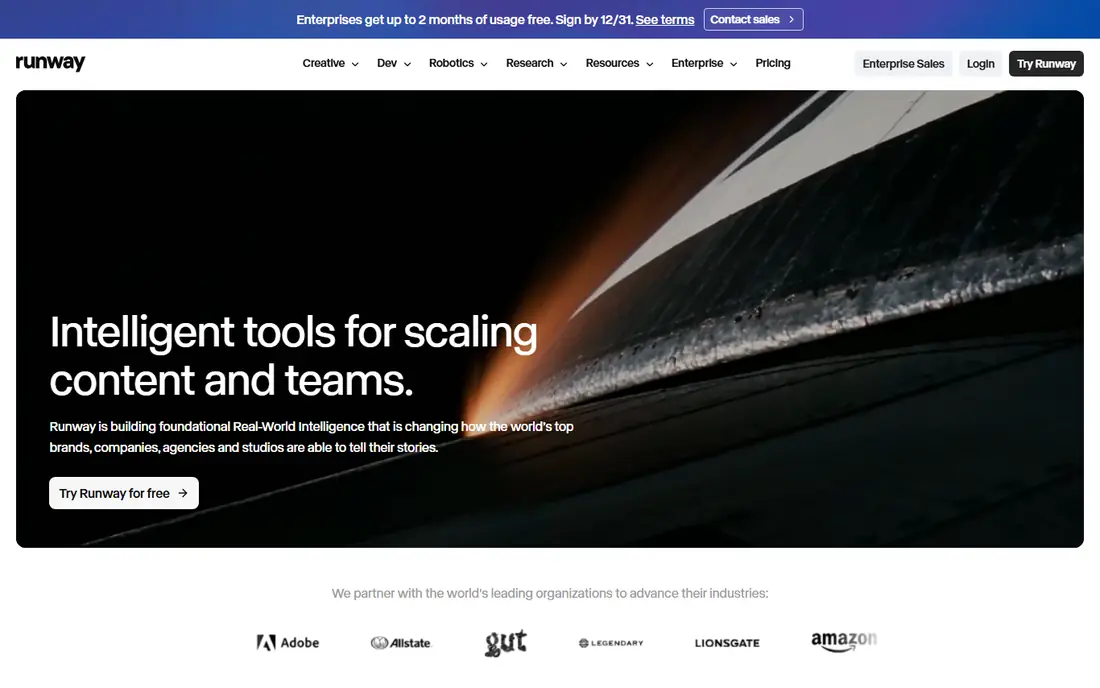
Runway suits creators who want to generate a shot and then finish it in the same app. Its Gen-4 model handles image-to-video with camera and motion prompts, and the surrounding tools let you extend, restyle, or clean up a clip without exporting to another editor. That workflow saves time when a clip needs more than one pass.
The catch is credit math. Credits are spent by model, length, and resolution, and published conversions differ, so test with the free 125 credits on a representative image before you pay. For a creator who only needs a few social clips, a cheaper tool may give more clips per dollar.
- Gen-4 video model with image-to-video
- Editing, extension, and restyle tools in one app
- 125 one-time free credits to test
- Credit use varies by model and resolution
- Standard plan costs $12 per month on annual billing, $15 monthly
- Learning curve for full editing suite
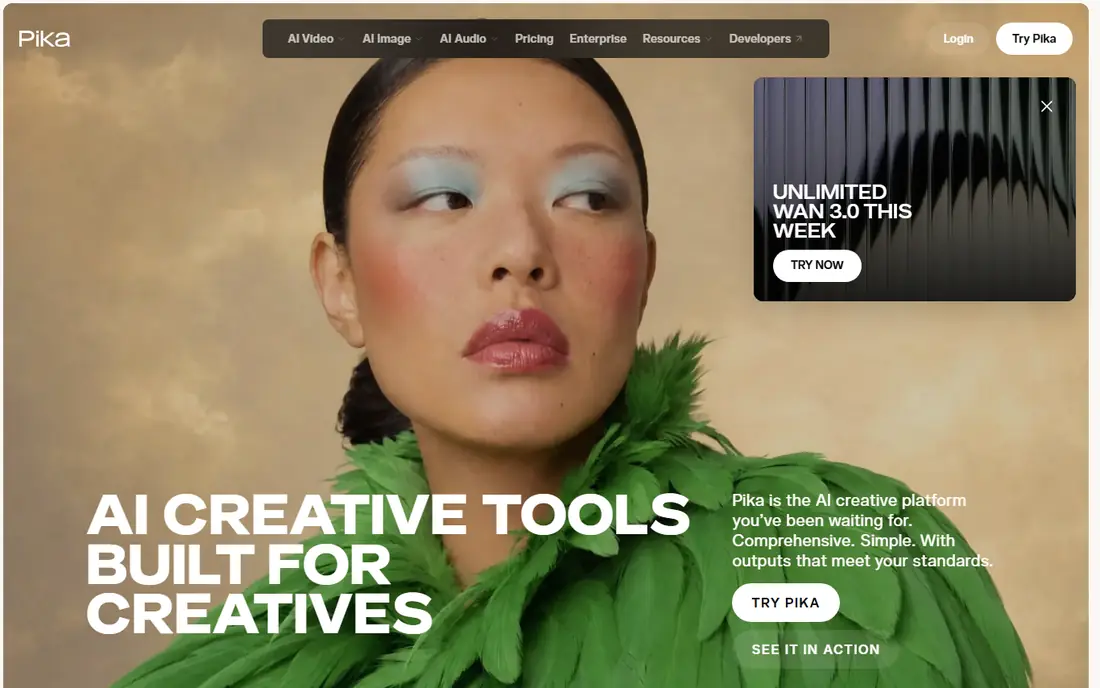
Pika suits social creators who want quick, effect-driven clips from a photo. The workflow is direct: upload an image, add a motion prompt, and generate a short clip. Effects and templates help when you need a trend-style result without writing a long prompt or learning an editor.
The limit is output quality and licensing. Free output carries a watermark, and the resolution ceiling sits at 1080p on many plans. For a monetized channel, check the paid tier license before you publish, and confirm that the plan you choose covers commercial use for your content type.
- Fast social clips with effects
- Free plan with watermarked output
- Simple prompt and image workflow
- 1080p ceiling on many plans
- Free output is watermarked
- Commercial license needs a paid tier
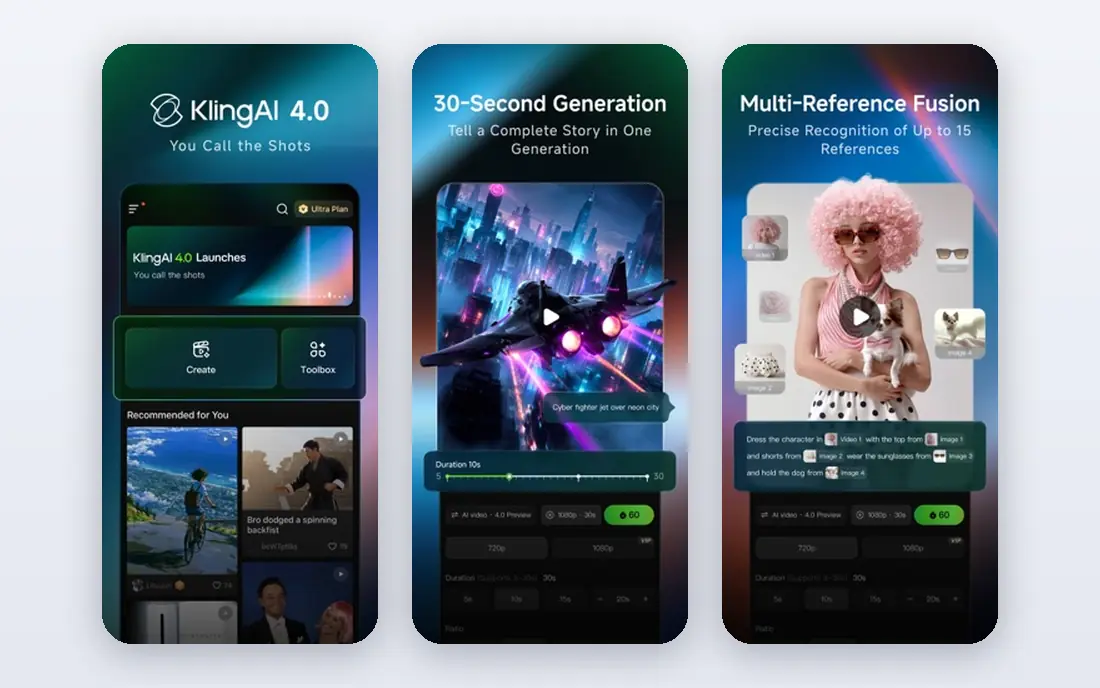
Kling AI suits creators who want longer, keyframed clips from images. Start and end frame controls help you plan a shot, rather than accepting whatever motion the model chooses. Daily free credits let you test prompts and images before you commit to a paid plan, which is useful when motion quality varies by image.
The drawback is pricing clarity. Entry prices and first-month promos change, and the top models sit on higher tiers. Check the current plan page at checkout, test the model you actually plan to use, and budget for retries, since a first generation rarely matches the prompt exactly.
- Image-to-video with start and end frames
- Longer clips than many rivals
- Daily free credits for testing
- Pricing and promos change often
- Higher models need higher tiers
- Credit use by resolution is not always clear upfront
Hailuo AI, from MiniMax, suits creators who want expressive character motion from a still image. Its models handle facial expression and body motion well for stylized and character-led clips, and some models add native audio. That makes it a good test when a product shot or a character image needs to feel alive.
The limit is trial scope. Trial credits are one-time, not a rolling free tier, so you need to plan your tests. Pricing also varies by promotion, so confirm the current plan before you buy. As with all tools here, only animate images you own or have permission to use, and never animate a real person without consent.
- MiniMax models with expressive motion
- Image-to-video with reference support
- Native audio on some models
- Trial credits are one-time only
- Pricing varies by promotion
- Output quality varies by prompt and image
Luma Dream Machine suits post-production work where motion quality and HDR delivery matter more than clip volume. Its Ray models produce smooth camera movement and natural motion from a still image, which helps when a clip must sit beside real footage in an edit. The interface is focused on generation, not on a broad editing suite.
The catch is cost and credits. There is no free individual plan listed, and the Plus plan at $30 per month gives 10,000 credits, with a 5-second 1080p clip using 400 credits. That works out to about 25 such clips before retries, so heavy testing will burn the allowance fast. Budget for retries from the start.
- Ray models with cinematic motion
- HDR delivery for post work
- High-quality camera movement
- No free individual plan on the pricing page
- Plus plan costs $30 per month
- A 5-second 1080p clip uses 400 credits
Adobe Firefly suits brand teams and agencies that already work in Adobe apps. Its own models are trained on licensed Adobe Stock and public-domain content, which gives teams more comfort on provenance than some rivals. Generated video can move into Photoshop or Express without leaving the Adobe workflow, which saves time on client work.
The limit is clip length and credits. Video clips are short, about 5 seconds on plan pages, and video generation spends generative credits, so a long sequence needs several clips and careful planning. Partner models in the same interface carry different terms, so check which model you used before you publish client work.
- Firefly video model with image-to-video
- Adobe models trained on licensed and public-domain content
- Fits Photoshop and Express workflows
- Clips are short, about 5 seconds on plan pages
- Video spends generative credits
- Partner model outputs carry different terms
PixVerse suits social creators who want to test heavily before paying. Daily free credits let you try prompts and images at no cost, and the paid Standard plan at $10 per month monthly, or $8 per month on annual billing, removes the watermark and allows commercial use. Audio and lip sync on some models help for talking-head and product clips.
The catch is licensing and resolution. Free output is watermarked and limited to non-commercial use, so it cannot go on a monetized channel. Standard caps at 720p, and 1080p needs the Pro tier. For a monetized channel, start at Standard or above and confirm the license for your content type.
- Daily free credits for testing
- Image-to-video with audio and lip sync on some models
- Fast social clip workflow
- Free output is watermarked and non-commercial
- Standard caps at 720p
- 1080p needs the Pro tier
Kaiber suits musicians, visual artists, and creators who want stylized animation from images and audio. Its Flipbook mode animates image sequences from prompts, its motion canvas controls camera movement, and audio reactivity syncs visuals to music. That combination makes it a natural pick for music videos and visualizers.
The trade-off is realism. Kaiber excels at dreamlike, artistic motion, not at literal, photorealistic movement. If you need a product shot to move exactly as a real camera would, Runway, Kling, or Luma will fit better. For a music visual or an artistic loop, Kaiber gives a distinct look that generic generators rarely match.
- Image and audio-driven video
- Flipbook and motion canvas controls
- Strong fit for music videos and visualizers
- Stylized look suits music and art more than realism
- Pricing needs checking at signup
- Output can feel dreamlike rather than literal
How we picked these
We compared official pricing pages, model features, image-to-video support, free tiers, and public reviews for tools that were live in October 2026. We favored tools with a clear image-to-video workflow, published pricing or a usable free tier, and a distinct strength, from editing to music visuals to brand safety. We did not claim hands-on testing, and we did not list Sora as a live consumer product. Only animate images you own or have permission to use, and never animate a real person without their consent.
What to check before you convert an image to video
Start with rights. You need to own the source image or have permission to use it, and you need consent from any real person in it before you animate them. That rule applies even for a short, private test, since generated video can spread fast once shared. If you do not have rights, use your own photo, artwork, or a properly licensed image.
Next, test motion on your actual image. Motion quality varies by image type, with clear subjects and simple backgrounds working better than crowded scenes. Run a short, low-resolution test first, check hands, faces, and text for distortion, and only then spend credits on a high-resolution version. A prompt that worked for one image may fail on another.
Finally, check the license for your use. Free tiers often limit output to non-commercial use and add a watermark, while paid tiers vary on commercial rights by model. If you plan to monetize a video, use a paid tier that clearly allows commercial use, and keep a record of the model and plan you used.
Prompting for better motion
Describe the subject, the motion, and the camera move in that order, and keep the prompt short. Name one main motion, such as a slow push-in or a head turn, rather than stacking several motions that fight each other. If the first result distorts, simplify the prompt and lower the motion strength before you try a new image.
When to use a different tool
Use Runway or Luma when a clip must fit a larger edit, Adobe Firefly when brand provenance matters, and PixVerse or Pika when you need many fast social clips. Use Kaiber when the goal is a stylized music visual, not realism. No single tool wins every job, so match the tool to the clip, not the other way round.
Frequently asked questions
Can I animate any photo with these tools?
No. Only animate images you own or have permission to use, and never animate a real person without their consent. That applies to photos of friends, celebrities, and strangers, even for a joke or a private test. Use your own images or properly licensed images instead.
Which image-to-video tool is best for beginners?
Pika and PixVerse are the easiest starting points, with simple upload-and-prompt workflows and free credits for testing. Runway gives more control but takes longer to learn. Start with a free tier, test your actual images, and move to a paid plan only when the output style fits your work.
How much does image-to-video conversion cost?
Costs vary by credits, not just by monthly price. Runway Standard costs $15 per month monthly, Adobe Firefly Standard costs $9.99 per month, PixVerse Standard costs $10 per month monthly, and Luma Plus costs $30 per month. Resolution, clip length, and retries change how many clips a plan actually yields, so test before you commit.
Can I use free-tier videos on a monetized channel?
In many cases, no. PixVerse free output is watermarked and limited to non-commercial use, and other free tiers carry similar limits. Check the license for the exact model and plan you used, and move to a paid tier that allows commercial use before you publish monetized content.
How long are AI image-to-video clips?
Most clips are short, often 5 to 10 seconds per generation, with some tools offering extensions to longer lengths. Adobe Firefly clips are about 5 seconds on plan pages, while Kling and Luma offer longer options depending on model and plan. Plan a longer video as a sequence of clips, not as a single generation.
Sources
See where you really rank - block by block
ProMapRanker scans Google Maps across a grid of your service area. Simple monthly plans from $19, white-label on every plan.
Start freeKeep reading
 zscaler alternatives
Best Zscaler Alternatives in 2026
Looking for zscaler alternatives? We compare 9 SASE and zero trust platforms on architecture, data protection, pricing, and fit for your network and team.
Read → zapier alternatives free
Best Zapier Alternatives Free in 2026
Nine automation tools for zapier alternatives free in 2026, all with genuinely free tiers, plus free plan limits, starting prices and upgrade paths explained.
Read → which platform is best for online reputation
Which Platform Is Best for Online Reputation in 2026
Wondering which platform is best for online reputation? We compare 8 review, listing, and response tools for small and multi-location businesses and agencies.
Read →