 ProMapRanker
Best Color Grading Software in 2026


Serious colour grading at any budget · Pricing starts at: Free
Key takeaways
- DaVinci Resolve remains the strongest value for grading, with a capable free version and a one-time Studio licence.
- Editors already in Adobe or Apple workflows may prefer Lumetri or Final Cut colour tools over learning a new grading app.
- Dedicated grading systems suit finishing work, while plugins suit editors who grade inside an existing timeline.
- Monitor calibration, colour managed workflows and export settings matter as much as the grading tool itself.
Quick comparison
| Pick | Great for | Pricing starts at | Free tier | |
|---|---|---|---|---|
| DaVinci Resolve | Serious colour grading at any budget | Free | Yes | Visit |
 Adobe Premiere Pro | Editors already using Adobe tools | $22.99 per month | Free trial | Visit |
 Final Cut Pro | Mac editors wanting fast grading | $299.99 one-time | Free trial | Visit |
 FilmConvert Nitrate | Film looks inside an existing editor | See website | Free trial | Visit |
 Magic Bullet Suite | Looks and finishing inside Adobe tools | See website | Free trial | Visit |
 Baselight | High end film and TV finishing | See website | No | Visit |
 Assimilate Scratch | Finishing, conform and dailies | See website | Free trial | Visit |
 Color Finale | Deeper colour tools in Final Cut Pro | See website | Free trial | Visit |
 3D LUT Creator | Custom LUT creation and colour shaping | See website | Free trial | Visit |
The best color grading software
These tools range from full grading systems to plugins that add colour power inside an editor. Pick by workflow first, then by price and platform.
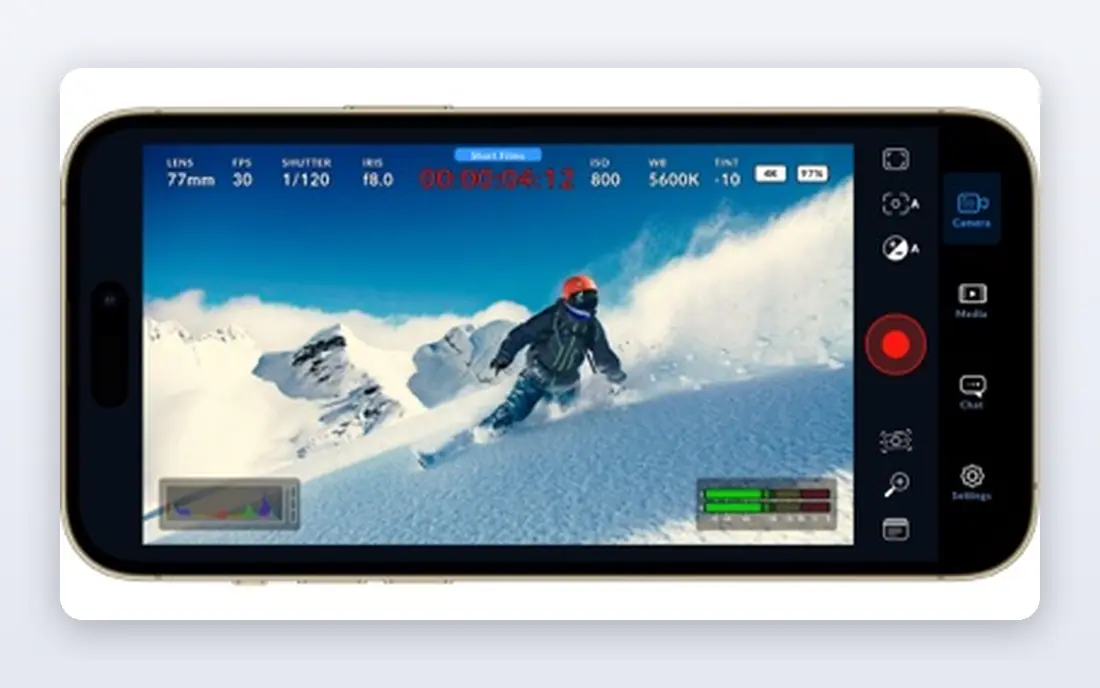
DaVinci Resolve is the default answer for colour grading, because its free version already includes a full colour page with primary and secondary tools, scopes, tracking and node based workflows. Editors can grade, edit, add effects and mix audio in one app, which removes the round trip between tools for many projects. Studio, at $295 as a one-time purchase, adds higher resolution support, HDR grading tools, noise reduction and multi-user collaboration. The honest catches are hardware and learning. Resolve rewards a capable GPU and a calibrated monitor, and node based grading takes practice for editors used to simple colour wheels. That effort pays off for film, commercial and YouTube work where consistent colour matters. For most graders, Resolve offers the deepest tools for the lowest entry cost on this list.
- Full colour page with scopes and nodes
- Free version covers most grading work
- Studio is a one-time purchase
- Demanding on older hardware
- Learning curve for node based grading
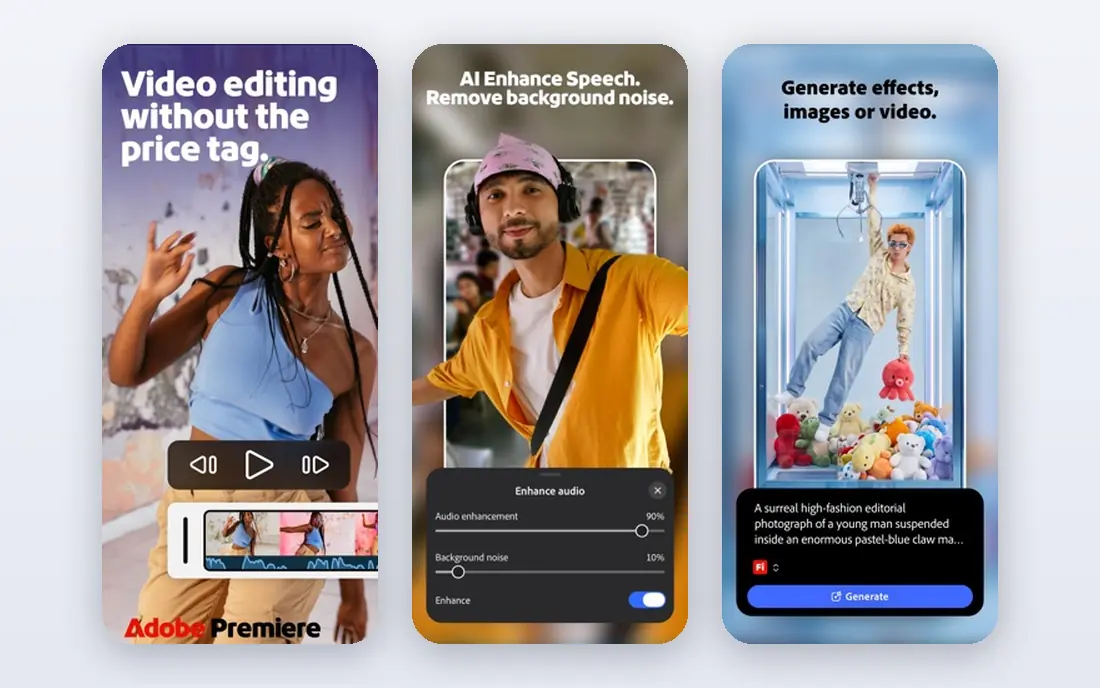
Premiere Pro suits editors who already live in Adobe Creative Cloud and want colour tools inside the edit, not in a separate app. The Lumetri panel covers basic correction, creative looks, curves, wheels and LUTs, with scopes for checking exposure and colour. Dynamic Link to After Effects and Audition helps with titles, effects and audio cleanup without leaving the Adobe workflow. Pricing starts at $22.99 per month for Premiere Pro alone on an annual plan, with a trial available. The limit is finishing depth. Lumetri is strong for YouTube, corporate and social work, but a dedicated grading session for film or broadcast will usually move to Resolve or Baselight. Subscription cost also adds up over years, so editors who only need colour occasionally should weigh that against a one-time purchase elsewhere. For Adobe centred teams, though, Lumetri keeps grading close to the edit.
- Lumetri colour panel inside the timeline
- Broad format support
- Integration with After Effects and Audition
- Subscription only
- Colour depth is below Resolve for finishing work
Final Cut Pro gives Mac editors a fast, one-time purchase route to colour work inside a familiar timeline. Colour wheels, curves, hue and saturation curves, scopes and LUT support cover most correction and creative grading for YouTube, corporate and short form work. Performance on Apple silicon is a real strength, with smooth playback that helps grading decisions stay in flow. The Mac licence costs $299.99 as a one-time purchase, with a trial available. The trade is platform and depth. Final Cut Pro runs only on Mac, so Windows teams cannot use it, and its colour tools do not match Resolve for complex node work, HDR finishing or tracked secondary grades. Editors who grade occasionally and value speed will be happy here, while finishing artists should still shortlist Resolve. For a Mac only creator, Final Cut is a clean, fast choice.
- Fast on Apple hardware
- Colour wheels, curves and LUT support
- One-time Mac licence
- Mac only
- Colour tools are less deep than Resolve for finishing
FilmConvert Nitrate is a plugin for editors who want a film look without leaving Premiere Pro, Final Cut Pro, Resolve or other supported hosts. It uses camera profiles to match footage from common cameras, then adds colour and grain controls that give a filmic starting point for creative grades. That workflow suits YouTube creators, wedding filmmakers and corporate editors who need consistent, attractive colour quickly. A trial lets users test profiles on their own camera footage. The limit is scope. FilmConvert is a look tool, not a full grading and finishing system, so complex secondary work, tracking and HDR finishing still need a host grading tool. Pricing also varies by host app and bundle, so check the version that matches your editor. Used as a starting look inside a solid grade, FilmConvert can save time and add character.
- Camera profiles for a filmic starting point
- Grain and colour controls
- Works as a plugin for major editors
- Pricing is per host app
- Look based grading is not a full finishing system
Magic Bullet Suite, from Maxon, bundles colour and finishing plugins that many Adobe editors know well, including tools for looks, colour correction, denoising and cosmetic cleanup. Presets give a fast starting point for creative grades, while manual controls let editors shape the look further. Integration with Premiere Pro and After Effects keeps the work inside the edit, which helps teams on tight deadlines. A trial is available, with pricing through Maxon plans. The honest catch is restraint and cost. Presets can push skin tones and contrast too far if applied without checking scopes, and bundle pricing may exceed what an occasional grader needs. Magic Bullet works best as a finishing aid inside a careful grade, not as a replacement for correction and exposure work. Editors who grade daily in Adobe tools will get the most value from the suite.
- Broad set of colour and finishing plugins
- Strong presets for fast looks
- Works in Premiere and After Effects
- Subscription or bundle pricing
- Presets can tempt overuse on client work
Baselight, from FilmLight, is a high end grading system used in film and television finishing, where colour accuracy, HDR handling and controlled workflows matter most. It offers deep colour management, precise grading tools and integration with post production pipelines, including dailies, conform and delivery. For a finishing suite or post house, Baselight provides the control and consistency that client work demands. Pricing is quote based, reflecting its professional market. The limit is access. Baselight is not a casual creator tool, and it needs a calibrated monitor, controlled viewing room and trained colourist to show its value. Independent creators will find Resolve far more practical. For high end finishing, though, Baselight remains a benchmark, and its presence in a facility signals a serious colour pipeline.
- Industry standard finishing depth
- Colour management and HDR tools
- Trusted in post houses
- Quote based pricing
- Needs training and a controlled grading environment
Assimilate Scratch combines grading with conform, dailies and finishing tools, which suits post houses that need to move footage from camera to final delivery in one system. It supports a wide range of camera formats, offers colour tools for correction and creative work, and focuses on real time playback for client sessions. That breadth helps facilities that handle dailies, review and final grades without switching apps for each step. A trial is available, with full pricing quoted. The trade is community and cost. Scratch has a smaller user base than Resolve, so tutorials and hiring experience are less common, and pricing requires a quote. Independent editors will usually prefer Resolve for value and support. For a facility that needs conform and dailies beside grading, Scratch offers a capable integrated route.
- Grading plus conform and dailies in one system
- Strong format support
- Real time playback focus
- Quote based pricing for full versions
- Smaller user community than Resolve
Color Finale adds deeper colour tools to Final Cut Pro, including layered grading, masks, tracking and vector based controls that go beyond the built-in colour board. For a Final Cut editor who wants Resolve style layering without leaving the timeline, that extension is valuable. It supports LUT workflows and colour management features that help with consistent client work, and it keeps grading, editing and delivery in one app. The limit is platform. Color Finale runs only with Final Cut Pro on Mac, so it cannot help Windows or Premiere editors. Buyers should also confirm version compatibility with their Final Cut release and check current pricing, since plugin pricing can change. For a committed Final Cut grader, Color Finale closes much of the gap to a dedicated grading app.
- Adds layers, masks and tracking to Final Cut
- LUT and vector tools
- Keeps work inside Final Cut
- Mac and Final Cut only
- Pricing and version fit should be checked before buying
3D LUT Creator is a specialised tool for building custom lookup tables that can then be used in editors and grading systems. It lets colourists shape colour with grids, curves and matching tools, test looks on stills or video, and export LUTs for consistent use across projects and cameras. That control suits creators who need a signature look, camera matching or a repeatable client style. A trial is available, with pricing on the vendor site. The honest catch is specialisation. 3D LUT Creator does not edit video or replace a grading timeline, so it works best beside Resolve, Premiere or Final Cut. Colour theory knowledge also matters, since powerful grid tools can push skin tones off quickly if used without scopes. For a grader who wants custom, repeatable looks, it is a precise and useful addition.
- Precise LUT creation from stills or video
- Colour grid controls
- Useful for matching cameras
- Specialised tool, not a full editor
- Learning curve for colour theory
How we picked these
We compared official product pages, pricing pages and public documentation for colour grading tools that exist and work in October 2026. We favoured tools with real colour correction and creative grading features, from full systems to plugins that add genuine value inside an editor. Platform, pricing clarity and workflow fit weighed heavily, since a grading tool that does not fit your editor slows every project. We did not claim hands-on testing that did not happen. Our findings come from vendor pages and published plan details, and quote based prices should be confirmed before purchase. Monitor calibration and colour managed settings affect results as much as software choice, so test any tool with your own footage and delivery format.
Choosing the right grading setup for your work
Start with your delivery goal. A YouTube creator needs consistent, attractive colour and fast turnaround, while a film finisher needs HDR control, colour management and client review tools. That goal decides whether a plugin inside your editor is enough, or whether a dedicated system such as Resolve or Baselight is worth learning. Do not buy finishing depth for social work, and do not expect a look plugin to carry a film grade alone. Next, fix the viewing environment. Calibrate your monitor, use scopes to check exposure and colour, and test exports on the screens your audience will use. A grade that looks good on an uncalibrated laptop may shift badly on a TV or phone. Colour management settings, such as working colour space and output format, should be set before grading starts, not after a project is finished. Finally, build a repeatable workflow. Save base corrections, camera matching steps and creative looks as presets or LUTs, and keep notes on what each project used. That habit speeds future work and keeps client series consistent. Test LUTs on skin tones and varied lighting before applying them widely, since a look that suits one scene can harm another.
Frequently asked questions
What is the best free color grading software?
DaVinci Resolve is the strongest free option for most users, with a full colour page, scopes and node based grading at no cost. The free version covers most correction and creative work, while Studio adds HDR tools, noise reduction and higher resolution support. For a beginner, Resolve free offers more grading depth than any other free tool here.
Do I need a dedicated grading app, or is my editor enough?
It depends on the work. Premiere Pro Lumetri and Final Cut colour tools cover YouTube, corporate and social grading well inside the edit. Dedicated apps such as Resolve or Baselight suit film, commercial and HDR finishing, where secondary grades, tracking and colour management matter more. Start in your editor, and move to a dedicated app when its limits slow you down.
What hardware do I need for color grading?
A capable GPU, enough memory and a calibrated monitor matter most, with Resolve being the most demanding tool here. A fast drive for footage also helps playback stay smooth during grading. You do not need a post house suite for YouTube work, but a calibrated display and scopes will improve results more than a new plugin.
Are LUTs a shortcut to good colour?
LUTs can give a consistent starting look, but they do not replace correction. Exposure, white balance and contrast should be fixed first, then a LUT can shape the creative look. Test any LUT on skin tones and varied scenes, and adjust strength rather than applying it at full power by default.
How do I keep colour consistent across a series?
Use a fixed workflow: same working colour space, same base correction steps, same monitor calibration and saved presets or LUTs for recurring looks. Check scopes on every episode, and review exports on a second screen. Consistency comes from process, not from a single tool setting.
Sources
See where you really rank - block by block
ProMapRanker scans Google Maps across a grid of your service area. Simple monthly plans from $19, white-label on every plan.
Start freeKeep reading
 what’s the best risk software for enterprises
What Is the Best Risk Software for Enterprises in 2026
We compared what’s the best risk software for enterprises on risk registers, controls, third-party risk, and reporting, with pricing notes for large teams.
Read → what's the best pam software for enterprises
What is the Best PAM Software for Enterprises in 2026
Find what's the best pam software for enterprises, with vaulting, session recording, just in time access and pricing compared for large enterprise IT teams.
Read → what’s the best grc software
What Is the Best GRC Software in 2026
We compared what’s the best grc software on risk, compliance, audit and vendor risk, so teams can pick a platform that fits their frameworks and budget.
Read →