 ProMapRanker
Best Collaboration Tools for Remote Teams in 2026

Key takeaways
- Most remote teams need three layers covered: chat, shared documents, and task tracking, and no single tool does all three equally well.
- Slack is our pick for chat-led teams, while Microsoft Teams makes more sense when a team already pays for Microsoft 365.
- Free plans from Slack, Notion, Trello, and Miro are usable for small teams, but message history and permission limits push larger teams to paid plans.
- Pick the tool your team will open every day, not the one with the longest feature list, and check per-user pricing at your real headcount before you commit.
Quick comparison
| Pick | Great for | Pricing starts at | Free tier | |
|---|---|---|---|---|
 Slack | day to day team chat | $7.25 per user per month | Yes | Visit |
 Microsoft Teams | teams already using Microsoft 365 | $4 per user per month | Yes | Visit |
 Zoom Workplace | video meetings and team chat | See website | Yes | Visit |
 Google Workspace | docs, email, and video in one bundle | $7 per user per month | No | Visit |
 Asana | structured project tracking | $10.99 per user per month | Yes | Visit |
 Notion | team wikis and shared docs | $10 per user per month | Yes | Visit |
 ClickUp | all in one work management | $7 per user per month | Yes | Visit |
 Miro | visual brainstorming and workshops | $8 per user per month | Yes | Visit |
 Trello | simple visual task boards | $6 per user per month | Yes | Visit |
The best collaboration tools for remote teams
Remote work falls apart when chat, files, and tasks live in different places and nobody knows which one is current. These nine tools cover that ground in different ways, from pure chat to full project workspaces.
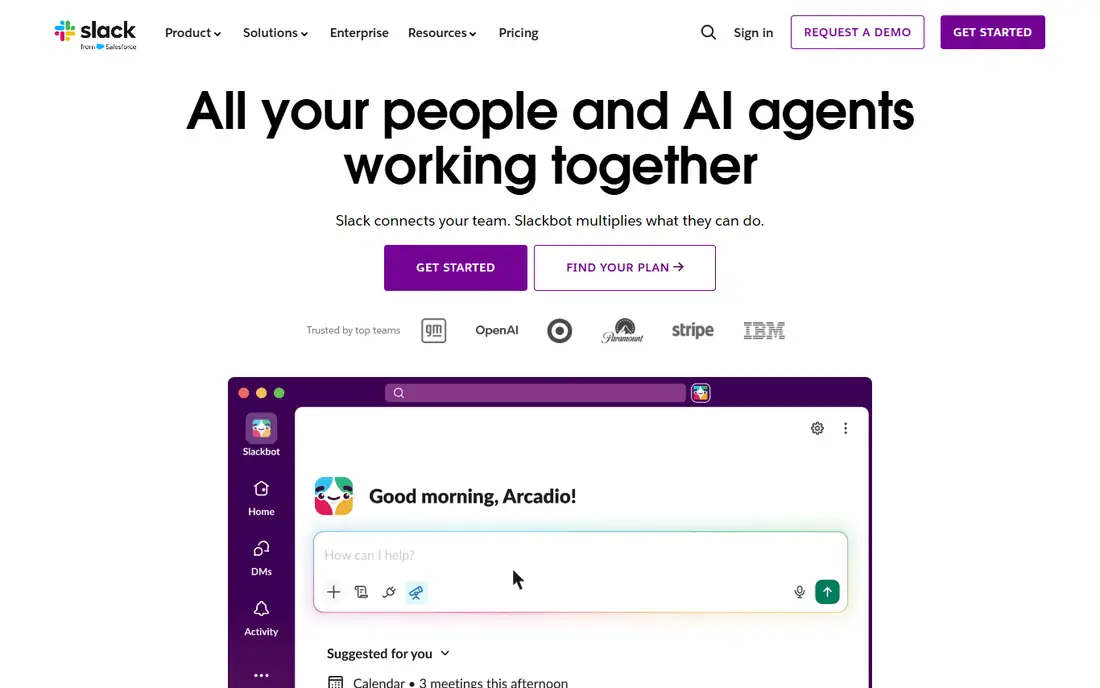
Slack remains the default chat tool for many remote teams because it is built around channels, threads, and search. A team can keep client work, internal discussion, and social chat apart, and threads stop a busy channel from turning into a wall of unrelated replies. Integrations with tools such as Google Drive, Asana, and Zoom mean a lot of work can be started or checked without leaving chat.
The honest catch is cost and history. The free plan hides messages older than 90 days, which hurts teams that rely on old decisions and links. Paid plans remove that limit and add more integrations and controls, but the per-user price climbs quickly for a team of 30 or more. Slack fits best when chat is the centre of the workday and the team values speed over having every other tool built in.
- Channels keep topics separate
- Large integration directory
- Huddles for quick voice chats
- Free plan limits searchable history to 90 days
- Costs add up per user as teams grow
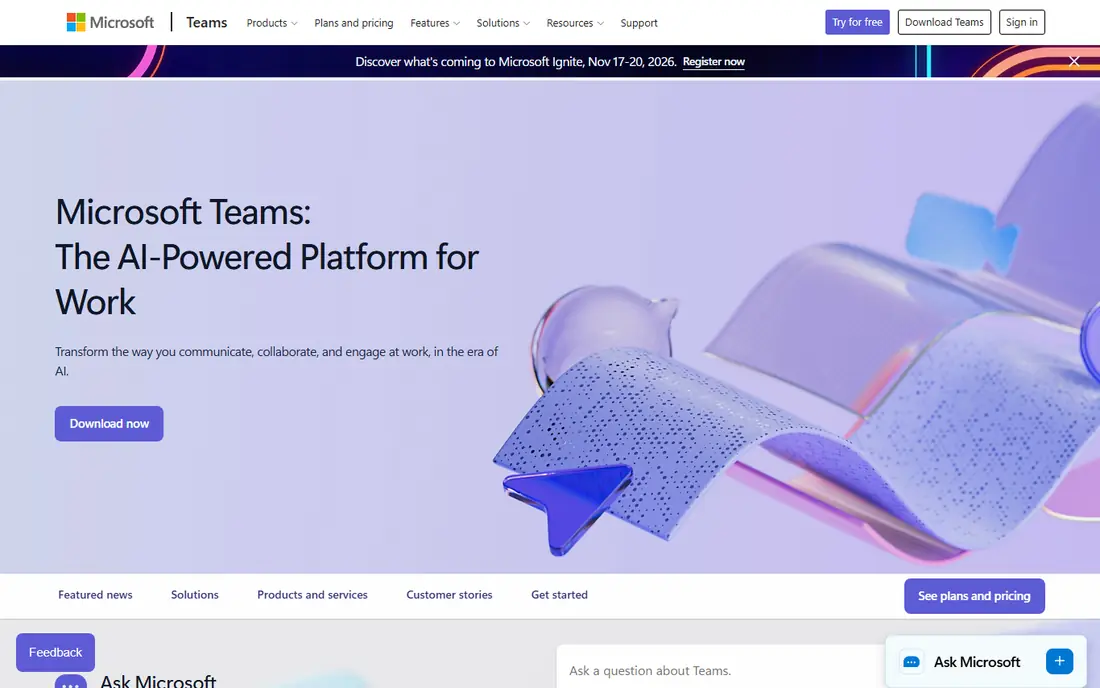
Microsoft Teams suits remote teams that already live in Microsoft documents and email. Chat, video meetings, and files sit in the same app, and co-authoring a Word or Excel file during a call is straightforward. For a company that already pays for Microsoft 365 Business plans, Teams is often included, which makes the marginal cost very low compared with buying a separate chat tool.
The trade-off is focus. Teams tries to do a lot, so finding a file or a thread can take more clicks than in a chat-first tool. Smaller teams that do not use Microsoft Office may find it heavier than they need. If your documents, calendar, and identity already run on Microsoft, though, Teams is the practical choice and it avoids paying for two overlapping systems.
- Meetings, chat, and file editing in one place
- Strong fit with Word, Excel, and SharePoint
- Free plan available
- Interface can feel crowded
- Best value depends on already paying for Microsoft 365
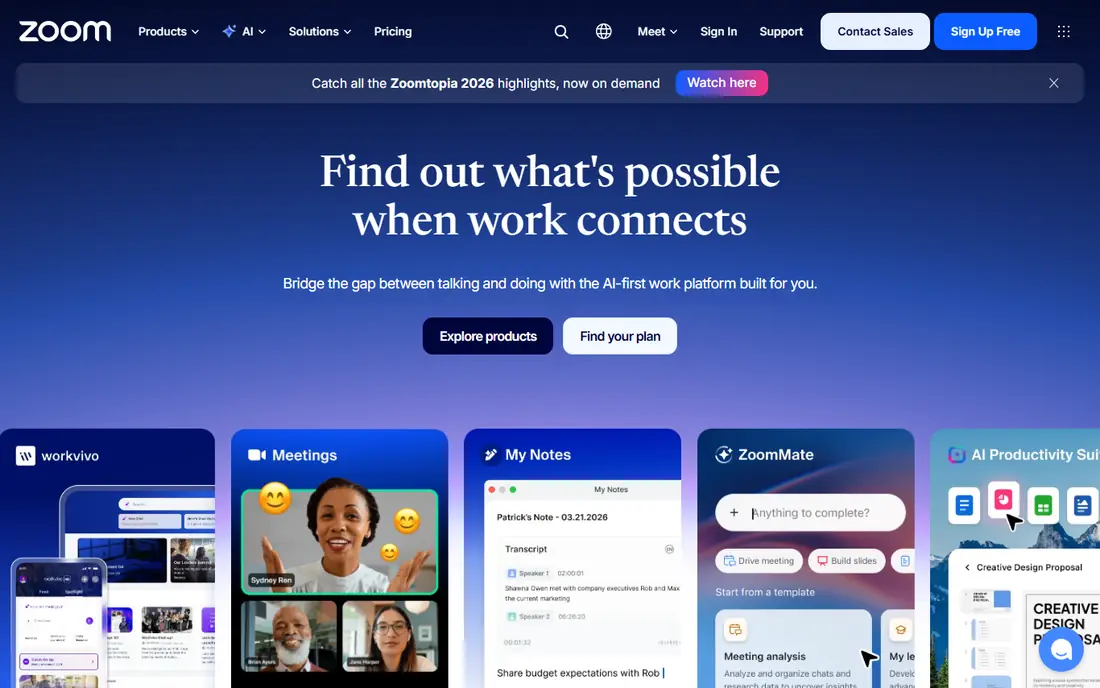
Zoom Workplace is best known for video, and for remote teams that meet often that reliability matters more than a long feature list. Meetings start quickly, screen sharing and breakout rooms work as expected, and the built-in team chat and whiteboard reduce the need for a separate tool for follow-up discussion. It also connects with calendars and many common work apps.
The limit to watch is the free plan, which caps group meetings in length, so a team that meets daily will need a paid plan. Zoom is also a meeting-first product, so it does not replace a task tracker or a wiki on its own. Pair it with a tool such as Asana or Notion if your team needs structured project tracking alongside calls.
- Dependable video quality
- Team chat, whiteboard, and meetings in one app
- Wide meeting capacity on paid plans
- Free meetings have a time limit for groups
- Pricing varies by plan and add-ons, so check the current page
Google Workspace gives a remote team email, calendar, storage, documents, and video meetings under one account. Real time editing in Docs and Sheets is its clear strength, since several people can work on the same file and see changes as they happen. Meet handles video calls without a separate licence, and Drive keeps files in one searchable place.
The catch is that there is no free business tier, so even a tiny team pays per user from the start. Teams that depend on advanced Excel features or desktop Office files should test compatibility before moving everything over. For cloud-first teams that write, plan, and meet in a browser, Workspace is a clean, low-friction bundle.
- Docs, Sheets, Drive, Gmail, and Meet included
- Real time co-editing
- Simple admin for small teams
- No free business plan
- Desktop Office compatibility can need checking for complex files
Asana fits remote teams that need to know who owns what and when it is due, across many projects at once. Tasks can be viewed as lists, boards, timelines, or calendars, and portfolios give managers a view across teams without chasing status updates in chat. Dependencies and milestones help when one piece of work cannot start until another finishes.
The downside is that Asana works best when the team actually updates it, and that habit takes time to build. The free plan covers personal use and very small setups, while timelines and portfolios sit on paid plans. If your work is mostly chat and documents, Asana may be more structure than you need, but for delivery-heavy teams it is a strong pick.
- Timelines, boards, and portfolios for larger work
- Clear task ownership
- Useful automations on paid plans
- Free plan is limited to small personal use
- Can feel formal for very small teams
Notion is the wiki and docs tool in this list, and it shines when a remote team needs one place for handbooks, meeting notes, project pages, and databases. Pages can hold text, tables, checklists, and embedded files, and templates speed up common pages such as onboarding guides and weekly updates. The free plan is generous for personal use and small trials.
The risk is sprawl. Because anyone can create pages and databases, a workspace can grow into a maze unless someone owns the structure and archives old pages. Paid plans add the permissions and controls larger teams need. Notion pairs well with Slack or Teams for chat, since it handles the written record that chat alone cannot.
- Flexible pages, databases, and wikis
- Good templates
- Free plan for individuals
- Can become messy without clear ownership
- Advanced permissions need paid plans
ClickUp aims to replace several tools at once by combining tasks, documents, goals, time tracking, and chat in a single workspace. Remote teams that want one login for most daily work will like the range of views, from boards and lists to calendars and Gantt charts. The free plan lets a team test the core task features before paying.
That breadth is also the weakness. New users can feel lost among the options, and a team should agree on which views and fields it will actually use before rolling it out widely. If you want a single hub and are willing to spend a week setting it up properly, ClickUp offers good value for the price.
- Tasks, docs, goals, and chat in one workspace
- Many views
- Free plan available
- Wide feature set can feel busy at first
- Setup takes time to get right
Miro gives remote teams a shared canvas for brainstorming, mapping, planning, and workshops. Sticky notes, diagrams, and templates let a group work on the same board at the same time, which is close to the feel of a physical whiteboard session. It integrates with Slack, Teams, and project tools, so a workshop output can be linked to follow-up tasks.
Miro does not replace a task manager, and a board with hundreds of notes can become hard to read unless someone organises it. The free plan covers a single workspace and is enough to run a few workshops, while paid plans add more boards and controls. It is a strong second tool for teams that plan visually, rather than a standalone system.
- Shared whiteboard for workshops and planning
- Many templates
- Works well in live meetings
- Not a task tracker on its own
- Larger boards need care to stay readable
Trello is the simplest tool here, and that is its appeal. Boards, lists, and cards make work visible at a glance, and a new team member can understand a board in minutes. Power-ups and automations add calendars, custom fields, and simple rules without turning Trello into a heavy system. The free plan is enough for personal boards and small team work.
The limit appears when work gets complex. Reporting, timelines, and cross-board views are thinner than in Asana or ClickUp, and a team running many projects may need to split work across many boards. For small remote teams that want clarity over control, Trello is an easy, low-cost start.
- Easy boards, lists, and cards
- Quick to learn
- Free plan for individuals and small teams
- Limited reporting on lower plans
- Large projects can outgrow boards
How we picked these
We compared official feature pages, pricing pages, and app store listings for tools that remote teams actually use for chat, meetings, documents, and task tracking in October 2026. We favoured tools with a current free plan or trial, clear published pricing, and a distinct job in the stack, rather than listing every tool with a chat feature. Where pricing varied by billing term, we used the annual figure shown in recent pricing guides and marked unclear cases as See website.
What to check before you pay
Start with the work your team does most. If most days are spent in chat and quick calls, pick a chat tool first and add a docs tool second. If deadlines and handoffs matter more, pick a task tool first and keep chat simple. Count the real users who need a paid seat, since per-user pricing is where the bill grows, and check whether a tool is already included in a bundle you pay for, such as Microsoft 365 or Google Workspace.
Trial tips that save money
Run a two-week trial with one real project, not a demo board. Put meeting notes, decisions, and tasks in the trial tool only, and see whether people return to it without prompting. Check mobile apps too, since remote team members often work from phones. At the end of the trial, look at message history limits, guest access, storage, and admin controls, because those are the limits that force an upgrade later.
Frequently asked questions
What is the best collaboration tool for a small remote team?
For a small team, Slack for chat plus Notion for docs, or Google Workspace for the full bundle, covers most needs at low cost. Trello can handle task tracking until work gets complex enough to need Asana or ClickUp. Start with free plans and upgrade only when a limit, such as history or permissions, actually blocks work.
Do remote teams need both Slack and Microsoft Teams?
No, most teams should pick one chat tool. Running both splits conversation and makes search harder, since people never know where a decision was made. Choose the one that fits the documents and email your team already uses, and keep the other only for external guests who require it.
Is there a free collaboration tool that covers everything?
No single free tool covers chat, docs, video, and project tracking well. Free plans from Slack, Notion, Trello, and Miro can be combined, but that adds switching between apps. A paid bundle such as Google Workspace or Microsoft 365 is often cheaper in time than stitching four free tools together.
What is the best virtual team collaboration software for meetings?
Zoom Workplace and Microsoft Teams are the strongest meeting-first options in this list, with dependable video, screen sharing, and recording on paid plans. Google Meet, included in Google Workspace, is a good option for teams already using Google tools. Pick based on meeting size, recording needs, and the calendar your team uses.
How much should a remote team budget per person?
Budget roughly 7 to 15 dollars per user per month for a core chat or task tool on annual billing, plus a similar amount if you also pay for a document bundle. Teams that buy chat, docs, and project tools separately can easily reach 25 to 30 dollars per user per month, so check for bundles before adding a third tool.
Sources
See where you really rank - block by block
ProMapRanker scans Google Maps across a grid of your service area. Simple monthly plans from $19, white-label on every plan.
Start freeKeep reading
 best employee onboarding software
Best Employee Onboarding Software in 2026
We compared the best employee onboarding software in 2026 for new employees, from simple HR tools to global platforms, to help you pick by team size today.
Read → best ecommerce platform for small business
Best Ecommerce Platform for Small Business in 2026
We compared the best ecommerce platform for small business options on price, selling features, fees, and ease of use, so you can launch a store that grows.
Read → best crm software for startups
Best CRM Software for Startups in 2026
We compared the best crm software for startups on price, free plans, and setup time, so founders can choose a simple tool that grows with their growing team.
Read →