 ProMapRanker
Best Cloud Based Backup Service in 2026


Unlimited backup for one computer · Pricing starts at: $9 per month
Key takeaways
- Backblaze is the simplest unlimited option for one computer, while IDrive suits households with many devices on one pooled plan.
- Backup is not the same as sync, since a synced file that is deleted or encrypted can disappear everywhere unless version history saves it.
- Private encryption keys add privacy but mean the provider cannot restore your files if you lose the key, so store that key safely.
- Test a restore before you need one, since a backup you have never restored is only a promise, not a proven safety net.
Quick comparison
| Pick | Great for | Pricing starts at | Free tier | |
|---|---|---|---|---|
| Backblaze | Unlimited backup for one computer | $9 per month | No | Visit |
 IDrive | Many devices on one plan | $11.99 per month | Yes | Visit |
 Carbonite | Set and forget home backup | $6 per month | No | Visit |
 Acronis Cyber Protect | Backup plus security tools | $49.99 per year | Free trial | Visit |
 CrashPlan | Small business endpoints | $10 per month | Free trial | Visit |
 pCloud | Storage with lifetime option | See website | Yes | Visit |
 SpiderOak One | Privacy focused backup | See website | Free trial | Visit |
 Zoolz | Cold storage for large archives | $2.99 per month | Free trial | Visit |
 Tresorit | Encrypted storage for sensitive files | $10.42 per month | Free trial | Visit |
The best cloud based backup services
We compared these services on storage model, device coverage, encryption, version history and restore options. The best pick depends on how many computers you back up, how much data you hold and how private that data needs to be. All of these services were live in October 2026.
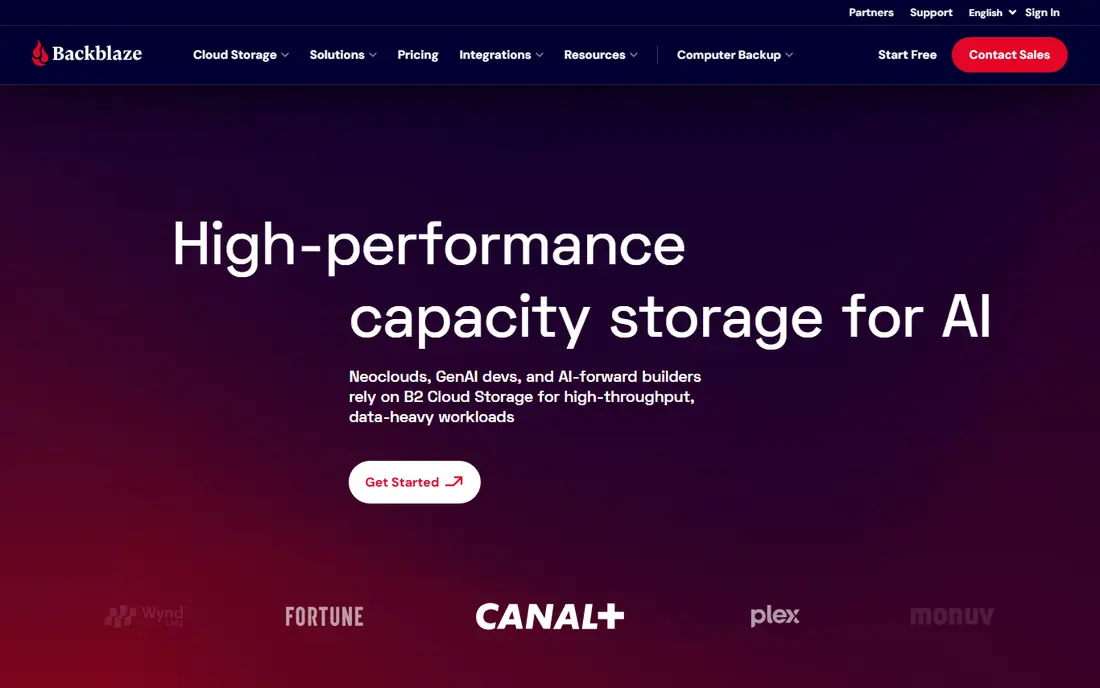
Backblaze is the easiest recommendation for a person with one main computer and a large photo or document library. You install the app, it backs up continuously, and you do not have to choose folders or watch a storage meter. That simplicity is why many people actually keep it running, which matters more than a long feature list.
The limit is the per computer model. A household with three computers pays three times, while a pooled plan such as IDrive may cost less in total. Backblaze also keeps deleted files for a limited period on lower plans, so check version history terms if you often delete and later recover files.
- Unlimited storage for one computer
- Simple setup with continuous backup
- Restore by download or mailed drive
- Priced per computer, so several machines add up
- External drive backup needs care in setup
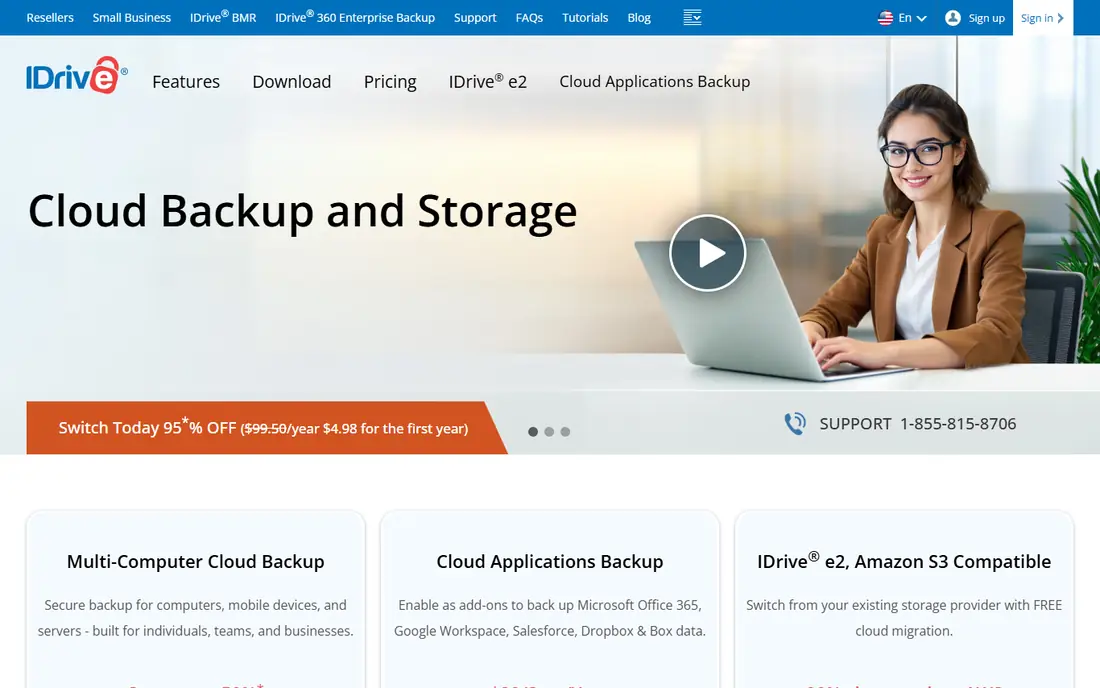
IDrive suits a household or a small team with several devices. One plan pools storage across computers, phones, tablets and network drives, so you do not buy a separate plan for each machine. Mobile backup, web management and a free 10GB plan for testing make it easy to try before you commit to a paid tier.
The trade off is the cap. If your photo library alone is several terabytes, an unlimited plan may fit better. For most households under the plan limit, IDrive gives the best device coverage for the price, and the optional private key adds a privacy layer for sensitive files.
- One pooled plan covers many computers and phones
- 10GB free plan for testing
- Physical seed and restore drive options
- Storage is capped, unlike unlimited rivals
- Interface feels busy compared with Backblaze
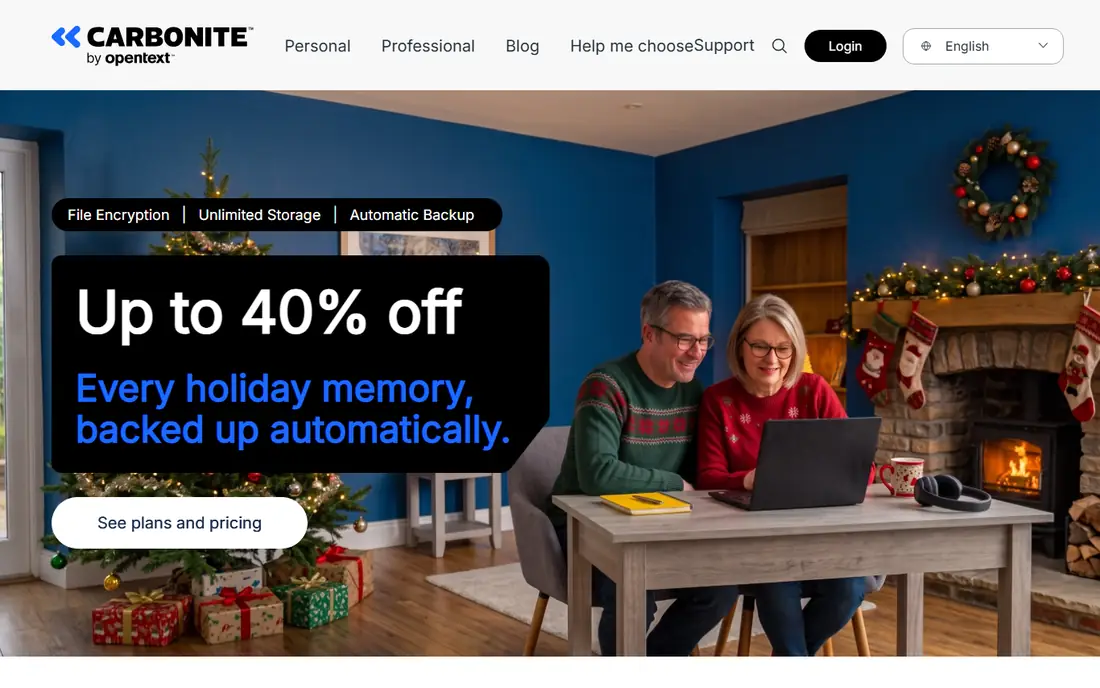
Carbonite has been a home backup staple for years, and its appeal is still simplicity. Install it, let it run, and it backs up your files in the background. Unlimited storage on home plans removes the meter anxiety that comes with capped plans, and private encryption is available for users who want it.
The honest catch is platform detail. Some features, such as private key handling and older version recovery, work differently on Windows and Mac, so check the plan page for your system. Backup speed can also feel slow on a first upload, which is normal for a large library, but plan that first backup overnight.
- Unlimited storage on home plans
- Automatic backup with little setup
- External drive backup on some plans
- Some advanced features are Windows only
- Large video files can need manual handling
Acronis Cyber Protect is for users who want backup and endpoint protection in one agent. It can image a full disk, back up to cloud and local storage, and add anti malware and ransomware defences that watch for encryption attacks. For a small business or a power user, that combination reduces the number of tools to manage.
Complexity is the price. Acronis has more settings than Backblaze or Carbonite, and the tier names can confuse a first time buyer. If you only need file backup, a simpler service will be easier. If you want one tool for backup plus security, Acronis is a strong, if heavier, choice.
- Backup combined with anti malware and ransomware protection
- Full disk image backup
- Cloud and local backup in one tool
- More complex than a pure backup app
- Higher tiers add cost for security features
CrashPlan, now focused on small business and enterprise endpoints, offers unlimited storage per user with continuous backup across Windows, Mac and Linux. Admin controls, retention settings and restore options suit a team that needs to prove a backup exists and to recover a single laptop fast after a failure or theft.
Home users should look elsewhere, since CrashPlan's current plans are business oriented and priced per user. For a small business with a handful of laptops, though, the unlimited model and admin view are worth the price. Test the restore flow for one machine before you roll it out to the whole team.
- Unlimited storage per user on business plans
- Continuous backup
- Strong version history and admin controls
- Aimed at business users, not home users
- Per user pricing adds up for large teams
pCloud blends storage, sync and backup, with a free 10GB plan and lifetime plans that appeal to users who dislike monthly fees. You can store files, share them, stream media and keep a backup copy, all from one account across desktop and mobile. For a media heavy user, that breadth is attractive.
The caution is the sync trap. A synced folder is not a backup unless version history and trash retention are set correctly, since a deleted or encrypted file can sync to the cloud. Turn on extended file history if you use pCloud for backup, and consider the paid encryption add on if you store sensitive documents.
- 10GB free plan
- Lifetime storage plans for long term users
- File sync, sharing and backup features in one account
- Client side encryption is a paid add on
- Sync focus means you must set backup correctly
SpiderOak One is built for users who put privacy first. Its zero knowledge design means files are encrypted on your device before upload, and the provider cannot read them. That matters for lawyers, journalists, researchers and anyone handling sensitive client files, where a data breach could do real harm.
The trade off is cost and capacity. You pay more per gigabyte than with Backblaze or IDrive, and storage tiers are smaller. If your main need is cheap bulk backup for photos, choose a mass market service. If your main need is private backup for sensitive work, SpiderOak's design is worth the premium.
- Zero knowledge encryption by design
- Backup plus sync and sharing
- Strong privacy stance for sensitive work
- Higher price per gigabyte than mass market rivals
- Smaller storage tiers
Zoolz suits a user with a large archive that rarely changes: old photo libraries, project archives or compliance files you must keep but rarely open. Cold storage keeps the price low, while an instant vault tier covers files you may need sooner. That split lets you store terabytes without paying hot storage prices for all of it.
Do not use cold storage as your only backup for active work. Restores from cold tiers can take longer, and a file you need today should live in a faster tier or a second service. For archives, though, Zoolz is one of the cheapest ways to keep a second copy off site.
- Low cost cold storage for archives
- Instant vault options for files you need faster
- Good for large, rarely changed libraries
- Cold storage restores can be slower
- Interface is less polished than mainstream rivals
Tresorit is an encrypted storage and sharing service that also works as a backup location for sensitive files. Encryption is built in, not an add on, and secure rooms let teams share files with clients without email attachments. Controls for access, permissions and audit trails suit regulated work.
For bulk media backup, Tresorit will cost more than Backblaze or IDrive, and it is not designed as a full disk image tool. Use it for the files that matter most: contracts, financial records, medical documents and client work. Pair it with a cheaper bulk backup for photos and general files, and you get privacy where it counts without overpaying everywhere.
- End to end encryption built in
- Secure sharing rooms for teams
- Compliance friendly controls
- More expensive than general storage
- Less suited to bulk photo backup
How we picked these
We compared official pricing pages, storage models and feature lists for backup services live in October 2026. We kept services that offer true backup with version history and restore options, not just sync, and we noted where encryption is built in, optional or paid. We favoured services with clear device coverage, restore by download or drive, and a free plan or trial for testing.
How to set up backup that actually saves you
Follow a simple rule: keep three copies of important files, on two different media, with one copy off site. Cloud backup gives you the off site copy. A local external drive gives you a fast restore when the internet is slow. Together, they cover theft, fire, ransomware and a failed hard drive.
Set backup to run continuously or daily, not weekly, and include the folders you actually use. Many people back up only Documents, then lose photos in a different folder. Check the backup app for excluded folders, external drives and hidden files, and add anything it missed. Then test a restore: pick a few files, delete the local copy in a test folder, and restore them from the cloud. If that test fails, fix the setup now, not after a real loss.
Store encryption keys and passwords separately from the backup itself. A private key that lives only on the backed up computer is lost when that computer is lost. Write the key down, store it in a safe place, and tell a trusted person where to find it if needed. Finally, review retention settings, since a backup that deletes old versions after 30 days may not save a file you only notice is missing months later.
Frequently asked questions
Is cloud backup the same as cloud storage?
No. Cloud storage syncs files across devices, so a change on one device appears everywhere. Cloud backup keeps versioned copies that you can restore even after a file is deleted or encrypted. Some services do both, but you should check version history and retention settings to be sure.
How much storage do I need for backup?
Add up your Documents, Photos and Desktop folders, plus any external drive you want backed up, then add room for growth. A 500GB plan covers many households, while photo and video libraries often need 1TB or more. Unlimited plans remove that maths, but check device limits and fair use terms.
What is private key encryption?
Private key encryption means only you hold the key that decrypts your files. The provider cannot read your backup, which improves privacy, but it also means the provider cannot restore your files if you lose the key. Store the key safely and separately from your computer.
How long does a first backup take?
A first backup can take days on a slow connection, especially for terabytes of photos and video. Let it run overnight, keep the computer awake during the upload, and do not judge speed until the first backup finishes. Later backups are incremental and much faster, since only changed files upload.
Can I restore a backup to a new computer?
Yes, most services on this list let you sign in on a new computer and restore files by download, or by a mailed drive for large restores. A full disk image restore is faster with Acronis, while file level services restore folders you select. Test the process with a few files before you rely on it.
Sources
See where you really rank - block by block
ProMapRanker scans Google Maps across a grid of your service area. Simple monthly plans from $19, white-label on every plan.
Start freeKeep reading
 zoro.to alternatives
Best Zoro.to Alternatives in 2026
We compare the best zoro.to alternatives in 2026, listing only legal licensed anime streaming services, from Crunchyroll to free options for fans today.
Read → zip alternatives
Best Zip Alternatives in 2026
We compare the best zip alternatives for buy now, pay later in 2026, covering pay-in-4 plans, fees, spending limits, and credit reporting options today.
Read → yesware alternatives
Best Yesware Alternatives in 2026
Compare the best yesware alternatives for sales email tracking, templates, and sequences, with current pricing and honest tradeoffs for small sales teams.
Read →