 ProMapRanker
Best Cloud Backup Services in 2026

Key takeaways
- Backblaze suits single-computer users who want unlimited backup with almost no setup.
- IDrive suits households and small teams with many devices, because one plan can cover several computers and phones.
- Acronis and CrashPlan suit users who want security features or business endpoint backup alongside file protection.
- Storage and sync apps are not the same as backup, so check version history and restore options before relying on one for disaster recovery.
Quick comparison
| Pick | Great for | Pricing starts at | Free tier | |
|---|---|---|---|---|
 Backblaze | Single computer, unlimited backup | See website | No | Visit |
 IDrive | Multi-device households | See website | Yes | Visit |
 Carbonite | Set-and-forget backup | See website | No | Visit |
 Acronis Cyber Protect Home Office | Backup plus security | See website | Yes | Visit |
 CrashPlan | Small business endpoints | See website | No | Visit |
 SpiderOak One Backup | Private, encrypted backup | See website | Free trial | Visit |
 pCloud | Storage with backup features | See website | Yes | Visit |
 Proton Drive | Privacy-first storage and backup | See website | Yes | Visit |
 Sync.com | Private file storage and backup | See website | Yes | Visit |
The best cloud backup services
We focused on services that protect whole computers or important folders, keep older versions, and offer a clear restore path after drive failure, theft or ransomware. Pure sync apps are included only where their backup features are clear.
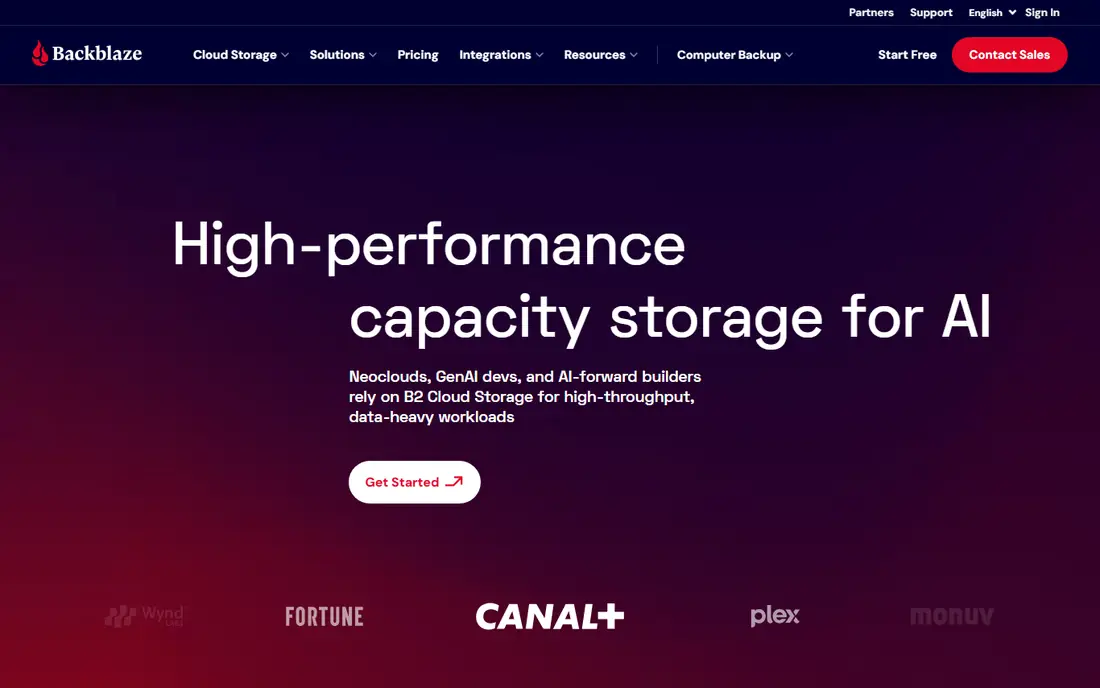
Backblaze is the simplest pick for one Windows or Mac computer. Install it, let it back up your files continuously, and you get unlimited storage for that machine without choosing folders or counting gigabytes. That simplicity is why it suits people who will not maintain a backup plan on their own.
The limit is the licence model. Each computer needs its own plan, so a household with several machines pays per machine rather than sharing one pool. Restore options include download and mailed drive options, though large restores still take time depending on connection speed. For one main computer, Backblaze is our first recommendation.
- Unlimited backup for one computer
- Very simple setup
- Version history and restore options
- One computer per licence
- Mobile backup is limited
- Restore of large sets takes time
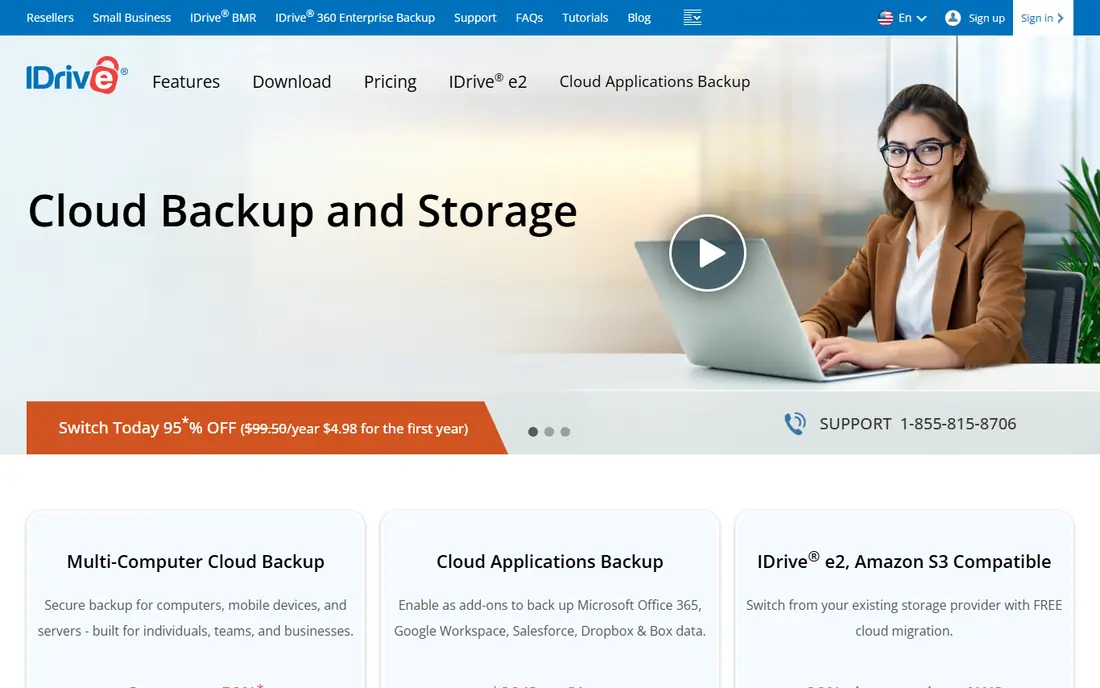
IDrive suits households and small teams because one account can back up several computers, phones and tablets under a pooled storage plan, rather than charging per computer. It also supports local backup alongside cloud backup, and it offers features such as file versioning, snapshots and physical data transfer for large first backups.
The catch is the storage cap. Unlike Backblaze, IDrive plans include a set amount of storage, so a household with large photo and video libraries must pick a large enough tier and watch usage. First-year promotional prices also differ from renewal prices, so check the renewal rate before you commit. For multi-device use, the flexibility is worth that care.
- One plan covers many devices
- 10GB free tier
- Local plus cloud backup options
- Storage is pooled and capped by plan
- Renewal prices differ from first-year offers
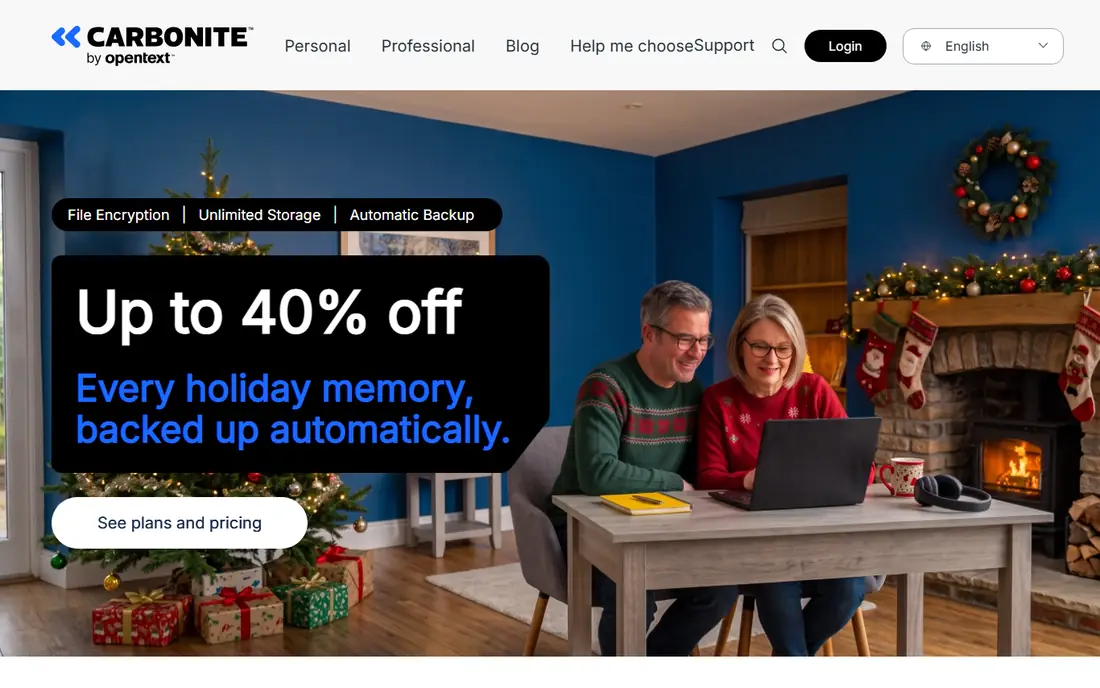
Carbonite has long sold itself on set-and-forget backup, and that remains its strength. Once installed, it backs up files continuously in the background, with unlimited storage on many personal and business plans. Users who want protection without managing folders, schedules or storage caps will find it reassuring.
Carbonite offers personal and business tiers with different features, including server and compliance options on business plans, so pricing and features need a careful check for your use. It does not bundle the same security suite as Acronis, and restore speed still depends on your connection. For simple, automatic backup, Carbonite remains a solid choice.
- Automatic continuous backup
- Unlimited storage on many plans
- Simple restore
- Business pricing varies by plan
- Fewer advanced security extras than Acronis
Acronis Cyber Protect Home Office, formerly True Image, combines full-disk imaging with cloud backup and security features such as anti-malware and ransomware protection. That combination suits users who want one product to protect both files and the system itself, including a full image they can restore after a drive failure.
The breadth is also the drawback. Settings, plans and storage tiers take more time to understand than Backblaze or Carbonite, and cloud storage is capped by plan rather than unlimited. A free trial lets you test the interface first. Acronis suits security-conscious users who want imaging and protection in one place.
- Backup plus anti-malware and ransomware protection
- Disk imaging
- Cloud and local backup
- Feature range can feel complex
- Higher tiers cost more
- Storage limits by plan
CrashPlan focuses on business endpoint backup, with continuous protection, unlimited storage per user on many plans, and admin controls for managing many computers. Small businesses that need to protect staff laptops and desktops without per-device storage maths often find its model simple to budget.
Personal users should note that CrashPlan is now business-oriented, so its plans and support are shaped for teams rather than single home users. Pricing is per user and varies by plan, so a written quote or current pricing page check is wise for a team. For small business endpoints, CrashPlan is a strong, focused pick.
- Unlimited storage per user on many plans
- Continuous backup
- Admin controls for teams
- Business-focused pricing
- Personal use is less of a focus than before
SpiderOak One Backup is built around zero-knowledge encryption, meaning files are encrypted on your device before upload and the provider cannot read them. That privacy model appeals to users handling sensitive documents, and the service covers Windows, Mac and Linux with version history for changed files.
Storage is capped by plan, and the interface is plainer than Backblaze or Acronis, with fewer bundled extras. A free trial lets you test speed and restore before paying. For privacy-first backup where encryption matters more than unlimited storage, SpiderOak is a credible specialist choice.
- Zero-knowledge encryption
- Cross-platform support
- Version history
- Storage caps by plan
- Smaller feature set than larger rivals
pCloud is mainly a cloud storage service, but it includes backup features such as automatic backup folders, file versioning and a trash history that help protect important files. A free tier with 10GB lets you test it, and lifetime plans appeal to users who dislike subscriptions, though you should read the lifetime terms carefully.
The honest limit is scope. pCloud does not replace a full-disk backup tool such as Backblaze or Acronis for a whole computer, and its client-side encryption add-on costs extra. Use pCloud as a second layer for important folders and archives, or as a storage service with backup benefits, rather than as your only disaster recovery plan.
- 10GB free tier
- Lifetime plan option
- File versioning and backup folders
- Primarily storage and sync, not full-disk backup
- Encryption is a paid add-on
Proton Drive, from the team behind Proton Mail, offers end-to-end encrypted storage with a free tier and paid plans for larger storage. Files are encrypted before they leave your device, and the provider is based in Switzerland, which matters to privacy-focused users. It also integrates with other Proton services for mail, calendar and VPN users.
Storage tiers are smaller and pricier per gigabyte than Backblaze or IDrive, and its desktop backup features are less mature than dedicated backup tools. Treat Proton Drive as a privacy-first storage and folder backup layer, especially for sensitive documents, and pair it with a dedicated backup service for full computer protection if you need both.
- End-to-end encryption by design
- Swiss-based provider
- Free tier available
- Smaller storage tiers than mass-market rivals
- Desktop backup features are still maturing
Sync.com offers end-to-end encrypted cloud storage with a free tier, file versioning, and sharing controls that suit teams handling sensitive files. Its backup-style features, including version history and deleted file recovery, help protect folders against accidental deletion and ransomware changes, though it is not a full-disk imaging tool.
Like pCloud and Proton Drive, Sync.com works best as a protected storage layer for important folders, or as part of a two-layer plan alongside a dedicated backup service. Check plan storage, team features and version history length before relying on it alone. For privacy and simple folder protection, it is a strong final pick.
- End-to-end encryption
- Free tier
- File versioning and sharing controls
- Storage-first design, not full-disk backup
- Larger plans cost more per user
How we picked these
We compared vendor product and pricing pages, backup features and restore options for services still offered in October 2026. We favoured dedicated backup tools for whole computers, and we included encrypted storage services only where their backup and versioning features are clear. Where pricing was promotional or varied by plan, we wrote See website rather than copying a first-year offer as a stable price.
Choosing a cloud backup service
Start with what you must recover. A failed laptop needs a full file backup, a ransomware attack needs version history, and a stolen phone needs device backup and remote options. Match the service to that recovery story, not just to storage size or price.
Check backup versus sync carefully
Sync copies changes everywhere, so a deleted or encrypted file can sync to the cloud too. Backup keeps versions and a restore point you can return to. Confirm version history length, deleted file retention and whether you can restore a single file, a folder or a whole drive before you rely on any service.
Test a restore before you need one
A backup you have never restored is only a promise. Restore a few files to a test folder, check that versions open correctly, and note how long a larger restore takes. Also confirm whether the service offers a mailed drive restore, which can save days for very large backups.
Plan for two layers if your data matters
Many people use a dedicated backup service for the whole computer plus encrypted storage for the most sensitive folders. That two-layer plan protects against both drive failure and account problems. Keep one local copy too, such as an external drive, for fast recovery from common failures.
Frequently asked questions
What is the best cloud backup service for one computer?
Backblaze is our pick for one computer, thanks to unlimited storage and simple setup. Carbonite is a close alternative for set-and-forget users. Check current pricing on the vendor site, since plans and first-year offers change.
What are the best cloud backup services for multiple devices?
IDrive suits multiple devices, because one pooled plan can cover computers, phones and tablets. Acronis also covers several devices with security features, though storage is capped by plan. Compare total storage, not just device count, before you choose.
What is the best cloud backup service for small business?
CrashPlan and Carbonite business plans suit small teams that need endpoint backup and admin controls. IDrive Business also works well for teams with many devices and moderate total storage. Request a current quote for your user and device count.
Is cloud storage the same as cloud backup?
No. Storage and sync services focus on access and sharing, while backup services focus on version history and recovery after loss or ransomware. Some storage services include backup features, but a dedicated backup tool gives a clearer recovery path for a whole computer.
How much storage do I need for cloud backup?
Add up the files you cannot replace, including photos and documents, and allow room for growth and version history. Unlimited plans remove that maths for one computer, while pooled plans need a storage estimate. Start with your current used space, then add at least a third for growth.
Sources
See where you really rank - block by block
ProMapRanker scans Google Maps across a grid of your service area. Simple monthly plans from $19, white-label on every plan.
Start freeKeep reading
 zoho inventory alternatives
6 Alternatives to Zoho Inventory, Compared on Price and Fit
Zoho Inventory alternatives: 6 tools compared on price, free plans and fit. Katana leads the list for manufacturers. Fit and flaws are laid out for each entry.
Read → zoho crm alternatives
Best Zoho CRM Alternatives (2026)
Need Zoho CRM alternatives? We compare 7 tools on cost, free access and who each suits. Every pick gets a straight assessment. Built for quick decisions.
Read → zelle alternatives
Best Zelle Alternatives in 2026
Compare the best Zelle alternatives for sending money to friends, paying sellers and moving funds abroad, with honest notes on fees, speed and safety in 2026.
Read →