 ProMapRanker
Best Clipping Software for Low End PC in 2026

Key takeaways
- On a low-end PC, the best clipper is the one that records without dragging down the game, not the one with the most editing features.
- Medal and Outplayed suit players who want automatic highlights and one-key clips with a small footprint.
- OBS Studio and ShareX suit users who want full control and free, open tools, if they are willing to set them up carefully.
- Xbox Game Bar and GPU tools from NVIDIA and AMD suit players who want capture built into Windows or their graphics driver.
- Cloud-based tools such as Eklipse can help weak PCs, but they need a stream or an upload, so they do not replace a local recorder for offline play.
Quick comparison
| Pick | Great for | Pricing starts at | Free tier | |
|---|---|---|---|---|
 Medal | All-around free clipping with highlights | Free | Yes | Visit |
 OBS Studio | Full-control free recording | Free | Yes | Visit |
 ShareX | Quick lightweight clips and GIFs | Free | Yes | Visit |
 Xbox Game Bar | Zero-install clipping on Windows | Free | Yes | Visit |
 Outplayed | Automatic highlights in supported games | Free | Yes | Visit |
 SteelSeries Moments | Clipping inside the SteelSeries GG app | Free | Yes | Visit |
 NVIDIA App | Instant replay on NVIDIA cards | Free | Yes | Visit |
 Eklipse | Cloud highlights from streams and uploads | Free | Yes | Visit |
The best clipping software for low end pc
Low-end hardware leaves little room for error. A recorder that uses too much processor time or memory will cause stutter, and a clip saved at too high a bitrate will fill a small drive fast. The tools below were judged on lightness, ease of clipping, and whether they can run in the background without constant attention.
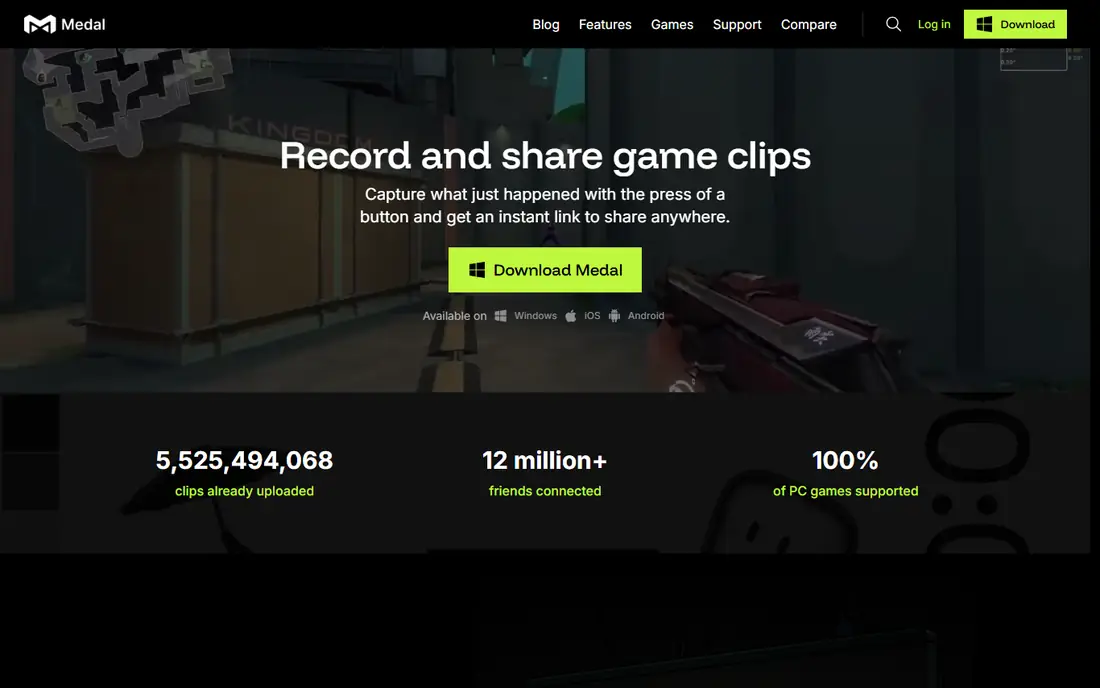
Medal is our pick for most low-end PC players because it is built around clipping, not full production. Press a hotkey to save the last moments of play, or let it detect highlights in supported titles such as Valorant, Fortnite, and League of Legends. The built-in editor covers trimming and text, and clips can be shared by link without a separate upload step. For a player who wants clips for friends or social posts, that short path matters.
The honest catch is that no background recorder is free of cost. On a very weak machine, any always-on capture can still affect frame rate, and Medal is Windows only for PC recording. Start with modest recording settings, test during a real match rather than in a menu, and lower resolution or frame rate before blaming the game.
- Free on PC
- Automatic highlight detection in supported games
- Built-in trim and sharing
- Windows only for PC capture
- Some users report background performance issues on very weak machines
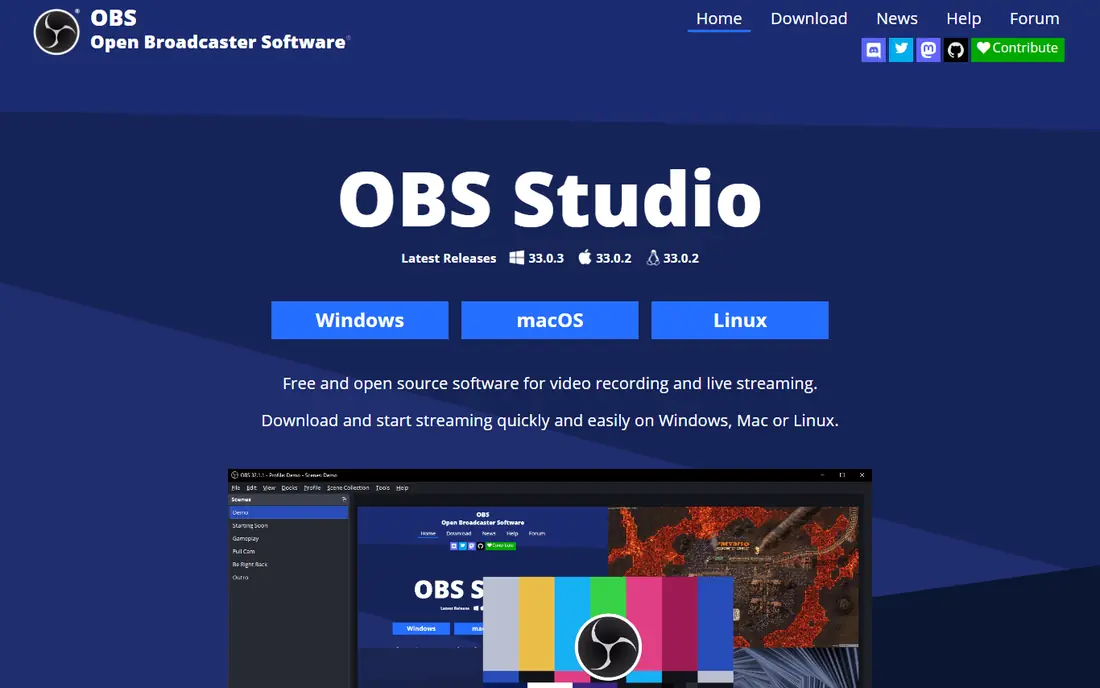
OBS Studio is the most flexible free recorder here, and it can run well on modest hardware if it is set up with care. The key is using your graphics card hardware encoder where available, choosing a sensible bitrate, and keeping the replay buffer short. With those settings, OBS can capture clean clips without the overhead of a heavier production setup. It also records any window or display, so it works for games, apps, and tutorials alike.
The trade-off is effort. OBS does not find highlights for you, and its replay buffer must be configured before it works as a clip tool. New users should follow a basic low-end setup guide, test a short session, and save a known-good settings profile before using it in ranked play.
- Free and open source
- Works on Windows, Mac, and Linux
- Full control over encoder, bitrate, and replay buffer
- No automatic highlight detection
- Replay buffer needs manual setup
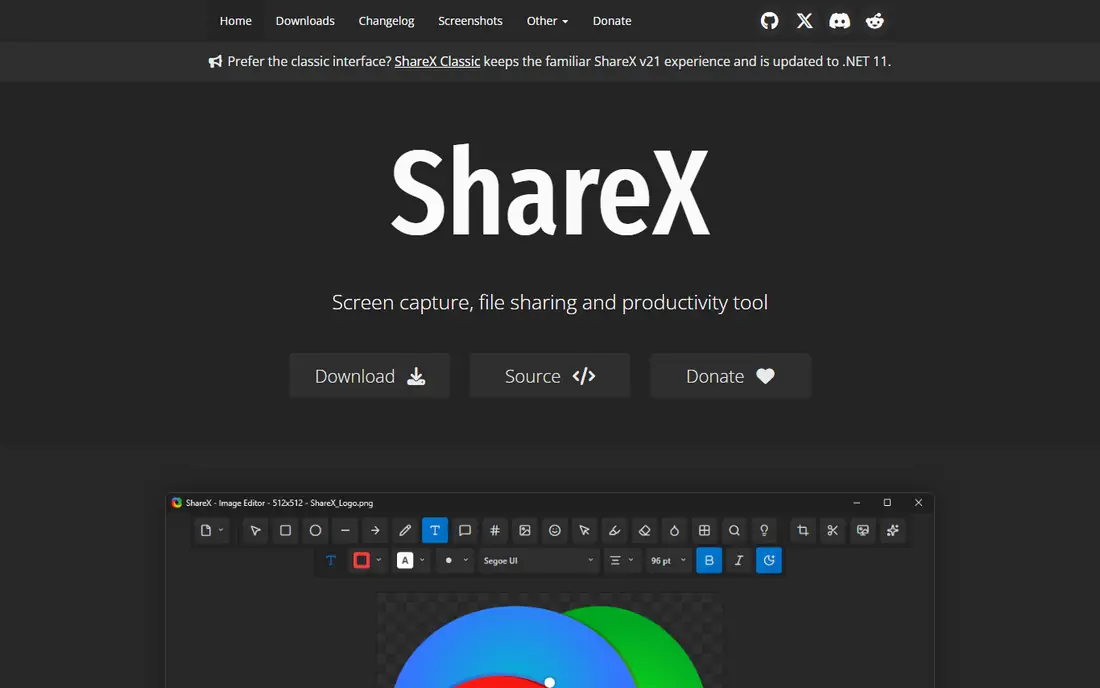
ShareX is the lightest tool in this list, and it shines for short, deliberate clips rather than background game capture. A hotkey can record a region or a window, export MP4 or GIF, and upload to a chosen host in one step. That makes it a strong choice for tutorials, bug reports, and quick moments you know you want to save. It also handles screenshots and annotation, which is useful for guides and support.
The limit is clear: ShareX is not a game highlight recorder. It will not watch a match in the background and save kills on its own. Use it when you press record on purpose, and pair it with a replay tool when you need to capture moments you did not expect.
- Free and open source
- Very light
- Hotkey capture for region, window, or screen with MP4 and GIF export
- No automatic game highlights
- No built-in instant replay buffer for games
Xbox Game Bar is the easiest starting point because it is already on Windows. Press Win plus G, record the active window, and find MP4 clips in the Videos Captures folder. For a low-end PC, that matters: there is no extra app running all day, and setup takes seconds. It suits casual players who clip occasionally and do not want another program to manage.
The honest weakness is scope. Game Bar records the active window rather than the whole desktop, and it lacks automatic highlights and deep editing. Serious creators will outgrow it, but as a first clipper on weak hardware, it is hard to beat for simplicity.
- Built into Windows
- Instant access with Win plus G
- No extra install or account needed for basic capture
- Records the active window only, not the full desktop
- Fewer editing and highlight features
Outplayed, by Overwolf, focuses on one job: saving game moments without manual work. In supported titles, it detects events such as kills and match highlights and saves them as clips you can review later. That is a real advantage on a low-end PC, because you do not need to watch a full recording to find the good parts. Setup is short, and the app runs in the background once configured.
The catch is dependence on support. Automatic detection only works in games Outplayed supports, and other games still need manual clipping. It also runs through the Overwolf platform, which some players prefer to avoid. Check your main games on the supported list before relying on automatic capture.
- Free
- Automatic event detection in supported games
- Simple background capture
- Runs through Overwolf
- Supported game list limits automatic highlights
SteelSeries Moments lives inside the SteelSeries GG app, so players who already use SteelSeries gear or software get clipping without a new install. It captures moments with a hotkey, supports instant replay style capture, and offers simple trimming and sharing. For a low-end PC, keeping capture inside an app you already run can be lighter than adding another heavy recorder.
The limit is fit. Moments makes the most sense if you already use SteelSeries GG, and its highlight support varies by game. Players with no SteelSeries hardware can still use it, but they should compare it with Medal or Outplayed first, since those tools are built only around clipping.
- Free
- Instant replay and clip capture inside SteelSeries GG
- Simple trimming and sharing
- Best for SteelSeries users
- Game support and features vary by title
If your low-end PC has an NVIDIA graphics card, the NVIDIA App with ShadowPlay style instant replay is often the lightest option. Capture runs on the graphics hardware, so the processor load stays low, and you can save the last minutes of play with a hotkey. That hardware path is why many players leave instant replay on all day without noticing a large performance drop.
The obvious limit is hardware. This option does not help AMD or integrated-graphics systems, and some users report instant replay switching off without warning, which can lose a moment. Check that replay is on before an important session, and keep a backup recorder if a clip truly cannot be missed.
- Free with a supported NVIDIA GPU
- Hardware-accelerated instant replay
- Low performance cost in many cases
- NVIDIA GPUs only
- Instant replay can switch off unexpectedly for some users
Eklipse takes a different route for weak PCs: it does the heavy work in the cloud. Upload a stream recording or a video file, and it finds highlights, cuts clips, and formats vertical versions with captions for social platforms. That can be a smart choice for a player whose PC struggles to run a local recorder and a game at the same time, since nothing heavy runs locally during play.
The trade-off is that Eklipse is not a local recorder. It cannot capture offline solo play by itself, and its detection can pick the wrong moments, especially when audio spikes or idle play confuse it. Use it as a highlight finder for streams and uploads, and keep a light local recorder for games you play offline.
- Free starting plan
- Cloud highlight detection across many titles
- Vertical clips with captions for social posts
- Needs a stream or an upload
- Cannot capture offline solo play on its own
How we picked these
We compared official feature pages, pricing pages, and public reviews for clipping tools that work on modest Windows hardware, with attention to background load, instant replay, highlight detection, and free availability. We discussed performance in qualitative terms only, since frame rates and memory use vary with game, GPU, and settings. We did not claim hands-on testing, and we treated vendor claims about lightness as claims to test on your own machine.
How to keep clipping light on a weak PC
Start with hardware encoding if your GPU supports it. Software encoding leans on the processor, which is often the bottleneck on a low-end PC, while hardware encoding moves much of that work to the graphics card. Keep resolution and frame rate modest: 1080p at 30 or 60 frames per second is plenty for most clips, and higher settings mainly cost performance and disk space.
Next, shorten the replay buffer and watch disk space. A buffer of 30 to 60 seconds captures most highlights without holding a long recording in memory, and it keeps file sizes manageable. Save clips to a drive with free space, delete failed takes regularly, and avoid recording to a nearly full system drive, which can slow the whole PC.
Finally, test in a real match. Menu performance tells you little, so run your chosen recorder during normal play, watch for stutter, and adjust one setting at a time. If two recorders both work, keep the one with the simpler workflow, since the clipper you actually use will always beat a more capable tool that stays closed.
Frequently asked questions
What is the lightest clipping software for a low end PC?
ShareX is among the lightest for deliberate short clips, while GPU tools such as the NVIDIA App can be lightest for background instant replay on supported hardware. Medal and Outplayed are also designed to stay light, but results vary by game and settings, so test during real play.
Is OBS Studio good on a low end PC?
Yes, if you configure it for low-end hardware. Use a hardware encoder where available, keep bitrate and resolution modest, and set a short replay buffer. With default high settings, OBS can be heavier than a dedicated clipper, so setup matters more than the tool name.
Can I clip games for free?
Yes. Medal, OBS Studio, ShareX, Xbox Game Bar, Outplayed, SteelSeries Moments, and the NVIDIA App all offer free capture, with paid extras in some cases. Start free, and only pay if you need more cloud storage, longer clips, or extra editing features.
Why do my clips stutter on a low end PC?
Stutter usually comes from software encoding, a bitrate that is too high, a full drive, or a game that already uses most of the processor and graphics card. Lower resolution or frame rate, switch to hardware encoding, shorten the replay buffer, and close background apps before blaming the clipper itself.
Do I need automatic highlight detection?
Not always. Automatic detection saves review time in supported competitive games, but manual hotkey clipping works for any game and gives you full control. Choose automatic detection for titles you play often, and manual clipping for everything else.
Sources
See where you really rank - block by block
ProMapRanker scans Google Maps across a grid of your service area. Simple monthly plans from $19, white-label on every plan.
Start freeKeep reading
 what’s the best risk software for enterprises
What Is the Best Risk Software for Enterprises in 2026
We compared what’s the best risk software for enterprises on risk registers, controls, third-party risk, and reporting, with pricing notes for large teams.
Read → what's the best pam software for enterprises
What is the Best PAM Software for Enterprises in 2026
Find what's the best pam software for enterprises, with vaulting, session recording, just in time access and pricing compared for large enterprise IT teams.
Read → what’s the best grc software
What Is the Best GRC Software in 2026
We compared what’s the best grc software on risk, compliance, audit and vendor risk, so teams can pick a platform that fits their frameworks and budget.
Read →