 ProMapRanker
Best Background Removal Tools in 2026

Key takeaways
- For a single fast cutout, remove.bg is our first stop, while PhotoRoom is stronger for sellers who need batches and listing-ready images.
- Canva makes sense if you already design in Canva, since its remover sits inside templates, text, and brand assets.
- Photoshop and GIMP are the picks when an edge must be exact, such as hair, fur, or a tricky product outline.
- Free plans are useful for testing, but high-resolution exports, batch work, and commercial use often sit behind a paid plan.
Quick comparison
| Pick | Great for | Pricing starts at | Free tier | |
|---|---|---|---|---|
 remove.bg | Fast automatic cutouts | $9 per month | Yes | Visit |
 PhotoRoom | Online sellers and batches | $12.99 per month | Yes | Visit |
 Canva | Cutouts inside a design | See website | Yes | Visit |
 Adobe Express | Free cutouts for simple jobs | See website | Yes | Visit |
 Adobe Photoshop | Precise manual control | $22.99 per month | Free trial | Visit |
 GIMP | Free manual editing | Free | Yes | Visit |
 Clipping Magic | Careful edge refinement | $3.99 per month | Free trial | Visit |
 Pixlr | Browser editing plus removal | See website | Yes | Visit |
 Fotor | Quick edits and marketing images | $8.99 per month | Yes | Visit |
The best background removal tools
We compared automatic cutout quality, edge control, batch handling, export terms, and price, using vendor pricing pages, feature pages, and app listings. Only edit photos you own or have permission to edit.
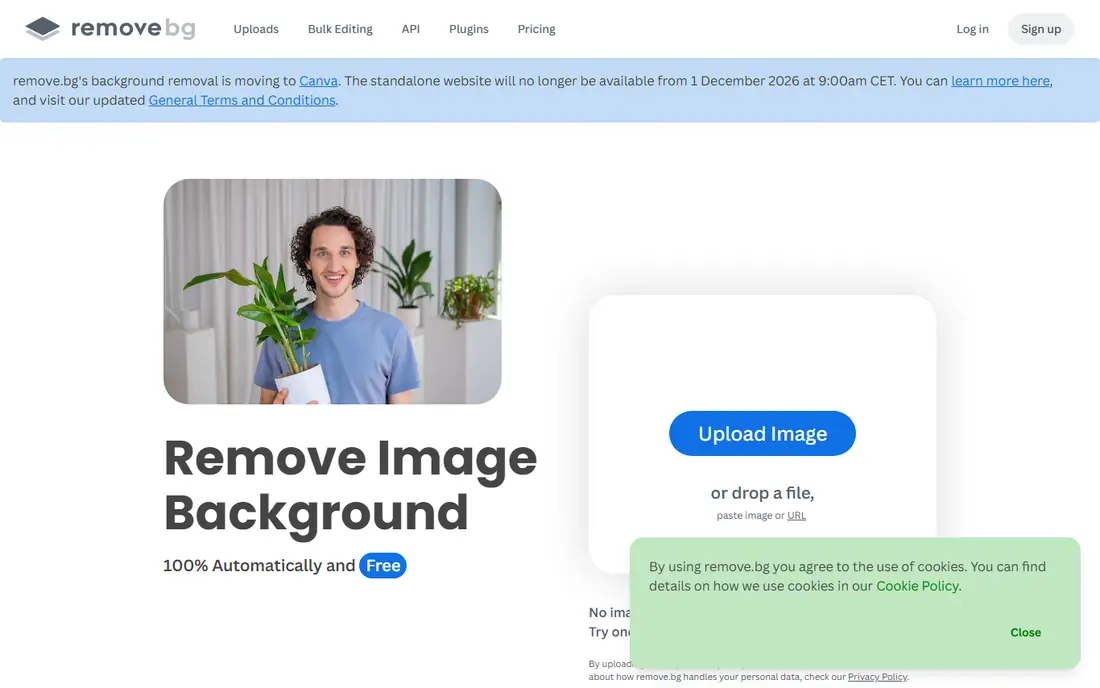
Upload a photo and remove.bg returns a transparent cutout in seconds, with no editing skill needed. That speed is the reason it stays at the top for quick jobs, social graphics, and single product shots. The result is usually clean enough to drop straight onto a plain or colored background.
The trade-off is the credit system. Full-resolution downloads use credits, so a busy seller should compare a monthly plan with a pay-as-you-go pack before committing. If you process images in bursts rather than every day, a pack may fit better than a subscription that renews each month.
- Very fast one-click results
- Clean edges on portraits and products
- API and batch options for larger jobs
- Credit costs add up at volume
- Free previews are low resolution
- Fine hair can still need a manual pass
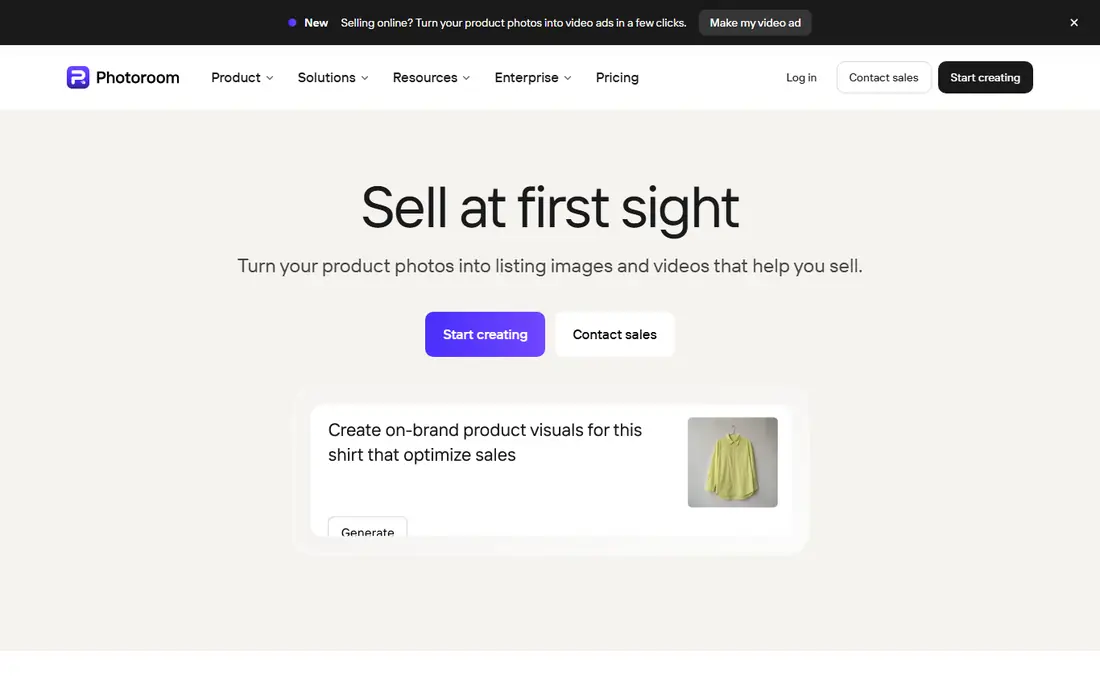
PhotoRoom is built around selling, not just cutting out a subject. You can remove a background, place the product in a staged scene, add a shadow, and keep the size consistent across a whole catalog. For a shop owner with dozens of listings, that full workflow saves more time than a bare cutout tool.
Batch mode is the main reason to pay here. It applies the same framing and background style across many images, which keeps a store looking consistent. Check the export limits on your plan before you start a large batch, since credits and exports are tracked separately on some tiers.
- Batch editing for catalogs
- Product staging templates
- Mobile and web editing
- Free exports carry limits
- Some advanced tools need higher plans
- Results vary on busy backgrounds
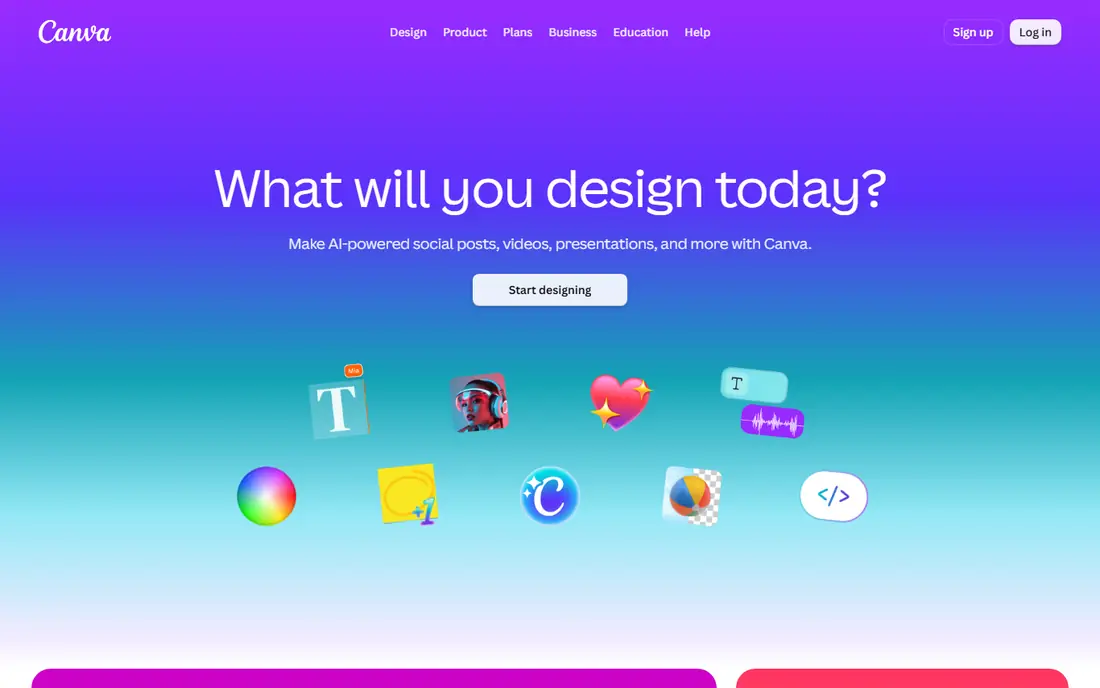
Canva suits people who need a finished graphic, not just a transparent file. Remove the background, then add text, a shape, a brand color, or a template in the same screen. That short path from cutout to post is hard to beat for social content and simple marketing images.
The catch is access. The background remover is a paid feature, so a free Canva account does not include it for regular use. If you already pay for Canva for other design work, the remover is a useful extra. If you only need cutouts, a dedicated tool may cost less.
- Remover sits inside templates and layouts
- Large stock and font library
- Easy sharing and team use
- Background remover needs a paid plan
- Less precise than Photoshop on hard edges
- Pricing varies by region
Adobe Express gives casual users a genuine no-cost route to a clean cutout. Upload an image, remove the background, and export a transparent file for a post, a flyer, or a simple listing image. The interface stays simple, which helps if you do not want to learn a full editor.
Power users will hit limits sooner here. There is less fine control over tricky edges, and some templates, fonts, and stock assets sit behind the premium plan. Treat Express as a fast first step, and move to Photoshop when a cutout needs detailed repair.
- Background removal available without a paid plan for basic use
- Simple editor for quick posts
- Adobe account keeps work in one place
- Fewer manual refinement tools than Photoshop
- Templates can feel generic
- Premium features need a subscription
Photoshop remains the choice when quality matters more than speed. Its subject selection and mask refinement tools handle hair, fur, glass edges, and mixed backgrounds with a level of control that automatic tools cannot match. You can paint a mask, adjust feathering, and fix small errors by hand.
That control comes with time and cost. A new user should expect to learn selection and masking basics before results look clean, and the monthly subscription only makes sense if you edit often or already use other Adobe apps. For one-off cutouts, start with a free or credit-based tool instead.
- Strongest edge refinement tools
- Layer masks keep edits non-destructive
- Works with the full Adobe editing set
- Subscription cost is high for occasional cutouts
- Learning curve is steep
- Overkill for a single quick job
GIMP is the free manual alternative for people who want Photoshop-style control without a subscription. You can select by color, draw a path around a subject, and refine a layer mask until the edge looks right. It handles product photos, portraits, and composites well once you learn the tools.
The honest limit is speed. There is no simple one-click background button in the core program, so each cutout takes real work. That makes GIMP a poor fit for bulk catalog jobs, but a strong fit for careful edits, students, and anyone who prefers local software over uploading images to a web service.
- Free and open source
- Selection, path, and mask tools
- Runs on Windows, Mac, and Linux
- No built-in one-click AI remover
- Interface feels dated
- Workflow is slower than automatic tools
Clipping Magic sits between automatic tools and full editors. You mark parts to keep and parts to remove, and the tool refines the edge from those marks. That human guidance helps on images where a fully automatic result leaves a rough halo or cuts into a subject.
It works best for a small number of careful jobs, such as a hero product shot or a portrait that will be printed. It is not a design tool, so you will still need another app for text, layouts, or batch catalog work. The low starting price makes it easy to test on your hardest images first.
- Mark foreground and background for control
- Useful for hair and detailed edges
- Simple browser workflow
- Manual marking takes time
- No full design suite
- Subscription needed for regular use
Pixlr is a good middle ground for people who want more than a cutout button but do not want desktop software. You can remove a background, adjust color, add text, and export from a browser tab. That makes it handy on a shared computer or a device where you cannot install apps.
Free use is ad-supported, and the cleanest experience sits on a paid plan. Automatic removal is solid for clear subjects on plain backgrounds, but busy scenes may need manual cleanup with the selection tools. Check the current plan page before you rely on it for paid client work.
- Full browser editor with layers and filters
- Background remover in the same workspace
- No install needed
- Free version shows ads
- Some features need a paid plan
- Automatic results vary on complex scenes
Fotor pairs background removal with a broader photo and design editor, which suits marketers who produce many images in a week. You can cut out a subject, place it on a new background, add text, and resize for different platforms without switching apps. Batch handling helps when a campaign needs the same treatment across many shots.
The free plan is best for testing rather than daily production, since exports and features are limited. For exact edge work, Photoshop or Clipping Magic will give you more control. For speed and volume on straightforward images, Fotor is a practical pick.
- Background remover plus design templates
- Batch options for marketers
- Simple interface
- Free plan has limits
- Advanced edits are less precise than Photoshop
- Some templates need a paid plan
How we picked these
We compared official pricing pages, feature pages, and app listings, and favored tools that are live in October 2026, accept common image formats, and export transparent files. We kept a mix of automatic tools, manual editors, and seller-focused workflows, and we left out tools that could not be verified or that did not fit background removal as a core job. Prices change, so check the vendor page before you buy, and test each tool on your own hardest image before you commit to a plan.
What to check before you pay
Start with the export you actually need. A free preview may look fine on screen but fail in print or on a large listing image, so test a full-resolution export early. If you sell online, check batch limits, background size rules for your marketplace, and whether your plan allows commercial use.
Next, test edge quality on your own photos. Portraits with curly hair, products with fine straps, and glass or reflective items expose weak tools fast. A tool that looks perfect on a plain studio shot may struggle on a photo taken in a busy room. Run the same five images through two or three tools and compare the edges at full zoom.
Finally, think about where your photos go. Browser tools upload your image to a server, so use a local editor such as GIMP or Photoshop for sensitive or unpublished work. Also confirm the license terms if you edit client photos, and keep a copy of the original file before you replace a background.
Frequently asked questions
What is the best background removal software for beginners?
For beginners, remove.bg or Adobe Express is the easiest start, since both give a cutout with little setup. PhotoRoom is better if you also need product staging, while Canva fits if you want to turn the cutout into a finished design in the same app.
What is the best background removal tool for product photos?
PhotoRoom is a strong pick for product photos because it combines removal, batch editing, and staged backgrounds in one workflow. Remove.bg is also good for single products, and Clipping Magic helps when a product edge needs manual care.
Is there a best background remover app free of charge?
Adobe Express offers background removal without a paid plan for basic use, and GIMP is free for manual editing. Free plans on other tools are useful for testing, but high-resolution exports and batch work usually need a paid plan.
What is the best background removal software for hair and fine edges?
Photoshop gives the most control for hair and fine edges, thanks to mask refinement and manual brushes. Clipping Magic is a simpler option that still lets you guide the edge, while automatic tools work best as a first pass before manual cleanup.
How do I choose between a credit plan and a subscription?
Choose credits if you edit in bursts, since pay-as-you-go packs do not renew each month. Choose a subscription if you edit most days, need batch tools, or need high-resolution exports on a regular schedule. Compare the cost per image at your real monthly volume, not just the headline price.
Sources
See where you really rank - block by block
ProMapRanker scans Google Maps across a grid of your service area. Simple monthly plans from $19, white-label on every plan.
Start freeKeep reading
 zoho inventory alternatives
6 Alternatives to Zoho Inventory, Compared on Price and Fit
Zoho Inventory alternatives: 6 tools compared on price, free plans and fit. Katana leads the list for manufacturers. Fit and flaws are laid out for each entry.
Read → zoho crm alternatives
Best Zoho CRM Alternatives (2026)
Need Zoho CRM alternatives? We compare 7 tools on cost, free access and who each suits. Every pick gets a straight assessment. Built for quick decisions.
Read → zelle alternatives
Best Zelle Alternatives in 2026
Compare the best Zelle alternatives for sending money to friends, paying sellers and moving funds abroad, with honest notes on fees, speed and safety in 2026.
Read →