 ProMapRanker
Best Apps for Creating Family Portraits in 2026

Key takeaways
- Canva and Adobe Express are the easiest starting points for turning family photos into polished portraits, cards and prints.
- Remini, PicsArt, Fotor and PhotoRoom focus on enhancing, cleaning up and restyling single photos, which helps older or imperfect shots.
- PicCollage, Mixbook and Pixlr cover layouts, photo books and deeper edits when one portrait becomes a gift or a wall print.
- Only edit photos of people with their permission, and be careful with tools that restyle faces, since results can look unlike the real person.
Quick comparison
| Pick | Great for | Pricing starts at | Free tier | |
|---|---|---|---|---|
 Canva | Templates and portrait cards | Free | Yes | Visit |
 Adobe Express | Quick polished portraits | Free | Yes | Visit |
 PicsArt | Creative edits and effects | Free | Yes | Visit |
 Remini | Enhancing old or blurry photos | Free | Yes | Visit |
 Fotor | One-click portrait fixes | Free | Yes | Visit |
 PhotoRoom | Clean backgrounds and cutouts | Free | Yes | Visit |
 Lensa | Stylised portrait looks | Free | Yes | Visit |
 PicCollage | Photo collages and layouts | Free | Yes | Visit |
 Mixbook | Photo books and printed portraits | Free | Yes | Visit |
 Pixlr | Deeper browser editing | Free | Yes | Visit |
The best apps for creating family portraits
These apps help at different stages, from fixing a photo to printing it as a keepsake.

Canva is our pick for most families because it starts from the finished product, not from a blank editor. Pick a portrait card, poster or photo book template, drop in your family photo, adjust the text, and export or order a print. That flow suits people who want a good result without learning photo editing first.
The free plan covers a lot, but premium photos, fonts and background removal sit behind Canva Pro, which costs $18 per month or $144 per year in the United States. Start free, and only pay if you keep hitting premium items you actually want.
- Large template library
- Easy drag and drop editing
- Print and card options
- Paid plan needed for many premium assets
- Free exports have limits
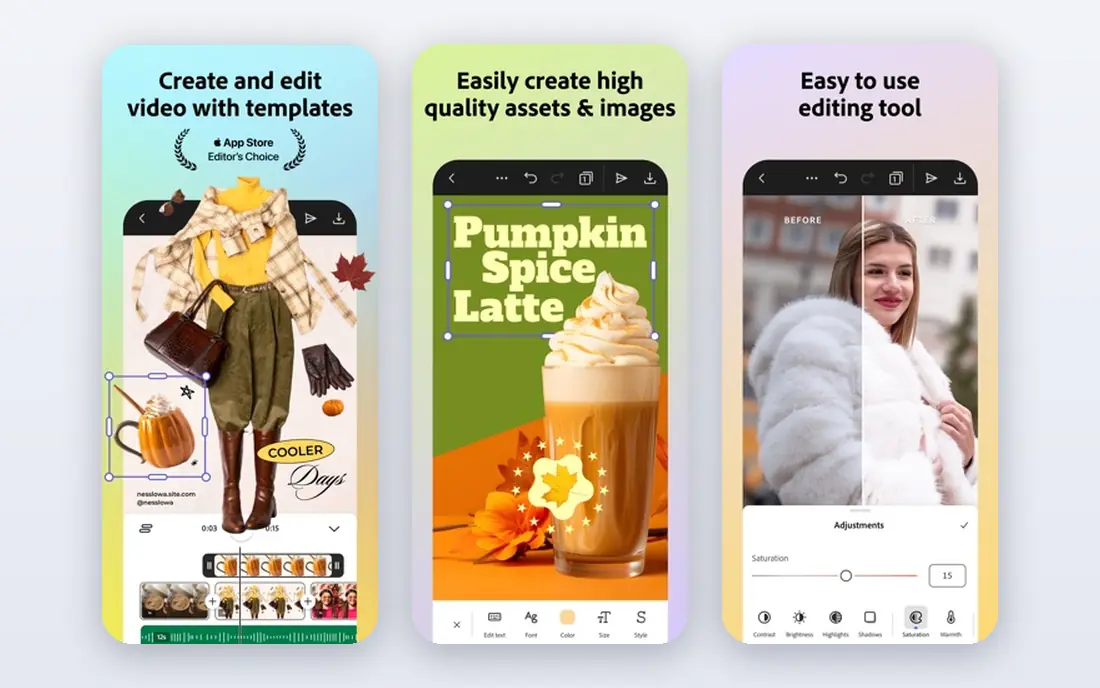
Adobe Express gives family portraits a clean, print-ready feel with less clutter than a full design suite. Templates for cards, posters and social posts are easy to adapt, and its photo tools handle cropping, background removal and light adjustments without a steep learning curve.
Premium costs $9.99 per month and adds more templates, brand tools and storage. If you already use Adobe tools, the familiar fonts and photo handling are a plus. If you only make one card a year, the free plan is likely enough.
- Clean templates and fonts
- Background removal on free plan in many cases
- Adobe photo quality
- Smaller template range than Canva
- Premium costs $9.99 per month
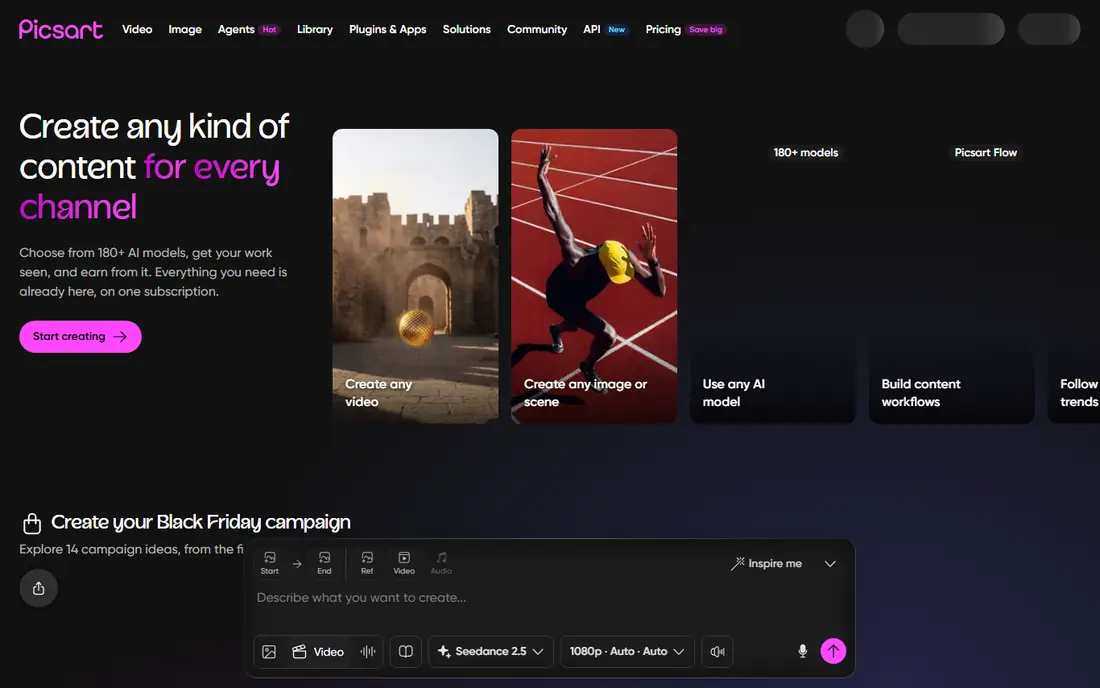
PicsArt is the playful option. Filters, stickers, frames and collage layouts turn a plain family photo into something with personality, which works well for birthday posts, holiday cards and fun prints. The mobile editor is quick, and most basic edits take only a few taps.
The trade-off is polish. PicsArt favours bold effects over subtle retouching, and the free version includes ads and locked premium tools. Use it for creative versions of a portrait, and keep a clean original for printing.
- Wide sticker, filter and collage tools
- Fun for kids and teens
- Mobile-first editing
- Free version shows ads and limits some tools
- Paid Gold features are easy to bump into
Remini shines on the photos that matter most and look worst: old scans, blurry phone shots and faded prints from family albums. Its enhancement tools sharpen detail and clean up noise, which can rescue a group photo that no other app can fix.
Results need a careful eye. Faces can come out over-smoothed or slightly changed, so compare the enhanced version with the original before printing. Free use is limited each day, and weekly billing options on app stores deserve a close read before you subscribe.
- Strong enhancement for old and low-quality photos
- Simple one-tap flow
- Useful for scanned prints
- Free use has daily limits
- Results can over-smooth faces
Fotor is a good middle ground between a template app and a full editor. One-click enhancement, portrait retouching and background tools fix light, colour and small flaws fast, and batch editing helps when you have a whole set of family photos from one day.
The free plan is useful for trying the tools, but higher-resolution exports and some AI features need a paid plan. Check the export size before you pay for a print, since a small free export may look fine on a phone and soft on a large frame.
- Simple enhancement and retouch tools
- Batch editing
- Browser and mobile versions
- Free exports have limits
- Premium tools sit behind a paid plan
PhotoRoom is best when the background is the problem. A cluttered living room or a busy park can distract from the family, and PhotoRoom cuts out the subjects and places them on a clean background in seconds. That works well for cards, announcements and framed portraits.
Group photos need more care than single subjects, since hair and overlapping people can leave rough edges. Zoom in and check edges before printing, and keep the original photo in case the cutout loses detail.
- Fast background removal
- Clean studio-style backgrounds
- Batch cutouts
- Built for product-style shots, so group portraits need care
- Paid plan for full resolution
Lensa turns ordinary portraits into stylised art-style images, which can make a fun gift or a striking profile picture. Its retouching tools also clean up skin, light and background in a few taps. For a creative twist on a family photo, it is hard to beat for speed.
The honest catch is likeness. Stylised versions can drift away from how a person really looks, which matters for a family keepsake. Treat Lensa as a creative extra, keep an unedited original, and only use photos of people who have agreed to be edited this way.
- Striking stylised portrait styles
- Easy face retouching
- Fun for gifts
- Stylised results can look unlike the person
- Many features need a paid plan
PicCollage suits families with too many good photos to pick just one. Multi-photo grids, freestyle layouts, stickers and text let you build a year-in-review collage, a birthday board or a holiday card from several moments at once. The drag and drop layout keeps it fast.
It is not a deep photo editor, so fix light and colour in another app first if a photo needs real work. Some premium layouts and sticker packs cost extra, but the free layouts cover most family collage needs.
- Easy multi-photo layouts
- Stickers and text
- Good for family year-in-review collages
- Less control than a full editor
- Some layouts and stickers are paid
Mixbook turns a family portrait into something you can hold. Photo books, canvas prints, cards and calendars use your photos in clean layouts, and the web editor is easier than desktop design software. It is a strong choice for anniversary books, grandparent gifts and yearly family albums.
Designing is free, but printing and shipping cost extra, so check the full price before you commit to a large book. Order early for gifts, and preview every page at full size, since small text and dark photos can look different in print.
- Strong photo book and print layouts
- Good for gifts
- Web-based design
- Printing costs extra
- Delivery times vary
Pixlr is the pick when a family portrait needs real editing work: fixing exposure, removing a distraction, adjusting colour or combining elements with layers. It runs in a browser, so there is no large install, and it offers far more control than a one-tap enhancer.
That control comes with a learning curve. Beginners may find the layer tools confusing at first, and the free version includes ads and some limits. Use Pixlr for the one special portrait worth extra effort, and a simpler app for everyday shots.
- Layer-based editing in a browser
- No install needed
- Good for detailed fixes
- Learning curve is higher
- Free version includes ads and limits
How we picked these
We compared official feature pages, pricing pages and app store listings for each tool, and kept only apps that are live, clearly designed for photo editing or printing, and useful for family portraits. We checked that each app offers a free starting point, and we noted where paid plans gate resolution, premium assets or AI features. We did not claim hands-on testing of every tool, and we judged them on what their own pages and public listings actually promise.
We also applied a consent rule. Family portraits involve real people, so we only listed legitimate creative and editing tools, and we left out any tool built to create images of people without consent. Use these apps on your own photos, or on photos you have clear permission to edit.
Choosing the right portrait workflow
Start with the end product in mind. For a holiday card or a social post, Canva or Adobe Express will get you there fastest, since templates handle layout, text and sizing. For a framed print, fix the photo first in Fotor, Remini or Pixlr, then place it in a clean template or a Mixbook print layout.
Check resolution before you print. A photo that looks sharp on a phone can look soft on a large canvas, so export at the highest quality your plan allows and preview at full size. For group photos, zoom in on faces and edges after any background removal or enhancement, since those tools can blur hair or change small features.
Finally, keep originals safe. Save an unedited copy of every family photo before you enhance, restyle or crop it. That way a creative version can be fun without replacing the real memory, and you can always reprint the original later.
Frequently asked questions
Which app is best for creating family portraits?
Canva is the easiest all-round choice for cards and prints, while Adobe Express gives a cleaner finish for simple portraits. For fixing an old or blurry photo first, Remini or Fotor is the better starting point.
Can I make a family portrait from an old photo?
Yes. Scan the print at high resolution, then use Remini or Fotor to enhance it, and Pixlr for deeper fixes. Compare the result with the original, since enhancement can smooth faces or change small details.
Do I need to pay to make a good family portrait?
No. Every app here has a free plan, and free templates plus basic enhancement cover most family cards and posts. Paid plans mainly add premium assets, higher resolution exports and extra AI features.
How do I print a family portrait from an app?
Export at the highest resolution available, check the image at full size, and use a print service such as Mixbook or a local printer. Order early for gifts, and confirm paper size and delivery time before checkout.
Is it safe to use AI portrait tools on family photos?
Use only photos you have permission to edit, and avoid tools that create realistic images of real people without consent. Keep an unedited original, review stylised results for likeness, and do not share edited photos of children publicly without thinking through privacy first.
What size should a family portrait be for printing?
It depends on the frame and the photo quality. A phone photo may suit a small print or card, while a large wall print needs a high-resolution export. Check the print service guidance for your chosen size before ordering.
Sources
See where you really rank - block by block
ProMapRanker scans Google Maps across a grid of your service area. Simple monthly plans from $19, white-label on every plan.
Start freeKeep reading
 zoho inventory alternatives
6 Alternatives to Zoho Inventory, Compared on Price and Fit
Zoho Inventory alternatives: 6 tools compared on price, free plans and fit. Katana leads the list for manufacturers. Fit and flaws are laid out for each entry.
Read → zoho crm alternatives
Best Zoho CRM Alternatives (2026)
Need Zoho CRM alternatives? We compare 7 tools on cost, free access and who each suits. Every pick gets a straight assessment. Built for quick decisions.
Read → zelle alternatives
Best Zelle Alternatives in 2026
Compare the best Zelle alternatives for sending money to friends, paying sellers and moving funds abroad, with honest notes on fees, speed and safety in 2026.
Read →