 ProMapRanker
Best App to View PDFs in 2026


Most people and best compatibility · Pricing starts at: Free
Key takeaways
- Adobe Acrobat Reader is our pick for most people because it renders almost any PDF faithfully, including forms and complex layouts.
- Foxit PDF Reader is the best lighter desktop alternative, with tabbed reading, annotation and form filling at no cost for basic use.
- Sumatra PDF is the fastest choice on Windows for plain reading, since it opens large files quickly with a tiny footprint.
- Xodo is the best mobile annotation pick, with strong tablet tools and cross-device sync for readers who mark up documents.
- Viewing is free in most of these tools, so pay only when you need editing, OCR, e-signatures or team review features.
Quick comparison
| Pick | Great for | Pricing starts at | Free tier | |
|---|---|---|---|---|
| Adobe Acrobat Reader | Most people and best compatibility | Free | Yes | Visit |
 Foxit PDF Reader | Lighter desktop reading | Free | Yes | Visit |
 Xodo | Mobile annotation | Free | Yes | Visit |
 Sumatra PDF | Fast Windows reading | Free | Yes | Visit |
 PDFgear | Free reading plus basic tools | Free | Yes | Visit |
 PDF-XChange Editor | Advanced Windows viewing | Free | Yes | Visit |
 Okular | Open-source cross-platform reading | Free | Yes | Visit |
 UPDF | Clean reading on phones and computers | Free | Yes | Visit |
 Nitro PDF Pro | Business reading and review | See website | No | Visit |
The best apps to view PDFs
A good PDF viewer does more than open a file. It should render text, images and forms correctly, let you search and jump to a page, and keep reading comfortable on a phone, tablet or computer. We compared official feature pages and app store listings, and we kept only viewers that are live in October 2026 and that handle everyday PDFs well. Editing power was a bonus, not the main test, since this list is about viewing first.
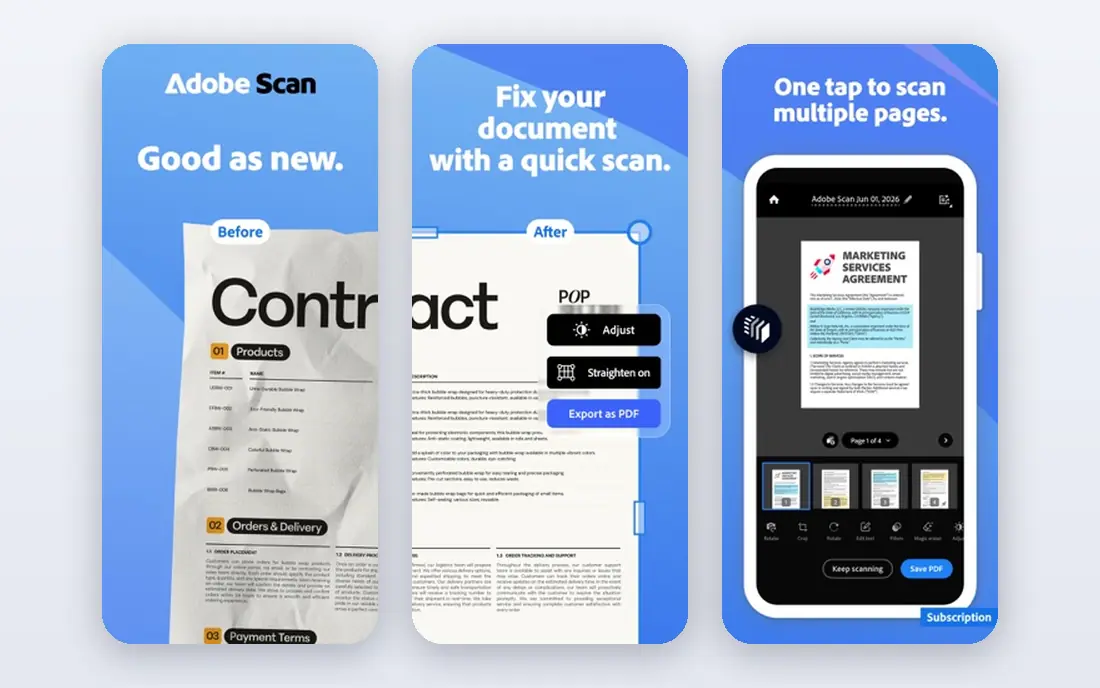
Adobe Acrobat Reader is the safe default because PDF is Adobe format, and Reader handles edge cases other viewers sometimes miss. Forms fill correctly, layered graphics render as intended, and password-protected files open without fuss. The free version covers viewing, commenting, highlighting, form filling and basic signing, which is enough for most readers.
The cost is weight and nudges. The install is larger than Sumatra or Foxit, and the free app prompts for Acrobat Pro often enough to notice. On an older computer, that weight can show in slower opening times. For shared documents, client files and official forms, the compatibility is worth it. For a quick read of a simple book, a lighter tool may feel faster.
- Strongest compatibility with complex PDFs and forms
- Annotation, highlighting and signing tools
- Apps for all major platforms
- Heavier install than lighter rivals
- Frequent upgrade prompts in the free version
- Full editing needs a paid Acrobat plan
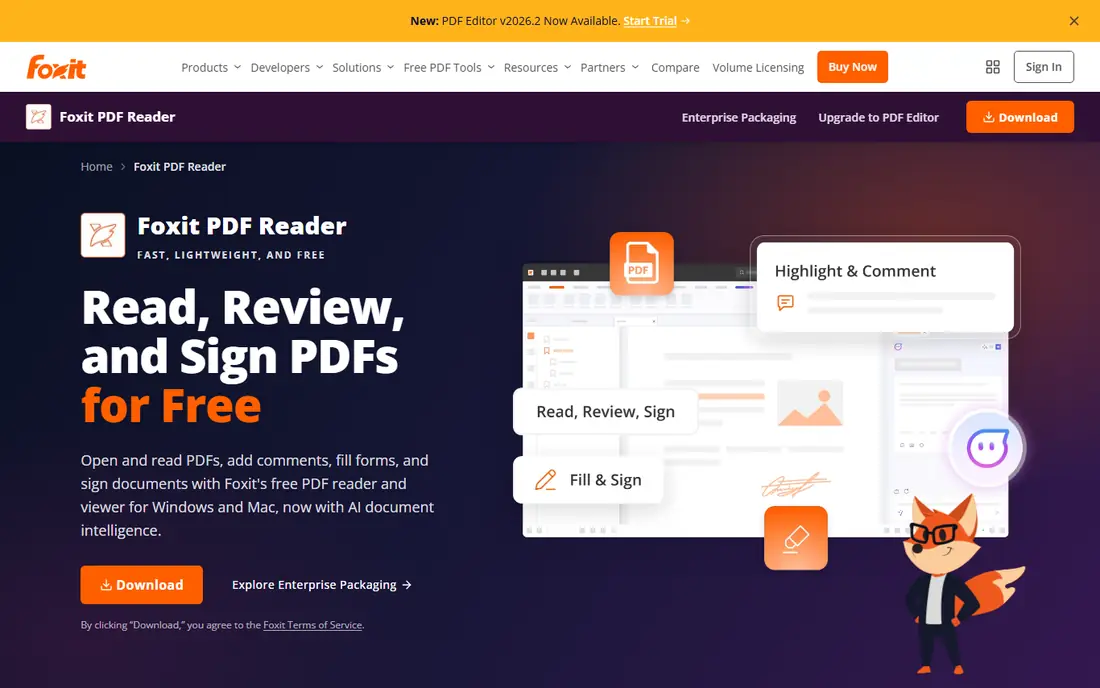
Foxit PDF Reader is the best desktop alternative when Acrobat feels heavy. It opens quickly, uses a tabbed layout for several documents at once, and includes annotation, commenting and form filling in the free reader. Shared review tools help when a team needs to comment on the same document, and the ribbon layout will feel familiar to Office users.
The trade-off is scope. Foxit Reader is a viewer with useful extras, not a full editor, and OCR, full text editing and advanced e-signature workflows sit in the paid Foxit PDF Editor. For reading, marking up and filling forms, the free reader is strong. For heavy editing, compare the paid editor rather than judging the reader alone.
- Fast opening and tabbed interface
- Annotation and form filling
- Connected review and cloud options
- Some advanced features need the paid editor
- Interface has more options than a minimal reader
- Cloud features need an account
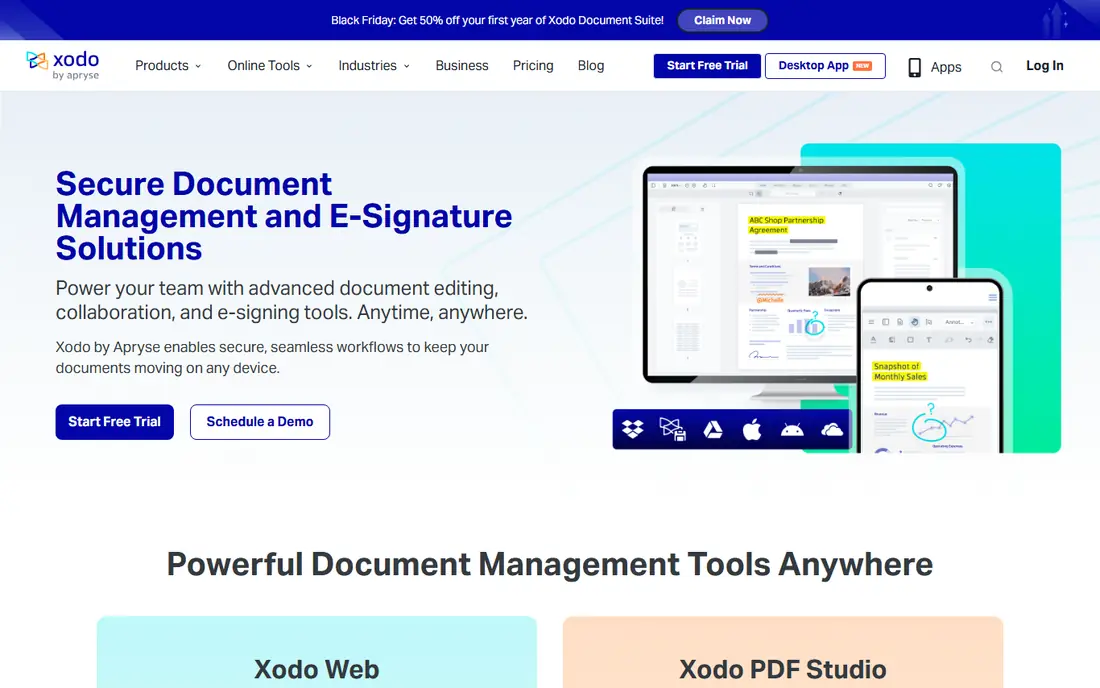
Xodo shines on a tablet or phone, where reading and marking up go together. Highlighting, notes, shapes and form filling work well with touch and stylus input, and sync keeps a marked-up document available on another device. The reading view stays clean, with bookmarks, search and page navigation that suit long reports and textbooks.
On a desktop, Xodo is capable but less deep than Acrobat or Foxit for complex review workflows. Paid plans add editing and team features that casual readers will not need. If most of your PDF time happens on a tablet, Xodo is the first app to try. If most of it happens on a desktop, start with Foxit or Acrobat instead.
- Strong mobile and tablet annotation
- Sync across devices
- Clean reading view with bookmarks and search
- Advanced editing needs a paid plan
- Desktop experience is lighter than Acrobat
- Some features need an account for sync
Sumatra PDF is the minimalist pick, and it earns that title by doing one thing extremely well: opening files fast. A large textbook opens in a moment, navigation is instant, and the tiny install suits older PCs and portable use from a USB drive. Support for EPUB, MOBI and comic formats is a bonus for readers who keep mixed libraries.
The limits are clear. Annotation is minimal, form support is thinner than Acrobat, and there is no Mac or mobile version. Sumatra is a reading tool, not a review tool. Pair it with a second app when you need to mark up or sign, and keep Sumatra for the actual reading.
- Very small and fast
- Opens PDF, EPUB and other formats
- Portable version runs without a full install
- Windows only
- Annotation tools are minimal
- No built-in form filling depth of Acrobat or Foxit
PDFgear is a strong free option for readers who want more than plain viewing without paying. The free core covers reading, annotation, merging, splitting and basic editing, which handles most student and office needs. The interface is clean, and desktop and mobile apps keep the same document available across devices.
The catch is maturity and depth. PDFgear is newer than the long-standing leaders, and its most advanced features sit behind paid plans. For everyday reading and light document work, the free core is generous. For complex forms, legal documents or heavy team review, Acrobat or Foxit remain safer first choices.
- Free core reading, annotation and basic editing
- Clean interface
- Apps for desktop and mobile
- Advanced editing and AI features need paid options
- Newer brand than Acrobat or Foxit
- Some tools are web-based
PDF-XChange Editor suits Windows users who read technical documents. The viewer is fast, annotation is strong, and measurement and commenting tools help with plans, manuals and reports. The free version covers viewing and annotation well, which makes it a good daily reader for engineers, students and office workers on Windows.
The interface is denser than Sumatra or Xodo, and new users may need time to find the tools they need. Edited exports from the free version can carry watermarks on some features, so check before you rely on it for final documents. For viewing and marking up on Windows, it is one of the strongest free choices.
- Fast Windows viewer with strong annotation
- OCR and editing tools in the paid version
- Tabbed reading and measurement tools
- Windows focused, with limited Mac and mobile depth
- Free version watermarks some edited exports
- Interface is dense for new users
Okular is the open-source pick for readers who want a free viewer with no ads and no account. It handles PDF and other document formats, includes annotation and bookmark tools, and runs on Windows, Mac and Linux. For a privacy-minded reader or a Linux user, Okular is often already the natural choice.
Polish is the trade-off. The interface is functional rather than refined, and mobile support is thinner than Xodo or Acrobat. Annotation features are solid for personal use but less tuned for team review. If you value open source and a clean, ad-free reader, Okular delivers. If you need polished mobile annotation, pair it with Xodo.
- Free and open source with no ads
- Supports PDF, EPUB and other formats
- Annotation and review tools included
- Interface feels less polished than commercial rivals
- Mobile apps are limited
- Setup on some systems needs extra steps
UPDF offers a modern reading experience that feels closer to a mobile app than a legacy desktop program. The interface is clean, page navigation is smooth, and annotation tools cover highlighting, notes and shapes for everyday review. Cross-platform apps make it easy to start a document on a computer and finish it on a phone.
Paid plans give access to full editing, OCR and AI-assisted features, so the free version is best seen as a reader with useful extras rather than a full editor. For readers who want a clean look and simple annotation, UPDF is a good trial. For complex forms or legal work, Acrobat still sets the compatibility bar.
- Clean, modern reading interface
- Annotation and basic editing
- Apps for Windows, Mac, iOS and Android
- Full editing and AI features need a paid plan
- Free version has limits on some tools
- Newer than Acrobat and Foxit
Nitro PDF Pro is the business pick for teams that read, review and edit in one app. The Office-style interface feels familiar, annotation and review tools are strong, and conversion and editing sit alongside viewing rather than in a separate product. For contract review and team markup, that combination saves switching between apps.
For plain reading, Nitro is more than most people need, and the lack of a free ongoing plan makes it a harder first trial than the free viewers above. Use the trial to test compatibility with your documents, then buy only when review and editing are part of daily work. For reading alone, a free viewer will serve you just as well.
- Strong reading, annotation and review tools for business use
- Good Office-style interface
- Conversion and editing in the same app
- No free plan for ongoing use
- Trial only for testing
- Heavier than a minimal reader for plain viewing
How we picked these
We compared official feature pages and app store listings for viewers that are live in October 2026, and we kept only tools that open everyday PDFs reliably on at least one major platform. We favored rendering quality, search, annotation and form support, and we included both free and paid options so readers can match cost to need. We did not claim hands-on lab testing, and where a paid price was not clearly stated on the vendor page at check time, we wrote See website rather than guessing a figure.
What to check before you choose
Start with your main device and your main document type. A tablet reader needs touch annotation and sync, while a desktop reader for technical manuals needs fast search and tabbed reading. Open a real document from your own work, not a sample file, and test a long PDF, a scanned page and a form. Check text search, zoom clarity and whether highlights stay in place after you close and reopen the file.
Then check the cost boundary. Free viewers cover reading and basic annotation well, but editing, OCR, redaction and advanced signing usually need a paid plan. Note whether the free version adds watermarks to edited exports, since that detail matters when you share a marked-up file. Finally, check sync and privacy: decide if you want cloud sync across devices or local-only reading, and read the privacy terms before you upload sensitive documents to a web-based tool.
Frequently asked questions
What is the best free PDF viewer?
Adobe Acrobat Reader and Foxit PDF Reader are the strongest free choices for most people, with Sumatra PDF best for fast Windows reading and Xodo best for mobile annotation. The right free viewer depends on your device and whether you need annotation, forms or just fast reading.
Can I fill forms and sign PDFs in a free viewer?
Yes, in most cases for basic forms and signatures. Acrobat Reader, Foxit Reader and Xodo all cover form filling and basic signing in their free versions. Advanced e-signature workflows, bulk signing and legal audit trails usually need a paid plan.
Why does a PDF look different in different viewers?
Fonts, layered graphics, scanned pages and complex forms can render differently across viewers. Acrobat Reader sets the compatibility standard, so if a document looks wrong in a lighter viewer, open it in Acrobat Reader to check whether the file or the viewer is at fault.
Is a browser PDF viewer enough?
For quick reading, yes. Modern browsers open PDFs fast and handle search, zoom and printing well. A dedicated app is better when you need annotation, bookmarks, form filling, offline reading or sync across devices.
Do I need a paid PDF editor just to read PDFs?
No. Reading, searching and basic annotation are free in most viewers on this list. Pay only when you need to edit text, run OCR on scans, redact content, convert files in bulk or manage team review workflows.
Sources
See where you really rank - block by block
ProMapRanker scans Google Maps across a grid of your service area. Simple monthly plans from $19, white-label on every plan.
Start freeKeep reading
 worlds best local seo company
8 Worlds Best Local SEO Companies for Map Pack Growth in 2026
Compare the worlds best local seo company options for Google Business Profile work, citations, reviews, and multi-location rankings and reporting in 2026.
Read → world's best web hosting company
World's Best Web Hosting Company in 2026
Searching for the world's best web hosting company? We compared 10 hosts on price, renewal rates, speed, and support to help you choose well today in 2026.
Read → who's got the best nanny tax services
Who's Got the Best Nanny Tax Services in 2026
We answer who's got the best nanny tax services, comparing full filing, back taxes, software, and pricing so families can handle nanny taxes correctly.
Read →