 ProMapRanker
Best App to Scan PDF in 2026: 9 Apps Compared

Key takeaways
- Adobe Scan and Google Drive give the strongest free starting point for clean, searchable PDFs.
- Genius Scan suits people who hate subscriptions, with a free tier and a paid upgrade for text recognition.
- SwiftScan and Scanner Pro suit frequent scanners who want speed, cloud sync and polished exports.
- Apple Notes suits iPhone users who want a built-in scanner with no extra app.
- Check watermark, text recognition and export rules before you pay, since those decide if a scan is usable.
Quick comparison
| Pick | Great for | Pricing starts at | Free tier | |
|---|---|---|---|---|
 Adobe Scan | Free polished scans | Free | Yes | Visit |
 Genius Scan | Simple ad-free scanning | Free | Yes | Visit |
 SwiftScan | Fast frequent scanning | Free | Yes | Visit |
 CamScanner | Feature variety | Free | Yes | Visit |
 Apple Notes | Built-in iPhone scanning | Free | Yes | Visit |
 Google Drive | Built-in Android scanning | Free | Yes | Visit |
 iScanner | Extra polish features | Free | Yes | Visit |
 Scanner Pro | iPhone power users | Free | Yes | Visit |
 vFlat Scan | Books and notebooks | Free | Yes | Visit |
The best apps to scan pdf
A good scan app finds page edges, flattens the page, cleans up contrast and exports a multi-page PDF you can search and share. The best app for you depends on whether you scan once a month, daily for work, or books and notebooks with curved pages.
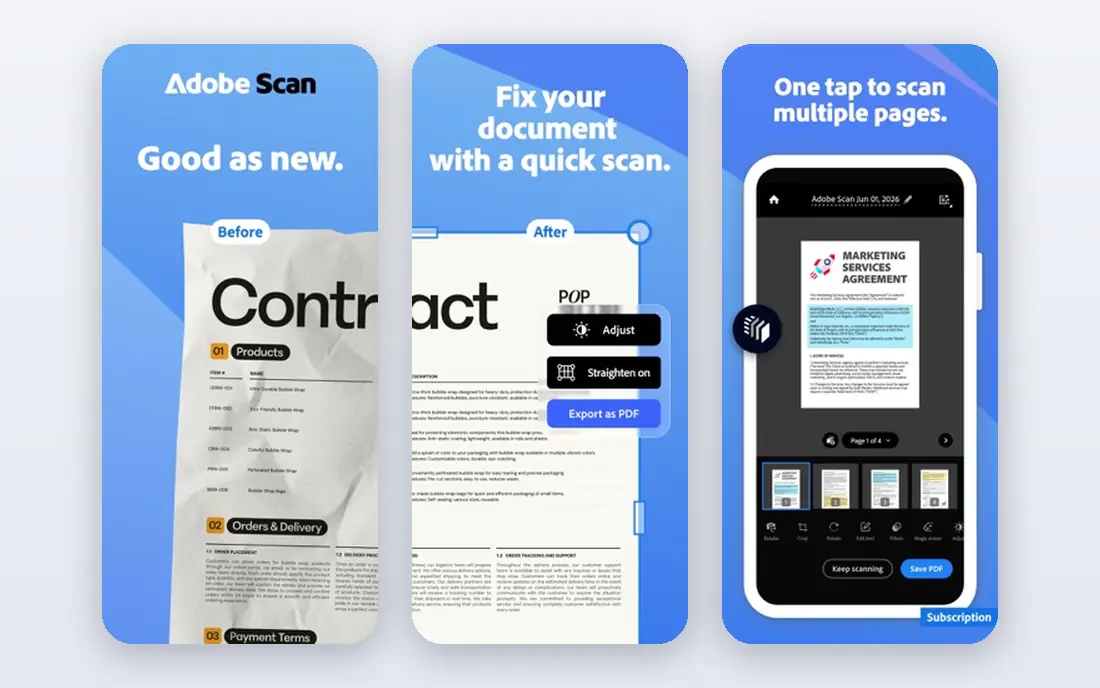
Adobe Scan is our first pick for most people because the free version is generous and the scans look clean. It auto-detects pages, cleans up the image and runs text recognition so your PDFs are searchable. Scans can be stored in Adobe cloud, which helps if you already use Adobe products.
Premium at $9.99 per month adds extra storage and features most casual users will never need. The free plan covers everyday scanning well, with no watermark on the result. If you scan receipts, forms and letters a few times a week, start here.
- Strong automatic edge detection
- Searchable text recognition
- No watermark on free scans
- Premium at $9.99 per month for extra storage and features
- Needs a free Adobe account
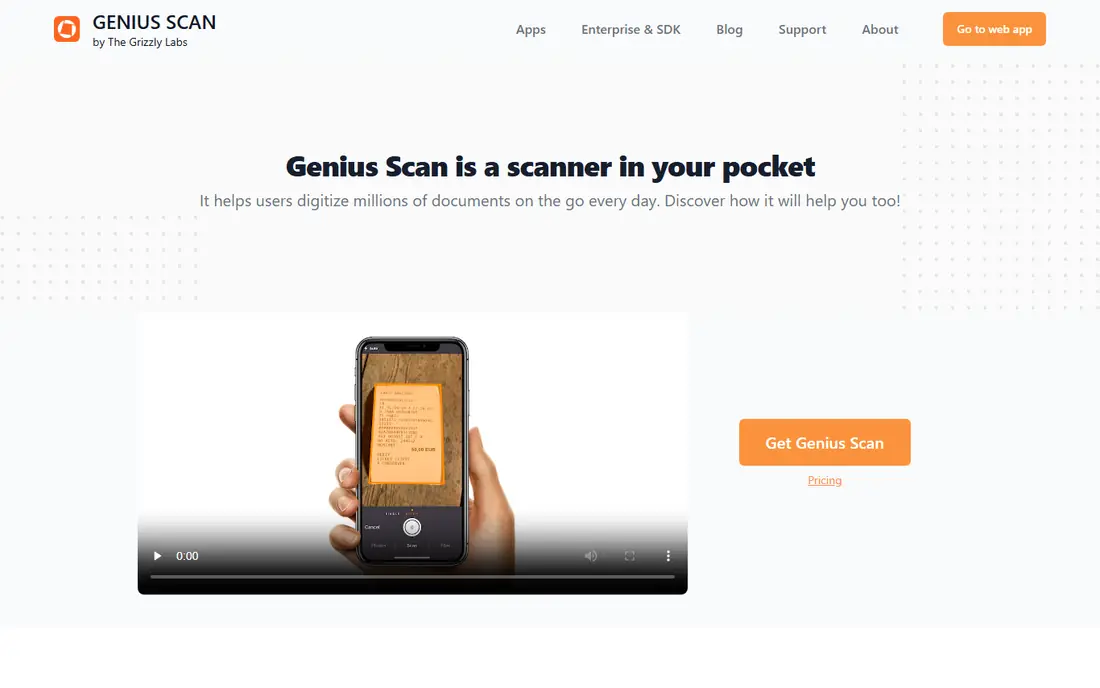
Genius Scan is the quiet workhorse in this list. Point your phone at a receipt or letter and it finds the edges, flattens the page, removes shadows and joins several pages into one PDF, with a batch mode for a whole stack. The free version has no ads and no scan limit, which is rare among scanner apps.
Paid Ultra, listed at $39.99 per year in recent comparisons, adds on-device text recognition, smart file naming and auto-export to cloud storage. That makes Genius Scan a good home for former Microsoft Lens users, since Microsoft stopped new scans in Lens on 9 March 2026. For simple, private scanning, Genius Scan is excellent.
- Fast scans with no watermark on free tier
- No ads and no scan limit
- On-device text recognition on paid tier
- Full text recognition needs a paid plan
- Interface is plainer than Adobe Scan
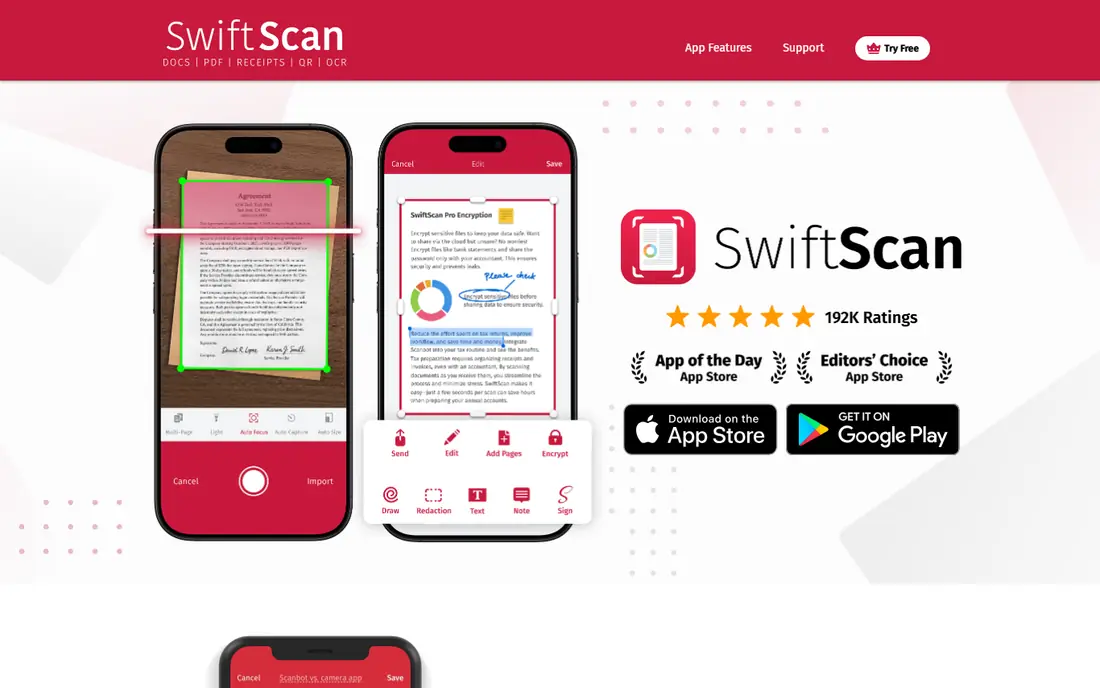
SwiftScan, formerly Scanbot, is a well-designed scanner with quick capture, cloud sync and good automatic edge detection. It suits travellers and freelancers who scan on the move and want a polished result without fiddling with settings. File naming, organisation and cloud export are strong.
The catch is the free tier. Free scans carry a watermark, and full features including text recognition need a paid plan, listed at about $2.99 per month in some comparisons and higher in others, so check the current SwiftScan pricing page. If you scan often and value speed, the paid plan is worth it. For occasional free scans, Adobe Scan or Genius Scan will cost less.
- Very fast capture
- Clean interface
- Cloud sync and fax options
- Free version watermarks scans
- Full text recognition sits behind a paid plan
CamScanner offers one of the widest feature sets here, with scanning, merging, annotation and cloud storage in one app. That variety suits people who want more than a simple scan, such as document sharing, signing and organisation in a single place. The app works on iPhone and Android.
Free scans carry a small watermark, and Premium is listed at $9.99 per month or $69.99 per year in recent comparisons. If a watermark is acceptable for internal use, the free plan is useful. For client-facing documents, pay for Premium or pick a watermark-free free app.
- Wide range of PDF tools
- Cloud storage options
- Detailed export settings
- Free scans carry a watermark
- Premium at $9.99 per month for full features
Apple Notes is the best scanner for iPhone users who do not want another app. Open a note, tap scan, and the phone finds the page, captures it and saves it as a PDF inside the note. That flow is fast for a single page or a short document, and it needs no subscription.
The limit is depth. Apple Notes lacks the batch organisation, smart naming and advanced text tools of Genius Scan or SwiftScan. For quick, free scans on an iPhone, though, it is the lowest friction option. Try it before you download a specialist app.
- Built into iPhone and iPad
- No extra app or account
- Quick PDF export
- Fewer organisation and OCR tools than specialist apps
- IPhone and iPad only
Google Drive includes a built-in scanner that many Android users already have. Tap the plus icon, choose Scan, and the app captures the page, corrects perspective and saves a multi-page PDF to Drive. Sync happens when you are back online, so it works for field work as well.
The scanner is basic, with auto-crop and image enhancement but fewer editing and text tools than Adobe Scan. If you already store files in Drive, that simplicity is a strength, since scans land in the right folder at once. For free, built-in scanning on Android, Google Drive is the obvious first try.
- Built into most Android phones
- Free
- Auto-crop and multi-page PDFs
- Basic editing only
- Organisation depends on Drive folders
iScanner suits people who want extra polish on every scan. It offers blur correction, AI polish, document organisation and a wide range of export formats, which helps for receipts, IDs and forms that need to look sharp. The interface guides you through capture and cleanup step by step.
The free plan covers basic scanning, while paid plans add the fuller feature set, listed at $9.99 per month or $19.99 per year in recent comparisons. Check the current iScanner pricing page, since rates vary by store. If scan quality matters more than a free tier, iScanner is worth testing.
- Strong image cleaning and polish
- Many export options
- Useful for receipts and IDs
- Full features need a paid plan at $9.99 per month or $19.99 per year in recent listings
Scanner Pro, from Readdle, is built for iPhone and iPad users who scan often and want a polished workflow. It handles edge detection, text recognition, file naming and cloud export in a clean interface that fits well with other Readdle apps. Power users who scan daily will appreciate the speed.
The app is free to download, with paid plans for full features, so check the current Scanner Pro pricing page before you commit. Android users should pick Adobe Scan, Genius Scan or Google Drive instead. For iPhone power users, Scanner Pro is a strong specialist pick.
- Polished iPhone workflow
- Good OCR and export options
- Strong file organisation
- IPhone and iPad only
- Full features need a paid plan
vFlat Scan suits books, notebooks and documents with curved pages. It flattens curved pages, removes finger shadows and produces clean PDFs that read well, which general scanners handle less well. Students and researchers who scan book pages will notice the difference at once.
The free tier covers casual use, while paid extras add more features, with pricing shown in the app stores. The ecosystem is smaller than Adobe Scan, so cloud and integration options are fewer. For book scanning, vFlat is the specialist pick in this list.
- Good for books and curved pages
- Clean page flattening
- Free tier for casual use
- Paid extras needed for full features
- Smaller ecosystem than Adobe Scan
How we picked these
We compared official product pages, app store listings and recent scanner app comparisons in October 2026. We kept only apps with live PDF scanning, multi-page export and a real free tier or built-in free option. We left out Microsoft Lens, because Microsoft removed it from app stores in February 2026 and stopped scanning on 9 March 2026. Prices change by store, so check the listing before you pay.
How to choose the right scan app
Start with your phone. iPhone users should try Apple Notes first, then Scanner Pro or Adobe Scan if they need more. Android users should try Google Drive first, then Adobe Scan or Genius Scan. Frequent scanners should test SwiftScan and iScanner for speed and polish.
Check four points before you pay. First, does the free tier watermark your scans. Second, does it offer searchable text, since that decides if you can find a scan later. Third, where do scans go, and can you export them as standard PDFs without lock-in. Fourth, how does the app handle private documents, since some apps upload images to the cloud and others process text on the device. Good light and a flat surface help any app more than a paid plan will.
Frequently asked questions
What is the best app to scan PDF files for free?
Adobe Scan and Genius Scan are the strongest free picks, since both give clean, watermark-free scans on the free tier. Google Drive on Android and Apple Notes on iPhone also give free built-in scanning with no extra app. Pick the one that matches your phone and your export needs.
What is the best scan to PDF app for iPhone?
Apple Notes is best for quick built-in scans, Scanner Pro is best for iPhone power users, and Adobe Scan is best for polished free scans with searchable text. Genius Scan is also a strong iPhone pick for simple, ad-free scanning with no scan limit.
Is Microsoft Lens still available?
No. Microsoft removed Lens from app stores in February 2026 and stopped scanning on 9 March 2026. Former Lens users should try Adobe Scan for searchable PDFs, Genius Scan for simple ad-free scanning, or Google Drive and Apple Notes for built-in scanning.
Do scanner apps make PDFs searchable?
Many do, through text recognition. Adobe Scan, Genius Scan on its paid tier, SwiftScan on its paid tier and Scanner Pro all add a searchable text layer. Check whether text recognition is free or paid in the app you pick, since that varies a lot across free tiers.
How do I get a clean scan from a phone?
Use good light, a flat surface and a plain background, and hold the phone steady above the page. Let the app find the edges before you capture, and check the result at full size for blur or shadows. For books, use vFlat Scan or a similar book mode that flattens curved pages.
Sources
See where you really rank - block by block
ProMapRanker scans Google Maps across a grid of your service area. Simple monthly plans from $19, white-label on every plan.
Start freeKeep reading
 zscaler alternatives
Best Zscaler Alternatives in 2026
Looking for zscaler alternatives? We compare 9 SASE and zero trust platforms on architecture, data protection, pricing, and fit for your network and team.
Read → zapier alternatives free
Best Zapier Alternatives Free in 2026
Nine automation tools for zapier alternatives free in 2026, all with genuinely free tiers, plus free plan limits, starting prices and upgrade paths explained.
Read → which platform is best for online reputation
Which Platform Is Best for Online Reputation in 2026
Wondering which platform is best for online reputation? We compare 8 review, listing, and response tools for small and multi-location businesses and agencies.
Read →