 ProMapRanker
Best App to Remove Person From Photo Free in 2026


Focused removal of people and objects · Pricing starts at: $3.99 one-time purchase
Key takeaways
- TouchRetouch is our pick for focused removal work, because it is built around that one job and keeps the controls simple.
- Snapseed remains the strongest fully free option, with a manual Healing tool that works well on smaller distractions.
- Cleanup.pictures is the fastest no-install choice for a single photo, with free exports limited in resolution.
- Large or busy backgrounds need more patience, and no app in this list can rebuild detail that was never in the photo.
- Only edit your own photos, or photos you have permission to edit, and do not use removal tools to mislead other people.
Quick comparison
| Pick | Great for | Pricing starts at | Free tier | |
|---|---|---|---|---|
| TouchRetouch | Focused removal of people and objects | $3.99 one-time purchase | No | Visit |
 Snapseed | Free manual retouching | Free | Yes | Visit |
 Adobe Lightroom | Removal inside a full photo workflow | $11.99 per month | Yes | Visit |
 Cleanup.pictures | Quick browser-based cleanup | $5 per month | Yes | Visit |
 Picsart | Social and creative editing with removal | $15 per month | Yes | Visit |
 PhotoRoom | Product and listing photos | $7.50 per month | Yes | Visit |
 Adobe Photoshop | Detailed desktop retouching | $20.99 per month | Free trial | Visit |
 Google Photos | One-tap cleanup on your phone | Free | Yes | Visit |
 Inpaint | Simple web and desktop removal | $29.99 one-time purchase | No | Visit |
The best app to remove person from photo free
These tools all remove a person, a stranger in the background, or another distraction from a photo. They differ in control, price, and how much background detail they can rebuild.

TouchRetouch is the app we would open first when removal is the main job. You paint over the person or object, tap to process, and the app fills the area from the surrounding pixels. The brush and lasso tools give you a fair amount of control without turning the job into a desktop editing session. It also handles lines well, which matters when a wire or a pole crosses the frame.
The trade-off is scope. This is not a general photo editor, so you will still need another app for exposure, colour, and cropping. The one-time purchase keeps the cost simple, but there is no free version to test the result on your hardest photo first. Try it on a smaller distraction before you rely on it for a large figure in a detailed scene.
- Dedicated removal tools
- Brush and lasso selection
- Line removal for wires and poles
- No full photo editing suite
- Paid with no free tier
- Results vary on very busy backgrounds
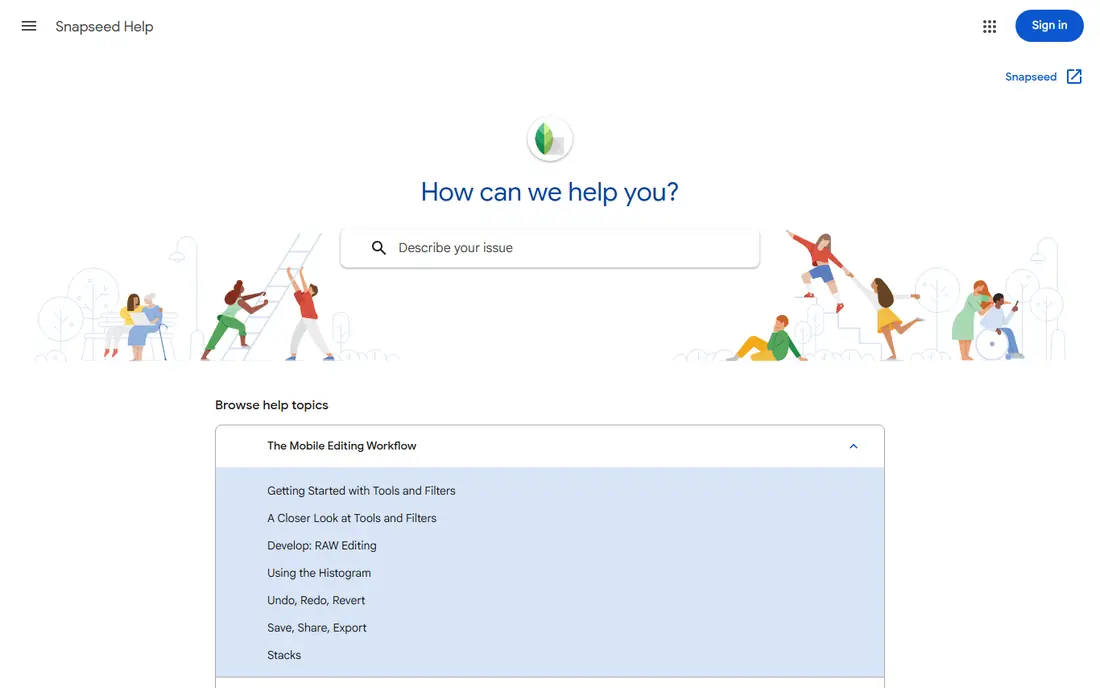
Snapseed is Google's free photo editor, and its Healing tool is the reason it belongs here. You tap or paint over a small unwanted person, and Snapseed clones nearby pixels into the gap. Because edits are non-destructive, you can undo a step or return to the original without losing the photo. The rest of the app covers exposure, colour, cropping, and selective edits, so a cleanup can stay in one place.
Patience is the price of free here. Healing works best on small figures and simple backgrounds, such as a distant walker on sand or grass. A large person against a patterned background is more likely to leave a soft or smeared patch. For quick, honest cleanup work at no cost, though, Snapseed is hard to beat.
- Completely free with no subscription
- Non-destructive edits
- Strong general editing tools
- Healing is manual and slower
- Complex backgrounds can smudge
- No AI fill in the free app
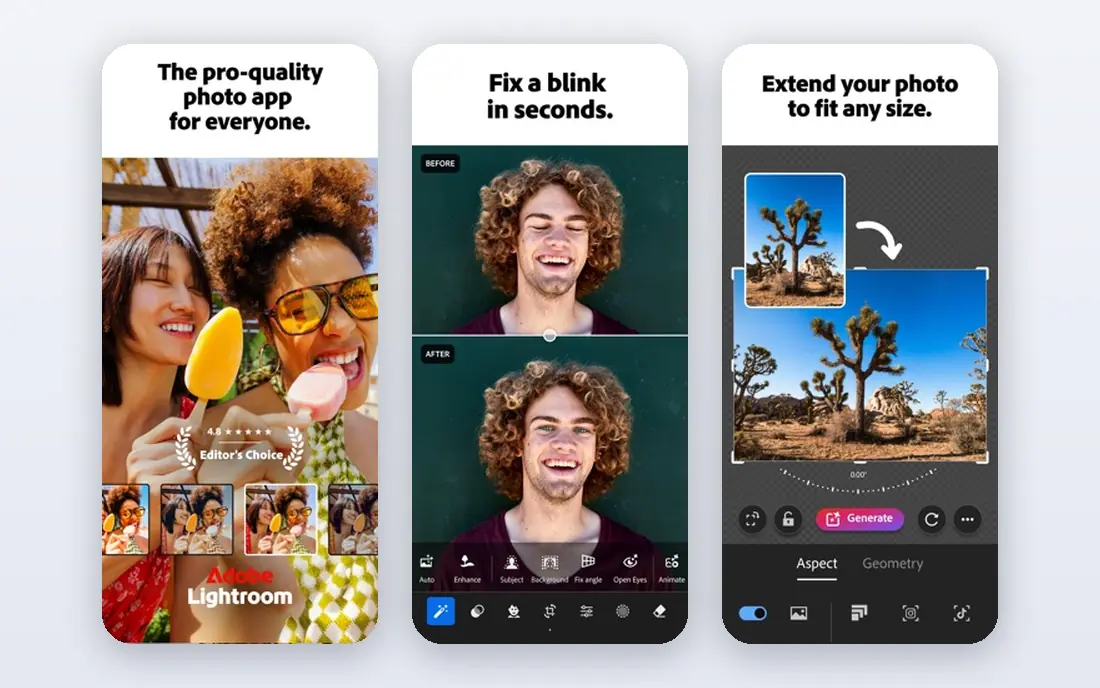
Lightroom suits people who already edit photos and want removal as part of that routine. Its Remove tool can brush away a person and rebuild the area, and masking tools let you refine the result alongside exposure and colour changes. Edits stay non-destructive, so you can revisit a photo later and adjust the removal without starting again. The mobile app also works well for photos taken on a phone.
The free mobile version is limited, and the stronger removal tools sit behind a subscription. That makes Lightroom a poor choice if you only need to fix one photo. For regular photographers, however, the combination of organisation, editing, and removal in one app is a practical reason to pay.
- Strong Remove tool and masking
- Non-destructive workflow
- Syncs across phone and desktop
- Full removal features need a paid plan
- Subscription cost adds up
- Learning curve for new users
Cleanup.pictures is the simplest way to test removal on a single photo. You open the site, upload a photo, paint over the person, and download the result. There is no account step for basic edits, and the brush interface is easy to grasp in under a minute. For a holiday photo with one stranger at the edge of the frame, that speed is the whole appeal.
Free exports are limited in resolution, so this is not the best pick for a large print. Very large removals can also look soft, especially where the background has fine detail. The paid plan removes the resolution limit, which is worth considering if you clean up photos often. For occasional use, the free tier is enough to judge the quality.
- No app install needed
- Simple brush interface
- Free version for standard-resolution exports
- Free exports limited to 720 pixels
- Large removals can blur
- No full editing suite
Picsart works best when removal is part of a social post rather than the whole project. Its remove tool can take out a bystander, and you can then adjust colour, add text, or prepare the image for a feed or story without switching apps. The free plan lets you try the basics, and the paid plan adds more AI tools and higher-resolution exports. For creators who post often, that all-in-one flow saves time.
The downside is focus. Picsart is a broad creative platform, so its removal tool does not feel as specialised as TouchRetouch. Free users will also run into limits and prompts to upgrade. If you mainly want clean photos for social media, Picsart is a solid choice. If you want the cleanest possible removal, pair it with a dedicated tool.
- Object removal plus a wide creative toolkit
- Mobile and web versions
- Batch tools on paid plans
- Many features sit behind Pro
- Free version includes ads and limits
- Removal is one tool among many
PhotoRoom is aimed at sellers and small businesses, but its cleanup tools are useful for any photo with a distracting background figure. You can remove an object, tidy a background, and prepare a clean image for a listing in a few taps. Templates and batch processing on paid plans help when you have many photos to prepare at once. The interface stays simple, which is a plus for people who do not want a full editor.
It is less suited to artistic or detailed retouching. A person standing in front of a complex scene may still need a manual tool such as Snapseed or TouchRetouch for the best result. PhotoRoom earns its place here for speed and for listing photos, where a clean background matters more than pixel-perfect reconstruction.
- Fast background and object handling
- Templates for listings
- Batch processing on paid plans
- Built mainly for product photos
- Free exports have limits
- Subscription needed for full quality
Photoshop is the most capable option when a removal is difficult. The Remove Tool brushes away a person, and Generative Fill can rebuild a larger area with new pixels matched to the scene. Layers and selections give you control over edges, shadows, and texture in a way mobile apps cannot match. For a photo you plan to print or publish, that control is worth having.
The cost and learning curve are real barriers. Photoshop is a subscription, and the interface can feel crowded if you only need one tool. Most readers will not need it for a simple background stranger. Keep it in mind for the photos that matter most, and use a cheaper app for everyday cleanup.
- Remove Tool and Generative Fill for hard cases
- Precise selection and layers
- Professional output quality
- Highest cost in this list
- Steep learning curve
- Overkill for a single quick fix
Google Photos is convenient because many readers already keep their photos there. On supported Pixel phones and some Google One plans, Magic Eraser can suggest distractions and remove them with a tap, or let you circle a person to erase. The cleaned photo stays in your library, ready to share or back up. For a quick fix before sending a photo to family, that convenience is hard to match.
Control is limited compared with Snapseed or TouchRetouch. You cannot always guide the fill in detail, and a large person may leave a visible patch. Availability also depends on your device and plan, so check the feature on your phone before you count on it. As a free, everyday cleanup tool, however, Google Photos is a practical first stop.
- Magic Eraser on supported devices
- Photos already stored in the app
- Simple sharing and backup
- Magic Eraser needs a supported device or plan
- Less manual control
- Results vary on large subjects
Inpaint keeps the job deliberately simple. You mark the person or object, press erase, and the tool fills the area from nearby pixels. The web version lets you try the idea without installing software, and the desktop version is a one-time purchase rather than a subscription. For small objects, signs, and distant figures, that simplicity is enough.
It is not the best pick for a large person in a detailed scene, where newer AI tools rebuild backgrounds more convincingly. Inpaint also offers little beyond removal, so you will need another editor for colour and cropping. If you want a low-cost, no-subscription tool for small cleanups, Inpaint still earns a place.
- Very simple workflow
- Web version for quick tries
- One-time desktop purchase
- No AI-based fill on the basic tool
- Weak on large or complex removals
- Limited editing features
How we picked these
We compared official feature pages, pricing pages, and app store listings, and we kept only tools that remove a person or object from a photo in a legitimate editing workflow. We left out any undressing tool and any tool built for non-consensual imagery, since those do not belong in a photo cleanup guide. We favoured tools with a clear free tier or a low one-time cost, and we noted where a free export is limited in resolution. Prices were checked against vendor pages and current reporting in October 2026, and we used See website in other articles in this batch where a vendor price could not be confirmed.
What to check before you pay
Start with the size of the removal. A small figure at the edge of a photo is a good test for a free tool, while a large figure in front of detailed textures may need Photoshop or Lightroom. Check export resolution before you pay, since a free tier that caps exports at a low size will not suit printing. Also check whether the tool works on your device, since some features depend on the phone model or plan.
Free versus paid
Free tools handle most everyday cleanups. Snapseed costs nothing, Cleanup.pictures handles quick web edits, and Google Photos covers one-tap fixes on supported phones. Paid tools add higher resolution, batch work, and stronger fills for hard backgrounds. Pay only when you clean up photos often, or when a free result leaves a visible patch on a photo you care about.
Getting a cleaner result
Work in small strokes rather than painting over a whole person at once. Zoom in, remove in sections, and check edges and shadows after each pass. If the background looks smeared, undo and try a smaller area. Save a copy of the original before you start, so you can compare the result and return to it if the edit goes wrong.
A note on honest editing
Removing a stranger from your own holiday photo is normal editing. Removing a person to change what a photo shows in a news, legal, or safety context is a different matter. Keep the original when the photo matters as a record, and do not present an edited photo as unedited where that would mislead someone.
Frequently asked questions
What is the best app to remove people from photos for free?
Snapseed is our free pick for most people, because it costs nothing and its Healing tool handles small distractions well. Cleanup.pictures is a good second choice when you want a quick web edit without installing an app. For larger figures, a paid tool such as TouchRetouch or Lightroom will usually give a cleaner result.
What is the best app to remove someone from a photo on a phone?
TouchRetouch is the strongest phone-first choice for focused removal, while Snapseed is the best free phone editor. Google Photos is the fastest option on supported phones, since Magic Eraser can suggest and remove distractions with a tap. The right pick depends on whether you want manual control or a one-tap fix.
Can I remove a person from the background without paying?
Yes, for many photos. Snapseed is free, Cleanup.pictures offers free standard-resolution exports, and Google Photos includes cleanup features on supported devices. Free tools work best on small or distant figures, and you may need to work in small sections to avoid a smeared background.
Why does my edited photo look blurry where the person was?
The tool has to invent pixels for the area behind the person, and it can only guess from nearby detail. Busy patterns, faces, and fine textures are the hardest to rebuild, which is why large removals often look soft. Try smaller brush strokes, or use Photoshop Generative Fill for a harder case.
Does removing a person from a photo work on group photos?
It can work when the person stands apart from the group and the background behind them is simple. It is much harder when people overlap, since the tool must rebuild parts of other people or clothing that were hidden. In that case, cropping the photo or keeping the group as shot may give a better result.
Sources
See where you really rank - block by block
ProMapRanker scans Google Maps across a grid of your service area. Simple monthly plans from $19, white-label on every plan.
Start freeKeep reading
 who has the best home internet service
Who Has the Best Home Internet Service in 2026
Who has the best home internet service in 2026? Compare fiber, cable, and 5G providers on speed, price, data caps, and availability at your address today.
Read → visio alternatives
Best Visio Alternatives in 2026
Compare 9 Visio alternatives for flowcharts, org charts, and network diagrams, with free plans, pricing, and the best pick for teams and solo users in 2026.
Read → top 10 logistics software
Top 10 Logistics Software in 2026
We compared the top 10 logistics software tools for transport, warehousing, visibility and shipping, for shippers, carriers and 3PL teams in 2026 today.
Read →