 ProMapRanker
Best App to Open PDFs in 2026


Accurate PDF reading on any device · Pricing starts at: Free
Key takeaways
- Adobe Acrobat Reader and Foxit PDF Reader are the safest defaults for accurate rendering and form filling.
- SumatraPDF and MuPDF style light readers suit users who want speed and simplicity on Windows.
- PDF Expert is the strongest Mac and iPad choice, while Xodo and PDFgear offer strong free options across platforms.
- Paid plans mainly add editing, conversion and cloud features, so check the free version before you subscribe.
Quick comparison
| Pick | Great for | Pricing starts at | Free tier | |
|---|---|---|---|---|
| Adobe Acrobat Reader | Accurate PDF reading on any device | Free | Yes | Visit |
 Foxit PDF Reader | Fast reading with business features | Free | Yes | Visit |
 Xodo | Free annotation and signing across devices | Free | Yes | Visit |
 PDFgear | Free editing on desktop and mobile | Free | Yes | Visit |
 SumatraPDF | Light and fast reading on Windows | Free | Yes | Visit |
 PDF Expert | PDF reading and editing on Mac and iPad | See website | Free trial | Visit |
 PDF-XChange Editor | Windows editing without a subscription | See website | Yes | Visit |
 Nitro PDF Pro | PDF editing for work teams | See website | Free trial | Visit |
 Smallpdf | Browser-based PDF tools | Free | Yes | Visit |
The best apps to open PDFs
Almost every phone and computer can open a PDF in a browser, but a good PDF app adds reliable rendering, annotation, form filling and signing. The apps below range from free and light to full editors with paid plans. We compared them on opening and reading first, because a reader that struggles with large or complex files will frustrate you even if it has many extra tools.
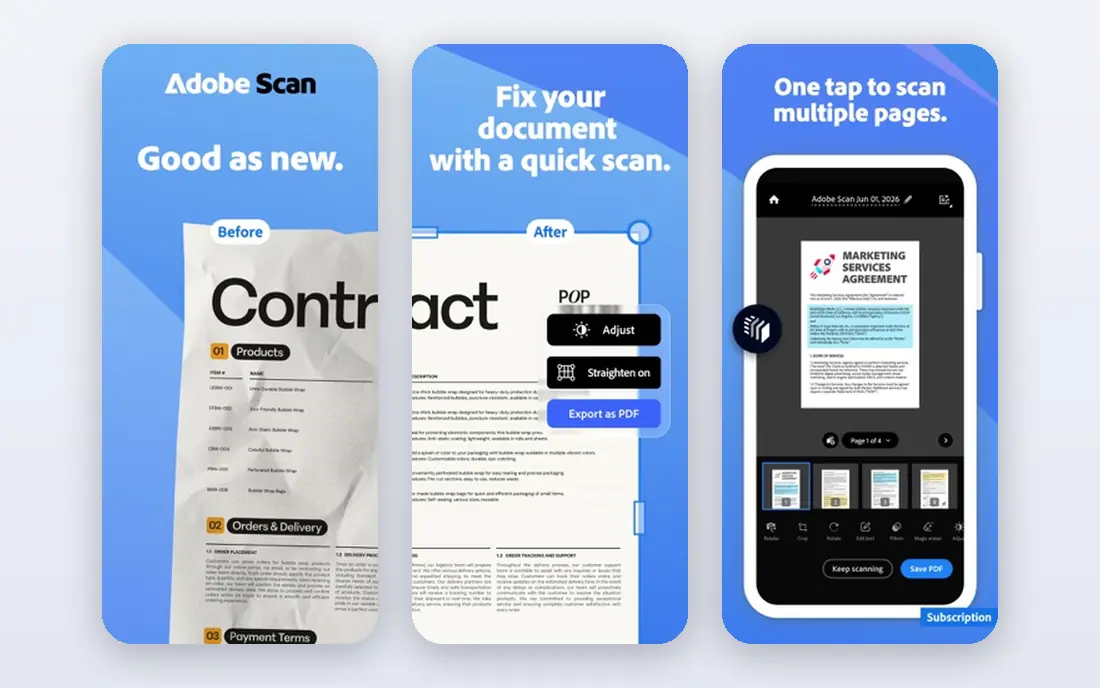
It fits anyone who wants a safe, widely compatible PDF reader for work and study. Adobe Acrobat Reader is the default choice for most readers because it renders complex PDFs reliably and handles forms and signatures well. In practice, that means the Adobe Acrobat Reader experience is shaped by its accurate pdf reading on any device focus, not by trying to cover every possible use case at once.
The free version covers reading, annotation and signing, while editing and conversion sit behind a paid plan. That trade-off is worth weighing before you commit, because the right choice depends more on how you will use it week to week than on any single feature. Check the current plan details on the official site before you sign up, since pricing and feature limits change. If that balance sounds right, Adobe Acrobat Reader is worth a closer look. If not, another entry here may match your routine better.
- Industry standard rendering
- Annotation and signing
- Cloud sync with Adobe account
- Full editing needs a paid Pro plan
- App can feel heavy on older devices
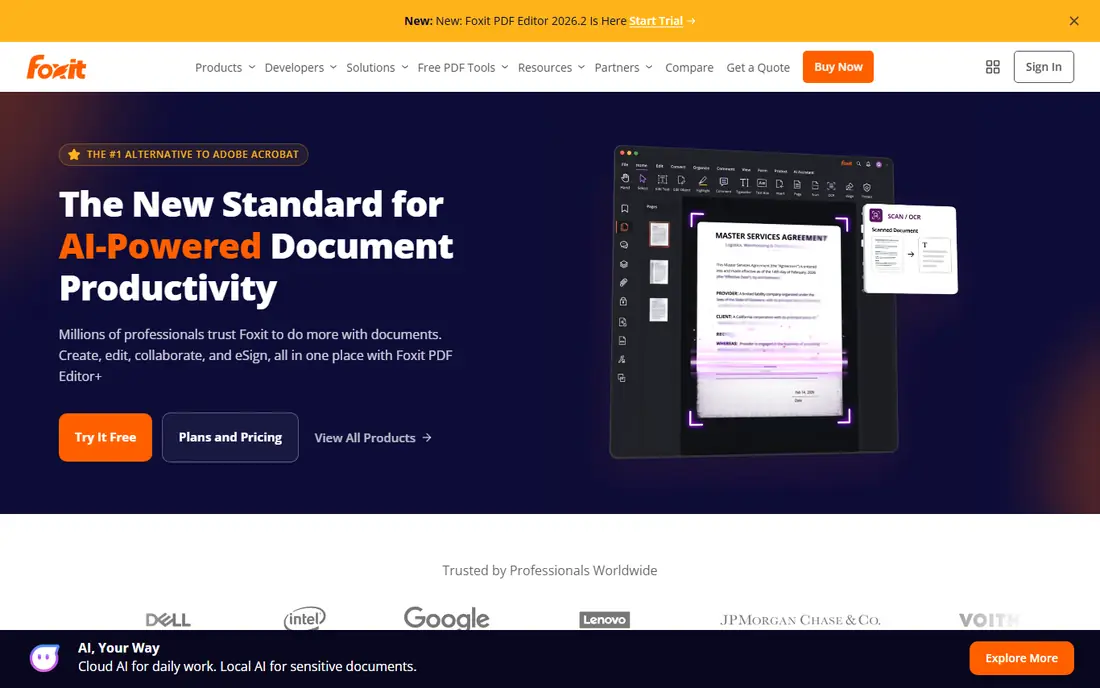
Foxit PDF Reader opens PDFs quickly and adds annotation, form filling and signing without a subscription. It fits students and office users who want a fast free reader with room to grow. In practice, that means the Foxit PDF Reader experience is shaped by its fast reading with business features focus, not by trying to cover every possible use case at once.
New users may need time to find the tools they want among the many menus. We would still put it on a shortlist for readers who match the use case above, but it is not the pick for everyone. Compare it directly with the next options on this list before deciding. If that balance sounds right, Foxit PDF Reader is worth a closer look. If not, another entry here may match your routine better.
- Fast viewing
- Annotation and form filling
- Cloud and collaboration options
- Full editing and advanced features need a paid plan
- Interface has many options

For readers who fit this profile, it fits students and casual users who want free annotation without a desktop-only tool. Xodo gives free users a strong set of annotation and editing tools across desktop, web and mobile. In practice, that means the Xodo experience is shaped by its free annotation and signing across devices focus, not by trying to cover every possible use case at once.
Paid features vary by platform, so check the plan page for the device you use most. The limits matter less if you mainly need the core job done well, and more if you want every extra feature in one place. Read the plan page carefully before you commit. If that balance sounds right, Xodo is worth a closer look. If not, another entry here may match your routine better.
- Free annotation, editing and signing
- Sync with cloud storage
- Works on web and mobile
- Some advanced features need a paid plan
- Layout differs by platform
It fits budget-conscious users who want to edit PDFs without paying a monthly fee. PDFgear stands out by offering editing tools for free where rivals charge a subscription. In practice, that means the PDFgear experience is shaped by its free editing on desktop and mobile focus, not by trying to cover every possible use case at once.
It is a newer name, so users who need enterprise support may prefer an established vendor. That trade-off is worth weighing before you commit, because the right choice depends more on how you will use it week to week than on any single feature. Check the current plan details on the official site before you sign up, since pricing and feature limits change. If that balance sounds right, PDFgear is worth a closer look. If not, another entry here may match your routine better.
- Free editing, conversion and annotation
- AI chat features on some plans
- Cross-platform
- Newer brand than Adobe or Foxit
- Some features need an account
SumatraPDF is a small, fast reader that opens large PDFs quickly on Windows. It fits Windows users who value speed and simplicity over extra tools. In practice, that means the SumatraPDF experience is shaped by its light and fast reading on windows focus, not by trying to cover every possible use case at once.
It is a reader first, so it is not the choice for heavy annotation or editing. We would still put it on a shortlist for readers who match the use case above, but it is not the pick for everyone. Compare it directly with the next options on this list before deciding. If that balance sounds right, SumatraPDF is worth a closer look. If not, another entry here may match your routine better.
- Very light and fast
- Opens PDFs and other formats
- No account needed
- Windows only
- Annotation and editing are limited
For readers who fit this profile, it fits Mac and iPad users who read and mark up PDFs every day. PDF Expert is the most polished PDF app for Mac and iPad users, with fast opening and smooth annotation. In practice, that means the PDF Expert experience is shaped by its pdf reading and editing on mac and ipad focus, not by trying to cover every possible use case at once.
Windows and Android users need a different app, since PDF Expert is Apple focused. The limits matter less if you mainly need the core job done well, and more if you want every extra feature in one place. Read the plan page carefully before you commit. If that balance sounds right, PDF Expert is worth a closer look. If not, another entry here may match your routine better.
- Polished Mac and iPad design
- Fast performance
- Annotation, editing and signing
- Apple platforms only
- Full features need a paid plan
It fits Windows power users who want editing without a monthly bill. PDF-XChange Editor offers a wide free feature set on Windows, with a one-time licence for users who dislike subscriptions. In practice, that means the PDF-XChange Editor experience is shaped by its windows editing without a subscription focus, not by trying to cover every possible use case at once.
The interface is dense, and some advanced tools need the paid licence. That trade-off is worth weighing before you commit, because the right choice depends more on how you will use it week to week than on any single feature. Check the current plan details on the official site before you sign up, since pricing and feature limits change. If that balance sounds right, PDF-XChange Editor is worth a closer look. If not, another entry here may match your routine better.
- Many free features
- One-time licence option
- OCR and form tools
- Windows only
- Some features add a watermark without a licence
Nitro PDF Pro is a full editor for users who create, convert and sign PDFs at work. It fits office teams that need a complete PDF editor as a daily tool. In practice, that means the Nitro PDF Pro experience is shaped by its pdf editing for work teams focus, not by trying to cover every possible use case at once.
It is more than most casual readers need, and the price reflects that. We would still put it on a shortlist for readers who match the use case above, but it is not the pick for everyone. Compare it directly with the next options on this list before deciding. If that balance sounds right, Nitro PDF Pro is worth a closer look. If not, another entry here may match your routine better.
- Full editing, conversion and signing
- Batch tools
- Windows and Mac versions
- Paid only for full use
- Price is higher than a simple reader
For readers who fit this profile, it fits occasional users who want simple online PDF tools. Smallpdf is useful when you need a quick PDF task in a browser without installing software. In practice, that means the Smallpdf experience is shaped by its browser-based pdf tools focus, not by trying to cover every possible use case at once.
Free use has limits, and large or sensitive files may be better handled in a desktop app. The limits matter less if you mainly need the core job done well, and more if you want every extra feature in one place. Read the plan page carefully before you commit. If that balance sounds right, Smallpdf is worth a closer look. If not, another entry here may match your routine better.
- No install needed
- Conversion, compression and signing in a browser
- Simple interface
- Free use is limited
- Full tools need a paid plan
- Needs an internet connection
How we picked these
We compared official feature pages, pricing pages and app store listings, and we kept only PDF apps that are live and widely used in October 2026. We favoured apps with reliable rendering, annotation and form support, and we marked pricing as See website where the vendor does not publish a single clear starting price. We did not claim hands-on testing on every device.
What to check before you pick a PDF app
Start with reading, not editing. Open a large, complex PDF you actually use, and check zoom, search, page navigation and form filling. If those feel slow or broken, extra editing tools will not fix the daily experience.
Check annotation and signing needs separately. Highlighting, comments, form filling and signatures are free in several apps here, while text editing, page editing and conversion often need a paid plan. Make a short list of the three tasks you do most, then match the free version to that list.
Think about where you read. A Mac and iPad user will get the best experience from PDF Expert, a Windows user from SumatraPDF or PDF-XChange Editor, and a cross-device user from Adobe, Foxit, Xodo or PDFgear. A browser tool such as Smallpdf suits occasional use on shared computers.
Check privacy for sensitive files. If you work with contracts, medical forms or financial documents, prefer a desktop app and check whether the vendor uploads files to a cloud service. For a one-off task, a browser tool is fine, but do not upload sensitive files without reading the privacy policy.
Frequently asked questions
What is the best free app to open PDFs?
Adobe Acrobat Reader and Foxit PDF Reader are the safest free choices for accurate reading, forms and signing. Xodo and PDFgear offer stronger free editing, while SumatraPDF is the fastest free Windows reader.
Can I open PDFs without installing an app?
Yes. Browsers such as Chrome, Edge and Firefox open PDFs, and Smallpdf offers browser tools. A dedicated app is better for annotation, forms and large files.
Do I need to pay to sign a PDF?
No, in most cases. Free versions of Adobe, Foxit, Xodo and PDFgear allow signing. Paid plans add editing, conversion and advanced signing workflows.
Which PDF app is best for Mac?
PDF Expert is the strongest Mac and iPad choice in this list. Adobe Acrobat Reader and Foxit PDF Reader are also good cross-platform options on Mac.
Which PDF app is best for large files?
SumatraPDF is very fast on Windows, and Adobe and Foxit handle large files well on most platforms. Test with your own largest file before you commit.
Sources
See where you really rank - block by block
ProMapRanker scans Google Maps across a grid of your service area. Simple monthly plans from $19, white-label on every plan.
Start freeKeep reading
 zscaler alternatives
Best Zscaler Alternatives in 2026
Looking for zscaler alternatives? We compare 9 SASE and zero trust platforms on architecture, data protection, pricing, and fit for your network and team.
Read → zapier alternatives free
Best Zapier Alternatives Free in 2026
Nine automation tools for zapier alternatives free in 2026, all with genuinely free tiers, plus free plan limits, starting prices and upgrade paths explained.
Read → which platform is best for online reputation
Which Platform Is Best for Online Reputation in 2026
Wondering which platform is best for online reputation? We compare 8 review, listing, and response tools for small and multi-location businesses and agencies.
Read →