 ProMapRanker
Best Apps to Fill Out PDF Forms Free in 2026

Key takeaways
- Only tools with a real free plan for filling PDF forms are listed here, so trial-only tools do not count as free.
- Free filling usually covers typing into fields, adding checkmarks, and signing your own form, while sending forms to others often needs a paid plan.
- Desktop and mobile apps suit private forms better, since web tools require uploading the file to a server.
- Check file size limits, daily limits, and export terms before using a free tool for a long or sensitive form.
Quick comparison
| Pick | Great for | Pricing starts at | Free tier | |
|---|---|---|---|---|
 Adobe Acrobat Reader | Most reliable free filling | Free | Yes | Visit |
 Xodo | Free filling on phone and web | Free | Yes | Visit |
 Sejda | Free web filling with editing | Free | Yes | Visit |
 PDFescape | Free web filling without install | Free | Yes | Visit |
 PDFgear | Free desktop and mobile filling | Free | Yes | Visit |
 DocHub | Free limited filling and signing | Free | Yes | Visit |
 Foxit PDF Reader | Free reader with form filling | Free | Yes | Visit |
 Smallpdf | Free limited web filling | Free | Yes | Visit |
 PDF24 | Free web tools for forms | Free | Yes | Visit |
The best apps to fill out PDF forms free
We compared official product pages, free-tier terms, and app store listings, and kept only tools that still let you fill a PDF form without paying. Each pick below covers typing into form fields, and most also cover signing your own form.
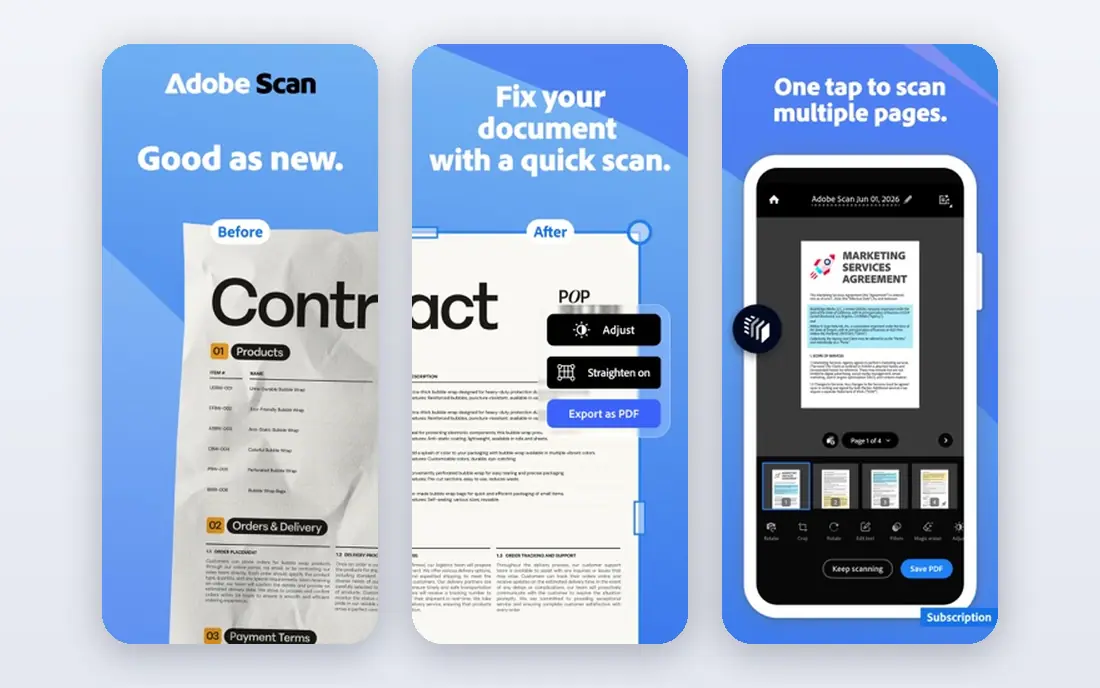
Adobe Acrobat Reader is the safest first pick, since Adobe created the PDF format and its free Fill and Sign tools handle both interactive forms and flat forms. You can click a field and type, add checkmarks, and place a typed, drawn, or uploaded signature, then save and share the finished file. The mobile app also lets you scan a paper form and fill it on your phone.
The free plan has a clear boundary. Filling and signing your own form is free, while requesting signatures from other people, with tracking and routing, needs a paid Acrobat plan. For personal forms, school paperwork, and job applications, the free tier covers the core job well.
- Free Fill and Sign tools
- Field detection
- Mobile and desktop apps
- Requesting signatures from others needs a paid plan
- App is large
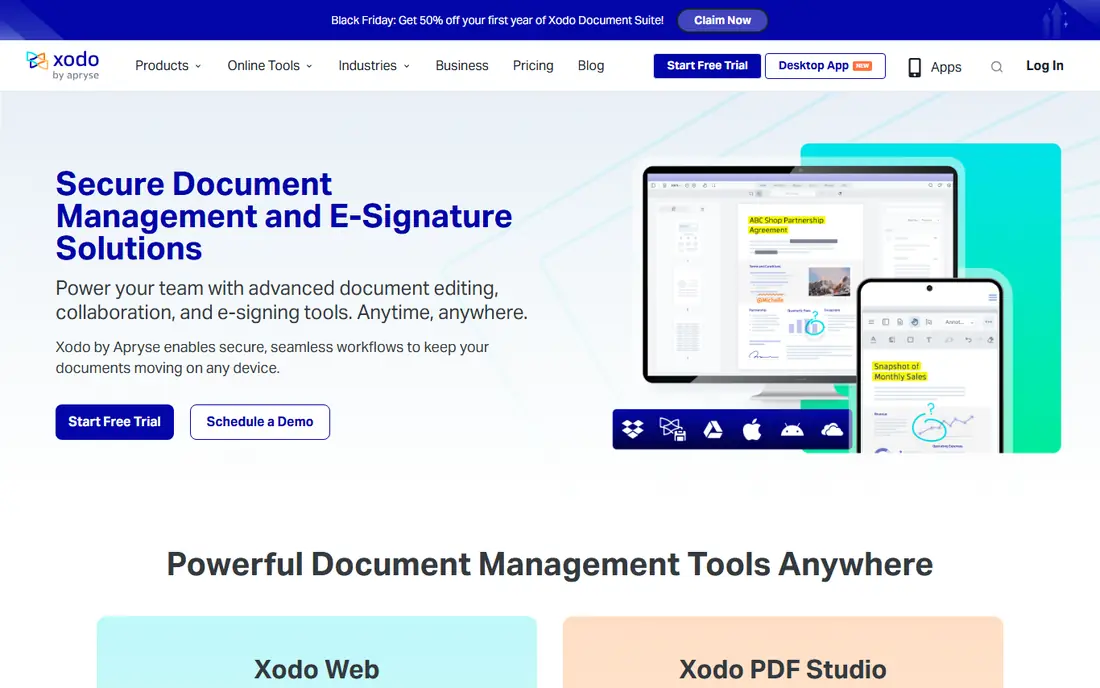
Xodo is a strong free alternative for users who want filling on several devices without a large install. You can complete form fields on your phone, add a signature with a finger or stylus, and save the result for sharing. The web version also helps when you are on a borrowed computer and cannot install software.
Advanced editing and team features sit behind paid plans, and the interface differs slightly between phone, web, and desktop. For filling and signing, though, the free tier is straightforward and practical.
- Free form filling and signing
- Works on phone, web, and desktop
- Annotation tools
- Some advanced features need a paid plan
- Interface varies by platform
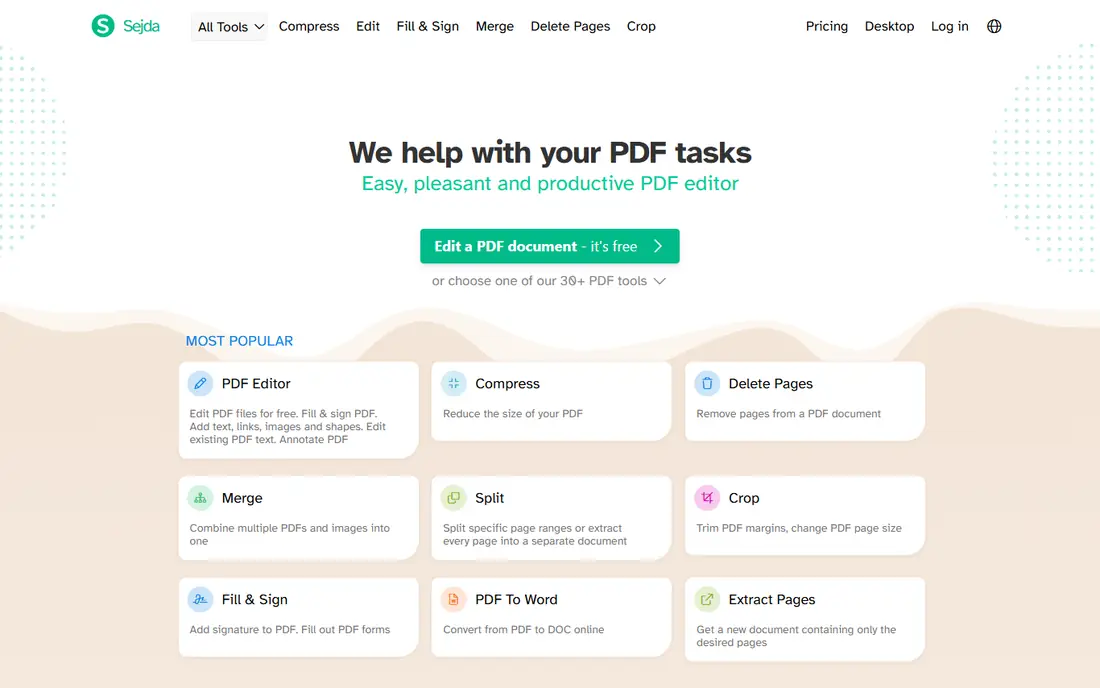
Sejda suits quick web filling without installing an app. You upload a PDF, click fields or add text boxes, place a signature, and download the finished form. The editor also covers basic annotation, which helps when a form has no interactive fields and you need to place text by hand.
Free use has limits on file size, pages, and tasks per hour, so a long form may need a pause or a desktop tool instead. Since Sejda runs in a browser, avoid uploading highly sensitive forms unless you have read its privacy and file-deletion terms.
- Free web form filling
- Text and signature tools
- No install needed
- Free use has hourly and file limits
- Sensitive files go through a web server
PDFescape is useful for a one-off form on a computer where you cannot install software. The free web tool lets you add text, checkmarks, and signatures to a PDF, then download the result. That simplicity makes it a good backup when a desktop app is not available.
The free tier limits file size and page count, and the desktop version is a separate paid product. For short forms, PDFescape is enough, but for long or repeated forms a desktop app such as Adobe Acrobat Reader or PDFgear will be less frustrating.
- Free web filling
- No install for basic use
- Text, checkmark, and signature tools
- Free account has file and page limits
- Desktop app is paid
PDFgear stands out because its core PDF tools, including form filling and signing, are free on desktop and mobile without a trial clock. You can fill fields, add text and signatures, annotate, and save the result, which covers most personal and small business forms. The mobile app also helps when a form arrives by email on your phone.
PDFgear is a newer name than Adobe, so users who need a long track record or enterprise support may prefer Adobe. For free personal use, though, PDFgear gives a generous toolset without the limits that many web fillers impose.
- Free filling, signing, and annotation
- Desktop and mobile apps
- No daily form cap stated
- Newer brand than Adobe
- Some pro-style features are limited
DocHub suits users who already store forms in Google Drive, since it connects directly to Drive and lets you fill, sign, and save without downloading and re-uploading. The free plan covers a small number of documents per month, which is enough for occasional forms. Templates also help when you fill the same type of form more than once.
The monthly limit is the main weakness. If you fill forms every week, you will hit the free cap and need a paid plan or a second tool. DocHub is best as a handy Drive-connected filler, not as an unlimited daily tool.
- Free plan for filling and signing
- Google Drive integration
- Templates for repeat forms
- Free plan has a monthly document limit
- Sending for signature needs a paid plan
Foxit PDF Reader is a lighter free reader that still handles form filling, signing, and annotation well. You can open a fillable form, type into fields, add a signature, and save the result, without the larger install size of Adobe. That makes it a good choice for older computers or users who want a fast reader.
Some advanced editing, conversion, and team features need a paid Foxit plan, and the free reader shows upgrade prompts. For the core job of filling a form, however, the free tier is solid and reliable.
- Free reader with form filling
- Lighter than Adobe
- Signing and annotation tools
- Some advanced tools need a paid version
- Upsell prompts appear in the free reader
Smallpdf offers a simple web workflow for filling and signing a PDF, with a clear interface that suits users who rarely handle forms. You upload a file, add text and a signature, and download the finished form, all without installing software. That ease makes it a good occasional tool.
Free use is limited each day, so it is not the right pick for a busy office or a long series of forms. As with other web tools, check the privacy terms before uploading a form with sensitive personal details.
- Simple web filling and signing
- Clear interface
- Works without install
- Free use is limited per day
- Sensitive files go through a web server
PDF24 gives a free set of web PDF tools, including options for filling and signing forms, plus a desktop toolbox for offline work. That breadth helps when a form task also needs merging, splitting, or compressing a file before sending. The tools are simple and direct, without a subscription wall for basic use.
The experience is less polished than a dedicated reader app, since each job opens as a separate tool. For free, occasional form filling, though, PDF24 is a practical backup, especially when another tool hits a daily limit.
- Free web PDF tools
- Form filling and signing options
- Desktop toolbox available
- Interface is tool-based rather than app-like
- Feature depth varies by tool
How we picked these
We compared official product pages, free-tier terms, and app store listings, and we required a real free plan that lets you fill a PDF form, not only a free trial. We left out trial-only editors, paid-only signing services, and tools that only view PDFs without filling. File limits, signature options, and platform coverage were checked against vendor pages and recent public comparisons.
Filling a form without mistakes
Open the form and check whether its fields are interactive or flat. Interactive forms let you click and type, while flat or scanned forms need a text box placed over each blank. After filling, download the file and reopen it to check every page, since a field that looks filled on screen can export blank if the save step is skipped.
Privacy and sensitive forms
For tax, medical, legal, or employment forms, prefer a desktop or mobile app that processes the file on your device over a web uploader. If you must use a web tool, read its file-deletion policy, avoid public computers for sensitive forms, and delete the uploaded file from the service when you are done. A free tool is only a good deal when it does not expose private details.
Frequently asked questions
Can I fill out a PDF form for free?
Yes, Adobe Acrobat Reader, Xodo, PDFgear, and several web tools in this list offer free form filling. Free plans usually cover typing, checkmarks, and signing your own form, while sending forms to others may need a paid plan.
What if my PDF form has no clickable fields?
Use a text box tool in Adobe Acrobat Reader, Xodo, Sejda, or PDFgear to place text over each blank. Check the result after download, since flat forms need manual placement and careful alignment.
Can I sign a PDF for free?
Yes, most tools here let you type, draw, or upload a signature for your own form at no cost. Requesting signatures from other people, with tracking and reminders, is usually a paid feature.
Is it safe to fill a PDF online for free?
Reputable web tools use secure connections and delete files after a set time, but uploading a sensitive form still carries risk. For private forms, use a desktop or mobile app, and read the privacy policy before uploading.
Which free PDF filler works best on a phone?
Adobe Acrobat Reader, Xodo, and PDFgear all offer mobile apps for filling and signing on a phone. Choose the one that opens your form cleanly and saves without a watermark or a daily cap that blocks your work.
Do free PDF fillers add a watermark?
Most dedicated fillers in this list do not watermark a filled form, but some web tools limit file size or daily use instead. Check the export before sending, and switch tools if a watermark or a limit appears.
Sources
See where you really rank - block by block
ProMapRanker scans Google Maps across a grid of your service area. Simple monthly plans from $19, white-label on every plan.
Start freeKeep reading
 worlds best local seo company
8 Worlds Best Local SEO Companies for Map Pack Growth in 2026
Compare the worlds best local seo company options for Google Business Profile work, citations, reviews, and multi-location rankings and reporting in 2026.
Read → world's best web hosting company
World's Best Web Hosting Company in 2026
Searching for the world's best web hosting company? We compared 10 hosts on price, renewal rates, speed, and support to help you choose well today in 2026.
Read → who's got the best nanny tax services
Who's Got the Best Nanny Tax Services in 2026
We answer who's got the best nanny tax services, comparing full filing, back taxes, software, and pricing so families can handle nanny taxes correctly.
Read →