 ProMapRanker
Best App to Edit YouTube Videos in 2026

Key takeaways
- DaVinci Resolve is our pick for serious creators on a budget because its free version covers full editing, color, and audio.
- CapCut is the fastest route to Shorts and quick social edits, with a free tier on phone and desktop.
- Adobe Premiere Pro suits full-time creators who need deep plugin support and a shared Adobe workflow.
- Final Cut Pro is the one-time purchase pick for Mac creators who want speed without a subscription.
- Start with the videos you actually make, since a Shorts editor and a long-form editor reward different strengths.
Quick comparison
| Pick | Great for | Pricing starts at | Free tier | |
|---|---|---|---|---|
 CapCut | Shorts and quick mobile edits | Free | Yes | Visit |
 DaVinci Resolve | Free professional editing and color | Free | Yes | Visit |
 Adobe Premiere Pro | Full-time professional creators | $22.99 per month | Free trial | Visit |
 Final Cut Pro | Mac creators who want speed | $299.99 one-time | Free trial | Visit |
 Filmora | Beginners who want templates | $49.99 per year | Yes | Visit |
 iMovie | Basic edits on Apple devices | Free | Yes | Visit |
 Descript | Text-based editing of talking videos | Free | Yes | Visit |
 KineMaster | Mobile-first editing on the go | Free | Yes | Visit |
 InShot | Quick social edits from a phone | Free | Yes | Visit |
 LumaFusion | Professional editing on iPad and iPhone | $29.99 one-time | No | Visit |
The best app to edit YouTube videos
We compared editors on editing depth, export quality, caption tools, platform support, and the real cost of the plan you would actually use. A good YouTube editor matches your format first and your skill level second, so we included fast mobile tools beside full desktop programs.
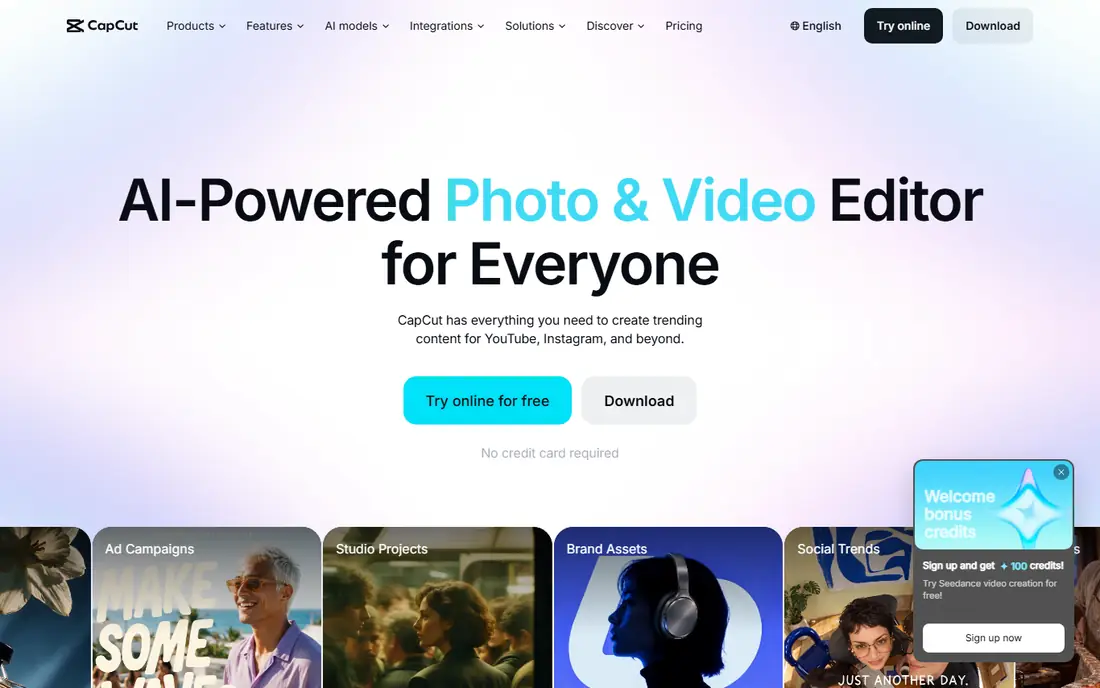
CapCut is the editor to open when speed matters more than fine control. You can cut a clip, add captions, drop in a template, and export a vertical video in minutes, which is why so many Shorts creators start here. The phone app is the core experience, but a desktop version covers the same quick workflow on a larger screen.
The catch is the paywall around Pro assets. Free editing is genuinely useful, yet premium templates, effects, and higher export options sit behind the paid tier. For Shorts and simple vlogs, that rarely blocks a good video. For a polished long-form channel, you will likely outgrow it and move to Resolve or Premiere.
- Fast phone and desktop editing
- Auto captions and templates
- Easy Shorts workflow
- Pro-tagged templates and effects need a paid plan
- Limited color depth for long-form work
- Some exports are capped on the free tier
DaVinci Resolve is the rare free tool that does not feel like a trial. The free version includes a full timeline, the respected color page, Fairlight audio, and Fusion effects, and it exports 4K without a watermark. For a creator who wants one program to grow into, that depth is hard to beat at any price.
The price of that depth is learning time and hardware. Resolve rewards a few weeks of practice, and a weak laptop will feel the strain on larger projects. The one-time Studio upgrade, listed at $295, adds AI tools, higher frame rates, and collaboration features, but most solo YouTubers can build a channel on the free version first.
- Full editing, color, audio, and effects in the free version
- 4K export without a watermark
- Strong color tools
- Steep learning curve
- Needs a capable computer
- Some AI tools and high frame rates need Studio
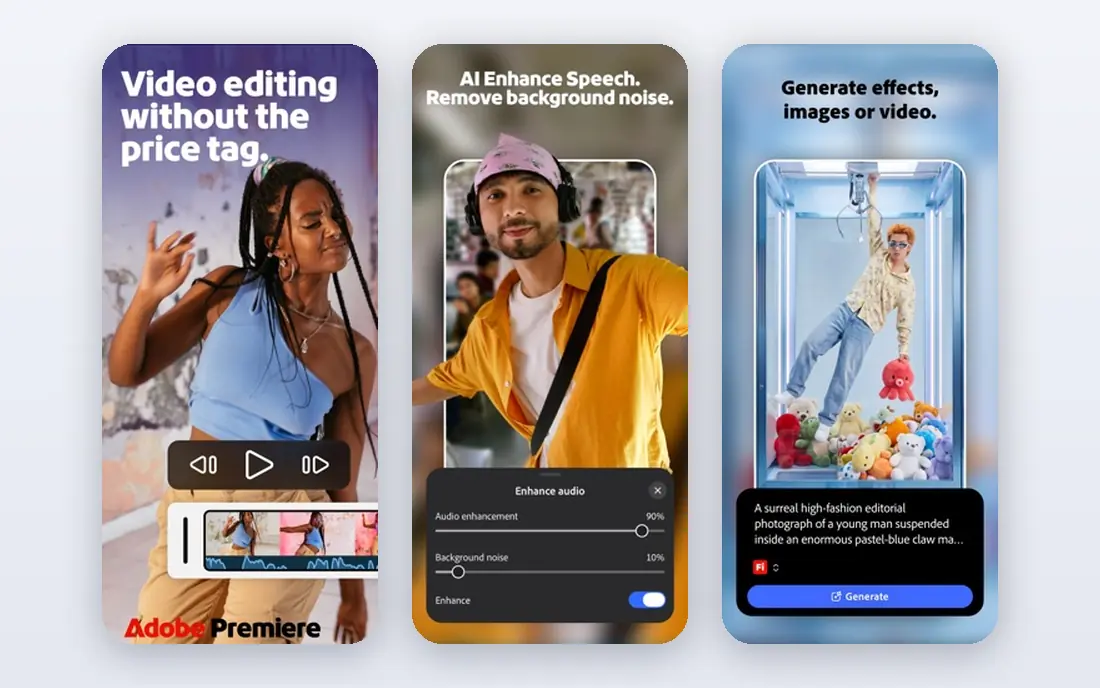
Premiere Pro remains the default for many professional YouTube teams because it fits into a wider Adobe workflow. Editors can move between Premiere, After Effects, and Audition, and the plugin and template market is deeper than for most rivals. Auto-captioning and transcription also help creators who publish often and need accessible videos fast.
The subscription is the main drawback, and it never ends as long as you use the program. At $22.99 per month on an annual plan for the single app, the cost adds up over years, and the most advanced generative features sit on pricier plans. If you edit daily and work with a team, that cost is easy to justify. If you post once a month, Resolve may be the smarter spend.
- Industry-standard timeline
- Deep plugin and template market
- Strong caption and transcription tools
- Subscription only, with no perpetual license
- Needs a capable computer
- Headline AI features may need a higher plan
Final Cut Pro is the speed pick for Mac creators. The magnetic timeline keeps clips connected as you trim, which makes rough cuts fast, and performance on Apple silicon is notably smooth even with 4K footage. A one-time purchase also appeals to creators who dislike subscriptions, since you pay once and keep the program.
The limit is the platform. Final Cut Pro is Mac only, so a Windows collaborator cannot open your project directly, and the plugin market is smaller than Premiere. If you live on a Mac and value fast turnarounds, those limits rarely matter. If your team is mixed-platform, Resolve or Premiere is a safer shared choice.
- One-time purchase on Mac
- Fast magnetic timeline
- Strong performance on Apple silicon
- Mac only
- Smaller plugin market than Premiere
- IPad version is a separate subscription
Filmora sits between a phone app and a professional editor, and that middle ground is its strength. New creators get templates, titles, transitions, and effects without facing a steep learning curve, and the layout stays readable even on a first project. It is a sensible step up from CapCut when you want more control but are not ready for Resolve.
The trade-off is ceiling. Filmora handles vlogs, tutorials, and lifestyle videos well, but its color and audio depth do not match Resolve or Premiere, and the free version is limited. At $49.99 per year, it is affordable, yet a patient beginner could learn Resolve for free and keep more room to grow.
- Friendly interface with templates and effects
- Works on Windows, Mac, and mobile
- Good middle ground for new creators
- Free version is limited
- Advanced color and audio tools lag behind Resolve
- Some assets need higher plans
iMovie is the best free starting point if you already own an Apple device. It covers trimming, titles, transitions, and basic audio in an interface that a new creator can learn in an afternoon. For a first vlog, a school project, or a simple talking video, it is all you need, and it costs nothing extra.
Its limits show up quickly for a growing channel. You get fewer tracks, fewer effects, and less control over color and audio than in a paid editor, and there is no Windows or Android version. Treat iMovie as a launch pad: learn the basics here, then move to Final Cut Pro or Resolve when your videos demand more.
- Free on Mac, iPhone, and iPad
- Very easy to learn
- Clean exports for simple videos
- Limited tracks and effects
- No advanced color tools
- Apple devices only
Descript changes the editing job for talking videos. Instead of scrubbing a timeline, you edit the transcript, and the video follows, which makes cutting filler words and reordering sentences far faster than in a traditional editor. For podcasts, tutorials, and commentary channels, that workflow can cut editing time in a real way.
It is not the right tool for every YouTube format. Cinematic edits, complex B-roll sequences, and multi-camera shoots still belong in Resolve or Premiere, and Descript works best when the recorded audio is clear. Use it as a front-end rough-cut tool or as the main editor for talk-led channels, and pair it with a full editor when visuals lead the video.
- Edit video by editing the transcript
- Good for podcasts and talking-head videos
- Fast rough cuts
- Less suited to cinematic or multi-camera edits
- Paid plans needed for full use
- Transcription accuracy varies with audio quality
KineMaster is a solid mobile editor for creators who film and edit entirely on a phone. The multi-layer timeline supports video, images, stickers, and text, and the app runs on both iOS and Android, which makes it a flexible choice for phone-first creators. It handles Shorts, Reels, and simple vlogs without a desktop at all.
The phone screen is still the limit. Long timelines and precise trims are harder on a small display, and the free version includes ads. For quick edits on the move, KineMaster is a strong pick. For a weekly long-form show, a desktop editor will save time and frustration.
- Multi-layer mobile timeline
- Works on iOS and Android
- Good for creators who film on a phone
- Free version includes ads
- Smaller screen limits complex edits
- Some features need a subscription
InShot is built for speed on social video. Trim a clip, change the aspect ratio, add captions and music, and export, all in a few taps. That focus makes it ideal for Shorts, TikTok clips, and Instagram videos where the edit is short and the turnaround is tight.
It is not a long-form editor. Multi-track projects, detailed color work, and complex audio mixes are better handled on desktop, and the free version includes ads. Keep InShot for fast social cuts, and use a desktop program when the video runs longer than a few minutes.
- Very fast for trimming, captions, and aspect changes
- Simple interface
- Good for Shorts and social clips
- Free version includes ads
- Limited depth for long-form work
- Pro features need a subscription
LumaFusion brings a serious multi-track timeline to iPad and iPhone for a one-time price of $29.99. Creators who travel, film on location, or prefer a tablet workflow can cut, color, and mix audio without a laptop, and the interface is closer to a desktop editor than most mobile apps. That makes it a favorite for mobile journalists and travel vloggers.
The lack of a free plan means you buy before you try the full version, though the price is low for a professional tool. There is also no Windows version, so a desktop team will need another editor for shared projects. For an iPad-led creator, LumaFusion is the most complete mobile choice on this list.
- Multi-track editing on iPad
- One-time purchase
- Strong for creators who edit away from a desk
- No free plan
- No desktop version for Windows or Mac workflows
- Smaller plugin market than desktop editors
How we picked these
We compared official pricing pages, platform support, and feature lists for editors that were live in October 2026, and we checked them against public reviews and creator guides. We favored tools with a real YouTube workflow, including captions, export presets, and a timeline suited to the format, and we included both free and paid options so beginners and full-time creators each have a route in.
How to choose the right editor for your channel
Match the editor to your most common video first. If you mainly make Shorts, pick CapCut or InShot for speed and move on, since a heavy desktop editor will slow you down. If you mainly make vlogs or tutorials, Filmora or iMovie gives you a gentle start, while Resolve gives you more room to grow for free.
Check your computer before you pay. Resolve and Premiere need a capable machine and plenty of storage, while a phone editor needs only a recent phone. Try the free tier or trial on a real project, not a test clip, and time the full export, since that is where weak hardware and paywalled exports show up.
Finally, think about captions and audio early. Viewers watch with sound off more often than creators expect, and clear audio matters more than a fancy transition. An editor with good auto captions and simple audio tools will improve more videos than a larger effects library.
Frequently asked questions
What is the best app to edit YouTube videos for beginners?
CapCut and iMovie are the easiest starts, with CapCut best for Shorts and iMovie best for simple Apple-device edits. Filmora is a good next step when you want templates and more control without a steep learning curve.
What is the best software to edit YouTube videos for free?
DaVinci Resolve offers the most complete free version for serious editing, with full color and audio tools and 4K export. CapCut and iMovie are also free and easier to learn, but they offer less depth for long-form work.
What is the best app for YouTube video editing on a phone?
CapCut leads for Shorts, LumaFusion leads for professional iPad editing, and InShot and KineMaster are strong for quick social cuts. Pick based on whether you need speed, depth, or a one-time purchase.
Do I need a paid editor to grow on YouTube?
No. Many growing channels edit entirely in free tools such as Resolve, CapCut, or iMovie. Paid editors help with speed, plugins, and team workflows, but a clear idea, good audio, and consistent posting matter more than the price of the program.
What is the best app to edit YouTube videos on a Mac?
Final Cut Pro is the fastest Mac-native choice with a one-time purchase, while DaVinci Resolve is the best free Mac option with deeper color tools. iMovie is the free starter for new Mac creators.
Sources
- https://1of10.com/blog/how-to-edit-youtube-videos/
- https://www.miracamp.com/learn/youtube/video-editing-softwares
- https://primegatedigital.com/best-apps-to-edit-youtube-videos/
- https://www.capcut.com
- https://www.blackmagicdesign.com/products/davinciresolve
- https://www.adobe.com/products/premiere.html
- https://www.apple.com/final-cut-pro/
- https://filmora.wondershare.com
- https://www.apple.com/imovie/
- https://www.descript.com
- https://www.kinemaster.com
- https://inshot.com
- https://www.lumafusion.com
See where you really rank - block by block
ProMapRanker scans Google Maps across a grid of your service area. Simple monthly plans from $19, white-label on every plan.
Start freeKeep reading
 zoro.to alternatives
Best Zoro.to Alternatives in 2026
We compare the best zoro.to alternatives in 2026, listing only legal licensed anime streaming services, from Crunchyroll to free options for fans today.
Read → zip alternatives
Best Zip Alternatives in 2026
We compare the best zip alternatives for buy now, pay later in 2026, covering pay-in-4 plans, fees, spending limits, and credit reporting options today.
Read → yesware alternatives
Best Yesware Alternatives in 2026
Compare the best yesware alternatives for sales email tracking, templates, and sequences, with current pricing and honest tradeoffs for small sales teams.
Read →