 ProMapRanker
Best App to Convert MOV to MP4 in 2026

Key takeaways
- HandBrake is the best free desktop choice for quality and batch work, while VLC suits a fast one-off conversion.
- CloudConvert and FreeConvert cover quick browser jobs without installing software, with daily limits on free plans.
- Adobe Express works well for a single clip on a phone or computer, with an account needed to download.
- MOV files from iPhones often use HEVC, so pick a tool that handles that codec and check audio sync after conversion.
Quick comparison
| Pick | Great for | Pricing starts at | Free tier | |
|---|---|---|---|---|
 HandBrake | Quality desktop conversion | Free | Yes | Visit |
 VLC Media Player | Fast one-off conversion | Free | Yes | Visit |
 CloudConvert | Browser conversion with controls | Free | Yes | Visit |
 Adobe Express | Quick single-clip conversion | Free | Yes | Visit |
 FreeConvert | Simple browser conversion | Free | Yes | Visit |
 Movavi Video Converter | Batch and editing workflow | See website | Free trial | Visit |
 VEED | Browser conversion plus editing | See website | Yes | Visit |
 UniConverter | All-round desktop converter | See website | Free trial | Visit |
The best apps to convert MOV to MP4
We compared official feature pages, pricing pages, and recent converter comparisons, and we kept only tools that accept MOV input and export MP4 in 2026. Desktop tools suit large files and batches, while browser tools suit quick jobs. MP4 with H.264 plays on almost every device, so that is the safest output choice for sharing.
HandBrake is our pick for most people converting MOV files on a computer. It is free, open source, and available for Windows, Mac, and Linux, with presets for phones, tablets, and the web. You can open a MOV file, pick MP4 with H.264 or H.265, and tune quality, resolution, and file size.
Batch conversion is a real strength. Add a folder of clips to the queue, set one preset, and let the app work through them while you do other work. That workflow suits photographers and creators who deal with many iPhone clips at once. Output quality at a given file size is also strong, thanks to fine encoding controls.
The catch is the learning curve. First-time users may find codec, frame rate, and quality settings confusing, though presets cover most needs. HandBrake is also a converter, not an editor, so trimming and titles need another tool. For quality and control at no cost, it leads this list.
- Free and open source
- Fine control over codec, size, and quality
- Batch queue for many files
- Interface can feel technical for first-time users
- No built-in video editing timeline
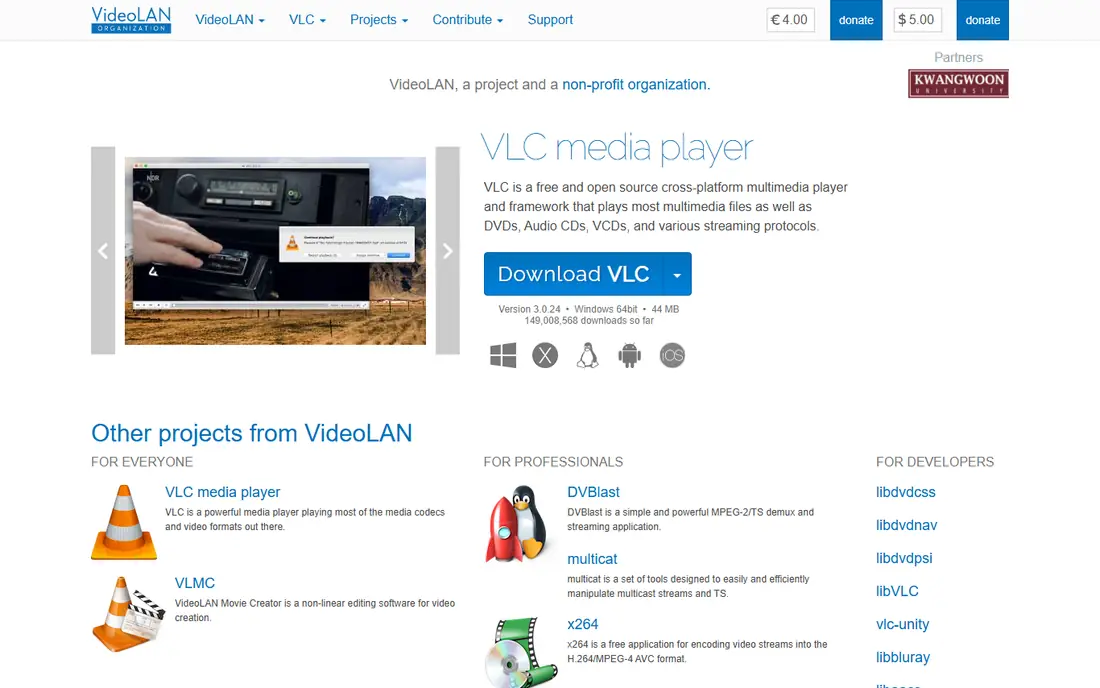
VLC suits a quick conversion when you already have the player installed. Open the media menu, choose Convert, pick MP4, and save the file. That path is faster than installing a new tool for a single clip, and VLC handles many MOV variants well.
The player itself is a bonus, since you can preview the source and the output in the same app. That preview helps you catch audio sync or playback problems early. VLC runs on Windows, Mac, Linux, Android, and iOS, so the same workflow works across devices.
The weakness is control and batch handling. Settings are less clear than HandBrake, and converting many files takes more manual steps. Quality at a small file size is also less refined. For one clip in a hurry, VLC is fine. For a library of clips, use HandBrake.
- Free and widely available
- Converts without a new install for many users
- Plays almost any file
- Conversion settings are less clear than HandBrake
- Batch work is clumsy
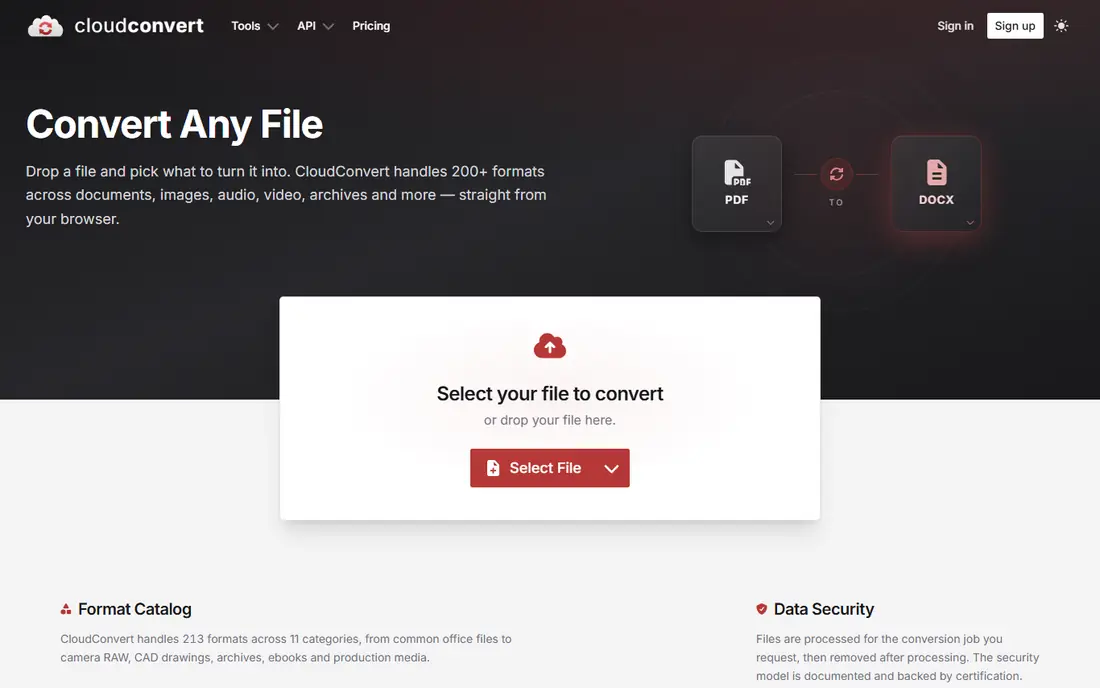
CloudConvert is the best browser choice when you want control without installing software. Upload a MOV file, pick MP4, and adjust codec, resolution, bitrate, and trimming options before converting. Links to Google Drive and Dropbox make it easy when files already live in the cloud.
The interface is clean, and conversion quality is good for sharing and web use. Paid credits remove daily limits for people who convert often, while the free plan suits occasional jobs. The service also handles many other formats, so it doubles as a general converter.
The limit is the free daily cap, listed at 25 conversion minutes per day in recent comparisons. Large 4K files also depend on upload and download speed, which can make a desktop tool faster. For a controlled browser job, CloudConvert still leads.
- Hundreds of formats
- Codec, resolution, and bitrate controls
- Cloud storage links
- Free plan caps conversion minutes per day
- Large files depend on upload speed
Adobe Express suits a single MOV clip that needs to become an MP4 quickly. Open the converter in a browser, upload the file, and download the MP4 after conversion. The same workflow works on a phone browser, which helps when a clip arrives by message and needs sharing fast.
Basic editing tools sit in the same product, so you can trim or adjust a clip after conversion. The free account covers the converter, which keeps a one-off job free. Adobe branding and support also give confidence that the tool will still work next month.
The catch is the account step. You need a free Adobe account to download, which adds friction for a truly anonymous job. Premium adds more editing tools and benefits, but it is not needed for basic conversion. For a fast, trusted single conversion, Express is a safe pick.
- Simple browser workflow
- Works on phones and computers
- Basic editing after conversion
- Account needed to download
- Premium adds more tools and benefits
FreeConvert is a good choice for people who want the simplest browser conversion possible. Upload a MOV file, confirm MP4 as the output, and download the result. There is no software to install and no settings maze for a basic job.
The tool covers common video formats beyond MOV, so it can also help with AVI, MKV, and WebM files. That breadth makes it useful as a bookmark for occasional format problems. The free plan handles typical phone clips without trouble.
The limit is size and volume. Free plans cap file size and daily use, so large 4K clips or many files will hit limits. Browser uploads also take longer than local conversion for big files. For a small clip on any computer, FreeConvert is quick and painless.
- Simple upload and convert flow
- No software install
- Handles common video formats
- Free file size and daily limits
- Large files are slower in a browser
Movavi Video Converter suits creators who convert and lightly edit in one place. Batch presets cover phones, tablets, TVs, and web platforms, so you pick a device rather than a codec. Trimming, cropping, and basic fixes sit in the same app, which saves switching tools.
Hardware acceleration on supported machines speeds up large conversions, which matters for 4K footage. The interface is friendlier than HandBrake for people who dislike codec settings. That ease is worth paying for if you convert often and want a guided workflow.
The catch is price. The full version is paid, and the trial limits output, so check the current price and trial terms on the official site. For occasional free conversion, HandBrake or a browser tool is cheaper. For a paid, guided batch workflow, Movavi is a solid option.
- Batch conversion with presets
- Simple editing tools
- Hardware acceleration on supported machines
- Full version is paid
- Trial limits apply to output
VEED fits creators who convert a clip and then edit it for social media in the same browser tab. After conversion, you can trim, add subtitles, add text, and export in sizes for common platforms. That combined workflow suits short-form video teams.
The free plan covers basic conversion and editing, which is enough to test the workflow. Team sharing and brand tools sit on paid plans, with pricing listed on the official site. Templates help when you need a consistent look across many clips.
The limit is free-plan exports, which can carry limits or watermarks depending on the feature used. Large files also convert faster on a desktop tool, since browser uploads add time. For convert-then-edit work in a browser, VEED is a strong pick.
- Browser editing after conversion
- Subtitles and templates
- Team sharing options
- Free plan has limits and watermarks on some exports
- Large files suit desktop tools better
UniConverter, from Wondershare, suits people who want one desktop tool for many video jobs. It converts MOV to MP4, handles batches, and adds tools for downloading, compressing, and lightly editing video. That breadth helps when format problems come up often.
Presets for devices and platforms keep basic conversions simple, while advanced settings cover codec and quality for pickier users. The desktop app avoids browser upload limits, which matters for large files. Support and updates from a large vendor also help long-term use.
The trade-off is cost and clutter. The full version is paid, and the trial limits output, so confirm pricing before buying. The interface packs in many features, which can feel busy next to HandBrake. For a paid all-round converter, UniConverter covers a lot of ground.
- Wide format support
- Batch conversion
- Extra tools for download and editing
- Full version is paid
- Interface packs in many features, which can feel busy
How we picked these
We compared official feature pages, pricing pages, and recent converter comparisons, and we kept only tools that accept MOV and export MP4 in 2026. We mixed free desktop tools, browser tools, and paid converters, since readers face different file sizes and workflows. We left out tools that only handle one format, and we noted free limits where they affect real use.
How to convert MOV to MP4 without losing quality or time
Start by checking the source. iPhone MOV files often use HEVC, which gives small files but wider compatibility problems, while older MOV files may use H.264. If the file already uses H.264 video and AAC audio, a tool that can rewrap it into MP4 without re-encoding will be fastest and lossless. If it uses HEVC or another codec, expect a full re-encode.
Next, pick MP4 with H.264 for sharing, since it plays on almost every phone, TV, and browser. H.265 gives smaller files at similar quality, but older devices may struggle to play it. For web upload, 1080p with a moderate quality setting usually balances size and clarity, while 720p suits chat and email.
Then test one file before a batch. Convert a short clip, check audio sync, check motion, and play it on the device where it will be watched. That test catches codec or frame-rate problems before you spend an hour on a folder. Keep the original MOV until you confirm the MP4 plays well.
Finally, watch file size and privacy. Browser tools upload your video to a server, so avoid them for private or client footage unless you trust the service. Desktop tools keep files local, which is safer for sensitive material. For large batches, a desktop queue will almost always beat repeated browser uploads.
Frequently asked questions
What is the best free app to convert MOV to MP4?
HandBrake is the best free desktop choice for quality, batch work, and control, while VLC suits a single quick conversion. For a browser job with no install, CloudConvert and FreeConvert both work, with daily limits on free plans.
Does converting MOV to MP4 lose quality?
It can, if the video is re-encoded at a lower quality setting, but a careful conversion at a good setting keeps loss hard to notice. Rewrapping H.264 video into MP4 without re-encoding loses no quality. Always keep the original until you check the output.
Why will my MOV file not play on Android or Windows?
Many iPhone MOV files use HEVC, which some older Android devices and Windows setups handle poorly without the right codec. Converting to MP4 with H.264 fixes most playback problems, since H.264 plays on almost every device.
Can I convert MOV to MP4 on my phone?
Yes. Browser tools like CloudConvert, Adobe Express, and FreeConvert work in a phone browser, and some Android apps convert locally on the device. For large files, a computer tool is faster and more reliable than a phone browser upload.
How long does a MOV to MP4 conversion take?
It depends on file size, resolution, codec, and your machine or upload speed. A short phone clip often takes under a minute, while a long 4K clip can take much longer. Desktop tools are usually faster than browser tools for large files.
Is it safe to use an online MOV converter?
It depends on the file. Reputable services like CloudConvert and Adobe Express are fine for ordinary clips, but uploads leave your device. For private, client, or sensitive footage, use a local desktop tool like HandBrake or VLC instead.
Sources
See where you really rank - block by block
ProMapRanker scans Google Maps across a grid of your service area. Simple monthly plans from $19, white-label on every plan.
Start freeKeep reading
 zyte alternatives
Best Zyte Alternatives in 2026
These zyte alternatives cover managed scraping APIs, proxy networks and no code tools for lawful collection from your own or consented sources only in 2026.
Read → zerto alternatives
Best Zerto Alternatives in 2026
Compare the best zerto alternatives for disaster recovery and replication, with recovery targets, cloud options and honest trade-offs for teams in 2026.
Read → zerofox alternatives
Best ZeroFox Alternatives in 2026
We compared 9 zerofox alternatives for brand protection, phishing takedowns, dark web monitoring, and social impersonation, with clear coverage notes.
Read →