 ProMapRanker
Best App for Managing Over 100 GB of PDF Files in 2026

Key takeaways
- At over 100 GB, local storage and full-text search matter more than cloud sync alone, because syncing that volume on a small plan is slow and costly.
- Adobe Acrobat, Foxit and Nitro handle large individual PDFs and editing, while Zotero, Mendeley and DEVONthink handle large collections, tags and search.
- Paperless-ngx and Calibre suit users who want a self-hosted or local library with their own storage, rather than a subscription cloud library.
- Plan storage, backup and file naming before you import, because reorganising 100 GB after import takes far longer than setting rules first.
Quick comparison
| Pick | Great for | Pricing starts at | Free tier | |
|---|---|---|---|---|
 Adobe Acrobat | Editing and large PDF workflows | See website | Free trial | Visit |
 Foxit PDF Editor | Editing with a lower-cost alternative | See website | Free trial | Visit |
 Nitro PDF Pro | Windows editing and conversion | See website | Free trial | Visit |
 PDFelement | Editing and organisation on a budget | See website | Free trial | Visit |
 PDF Expert | Fast reading and annotation on Apple devices | See website | Free trial | Visit |
 DEVONthink | Large local document databases on Mac | See website | Free trial | Visit |
 Zotero | Research libraries with citations | Free | Yes | Visit |
 Mendeley | Research PDFs with annotation | Free | Yes | Visit |
 Paperless-ngx | Self-hosted document archive | Free | Yes | Visit |
 Calibre | Large local ebook and PDF library | Free | Yes | Visit |
The best app for managing over 100 gb of pdf files
This guide is about tools for managing very large PDF libraries, not just opening a single file. At over 100 GB, a library may hold tens of thousands of documents, so the tools that matter are full-text search, tags and collections, duplicate handling, metadata, local storage control and a backup plan. We compared editors, research managers, local databases and self-hosted archives on those points, using vendor pages and documentation. Prices for paid editors change often, so we used See website where a current plan could not be confirmed on the vendor page, and we focused on whether a tool can handle volume without forcing all files into a small cloud plan.
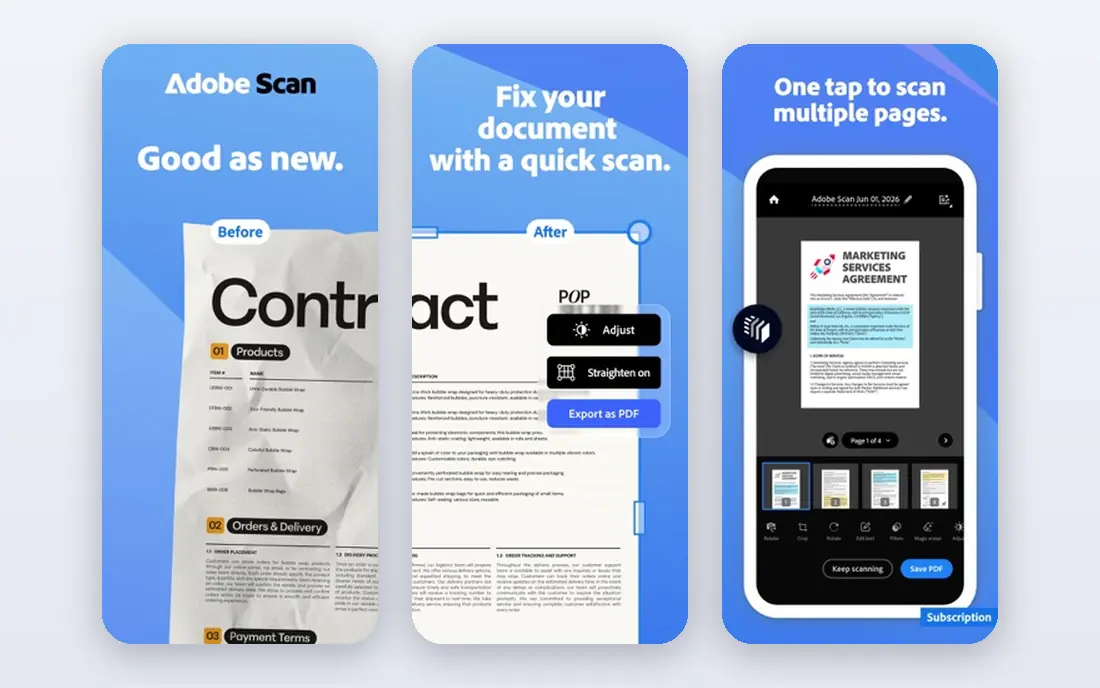
Adobe Acrobat remains the reference PDF editor for large, complex files. It handles editing, OCR for scanned pages, bookmarks, forms and redaction, and its search works across open documents and indexed files. For a professional library of contracts, reports or manuals, that depth matters, because many lighter readers struggle with scanned or form-heavy PDFs at scale.
The catch at 100 GB is storage and cost. Acrobat is a subscription product, and its included cloud storage may not cover a full 100 GB library, so many users keep the main library on a local drive and use Acrobat for editing and search.
- Full editing, OCR and search tools
- Strong compatibility with complex PDFs
- Cloud and local file options
- Subscription cost
- Cloud storage limits depend on plan
- Heavy for a simple reading library
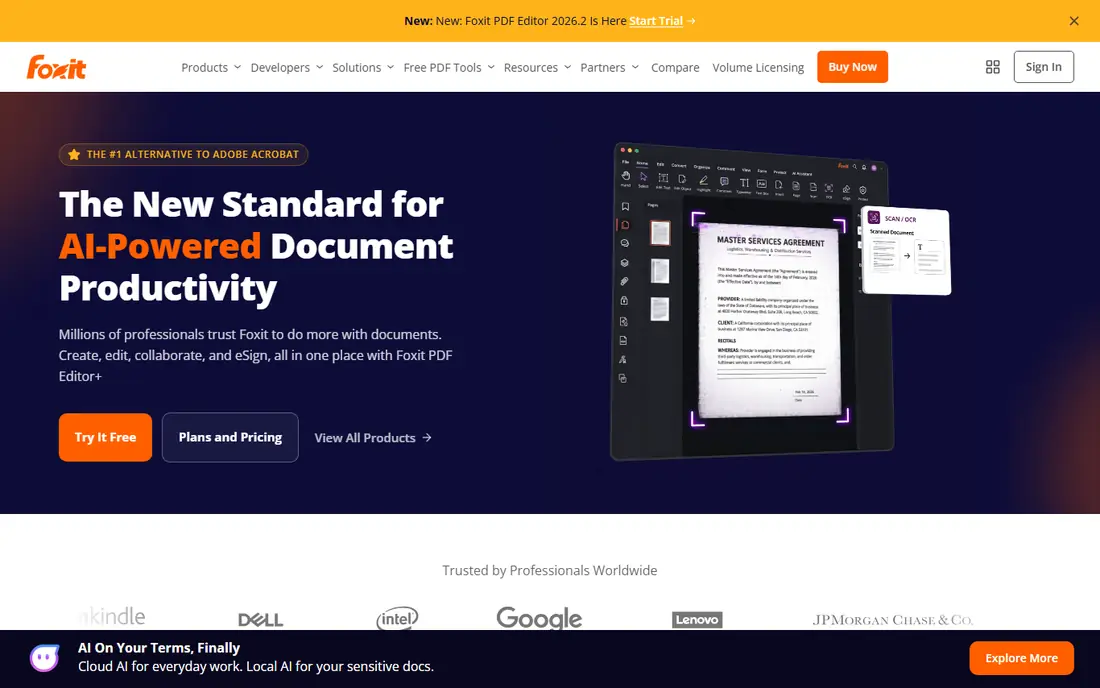
Foxit PDF Editor suits users who want Acrobat-style editing without Acrobat pricing, and who work with a large set of PDFs every day. It offers editing, annotation, forms, OCR and conversion, with a familiar interface for Windows and Mac users. For a team that edits reports, contracts or manuals regularly, Foxit covers most daily tasks at a lower entry cost in many listings.
Foxit is an editor first, not a research library, so tags, collections and citation tools are lighter than in Zotero or DEVONthink. Keep your folder and naming rules outside Foxit, use it to edit and annotate, and let a library tool handle search across the full collection.
- Full editing and annotation
- Lighter feel than Acrobat for many users
- Good PDF standards support
- Pricing and plan names change
- Cloud features vary by plan
- Large library organisation is lighter than a research manager
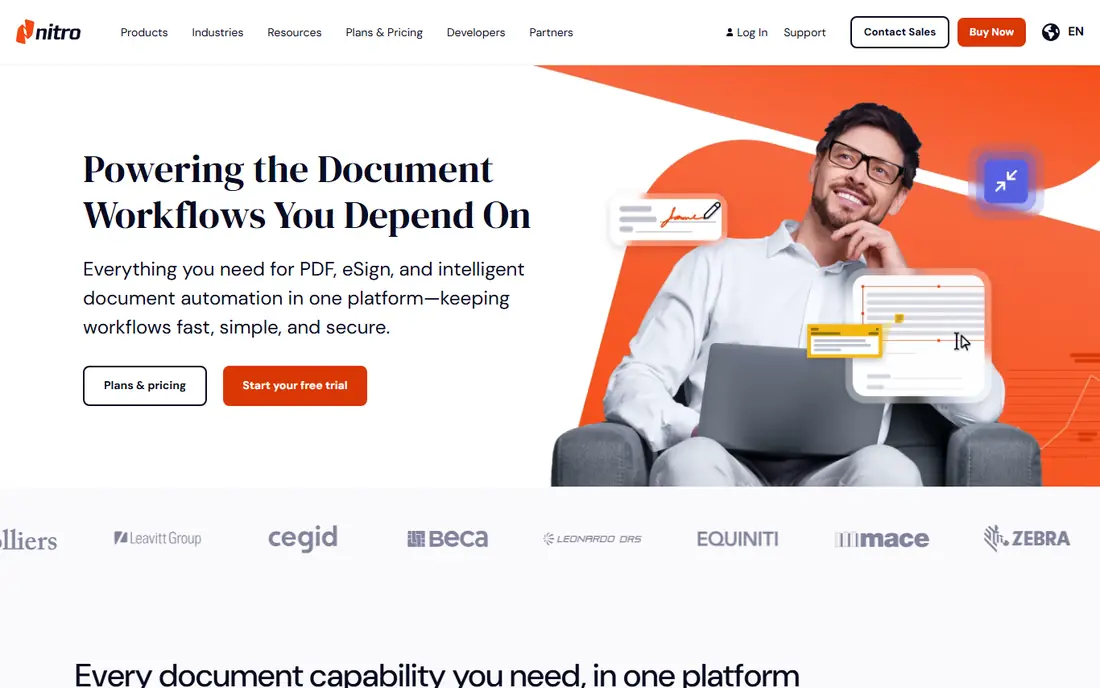
Nitro PDF Pro is a practical Windows choice for editing, converting and signing large numbers of PDFs. Its batch tools help when you need to convert, compress or OCR a folder of files, and its interface feels familiar to Office users. For a business library of invoices, contracts and reports, that batch workflow saves time compared with opening each file one by one.
The limits are platform and organisation. Nitro is strongest on Windows, with a different feature set on Mac, and it does not offer the deep tagging and citation system of a research manager. Use Nitro to prepare and clean files, then store them in a clear folder structure or a library tool.
- Strong editing and conversion on Windows
- Batch tools for many files
- Familiar Office-style interface
- Mac version differs in features
- Subscription or licence terms vary
- Library management is basic
PDFelement, by Wondershare, suits a user who needs editing and OCR for a large library but does not want the highest subscription cost. It covers text and image editing, annotation, forms, conversion and batch tasks, and it runs on desktop and mobile. For a personal or small business library, that range covers most daily PDF work in one app.
The trade-off is depth at scale. PDFelement can open and edit large files, but it is not designed as a 100 GB research database with advanced metadata and citation tools.
- Editing, OCR and forms at a lower price point
- Batch processing
- Available on Windows, Mac and mobile
- Advanced features sit on higher tiers
- Interface and updates vary
- Large library search is lighter than dedicated managers
PDF Expert is the best reading and annotation choice for Apple users with a large PDF set. It opens large files quickly, handles tabs and bookmarks well, and offers smooth highlighting, notes and form filling on Mac, iPhone and iPad. For a student or professional who reads and marks up PDFs all day, that speed and polish matter more than a long feature list.
PDF Expert is not a full library database. It works well with a folder of PDFs in iCloud Drive or a local drive, but it does not offer the advanced tagging, citation or self-hosted archive features of Zotero, DEVONthink or Paperless-ngx.
- Fast opening and smooth annotation on Mac, iPhone and iPad
- Good tab and bookmark tools
- Clean reading experience
- Apple platforms only for the full app
- Editing depth is less than Acrobat
- Large library tools are basic
DEVONthink is built for exactly this problem on Mac: a local database that can hold a very large document collection, with full-text search, tags, groups and smart rules. It can index files in place, so you do not need to duplicate 100 GB into a new folder, and it offers sync options that do not force all files through one vendor cloud. For researchers, lawyers and writers with decades of PDFs, that control is a major advantage.
The limits are platform and complexity. DEVONthink runs on Mac and iOS, not Windows or Android, and its power comes with a learning curve for databases, sync stores and smart rules. Take time to plan one database structure, test search on a sample folder, and set a backup routine before you import the full library.
- Powerful local databases for very large collections
- Full-text search and AI-assisted grouping
- Flexible sync without forced cloud
- Mac and iOS only
- Learning curve is steep
- Pricing depends on edition and seats
Zotero is the best free research manager for a large PDF library, provided you plan storage correctly. It organises papers into collections, tags and saved searches, captures metadata from the web, and generates citations in word processors. Its PDF reader supports annotation and full-text search, and its open source design means your library is not locked to one vendor.
The key limit is cloud storage: the free Zotero cloud allowance is 300 MB, which is tiny against 100 GB. The solution is to keep files locally or use WebDAV or a linked-folder setup, and to sync only metadata through Zotero cloud. That takes setup, but it keeps a very large library free and portable.
- Free and open source
- Strong collections, tags and saved searches
- Citation tools and browser capture
- Free cloud storage is only 300 MB
- Large libraries need local storage or WebDAV
- Setup for 100 GB needs planning
Mendeley suits researchers who want a free PDF manager with annotation and sharing, and who work in a team that already uses it. It extracts metadata from imported PDFs, organises them into folders and tags, and lets groups share papers and notes. Its reader supports highlighting and notes, which helps when a large library is also a reading list.
The catch is storage and change. Free storage is limited, so a 100 GB library needs a local or paid storage plan, and Mendeley features have shifted between desktop and web versions over time. Check the current Mendeley Reference Manager pages for storage limits and supported platforms before you import.
- Free reference manager with PDF annotation
- Metadata extraction from PDFs
- Groups for shared research
- Free storage limits apply
- Desktop and web features have changed over time
- Elsevier account required
Paperless-ngx is the best choice for a user who wants to own a very large archive and control storage completely. It is a free, open source document management system that ingests PDFs, runs OCR, extracts text, and offers tags, correspondents, document types and full-text search through a web interface. Because you host it, 100 GB is a storage question for your own drive or server, not a vendor plan limit.
The trade-off is technical setup. Paperless-ngx needs installation on a computer, server or network device, plus a backup plan for the database and files. It is an archive and search tool, not an editor, so you will still need Acrobat, Foxit or another editor for heavy editing.
- Free and open source self-hosted archive
- OCR, tags and full-text search
- You control storage and backup
- Needs a server or computer to run
- Setup is technical
- Interface is an archive, not a PDF editor
Calibre is a free, open source library manager that handles very large local collections of ebooks and PDFs. It offers metadata editing, tags, custom columns, saved searches and conversion between formats, and it can manage tens of thousands of items on a local drive. For a personal library that mixes PDFs with EPUBs, Calibre gives a single catalogue without a subscription.
Calibre is not a strong PDF annotator or editor, and its interface feels dated compared with modern readers. Use it as the catalogue and metadata hub, and open individual PDFs in PDF Expert, Acrobat or another reader for annotation.
- Free and open source
- Handles very large local libraries
- Strong metadata, tags and conversion tools
- Interface looks dated
- PDF reading and annotation are basic
- Setup for a shared library needs care
How we picked these
We compared vendor pages, documentation and help pages for editors, research managers, local databases and self-hosted archives, and we kept only tools that are live and actively maintained in October 2026. We favoured tools with full-text search, tags or collections, local or self-hosted storage options, and a realistic path to 100 GB, over simple readers that open one file at a time. Where pricing could not be confirmed on the vendor site, we used See website, because editor plans and storage allowances change often. We did not claim hands-on testing of a full 100 GB import; our comparison is based on documented features, storage models and public guidance.
How to organise 100 GB without losing files
Start before you import. Choose one master location on a fast drive with room to grow, and set a folder and naming rule, such as year, author or project, plus a short title. Decide which tool is the catalogue, which tool is the editor, and which tool is the reader, because one app rarely does all three well at this scale. Then import in batches, check search and tags after each batch, and fix metadata early, when a correction affects dozens of files rather than thousands.
Backup is part of organisation, not an afterthought. Keep at least two copies in different places, such as a local drive and an external drive or a trusted cloud backup, and test restoring a sample folder. Use OCR for scanned PDFs so search works, compress oversized scans where quality allows, and remove exact duplicates before import. Finally, review the library quarterly: archive files you no longer need, update tags for active projects, and keep the catalogue lean enough that search returns useful results.
Frequently asked questions
Can I store over 100 GB of PDFs in a free cloud plan?
Usually not. Most free plans offer a few gigabytes, and Zotero free cloud storage is only 300 MB for files. For 100 GB, plan on local storage, a paid storage plan, WebDAV, or a self-hosted tool such as Paperless-ngx. Sync only metadata through a small cloud plan where possible, and keep the files themselves on a drive you control.
Is local storage or cloud storage better for a very large PDF library?
Local storage gives you control, speed and no monthly per-gigabyte cost, but you must manage backup yourself. Cloud storage gives you access from anywhere and vendor backup, but 100 GB plans cost more and syncing that volume takes time. Many users use both: a local master library for speed and control, plus a cloud backup for safety.
How do I search across thousands of PDFs quickly?
Use a tool with full-text search and an index, such as DEVONthink, Zotero with local files, or Paperless-ngx, rather than opening folders one by one. OCR scanned PDFs so their text is searchable, use consistent tags and titles, and save common searches. A good index makes a 100 GB library feel like a small one for most queries.
Should I use one tool or several tools for a large PDF library?
Several tools, with clear roles, usually work better. Use a library manager for catalogue and search, an editor for editing and OCR, and a reader for daily annotation. Trying to force one app to do all three often leads to weak search, weak editing or a forced cloud plan. Keep the master files in one place and let each tool work on that same library where possible.
What is the best free option for managing over 100 GB of PDFs?
Zotero with local storage, Calibre for a local catalogue, and Paperless-ngx for a self-hosted searchable archive are the strongest free routes, each with a different strength. Zotero suits research and citations, Calibre suits a mixed ebook and PDF catalogue, and Paperless-ngx suits a searchable archive you host yourself. All three need a backup plan for your own drive.
Sources
See where you really rank - block by block
ProMapRanker scans Google Maps across a grid of your service area. Simple monthly plans from $19, white-label on every plan.
Start freeKeep reading
 zoro.to alternatives
Best Zoro.to Alternatives in 2026
We compare the best zoro.to alternatives in 2026, listing only legal licensed anime streaming services, from Crunchyroll to free options for fans today.
Read → zip alternatives
Best Zip Alternatives in 2026
We compare the best zip alternatives for buy now, pay later in 2026, covering pay-in-4 plans, fees, spending limits, and credit reporting options today.
Read → yesware alternatives
Best Yesware Alternatives in 2026
Compare the best yesware alternatives for sales email tracking, templates, and sequences, with current pricing and honest tradeoffs for small sales teams.
Read →