 ProMapRanker
Best App for Edit in 2026: 10 Apps Compared

Key takeaways
- This guide angles the vague term best app for edit plainly as photo and video editing apps, since that is the use most searchers mean.
- Adobe Lightroom leads for photo editing and organization, while LumaFusion leads for serious mobile video editing with a one-time price.
- CapCut and Canva suit fast social edits, with free tiers that cover short clips and simple designs.
- Snapseed remains a strong free photo editor, and its official support page is Google's Snapseed support page, not a lookalike site.
- Pick one photo app and one video app first; using two strong tools beats collecting five apps that overlap.
Quick comparison
| Pick | Great for | Pricing starts at | Free tier | |
|---|---|---|---|---|
 Adobe Lightroom | Photo editing and organization | Free | Yes | Visit |
 Snapseed | Free photo editing | Free | Yes | Visit |
 VSCO | Photo presets and film looks | Free | Yes | Visit |
 Picsart | Creative photo and video edits | Free | Yes | Visit |
 Canva | Fast social designs and edits | Free | Yes | Visit |
 CapCut | Short social video | Free | Yes | Visit |
 LumaFusion | Serious mobile video editing | $29.99 | No | Visit |
 InShot | Quick phone video edits | Free | Yes | Visit |
 DaVinci Resolve | Advanced video editing | Free | Yes | Visit |
 Adobe Express | Quick branded edits | Free | Yes | Visit |
The best apps for editing photos and videos
The phrase best app for edit is vague, so we state our angle plainly: this list covers photo and video editing apps for phones, tablets and desktop. It includes free tools for quick fixes and paid tools for deeper work, with a note on where each app fits. No app here requires a desktop computer, though several work better on a larger screen.
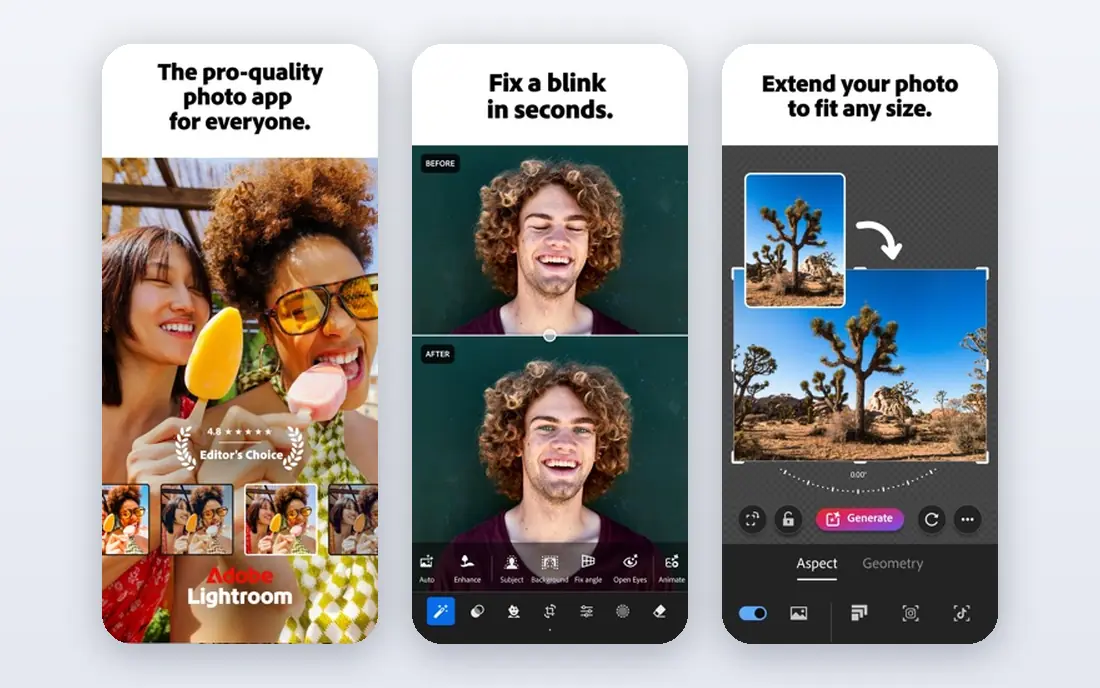
Lightroom is the photo pick for people who edit many photos and want them organized. Exposure, color, masking and batch edits work well on phone and desktop, and presets give a consistent look across a set. Cloud sync keeps edits and collections available on other devices, which helps photographers who shoot on a phone and finish on a computer.
The free mobile app covers basic edits, but premium tools and larger cloud storage need a paid plan, with Photography plans often starting around $9.99 per month. Check the current Adobe pricing page before subscribing, since plans and storage bundles change. For serious photo work, Lightroom remains the most complete option in this list.
- Strong RAW editing and presets
- Photo organization and cloud sync
- Batch edits save time
- Full premium features need a paid Adobe plan
- Subscription cost adds up over time

Snapseed is a free photo editor from Google, and it remains one of the best free options for careful photo edits. Selective adjustments, healing, perspective and tuning tools give control that many free apps hide behind a paywall. Edits export cleanly, and the app stays focused on the photo rather than on social features.
A clear warning matters here: Snapseed has no standalone official homepage, so do not trust lookalike sites that claim to be its official download page. Use Google's official Snapseed support page for guidance and download the app from the official app stores. For free, precise photo editing, Snapseed is hard to beat.
- Free with no subscription
- Precise selective edits and healing tools
- Simple export without watermarks
- No standalone official homepage beyond Google support
- Fewer social templates than Canva or Picsart

VSCO suits photographers who want a consistent film look without building presets from scratch. Its preset library, editing tools and video support cover a full mobile workflow, from a quick phone shot to a short clip. The clean interface keeps attention on the image, which many photographers prefer over a busy social feed.
The free tier covers basic edits, while paid membership, often listed around $29.99 per year for Plus, adds more presets and tools. Check the current VSCO pricing page, since tiers have changed. If you want a signature look fast, VSCO is a strong pick. If you need deep RAW organization, Lightroom fits better.
- Distinct film-style presets
- Clean editing tools for photo and video
- Community for sharing work
- Best presets need a paid membership
- Social features are quieter than larger platforms
Picsart is the creative pick for people who want playful edits, collages and social graphics in one app. Stickers, backgrounds, text and effects make it easy to turn a plain photo into a post, and video tools cover short clips too. Templates speed up common formats, which helps small businesses and creators who post often.
The free tier is usable, but premium effects and an ad-free experience need a paid plan, so check current pricing before subscribing. Picsart is less precise than Lightroom for careful photo correction, but it wins for speed and creativity. Use it for social content, and keep Lightroom or Snapseed for serious photo edits.
- Large sticker, collage and effect library
- Photo and video tools in one app
- Fast social templates
- Many best tools need a paid plan
- Ads and prompts appear often on the free tier
Canva suits people who edit for social media, presentations and small business posts rather than for fine art photography. Templates for reels, stories, posters and thumbnails give a fast starting point, and photo and video tools cover crops, filters, text and simple cuts. Collaboration and brand kits help teams keep a consistent look.
Photo purists will find the correction tools basic, and premium templates, stock and background removal need a Pro plan. For most social editing, though, Canva is faster than a dedicated photo app. Start free, and upgrade only when premium assets or brand tools become part of weekly work.
- Huge template library
- Photo and video edits plus text and branding
- Easy sharing and collaboration
- Photo correction is basic compared with Lightroom
- Best assets need a Pro plan
CapCut is the short video pick for creators who post reels, TikToks and Shorts. Auto captions, templates, transitions and a music library turn raw clips into a finished post in minutes. The mobile app is the main workspace, which suits phone-first creators who shoot and edit on the same device.
Check export terms before relying on the free tier for client work, since some premium features affect exports. A Pro plan adds more effects, cloud storage and advanced tools, so check current pricing on the vendor site. For fast social video, CapCut is the easiest starting point in this list.
- Fast templates and captions for short video
- Music and effects library
- Easy export for social platforms
- Free exports may carry limits or watermarks on some features
- Advanced tools need a Pro plan
LumaFusion is the serious mobile video pick, with a multi-track timeline, color correction, audio mixing and effects that go beyond social editors. The one-time price of $29.99, with optional add-ons for features such as multicam, makes long-term cost clearer than a monthly subscription. It runs well on iPad and newer iPhones, where the larger screen helps timeline work.
Beginners should expect a learning curve. The interface rewards a short tutorial and a first project with simple cuts before tackling multi-track edits. Social creators who only need captions and templates will find CapCut faster. Editors who want a portable version of a desktop timeline will find LumaFusion worth the price.
- Multi-track timeline and strong color tools
- One-time purchase rather than a subscription
- Works on iOS, Android and Mac
- Learning curve for beginners
- Some advanced add-ons cost extra
InShot suits people who want a quick video edit without learning a timeline app. Trimming, speed, filters, text and music sit in a clear layout, and exports for common social sizes are simple. Photo tools cover basic collages and edits, so it can serve as a light all-round editor for casual creators.
The free tier is usable, but watermark and premium feature limits push regular users toward a paid plan. Check current pricing in the app before subscribing. For daily short clips, InShot is faster than LumaFusion. For polished long-form video, DaVinci Resolve or LumaFusion offer more control.
- Simple trimming, filters and music tools
- Fast exports for social video
- Photo collage tools included
- Free exports may include a watermark unless you pay
- Fewer advanced color and audio tools
DaVinci Resolve is the advanced pick for editors who want professional color and audio tools without a subscription. The free version covers editing, color, effects and audio for most projects, and the paid Studio version adds higher-end features. It suits YouTube creators, filmmakers and editors who work on a desktop or laptop.
The main cost is hardware and time. A capable computer helps with smooth playback, and the interface takes longer to learn than a mobile editor. Beginners should start with a short project and built-in tutorials. For serious video work, Resolve gives the most depth in this list at the lowest software price.
- Professional color, audio and effects tools
- Free version covers much of the core editor
- Strong desktop workflow
- Needs a capable computer
- Learning curve is steep for beginners
Adobe Express suits small businesses and creators who need branded posts fast. Templates, text, photo edits and short video tools share one workspace, and brand kits keep colors and fonts consistent. It is easier to learn than full Adobe desktop apps, and it works well in a browser or on a phone.
Deep photo correction and advanced video editing sit outside its scope, so keep Lightroom for photos and Resolve or LumaFusion for longer video. The free tier covers many templates, while Premium adds stock, fonts and background removal. For weekly social content with a consistent brand, Express is a practical pick.
- Fast templates for social and marketing
- Simple photo and video edits
- Adobe stock and fonts on paid plans
- Editing depth is lower than Lightroom or Resolve
- Best features need a Premium plan
How we picked these
We compared official feature pages, pricing pages and app store listings, and we favored apps that are actively available in October 2026 with a clear photo or video job. We looked for a fair free tier or price, a usable mobile or desktop workflow, and a fit for casual or serious editors. We did not claim hands-on testing; our comparison rests on published features, pricing and documented limits. For Snapseed, we used Google's official support page rather than any lookalike homepage.
What to check before you choose
Decide whether your main job is photos, video or both, then pick one app for each job. A photo app with strong presets helps social posts, while a timeline app helps longer video. A single app that claims to do everything often does one job well and the other poorly, so a two-app setup usually gives better results.
Check export terms, storage and cost before a big project. Free tiers may limit resolution, add a watermark or cap cloud storage, and paid plans may bill monthly or yearly. Test an export early, confirm the file looks right on the platform where it will appear, and back up originals before editing. Keep originals separate from edited copies so you can redo an edit later.
Learn one tool deeply before adding another. Short tutorials, a test project and a simple preset or template save more time than switching apps each week. If an app feels slow on your device, try a lighter editor for drafts and a stronger app only for final edits. That split keeps phone editing fast without giving up quality on finished work.
Frequently asked questions
What is the best app for edit on a phone?
For photos, Lightroom or Snapseed lead, with VSCO close for film looks. For video, CapCut leads for short social clips and LumaFusion leads for serious mobile editing. Pick based on whether your main job is a photo, a short clip or a longer video project.
What is the best edit app for free?
Snapseed is the strongest free photo editor, with precise tools and no subscription. DaVinci Resolve offers a strong free video editor on desktop, while CapCut and Canva offer generous free tiers for social edits. Check export limits on free tiers before using them for paid work.
Is Snapseed still available?
Yes, Snapseed remains available as a free app from Google on iOS and Android. It has no standalone official homepage, so use Google's official Snapseed support page for guidance and download it from the official app stores. Avoid lookalike websites that claim to be its homepage.
Should I use Lightroom or VSCO?
Use Lightroom for organization, RAW editing and batch work, especially if you edit many photos. Use VSCO for a consistent film look and a simpler mobile workflow. Many photographers use both: Lightroom for correction and organization, VSCO for a final preset look.
Is LumaFusion worth $29.99?
Yes, for editors who want a serious mobile timeline without a subscription. The one-time price covers the core editor, with optional paid add-ons for advanced features. Casual creators who only need captions and templates will find CapCut or InShot faster and cheaper.
Can I edit video for free on desktop?
Yes, DaVinci Resolve offers a free desktop editor with professional color and audio tools. It needs a capable computer and some learning time, but it covers most editing jobs without a subscription. For quick social clips on a phone, CapCut or InShot are faster starting points.
Sources
See where you really rank - block by block
ProMapRanker scans Google Maps across a grid of your service area. Simple monthly plans from $19, white-label on every plan.
Start freeKeep reading
 zscaler alternatives
Best Zscaler Alternatives in 2026
Looking for zscaler alternatives? We compare 9 SASE and zero trust platforms on architecture, data protection, pricing, and fit for your network and team.
Read → zapier alternatives free
Best Zapier Alternatives Free in 2026
Nine automation tools for zapier alternatives free in 2026, all with genuinely free tiers, plus free plan limits, starting prices and upgrade paths explained.
Read → which platform is best for online reputation
Which Platform Is Best for Online Reputation in 2026
Wondering which platform is best for online reputation? We compare 8 review, listing, and response tools for small and multi-location businesses and agencies.
Read →