 ProMapRanker
Best Apps for Converting PNG to JPG on Phone in 2026

Key takeaways
- Adobe Express is the best free starting point on a phone browser, converting a PNG to JPG without an account for basic use.
- iLoveIMG, CloudConvert, and Convertio suit batch work and larger files, with quality and size controls.
- Canva and PicsArt suit users who also want to edit, crop, or resize before exporting as JPG.
- JPG has no transparency, so a PNG with a clear background will gain a solid background color on conversion.
Quick comparison
| Pick | Great for | Pricing starts at | Free tier | |
|---|---|---|---|---|
 Adobe Express | Free phone-browser conversion | Free | Yes | Visit |
 iLoveIMG | Simple batch conversion | Free | Yes | Visit |
 CloudConvert | Format and quality control | Free | Yes | Visit |
 Convertio | Quick online conversion | Free | Yes | Visit |
 Canva | Edit then export as JPG | Free | Yes | Visit |
 PicsArt | Edit photos then export as JPG | Free | Yes | Visit |
 Image Converter | Offline phone conversion | Free | Yes | Visit |
 JPG Converter | Simple JPG-only conversion | Free | Yes | Visit |
The best apps for converting PNG to JPG on phone
We compared official sites and app store listings for tools live in October 2026 that convert PNG files to JPG on a phone, either as an app or in a mobile browser. Our pick for most people is Adobe Express for free, simple conversion, with iLoveIMG for batch work. No tool here needs a desktop computer.
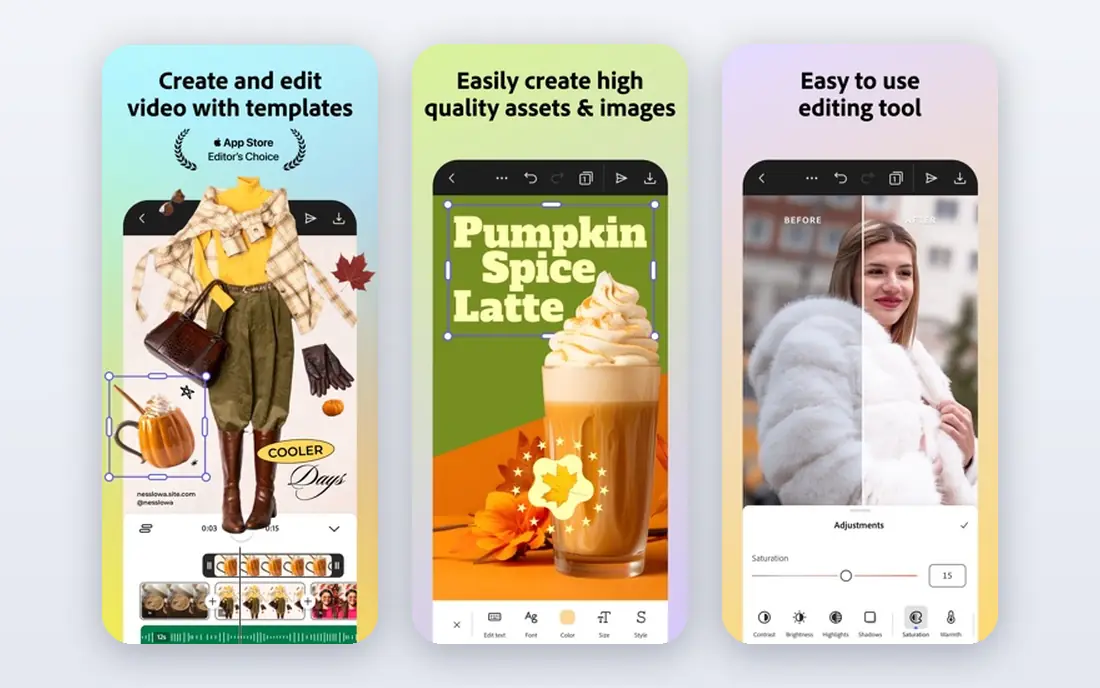
Adobe Express converts a PNG to JPG in a mobile browser, which means you do not need to install an app to use it. Upload a PNG, let it convert, and download the JPG to your phone. Adobe states that basic conversion is free even without an account, and files under the stated size limit convert in minutes.
The limits are practical. Very large files may exceed the upload limit, and deeper editing, such as premium templates and tools, sits behind a paid plan. If you only need a clean JPG for sharing, email, or a form upload, the free converter covers it. Keep the original PNG if you may need transparency later.
- Free PNG to JPG conversion in a browser
- No account needed for basic conversion
- Editing tools after conversion
- File limit applies to uploads
- Advanced editing needs a paid plan
- Browser conversion needs an internet connection
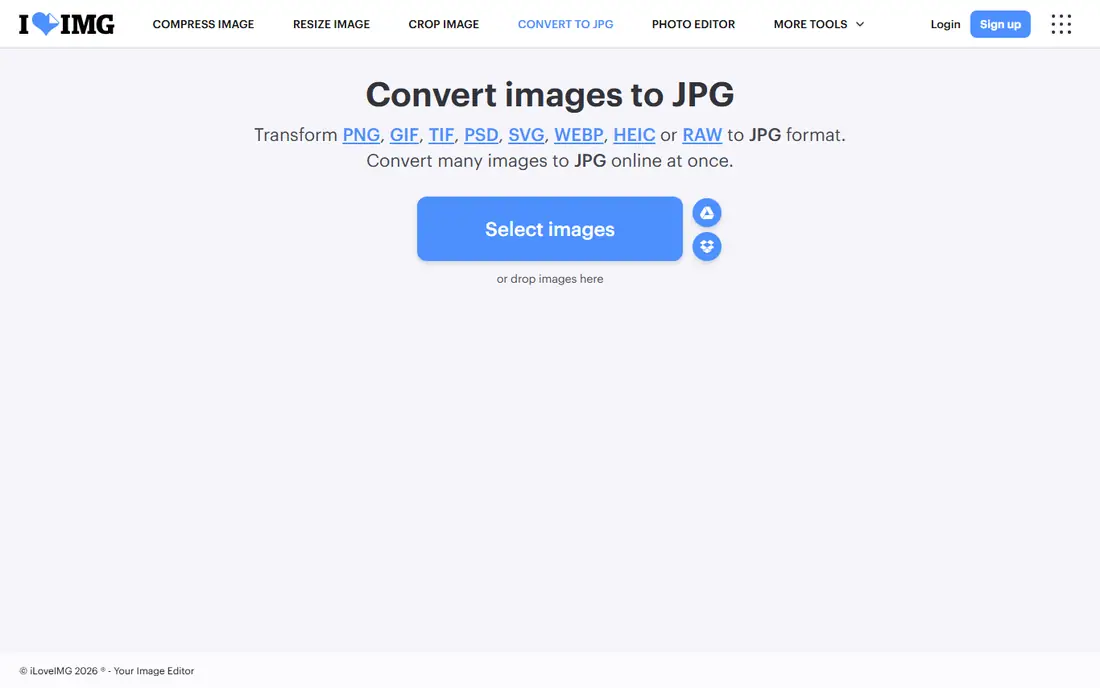
iLoveIMG is a simple online tool that converts many PNG files to JPG at once, which helps when you have a folder of screenshots or photos to prepare. The mobile site is easy to use on a phone, and related tools for resizing and compressing sit on the same site. Free use covers casual batch work well.
Free limits apply to file size and the number of tasks, so heavy daily use may need a paid plan. It also needs an internet connection, since conversion happens online rather than on your phone. For a one-off batch before a listing, a form, or a post, it is fast and clear.
- Batch conversion for many images
- Simple mobile site
- Resize and compress tools nearby
- Needs an internet connection
- Free use has file and task limits
- Premium plan needed for heavy use
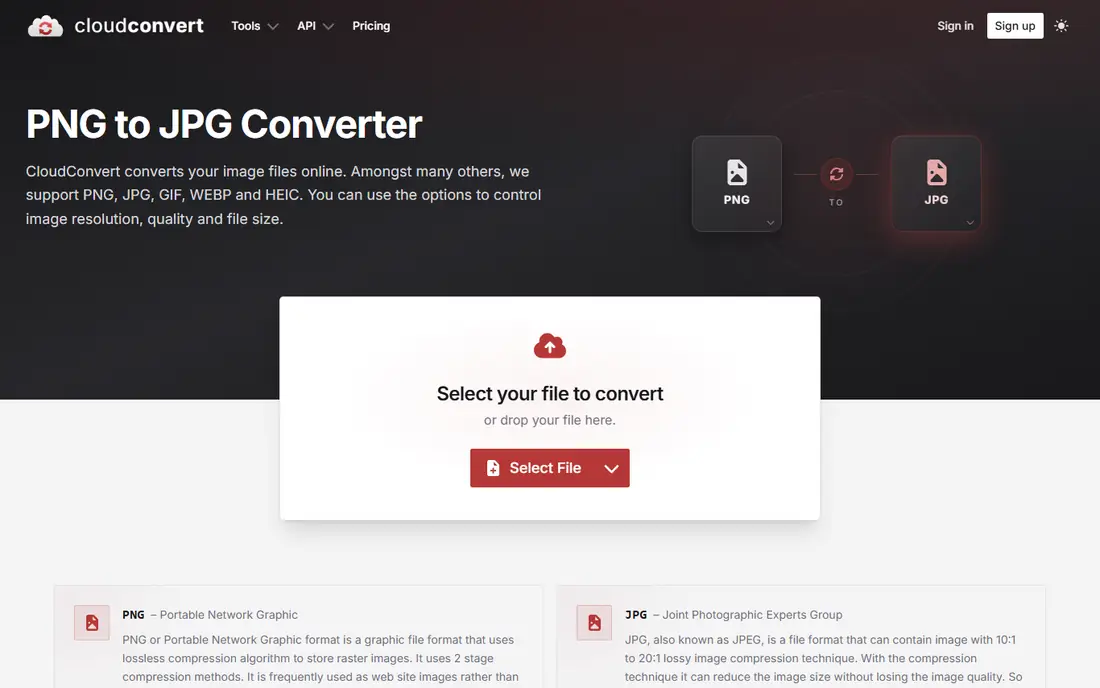
CloudConvert suits users who want control over the result, not just a quick file swap. You can adjust quality, resize an image, and convert from cloud storage or a phone upload, all in a mobile browser. It supports many formats beyond PNG and JPG, so it can handle a mixed folder in one session.
The free tier runs on credits, which limit how much you can convert each day. The interface also feels more technical than Adobe Express or iLoveIMG, with options that beginners may not need. If quality and size matter for a website or a print order, the extra controls are worth the learning curve.
- Quality and size controls
- Many input and output formats
- Conversion from cloud storage
- Free credits limit daily use
- Interface is more technical
- Phone use is browser-based
Convertio keeps the process to three steps: upload a PNG, confirm JPG as the output, and download the result. That simplicity suits a single image needed in a hurry, such as a form attachment or a profile photo. The mobile site works well on a phone, with no app install needed.
Free use has a file size limit, and larger images may need a paid plan. Options for quality and resizing are thinner than in CloudConvert, so it is less suited to careful optimization work. For a fast, single conversion, though, it is one of the easiest tools here.
- Very simple upload and convert flow
- Works in a phone browser
- Many format pairs
- Free file size limit
- Conversion needs an internet connection
- Advanced options are limited
Canva is not a dedicated converter, but it is a strong choice if you want to edit before you export. Open a PNG in a design, crop or resize it, add text or a background if needed, then export as JPG from the phone app or browser. The free plan covers JPG export for most everyday designs.
It is slower than a one-tap converter when you only need a format change, since you pass through a design screen first. Some stock assets and premium features need a paid plan, and export quality depends on the size you set for the design. Use Canva when the image needs work first, and a plain converter when it does not.
- Edit, crop, and resize before export
- JPG export in the free plan
- Phone app and browser both work
- Conversion alone is slower than a dedicated converter
- Some assets need a paid plan
- Export quality depends on the design size
PicsArt suits phone photographers who edit first and export second. You can open a PNG, adjust light and color, crop it, and then save or export it as JPG from the app. The free tier covers basic editing and export, which is enough for social posts and sharing.
The trade-offs are ads in the free version and paid tools for some filters and assets. It also takes more steps than a dedicated converter for a simple format change. Choose PicsArt when the photo needs editing anyway, and keep a plain converter handy for quick, untouched conversions.
- Photo editing before export
- JPG export from the phone app
- Filters and retouch tools
- Some tools and assets need a paid plan
- Ads in the free version
- Conversion alone takes extra steps
Image Converter, by Algorithm Artisan, is a phone app that converts images to JPG, PNG, PDF, and other formats without needing a browser. Batch conversion handles several images at once, and the app works offline, which helps when you have no steady connection. Output files save to a single folder for easy sharing.
The interface is basic compared with Adobe Express or Canva, and it focuses on conversion rather than editing. Ads may appear in the free version, so check the app settings if they bother you. For offline, on-phone conversion with no upload step, it is a practical choice.
- Converts PNG to JPG and other formats on the phone
- Batch conversion
- Works offline after install
- This is the official app store listing, as the app has no standalone homepage
- Interface is basic
- Ads may appear in the free version
JPG Converter, by P Soffritti, does one job: turning images, including PNG files, into JPG files on an Android phone. It offers bulk processing, compression controls, and transparency handling, so you can choose how see-through areas are filled. The focused design makes it fast for repeated conversions.
It is Android only, so iPhone users will need a browser tool such as Adobe Express instead. Editing tools are minimal, since the app is built for conversion rather than design. If you convert PNG files to JPG often on Android, its single-purpose focus is a strength.
- Focused on JPG conversion
- Bulk processing
- Transparency and compression controls
- This is the official app store listing, as the app has no standalone homepage
- Android only
- Fewer editing tools than Canva or PicsArt
How we picked these
We compared official sites and app store listings for converters live in October 2026 that work on a phone, either as an app or in a mobile browser. We favored tools with a real free tier, clear JPG output, and no upload of unrelated personal data beyond the image itself. We left out desktop-only converters, tools we could not confirm as live, and any tool that required payment for a single basic conversion.
Getting a good JPG from a PNG
Remember the two big differences before you convert. JPG uses lossy compression, so each save loses a little detail, and JPG has no transparency, so clear areas in a PNG become a solid color. For photos, that trade is usually worth it, since JPG files are much smaller. For logos, line art, or cutouts that must stay clear, keep the PNG instead.
Set quality with care. A high quality setting keeps detail but gives a larger file, while a low setting shrinks the file at the cost of visible artifacts, especially in skies and gradients. For web posts and forms, a mid to high setting is usually the best balance. If a form states a maximum file size, convert first, then check the JPG size before you upload.
Handle backgrounds before you convert, not after. If a PNG has a clear background, choose a fill color in the converter, or place it on a white or colored background in Canva or PicsArt first. Once the file is a JPG, the background is baked in and harder to change. Keep the original PNG saved, so you can reconvert if the first JPG looks wrong.
Frequently asked questions
What is the best app for converting PNG to JPG on phone?
Adobe Express is the best free starting point for most phone users, since it converts in a browser without an account for basic use. For offline Android conversion, Image Converter and JPG Converter are strong app choices. For batch work, iLoveIMG handles many files at once.
Will converting PNG to JPG reduce quality?
Yes, a little, because JPG uses lossy compression. The loss is small at a high quality setting and hard to notice in photos. For logos and sharp line art, the loss and the loss of transparency matter more, so keep those files as PNG.
What happens to transparency when I convert PNG to JPG?
JPG cannot store transparency, so clear areas become a solid color, often white or black depending on the tool. Some converters let you choose the fill color. If the clear background matters, do not convert, or place the image on a background first.
Can I convert many PNG files to JPG at once on my phone?
Yes. iLoveIMG, Image Converter, and JPG Converter all offer batch conversion. Upload or select several PNG files, choose JPG as the output, and download the results. Check file sizes after conversion, since batch tools may use a default quality setting.
Is it safe to upload photos to an online converter?
For ordinary photos, reputable converters such as Adobe Express, iLoveIMG, and CloudConvert are widely used, but any upload leaves your device. Avoid uploading sensitive documents, ID photos, or private images to an unknown converter. For private images, use an offline phone app instead.
Sources
- https://www.adobe.com/express/feature/image/convert/png-to-jpg
- https://www.iloveimg.com/convert-to-jpg
- https://cloudconvert.com/png-to-jpg
- https://convertio.co/png-jpg/
- https://www.canva.com
- https://picsart.com
- https://play.google.com/store/apps/details?id=com.punedev.jpgtopng
- https://play.google.com/store/apps/details?id=com.psoffritti.jpgconverter
See where you really rank - block by block
ProMapRanker scans Google Maps across a grid of your service area. Simple monthly plans from $19, white-label on every plan.
Start freeKeep reading
 zscaler alternatives
Best Zscaler Alternatives in 2026
Looking for zscaler alternatives? We compare 9 SASE and zero trust platforms on architecture, data protection, pricing, and fit for your network and team.
Read → zapier alternatives free
Best Zapier Alternatives Free in 2026
Nine automation tools for zapier alternatives free in 2026, all with genuinely free tiers, plus free plan limits, starting prices and upgrade paths explained.
Read → which platform is best for online reputation
Which Platform Is Best for Online Reputation in 2026
Wondering which platform is best for online reputation? We compare 8 review, listing, and response tools for small and multi-location businesses and agencies.
Read →