 ProMapRanker
Best Apps for Changing PDFs on Mobile in 2026

Key takeaways
- Adobe Acrobat is the most complete mobile PDF editor, but full editing needs a paid plan.
- Foxit and PDFelement suit people who want desktop-grade editing on a phone or tablet.
- iLovePDF and Smallpdf suit quick web-based changes such as merging, compressing and converting.
- UPDF and Xodo suit people who want one app for editing, annotating and organising PDFs.
- PDFgear is the best free starting point for basic edits, while paid apps suit daily professional use.
- Always keep a copy of the original PDF before you edit, since some mobile edits are hard to undo.
Quick comparison
| Pick | Great for | Pricing starts at | Free tier | |
|---|---|---|---|---|
 Adobe Acrobat | Most complete mobile PDF editing | See website | Yes | Visit |
 Foxit PDF Editor | Desktop-grade mobile editing | $10.99 per month | Yes | Visit |
 iLovePDF | Quick web-based PDF changes | $7 per month | Yes | Visit |
 Smallpdf | Simple edits and conversions | $7 per month | Yes | Visit |
 UPDF | All-in-one PDF editing | See website | Yes | Visit |
 PDFelement | Full editing with forms and OCR | See website | Free trial | Visit |
 Xodo | Editing, signing and collaboration | See website | Yes | Visit |
 PDFgear | Free basic PDF editing | Free | Yes | Visit |
The best apps for changing pdfs on mobile
Changing a PDF on a phone can mean many things, from fixing a typo to signing a form, merging pages or converting a file. We compared apps that let you actually change PDF content on mobile, not just view it, and we noted where a feature needs a paid plan.
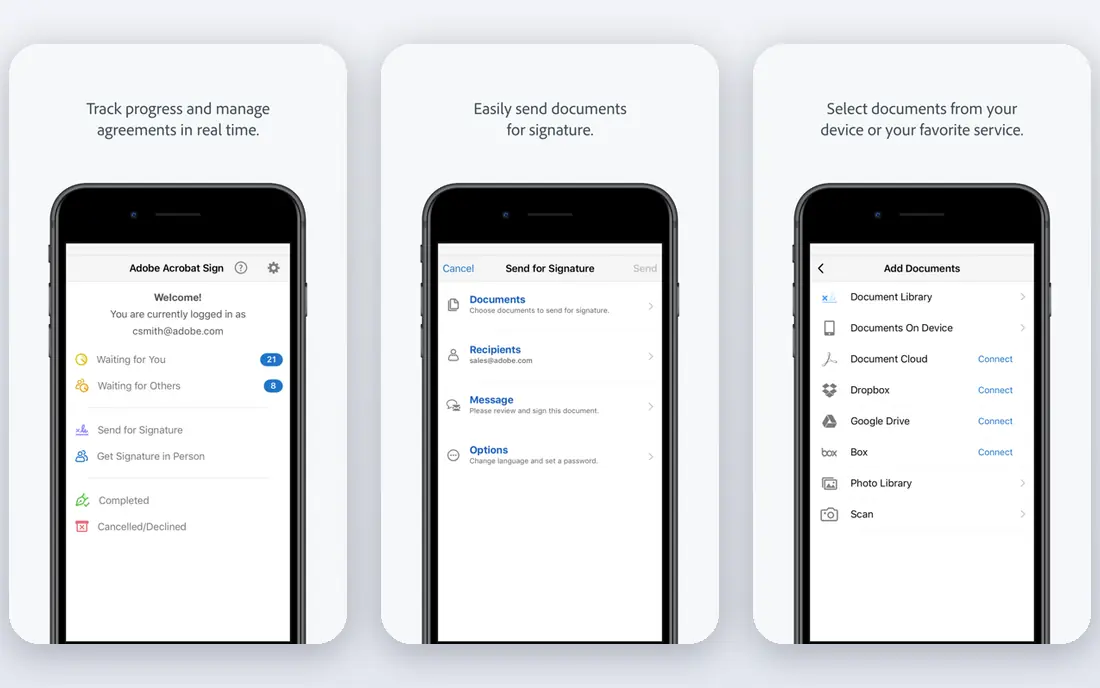
Adobe Acrobat is the standard most other PDF apps are measured against, and its mobile app covers the widest range of changes. With a paid Acrobat plan, you can edit text and images, fill and sign forms, combine files, organise pages and convert PDFs, all from a phone or tablet. The free Reader app still lets you view, comment and fill many forms, which is enough for light use.
The catch is price and scope. The free version will not edit text, so a user who only needs to fix a typo may find a cheaper app is enough. For a professional who edits PDFs daily, signs contracts and shares files for review, Acrobat is worth the cost, since its editing is reliable and its files open cleanly in other tools. Keep the desktop version in mind too, since one subscription covers both.
- Full text and image editing with a paid plan
- Strong form filling and signing
- Reliable file handling and cloud sync
- Free app is mainly for viewing and basic markup
- Full editing needs a subscription
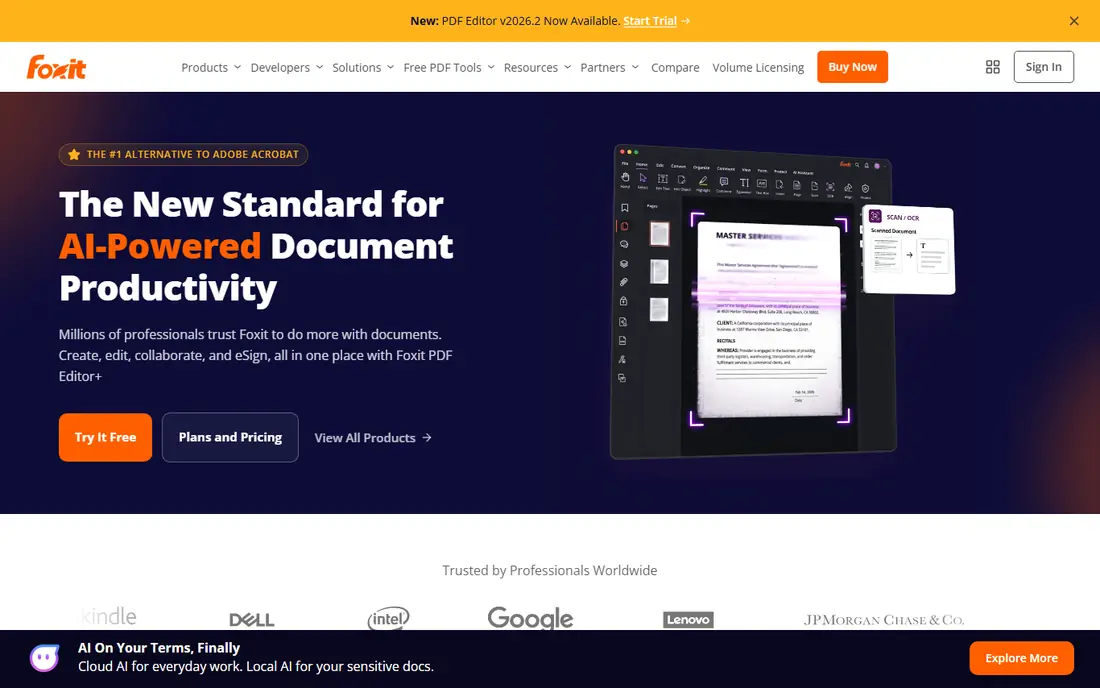
Foxit PDF Editor is a serious alternative to Acrobat for people who want full editing without Adobe pricing. On mobile, it handles text edits, annotations, form filling and signing, and it performs well with larger files. The free Reader version covers viewing and basic markup, while paid plans open the full editor.
The mobile interface packs in a lot, which can feel crowded on a small phone, though it works better on a tablet. Check which plan holds the features you need, since OCR, advanced editing and team features sit on different tiers. For a professional who wants a full PDF editor on mobile at a competitive price, Foxit is a strong choice.
- Strong text editing and annotation on mobile
- Good form and signing tools
- Fast performance on large files
- Some advanced features need higher plans
- Interface can feel dense on a small phone screen
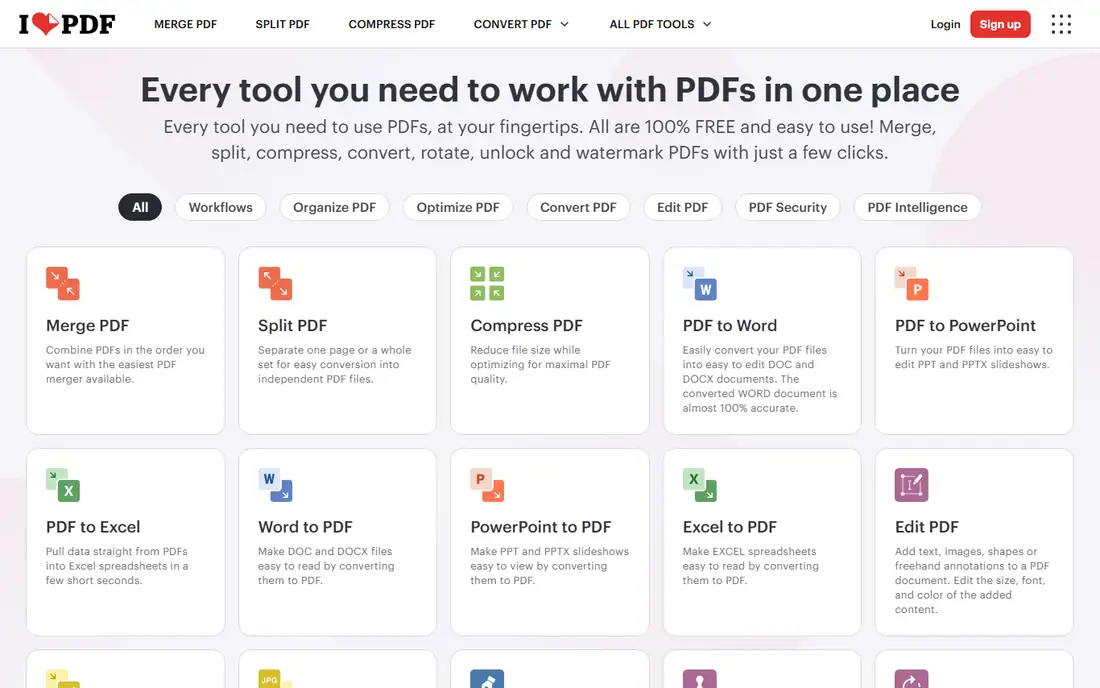
iLovePDF is best for quick jobs rather than deep editing. If you need to merge two PDFs, split a file, compress a large document, convert a PDF to another format or add a watermark, it does that in a few taps in a mobile browser. The interface is simple, the tools are clearly named, and the free tier covers occasional use.
It is not a full text editor, so fixing a paragraph or redesigning a page is better done in Acrobat, Foxit or PDFelement. The free tier also limits tasks, so frequent users will need the paid plan. For a person who mostly needs to combine, shrink or convert PDFs on a phone, iLovePDF is fast, clear and hard to beat.
- Very easy tools for merging, splitting, compressing and converting
- Works in a mobile browser with no install
- Free tier for occasional use
- True text editing is limited compared with a full editor
- Free tier has task limits
Smallpdf is similar to iLovePDF in spirit, with a clean design and a focus on simple tasks. You can edit a PDF, convert it, compress it, merge files, sign a document and protect a file, all from a browser or app. The tools are easy to find, which helps when you need a quick change and do not want to learn a complex editor.
Free use is limited, so a regular user will need a paid plan, and deep text editing is not as strong as in Acrobat or Foxit. For occasional, straightforward changes, Smallpdf is a pleasant and reliable option. For daily professional editing, a full editor will save time in the long run.
- Simple, friendly tools for editing, converting and compressing
- Works on web and mobile
- Good for occasional users
- Free use is limited
- Deep text editing is weaker than full desktop editors
UPDF aims to be one app for most PDF jobs on a phone. It edits text and images, lets you annotate, fill forms, organise pages, convert files and run OCR on scanned documents, and it syncs across desktop and mobile. That breadth suits a user who wants to avoid juggling several PDF tools for different tasks.
The main warning is that mobile features are not identical to desktop features, so check that the specific tool you need is available on your phone before you pay. Some features also need a paid plan, and the free version is best treated as a trial. For a versatile, modern PDF editor that covers most mobile jobs in one app, UPDF is a strong pick.
- Edits text, images and pages on mobile
- Includes annotation, forms, OCR and conversion
- Works across desktop and mobile
- Mobile features differ from desktop features, so check the tool you need
- Some features need a paid plan
PDFelement from Wondershare is a full PDF editor with a strong focus on forms and scanned documents. On mobile and web, it edits text and images, creates and fills forms, converts files and runs OCR to make scanned pages searchable and editable. That combination suits offices that deal with paper forms, contracts and scanned records.
There is no permanent free plan for full editing, only a trial, so factor the annual cost into your decision. Pricing also varies by platform, with single-platform and cross-platform plans, so check the plan that covers your phone and computer together. For a team that edits forms and scanned PDFs often, PDFelement is a capable and well-rounded choice.
- Strong text and image editing
- Good form creation and OCR for scanned PDFs
- Cross-platform with mobile and web
- No permanent free plan for full editing
- Pricing varies by platform and plan
Xodo is a good fit for people who annotate, sign and share PDFs as much as they edit them. On a phone, you can mark up a document, add text, fill a form, sign it and share it for review, with cloud storage support for Google Drive, Dropbox and other services. That workflow suits students, reviewers and field workers who pass documents back and forth.
Free use covers a useful range of actions, but some actions have daily limits and advanced features need a paid plan. Deep text editing is also less extensive than in Acrobat or Foxit, so check it against your most common edit. For annotation, signing and collaboration on mobile, Xodo is a flexible and easy-to-use option.
- Good annotation, editing and signing on mobile
- Works across web, mobile and desktop
- Collaboration and cloud storage support
- Some advanced features need a paid plan
- Free daily limits apply to some actions
PDFgear stands out because its core editing is free, with no subscription needed to edit text and images in a PDF. It also covers annotation, conversion, page organisation and form filling, which makes it a genuinely useful free editor rather than a viewer with a few tools. For a student, a freelancer or anyone who edits PDFs only now and then, that free core is a major advantage.
Advanced features are thinner than in paid editors, and some AI or OCR options may sit behind a paid tier, so check the current feature list before you rely on it for scanned documents. Performance and design are solid for a free tool, and it works on mobile and desktop. If you want to change PDFs on your phone without paying, start with PDFgear.
- Free editing of text and images
- Includes annotation, conversion and page tools
- No subscription needed for core editing
- Fewer advanced features than paid editors
- OCR and AI features may need a paid option
How we picked these
We compared official product pages, pricing pages and mobile app listings, and we kept apps that let you change PDF content on a phone or tablet, not just view it. We weighed text editing, form filling, signing, page tools, conversion, OCR, free limits and price, and we left out viewers with no editing tools. Prices are vendor list prices, and we wrote See website where pricing varies by platform, plan or store. Always test your most common edit, such as fixing text, signing a form or merging pages, before you commit to a paid plan.
How to pick a mobile PDF editor for your needs
Start with the edit you do most. If you fix text and images often, pick a full editor such as Acrobat, Foxit, UPDF or PDFelement, and test it on a real document. If you mainly merge, split, compress or convert files, a web tool such as iLovePDF or Smallpdf will be faster and cheaper. If you mainly annotate and sign, Xodo or PDFgear may cover your needs for free.
Next, check file safety. Keep a copy of the original PDF before you edit, since a mobile edit can be hard to reverse, especially on a scanned file. Check where your files are stored, since some web tools upload files to a server while others work locally. For sensitive documents such as contracts, medical forms or financial records, prefer an app with clear privacy terms and delete uploaded files when you are done.
Editing on a small screen
Text editing on a phone works best for short fixes, while longer edits are easier on a tablet or a computer. Zoom in before you tap a word, check the result after each change, and use a stylus or a larger screen for annotation if you mark up documents often. A good mobile editor should let you undo a change easily, so test undo and redo before you edit an important file.
Frequently asked questions
What is the best app for changing pdfs on mobile overall?
Adobe Acrobat is the most complete mobile PDF editor, thanks to reliable text editing, forms and signing. PDFgear is the best free starting point, while Foxit and UPDF offer strong value for regular editing.
Can I edit PDF text for free on my phone?
Yes, for basic edits. PDFgear offers free text and image editing, and the free versions of Foxit, UPDF and Xodo cover some editing and markup. Full, unlimited editing usually needs a paid plan.
Can I sign a PDF on my phone?
Yes. Most apps on this list support signing, including Acrobat, Foxit, Xodo, PDFgear and PDFelement. You can draw a signature, type it or use a saved signature, and then share the signed file.
Can I merge or split PDFs on my phone?
Yes. iLovePDF and Smallpdf make merging and splitting very easy in a mobile browser, and full editors such as Acrobat, Foxit and UPDF also offer page organisation tools.
Do mobile PDF editors work offline?
Many editor apps work offline for local files, while web tools need a connection and upload your file to a server. Check offline support in the app before you edit on a plane or in a place with weak signal.
Is it safe to edit sensitive PDFs in a web tool?
It can be, but check the privacy terms first. For sensitive documents, prefer a local editor app, delete uploaded files after use, and avoid uploading personal, medical or financial records to a free web tool you do not trust.
Sources
See where you really rank - block by block
ProMapRanker scans Google Maps across a grid of your service area. Simple monthly plans from $19, white-label on every plan.
Start freeKeep reading
 worlds best local seo company
8 Worlds Best Local SEO Companies for Map Pack Growth in 2026
Compare the worlds best local seo company options for Google Business Profile work, citations, reviews, and multi-location rankings and reporting in 2026.
Read → world's best web hosting company
World's Best Web Hosting Company in 2026
Searching for the world's best web hosting company? We compared 10 hosts on price, renewal rates, speed, and support to help you choose well today in 2026.
Read → who's got the best nanny tax services
Who's Got the Best Nanny Tax Services in 2026
We answer who's got the best nanny tax services, comparing full filing, back taxes, software, and pricing so families can handle nanny taxes correctly.
Read →