 ProMapRanker
Best AI Video Editor App in 2026


Transcript-based editing of podcasts and talking-head video · Pricing starts at: $16 per month
Key takeaways
- Descript is our pick for most people who edit talking-head video, because editing the transcript edits the video.
- CapCut and DaVinci Resolve give the most value for no money, though they serve very different editors.
- Opus Clip is the strongest choice when one long recording must become many short clips.
- Credit and minute limits matter more than headline prices, so check what a plan actually lets you export each month.
- Sora is not on this list, because OpenAI retired it, and we only list tools that work today.
Quick comparison
| Pick | Great for | Pricing starts at | Free tier | |
|---|---|---|---|---|
| Descript | Transcript-based editing of podcasts and talking-head video | $16 per month | Yes | Visit |
 CapCut | Fast social video on a phone | See website | Yes | Visit |
 Adobe Premiere Pro | Professional long-form editing | $22.99 per month | Free trial | Visit |
 DaVinci Resolve | Professional editing without a subscription | Free | Yes | Visit |
 Runway | Generative edits and effects on existing footage | $12 per month | Yes | Visit |
 Opus Clip | Turning long videos into short clips | $15 per month | Yes | Visit |
 VEED | Browser editing for marketing teams | See website | Yes | Visit |
 Kapwing | Collaborative editing in the browser | $16 per month | Yes | Visit |
 Filmora | Beginners who want guided AI help | $49.99 per year | Yes | Visit |
The best AI video editor apps
These are the best AI video editor tools we found for real editing work in 2026, not just generation. We compared official feature pages, pricing pages and app store listings, and we left out tools that only generate clips without a usable editor.
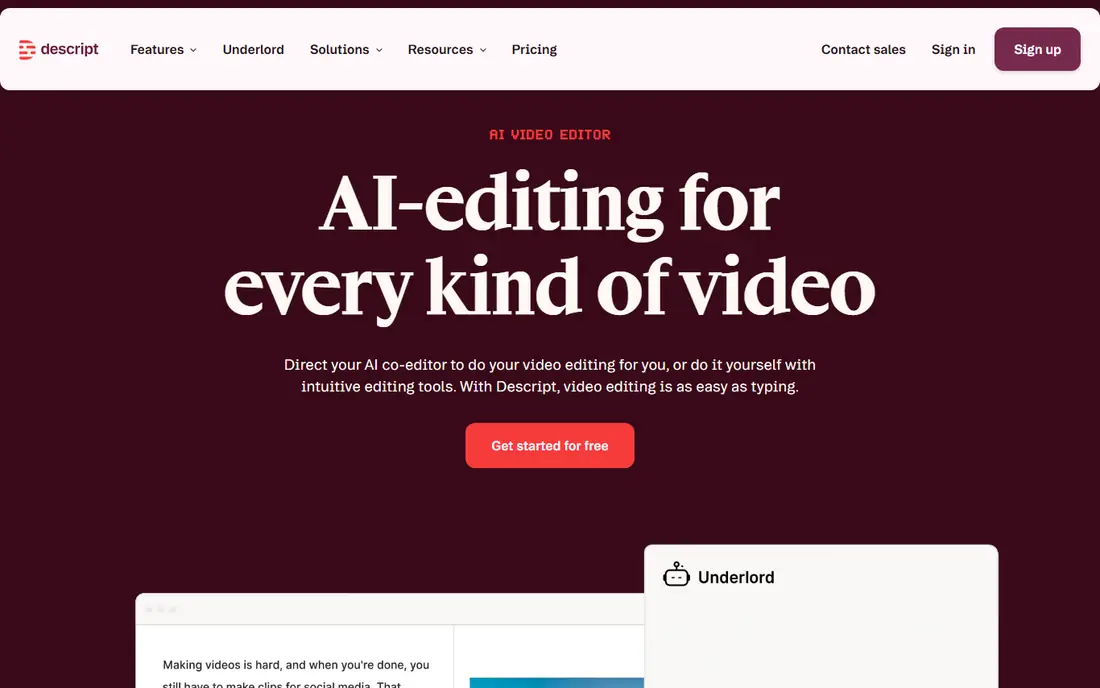
Descript changes the job for anyone who records themselves talking. You get a transcript of your recording, and deleting a sentence in the text deletes it from the video. That single idea removes hours of timeline scrubbing for podcasters, course creators and YouTubers who publish talking-head content every week.
The AI help goes further than the transcript. Studio Sound cleans up echo and background noise, filler-word removal tidies ums and ahs, and the Underlord assistant can draft edits and summaries. The catch is that Descript is not a visual effects tool, so editors who need heavy motion graphics or color work will still need a second app. Paid plans start at $16 per month billed annually, with a free plan that covers short projects.
- Edit video by editing text
- Strong filler-word and studio-sound cleanup
- Good collaboration tools
- Limited advanced visual effects
- AI features are metered on lower plans
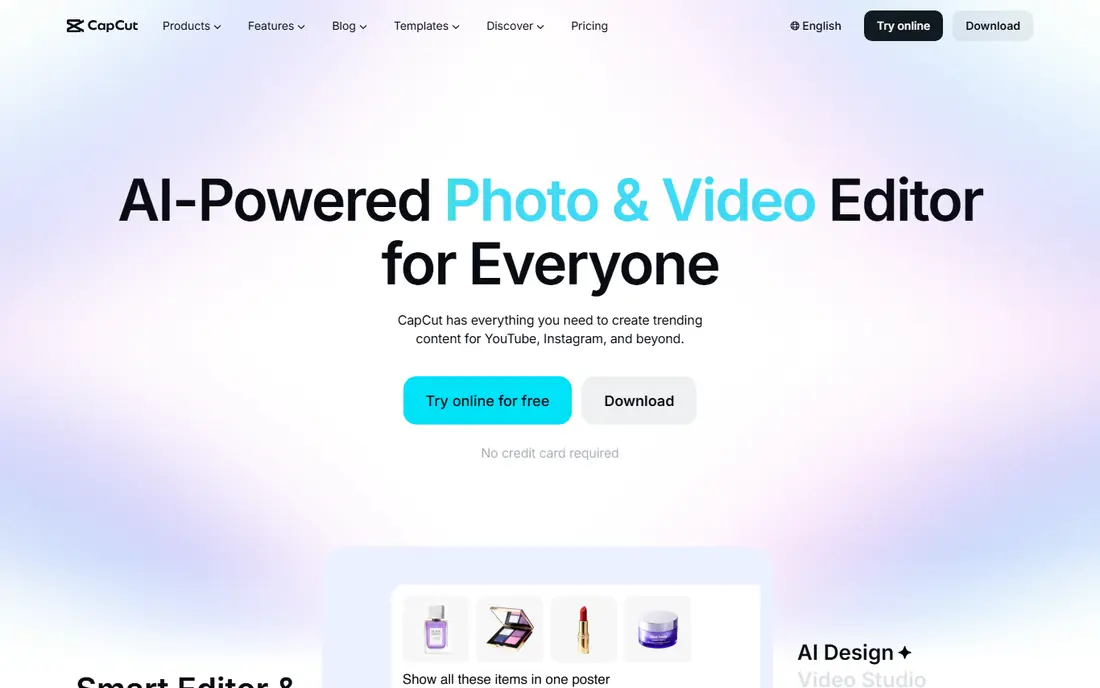
CapCut is the app most short-form creators already have on their phones, and the free tier explains why. Auto captions, background removal, auto reframe and templates cover the bulk of what a TikTok or Reel needs, and the long-video-to-shorts tool turns one recording into several vertical clips. For a creator who shoots, edits and posts from a phone, that speed is hard to beat.
The trade-off is depth. Color tools, audio mixing and precise keyframing lag behind desktop editors, and some AI features sit behind the Pro plan, whose price varies by region and platform. Check the price inside your own app store before you commit. If your videos live on social feeds and speed matters most, CapCut is the easiest starting point on this list.
- Strong free tier with auto captions
- Long video to shorts
- Works on phone, web and desktop
- Pro pricing varies by region and platform
- Advanced controls are thinner than desktop editors
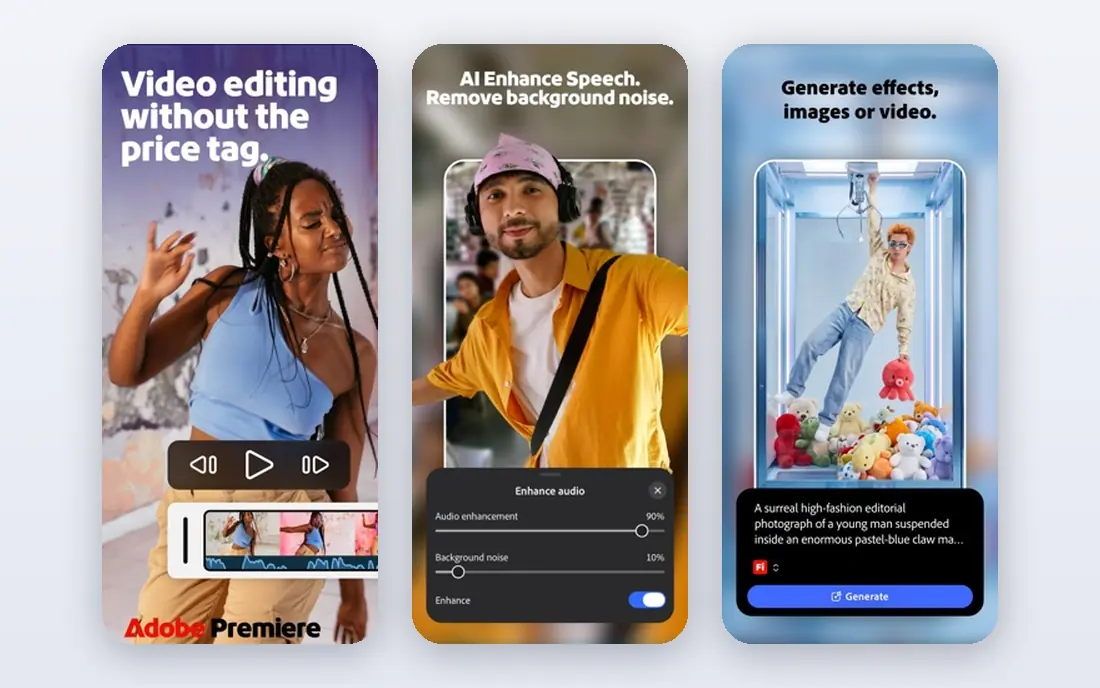
Premiere Pro remains the default professional editor, and its AI features now sit inside a timeline that can handle anything from a vlog to a documentary. Text-based editing lets you cut interviews from a transcript, Media Intelligence helps you find shots by describing them, and Generative Extend can stretch a clip when you are a few frames short. Editors who already use Photoshop or After Effects get the added benefit of a shared workflow.
The price and the learning curve are the honest costs. At $22.99 per month for the single app on annual billing, it is a serious commitment, and beginners can feel lost in its panels and menus. But for editors who earn a living from video, or who need the widest range of formats, effects and integrations, no other tool here matches its depth.
- Deepest professional feature set
- Text-based editing and generative extend
- Huge plugin and stock ecosystem
- Subscription cost adds up
- Steep learning curve for beginners
DaVinci Resolve is the best deal in professional video, full stop. The free version is a complete editor with strong color grading, audio mixing and effects, and it exports without a watermark. Its AI tools include Magic Mask for isolating subjects, voice isolation for cleaning dialogue, and text-based editing in the paid Studio version.
The catch is the learning curve and the Studio split. Beginners face a dense interface with separate pages for editing, color, effects and audio, and the most advanced AI features require the $295 one-time Studio license. That one-time price still beats years of subscriptions for editors who stick with it. If you want professional power and you hate monthly bills, start here.
- Full professional editor free
- Excellent color tools
- One-time Studio license
- Some AI tools need the paid Studio version
- Interface can overwhelm beginners
Runway is the tool to reach for when the footage you have is not quite the footage you need. Its generative models can extend a shot, remove an object, restyle a scene or create b-roll from a prompt, and the browser-based workspace means no heavy install. For small teams and solo creators, it turns effects work that once needed a specialist into something you can try in an afternoon.
Credits are the thing to watch. The Standard plan starts at $12 per month billed annually, and generation eats credits fast when you iterate. Runway also works best as a companion to a timeline editor rather than a replacement for one. Use it to fix and create shots, then finish the edit where your timeline lives.
- Strong generative video models
- Inpainting and background removal
- Browser-based workflow
- Credit costs rise with heavy generation
- Not a full replacement for a timeline editor
Opus Clip solves one problem better than any general editor here. Give it a podcast, webinar or stream, and it finds the moments likely to hold attention, reframes them to vertical, and adds captions. Podcasters and coaches who need a week of short-form content from one recording can save hours of manual clipping.
The narrow focus is also the limit. Opus Clip does not replace a full editor for long-form work, and its picks sometimes miss context that a human would catch, so budget time to review and trim. The free plan includes a monthly credit allowance with a watermark, and paid plans start at $15 per month. If shorts are your growth channel, it pays for itself quickly.
- Picks highlights and reframes to vertical automatically
- Adds captions
- Scores clip potential
- Narrow focus on shorts
- Results still need a human review pass
VEED is a browser editor built for teams that publish video every week without a dedicated editor. Subtitles, translations, background removal and AI avatars sit inside one workspace, and the review and sharing tools keep feedback in one place. Marketing teams that need consistent, branded social video will find the workflow faster than passing project files around.
The honest catch is that browser editing has limits, and VEED reprices and reshuffles its AI credits often enough that you should read the current pricing page before you pay. Long or effects-heavy projects still belong on a desktop editor. For short, regular, team-produced video, VEED is a practical middle ground between a phone app and a pro suite.
- Full browser editor with subtitles, translation and avatars
- Simple sharing and review
- No install needed
- Pricing tiers and AI credit limits change often
- Heavy projects run better on desktop editors
Kapwing is the browser editor we would hand to a small team that edits together. Multiple people can work on the same project, leave comments and reuse brand templates, and the AI tools cover auto subtitles, dubbing, text to speech and background removal. For social teams and educators, that combination removes a lot of back-and-forth.
Free exports are watermarked and capped at 720p, and very large files can slow down in a browser tab. The Pro plan starts at $16 per month billed annually and removes the watermark with 4K export. If your team edits in a browser and values shared templates over raw power, Kapwing fits well.
- Easy team collaboration
- Auto subtitles and dubbing
- Templates speed up social output
- Free exports carry a watermark and resolution limits
- Large files can feel slow in a browser
Filmora is built for the editor who wants help without a manual. AI portrait tools, motion tracking, speech to text and auto beat sync cover the common jobs, and the template library gives beginners a finished look fast. It runs on desktop and mobile, so a project can start on a laptop and finish on a phone.
The metering is the part to understand before you buy. AI features draw on Filmora AI credits, so heavy users can run through allowances and need top-ups. The annual plan starts at $49.99 per year, which is modest next to professional subscriptions. For hobbyists, family videos and new creators, Filmora is the gentlest on-ramp on this list.
- Friendly interface with a wide AI toolset
- Good template and effect library
- Desktop and mobile versions
- AI features are metered with credits
- Exports on the free plan carry a watermark
How we picked these
We compared official feature pages, pricing pages and app store listings for the best-known AI video editors in October 2026, and we kept only tools that let you edit real footage with AI help. Generation-only tools and retired products were left out, which is why Sora does not appear as a pick. We favored tools with a usable free tier or trial, current pricing we could confirm, and a clear audience, from phone creators to professional editors.
What to check before you pay
Start with the export limit, not the feature list. Free plans often cap resolution, add a watermark or limit monthly minutes, and paid plans often meter AI work with credits. Run one real project through the free tier first, and check how many credits it uses, how long rendering takes, and how the export looks on the platform where it will be published.
Then match the tool to your main job. Transcript editing suits talkers, clip tools suit repurposing, and pro timelines suit long-form craft. Paying for two tools can beat forcing one tool to do everything, especially when a free tier covers the second job. Finally, check the cancellation terms and whether your projects stay editable if you stop paying, since some browser tools limit access to older work.
Frequently asked questions
What is the best ai video editor app for beginners?
Filmora and CapCut are the easiest starting points, because both guide you with templates and one-click AI tools. Filmora suits desktop beginners who want a fuller timeline, while CapCut suits phone creators who publish to social feeds. Try both free tiers with the same clip before you pay.
What is the best ai software for video editing for professionals?
Adobe Premiere Pro and DaVinci Resolve lead for professional work, with Premiere ahead on generative features and integrations, and Resolve ahead on value. Premiere costs $22.99 per month, while Resolve is free with a $295 one-time Studio option. Pick Premiere for team workflows and Resolve to avoid a subscription.
What are the best ai video editor tools for turning long videos into shorts?
Opus Clip is the strongest specialist here, since it finds highlights, reframes to vertical and adds captions in one pass. CapCut also offers a long-video-to-shorts tool, and it works well for phone-first creators. Review every auto clip before posting, since auto picks sometimes miss context.
What is the best free ai video editor app?
CapCut and DaVinci Resolve offer the most for free, though in different ways. CapCut gives quick social editing with AI captions and reframing, while Resolve gives a full professional editor without a watermark. Descript and Kapwing also have free tiers, but their exports carry tighter limits.
Are the best ai video editor apps good enough to replace a human editor?
They are good enough to speed up routine work, such as captions, cleanup, rough cuts and short clips, but they do not replace judgment about story, pacing and taste. Use AI tools to cut the tedious hours, then review the result yourself. The best ai tools for video editors save time rather than removing the editor.
Which is the best ai video editor tool for teams?
VEED and Kapwing suit teams best, because both run in a browser with shared projects, templates and review tools. Descript also works well for teams that edit spoken content together. Compare seat pricing and credit allowances before you choose, since team costs rise fast.
Sources
See where you really rank - block by block
ProMapRanker scans Google Maps across a grid of your service area. Simple monthly plans from $19, white-label on every plan.
Start freeKeep reading
 best employee onboarding software
Best Employee Onboarding Software in 2026
We compared the best employee onboarding software in 2026 for new employees, from simple HR tools to global platforms, to help you pick by team size today.
Read → best ecommerce platform for small business
Best Ecommerce Platform for Small Business in 2026
We compared the best ecommerce platform for small business options on price, selling features, fees, and ease of use, so you can launch a store that grows.
Read → best crm software for startups
Best CRM Software for Startups in 2026
We compared the best crm software for startups on price, free plans, and setup time, so founders can choose a simple tool that grows with their growing team.
Read →