 ProMapRanker
Best AI Video Editing Software for Beginners in 2026

Key takeaways
- CapCut is the best all-round beginner pick for short-form social video, while Descript is the best pick for talking-head and podcast video.
- Filmora suits beginners who want a real timeline with AI help, while VEED and Kapwing suit browser-only editing with captions.
- Opus Clip is the best pick for turning long videos into shorts, and Canva suits beginners who already design in Canva.
- Free plans are good for learning, but check watermarks, export resolution, and AI credit limits before publishing.
- Start with one tool and one video type, and learn captions, cuts, and exports before paying for a full AI toolkit.
Quick comparison
| Pick | Great for | Pricing starts at | Free tier | |
|---|---|---|---|---|
 CapCut | Short-form social video | Free | Yes | Visit |
 Descript | Talking-head and podcast editing | Free | Yes | Visit |
 Filmora | Timeline editing with AI help | Free | Yes | Visit |
 VEED | Browser captions and social clips | Free | Yes | Visit |
 Kapwing | Browser collaboration | Free | Yes | Visit |
 Opus Clip | Long video into shorts | Free | Yes | Visit |
 Canva | Template social video | Free | Yes | Visit |
 Clipchamp | Simple Windows and web editing | Free | Yes | Visit |
 InVideo | Script and agent-assisted video | Free | Yes | Visit |
 Pictory | Script and article into video | Free | Free trial | Visit |
The best ai video editing tools for beginners
Beginner AI editors should reduce repetitive work, such as captions, silence removal, reframing, and rough cuts, without hiding the timeline completely. The tools below all offer AI features a beginner can use in a first project, with free plans or trials for learning.
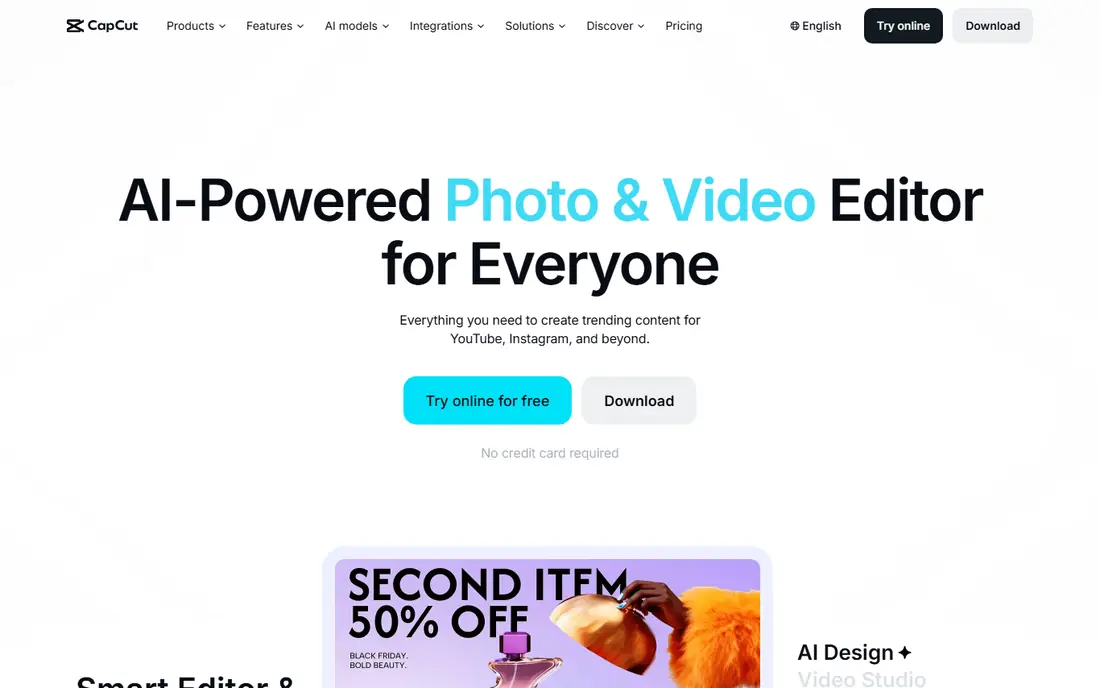
CapCut is our pick for most beginners who make short-form video for TikTok, Reels, or Shorts. The mobile app is fast for trimming, captions, effects, and music, while the desktop and web versions cover longer edits. Auto captions, background removal, and templates help a first video look polished without learning a full professional timeline.
The free plan covers basic editing at up to 1080p in many cases, but premium templates, effects, and some AI features need a paid plan or add a watermark. Recent comparisons list Pro at about $19.99 per month or $179.99 per year, with a lower Standard tier in some regions, so check the in-app price before paying. For social-first beginners, CapCut is the easiest place to start and publish.
- Strong mobile and desktop apps for short-form video
- Auto captions, templates, and trending effects
- Free plan for basic edits
- Pro price varies by region and device
- Premium templates and some AI features need a paid plan
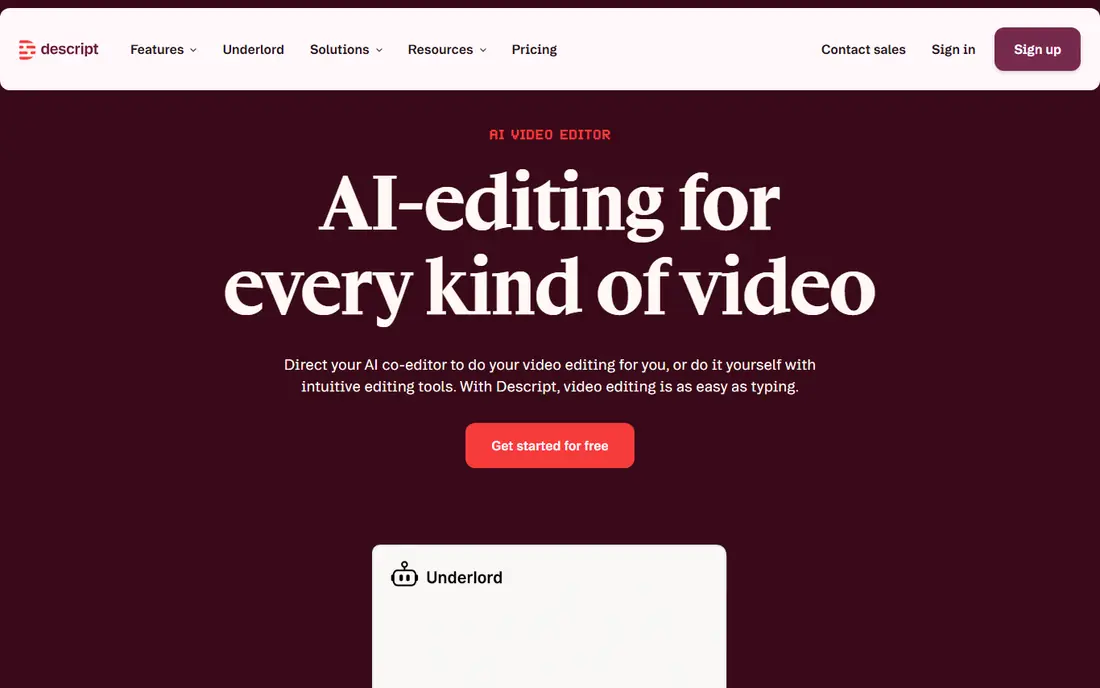
Descript is the best pick for beginners whose videos are mostly a person talking to camera. Instead of cutting on a timeline, users edit the transcript, deleting words to delete video, which feels natural for podcasters, teachers, and interviewers. Filler removal, silence removal, and studio sound cleanup save hours on long recordings.
Descript is less suited to trend-led social edits with many effects, transitions, and overlays. The free plan covers limited transcription and AI credits, while Hobbyist is listed at $24 per month, or $16 per month billed yearly, in recent comparisons. For talking-head creators, Descript often saves more time than any other beginner tool, even though it looks different from a standard editor.
- Edit video by editing the transcript text
- Filler word and silence removal
- Strong for podcasts and interviews
- Not built for complex multi-clip social edits
- Paid plans start at $16 per month billed yearly
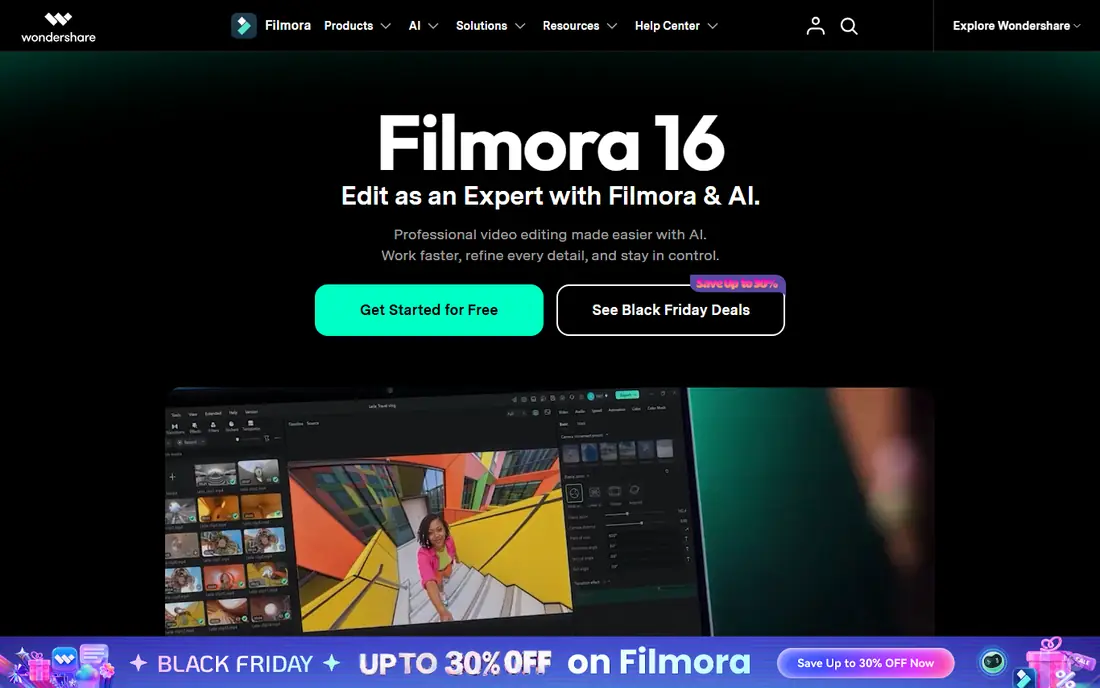
Filmora suits beginners who want to learn real editing, not just templates. It offers a standard timeline with AI tools on top, including auto captions, silence detection, background removal, and audio enhancement. That mix helps a beginner grow from simple cuts to layered edits without switching to a professional tool too soon.
The free version is best for learning, since exports often carry a watermark and some AI features need payment. Recent comparisons list paid plans from $49.99 per year, with monthly options higher, so check the current Filmora pricing page for the plan that covers the AI tools you need. For YouTube beginners who want a timeline, Filmora is a strong middle step.
- Real timeline with AI captions, background removal, and audio tools
- Gentle learning curve for desktop editing
- Mobile app too
- Free exports carry a watermark in many cases
- Some AI features need a paid plan or credits
VEED is the best browser pick for beginners who caption every video. It runs in a web browser, so there is no install and no powerful computer needed for basic edits. Auto subtitles, translation, and eye-contact correction help talking-head and marketing videos, while brand kits keep colors and logos consistent on paid plans.
The free plan is a trial in practice, since every export carries a watermark, so publishers need a paid plan. Creator is listed at $147 per user per year in recent comparisons, which works out to about $12 per month billed yearly, with higher Pro and Studio tiers for teams. For a beginner who edits in a browser and needs captions first, VEED is a clean, focused choice.
- Browser editing with no install
- Strong auto subtitles and translation
- Brand kits and review tools on paid plans
- Free exports carry a watermark
- AI credits do not roll over on paid plans
Kapwing suits beginners who edit with a small team or a client in a browser. Projects can be shared by link, comments can sit on the timeline, and AI tools handle captions, background removal, and rough cuts from chat instructions. That collaboration focus helps social teams, teachers, and small businesses that need review before publishing.
The free plan is limited, with 720p watermarked exports and three-day storage in recent comparisons, so it is best for trying the tool, not for regular publishing. Pro is listed at $16 per member per month billed yearly. For solo beginners, CapCut or VEED may be simpler, but for team review in a browser, Kapwing is the strongest beginner pick.
- Browser editing with team comments and shared projects
- AI captions, background removal, and rough-cut tools
- Easy link sharing
- Free plan limits exports to 720p with a watermark and short storage
- Pro is $16 per month billed yearly
Opus Clip is the best pick for beginners who already record long videos and want shorts without manual cutting. Upload a podcast, webinar, or long YouTube video, and Opus Clip picks moments, reframes them to vertical, and adds captions. That workflow saves hours for creators who would otherwise watch a full recording to find clips.
Auto picks are not perfect. Pacing, context, and captions need a human review, especially for jokes, emotional moments, or fast-moving subjects. The free plan covers limited processing, while Starter is listed at $15 per month in recent comparisons. For repurposing, Opus Clip is the fastest beginner path from one long video to many shorts.
- Turns long videos into vertical shorts automatically
- Picks moments, reframes to vertical, and adds captions
- Good for podcasts and webinars
- Auto picks need review for pacing and context
- Starter plan is $15 per month in recent comparisons
Canva suits beginners who already design social posts in Canva and want video in the same place. Templates cover announcements, promos, tutorials, and social clips, with drag-and-drop text, brand colors, and stock photos and video. AI tools help with captions, background removal, and script-to-video drafts for short content.
Canva is not a full timeline editor. Precise cuts, multi-track audio, and complex edits feel easier in Filmora, Descript, or CapCut. Pro is listed at about $144 per year in recent comparisons, which also covers design tools beyond video. For a non-designer who needs a good-looking social video quickly, Canva is the lowest-friction pick.
- Huge template library for social video
- Easy text, brand, and stock integration
- Free plan for basic video
- Less precise timeline control than Filmora or Descript
- Advanced AI video features need Pro
Clipchamp is the best free-first pick for Windows beginners. It offers a simple timeline in a browser or Windows app, with templates, captions, and basic AI tools, and free exports up to 1080p without a watermark in many cases. That makes it a good classroom, small business, and first-project tool where budget is zero.
AI depth is the limit. Clipchamp does not match Descript for transcript editing, Opus Clip for auto clipping, or CapCut for trend effects. Premium features are tied to Microsoft 365 in some cases, so check the current Clipchamp page before assuming a feature is free. For a simple, no-cost start on Windows, Clipchamp is hard to beat.
- Free editing up to 1080p with no watermark in many cases
- Simple timeline
- Built into Windows and Microsoft 365 paths
- AI features are lighter than CapCut or Descript
- Premium features need a Microsoft 365 plan in some cases
InVideo suits beginners who start from a script, a blog post, or a product idea rather than from raw footage. Its agent-assisted flow can draft a video from text, add stock clips, voiceover, and captions, then let the user edit the result on a timeline. That helps marketers, teachers, and small businesses that need a video quickly but do not film every day.
Generated drafts need human checks. Stock choices, pacing, and voiceover tone can miss the mark, and factual claims in a script should be verified before publishing. The free plan covers basic drafts with limits, while paid plans start around $20 per month in recent comparisons. For script-first beginners, InVideo shortens the blank-page stage more than any timeline-only tool.
- Agent-assisted editing from a prompt or script
- Large template and stock library
- Web and mobile editing
- AI-generated drafts need review for accuracy and pacing
- Paid plans start around $20 per month in recent comparisons
Pictory suits beginners who already write and want video versions of that writing. Paste a script or article link, and Pictory builds a captioned video with stock visuals, scenes, and voiceover options. That workflow helps bloggers, course creators, and marketers turn one article into a social video without filming.
Pictory is not a camera-first editor. Users who film their own footage and want precise cuts will prefer CapCut, Filmora, or Descript. Paid plans start around $25 per month billed yearly in recent comparisons, with a trial for testing. For text-to-video repurposing, Pictory is a clear, beginner-friendly pick.
- Turns scripts, articles, and blog posts into captioned video
- Auto captions and stock visuals
- Good for content repurposing
- Less control over filming and precise edits
- Paid plans start around $25 per month billed yearly
How we picked these
We compared official feature pages, pricing pages, and recent 2026 AI video editor comparisons, and kept only tools that are live, offer a free plan or trial, and include AI features a beginner can use in a first project, such as captions, auto cuts, or script-to-video. We favored a mix of mobile, browser, timeline, transcript, and repurposing tools, rather than listing only one style. We did not claim hands-on testing, and we used See website only where pricing varies by region or bundle, since most prices here are published monthly or yearly rates.
How to choose an AI video editor as a beginner
Start with the video you actually make most often. Short social clips point to CapCut or Canva, talking-head videos point to Descript or VEED, long recordings point to Opus Clip, and script-first content points to InVideo or Pictory. A tool that fits your main video type will save more time than a tool with the longest feature list.
Check exports before you pay
Test a full export on the free plan, and check watermark, resolution, captions, and file size. A free plan that watermarks every export is not a publishing plan, even if editing feels easy. Also check AI credit limits, since a low monthly price can be costly if captions or auto cuts consume credits quickly.
Learn three skills first
Learn clean cuts, accurate captions, and a clear export setting before adding effects, transitions, or AI avatars. Proofread auto captions on every video, since accents, names, and jargon often trip transcription. Review auto cuts for pacing, since aggressive trimming can cut real words or break a joke.
Keep one main editor for a month
Use one editor for at least a month of real videos before switching, so you learn its shortcuts, templates, and export settings. Switching every week wastes the time AI tools are meant to save. After a month, judge by published videos, not by demo clips, and upgrade only if a paid feature clearly saves time each week.
Frequently asked questions
Which AI video editing tool is best for beginners?
CapCut is the best all-round beginner pick for short-form video, while Descript is the best pick for talking-head and podcast video. Filmora is the best pick for beginners who want a real timeline with AI help.
What is the best AI video editing apps for beginners on a phone?
CapCut is the best phone-first pick, with a strong mobile app for captions, templates, and effects. Canva and Clipchamp also work on mobile or web, but CapCut covers short-form editing most completely on a phone.
What are the best AI video editing tools for beginners on a budget?
Clipchamp, CapCut free, and Canva free are the best budget starting points, since they cover basic editing without a paid plan. Check watermark and resolution limits before publishing, and pay only for the AI features you use every week.
What is the best AI video editing tool for beginners who make YouTube videos?
Filmora and Descript are strong YouTube picks, with Filmora offering a timeline for varied edits and Descript offering transcript editing for talking-head videos. Opus Clip also helps YouTubers turn long videos into Shorts for discovery.
Can AI edit a video automatically from start to finish?
AI can draft a rough cut, captions, and short clips, but a beginner should still review pacing, captions, and story before publishing. For short clips, Opus Clip and CapCut come closest to automatic, while longer videos still need human judgment.
Is there a free AI video editor for beginners?
Yes. CapCut, Clipchamp, Canva, VEED, Kapwing, and Filmora all offer free plans or trials, with different limits on watermarks, resolution, and AI credits. Start free, publish a few test videos, and upgrade only when limits block regular work.
Sources
- https://www.capcut.com
- https://www.descript.com
- https://filmora.wondershare.com
- https://www.veed.io
- https://www.kapwing.com
- https://www.opus.pro
- https://www.canva.com
- https://clipchamp.com
- https://invideo.io
- https://pictory.ai
- https://thespinozajournal.com/blogs/best-ai-video-editors
- https://www.moonb.io/blog/best-ai-video-editor
See where you really rank - block by block
ProMapRanker scans Google Maps across a grid of your service area. Simple monthly plans from $19, white-label on every plan.
Start freeKeep reading
 who has the best home internet service
Who Has the Best Home Internet Service in 2026
Who has the best home internet service in 2026? Compare fiber, cable, and 5G providers on speed, price, data caps, and availability at your address today.
Read → visio alternatives
Best Visio Alternatives in 2026
Compare 9 Visio alternatives for flowcharts, org charts, and network diagrams, with free plans, pricing, and the best pick for teams and solo users in 2026.
Read → top 10 logistics software
Top 10 Logistics Software in 2026
We compared the top 10 logistics software tools for transport, warehousing, visibility and shipping, for shippers, carriers and 3PL teams in 2026 today.
Read →