 ProMapRanker
Best AI Tools to Turn Image Into Video in 2026

Key takeaways
- Runway gives the most control over a shot, while Kling gives strong realistic motion at a lower entry price.
- Pika and PixVerse are the easiest routes to short social clips, with free starting options to test.
- Luma and Adobe Firefly suit brand work where output quality and commercial terms matter more than the lowest price.
- Only animate images you own or have permission to use, and never animate a real person without their consent.
- Credits run out fast during retries, so test with a short clip before buying a larger plan.
Quick comparison
| Pick | Great for | Pricing starts at | Free tier | |
|---|---|---|---|---|
 Runway | Directed shots and editing | $12 per month | Yes | Visit |
 Kling | Realistic human motion | $10 per month | Yes | Visit |
 Pika | Quick social clips | See website | Yes | Visit |
 Luma Dream Machine | Cinematic multi-model motion | $30 per month | No | Visit |
 Adobe Firefly | Brand-safe Creative Cloud work | See website | Yes | Visit |
 Hailuo | Expressive character animation | See website | Yes | Visit |
 PixVerse | Fast effects and short clips | See website | Yes | Visit |
 HeyGen | Talking photos and presenters | See website | Yes | Visit |
 Higgsfield | Directed cinematic shots | See website | Yes | Visit |
The best AI tools to turn image into video
These tools take a still image and a short prompt, then return a moving clip. We compared them on motion quality, control, clip length, credit cost, and how easy it is to test before paying. A plain consent rule runs through this guide: only animate images you own or have permission to use, and never animate a real person without their consent.
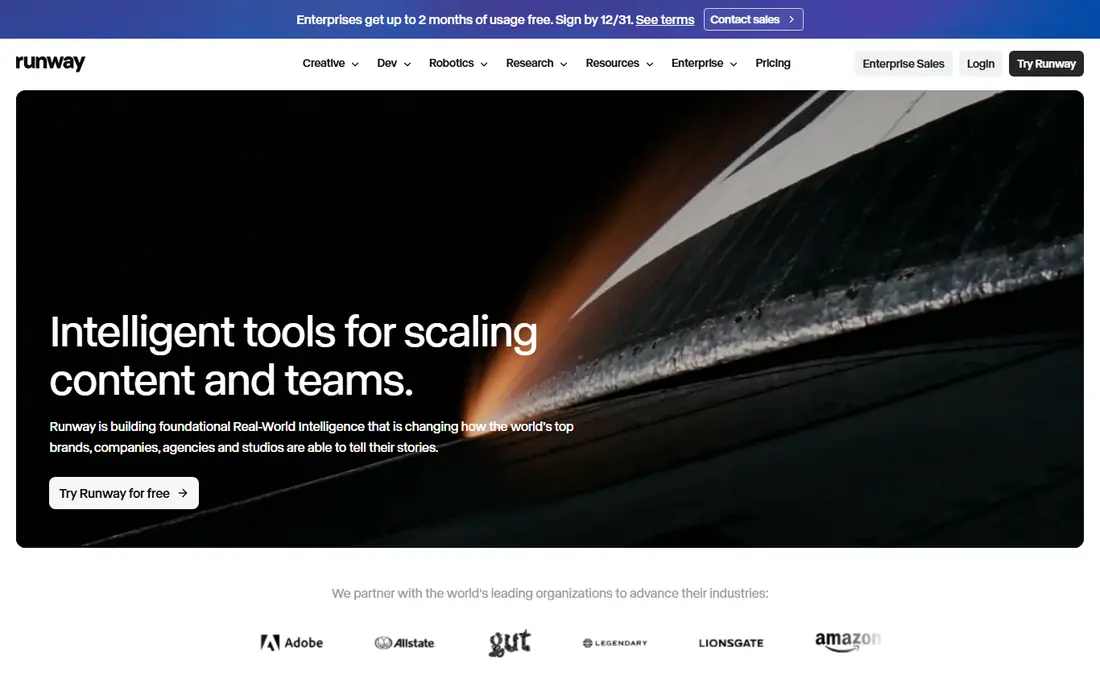
Runway is the choice when a shot needs direction, not just motion. A creator can set camera movement, keep a subject consistent, and then extend or restyle the clip inside the same workspace. That control matters for product shots and short scenes where the first frame must stay recognizable.
The cost is credit discipline. Retries, longer clips, and higher resolution all consume credits, so a casual test can use a plan faster than expected. Start with the free credits on a representative image, and check the credit cost for the exact length and resolution you plan to use before committing to a monthly plan.
- Strong camera and shot control
- Editing tools around generation
- Supports reference images
- Credits disappear quickly during iteration
- Higher plans are needed for serious volume
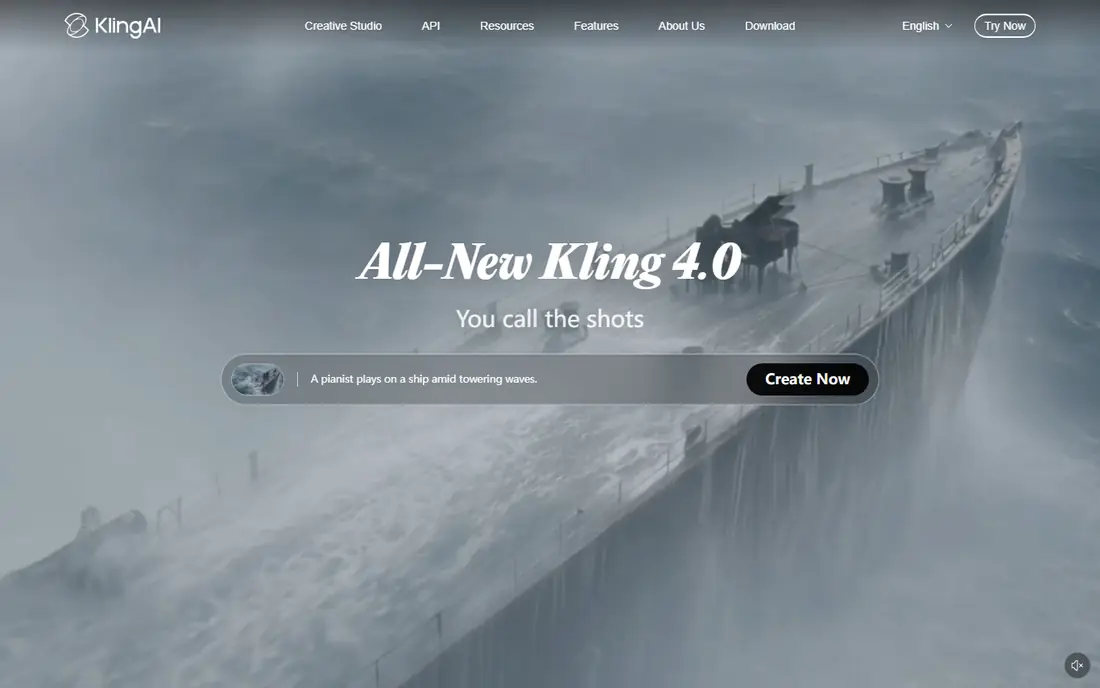
Kling has built a reputation for human motion that looks less stiff than many rivals. Walking, gestures, and facial movement hold up better in short clips, which makes it a strong pick for lifestyle, fashion, and creator content where a person is the subject. Lip sync options also help when a clip needs a spoken line.
The trade-off is consistency. Results can vary between generations, and queue times rise at busy periods. Treat Kling as a value pick that rewards prompt care and a few retries, rather than a tool that nails every shot on the first try.
- Natural human movement and lip sync options
- Good value per clip
- Daily free credits on some plans
- Queue times and output quality can vary by model and plan
- Interface takes time to learn
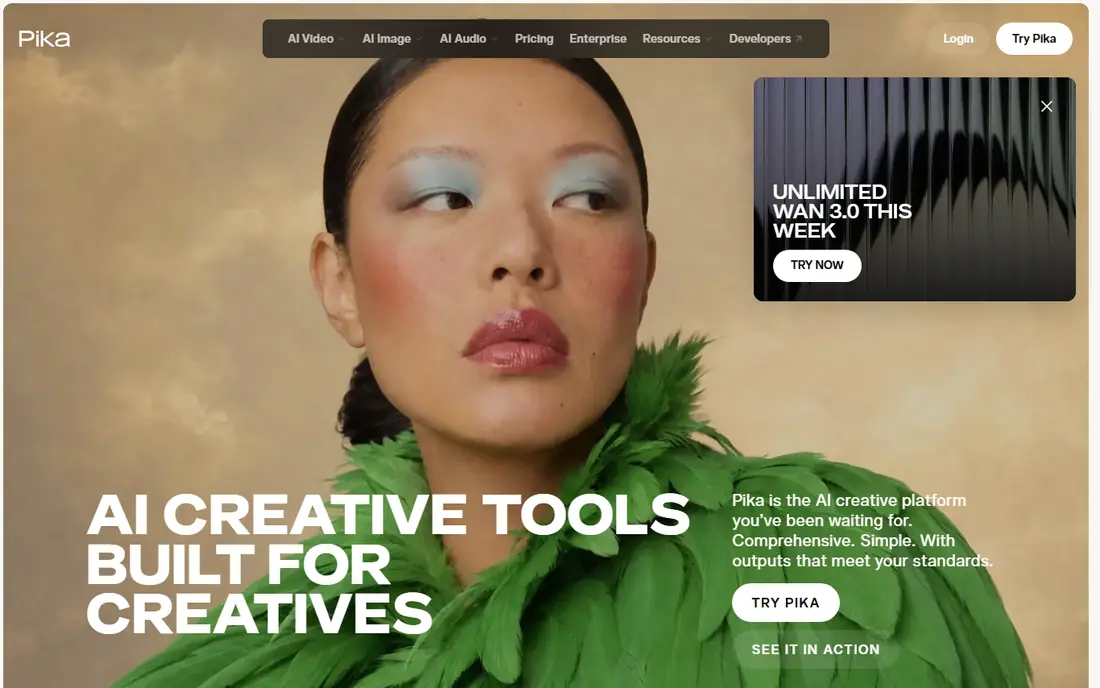
Pika is the easiest tool on this list for a beginner. Upload an image, describe the motion, pick an effect, and get a short clip that is ready for social feeds. Start and end image options also let creators build a transition between two frames, which is useful for before and after content.
Continuity is the limit. A Pika clip can look great for a few seconds and then drift, so it suits short, punchy posts rather than longer scenes. For a quick product reveal or a playful effect, that trade-off is fine, and the free starting option makes it easy to judge.
- Simple interface
- Fun effects and transitions
- Fast for short social content
- Short clips can favor spectacle over continuity
- Higher resolution costs more credits
Luma Dream Machine suits creators who want cinematic motion and are willing to pay for it. Camera moves feel smooth, water and fabric move in a believable way, and the platform now offers several outside models alongside its own, so one bill can cover different looks. That breadth helps teams that test styles often.
Price is the honest catch. The entry plan is higher than Runway or Kling, and monthly credits expire, so unused credits do not carry over. Check the current plan page carefully, because Luma has changed its pricing structure during 2026, and older reviews may show tiers that no longer exist.
- Natural physics and camera movement
- Access to several video models in one place
- High quality output
- Higher entry price
- No free individual plan on current pricing
- Credits do not roll over on monthly plans
Adobe Firefly is the safe pick for brand and client work. Its video model is built for commercial use, and the workflow fits teams already in Photoshop, Premiere Pro, or Express. A still image can move into a clip, then into an edit, without leaving the Adobe set of tools.
Credit use is the thing to watch. Free daily generations are useful for tests, but premium video uses credits at a rate that adds up on a busy project. Teams that already pay for Creative Cloud get the most value, while a solo creator who only needs occasional clips may find a cheaper single-purpose tool better.
- Commercially oriented terms
- Integrates with Creative Cloud apps
- Clear provenance options
- Premium video consumes generative credits quickly
- Best value needs a Creative Cloud subscription
Hailuo, from MiniMax, is a strong choice for character-led clips. A single reference image can produce expressive faces and action that suit animation, gaming, and social content. Generation is fast, and trial credits let a new user test several prompts before paying.
The main caution is change. Hailuo has adjusted plans, models, and credit amounts during 2026, so a price quoted in an older review may be out of date. Confirm the current plan on the vendor site, and confirm commercial terms if the clip will be used in paid advertising.
- Strong character and facial motion
- Fast generation
- Generous trial credits for testing
- Plan details and model availability change often
- Check terms before commercial use
PixVerse is built for speed. Templates, effects, and multi-transition options let a creator turn one image into several short variations in a single session. That makes it a good fit for social teams that need a steady stream of clips rather than one perfect scene.
Quality at length is the limit. Short clips look sharp, while longer sequences can lose consistency. Use PixVerse for social posts, ads, and quick tests, and use Runway, Kling, or Luma when a scene needs to hold together for more than a few seconds.
- Fast templates and effects
- Multi-shot options
- Good for high-volume short clips
- Credit use rises with resolution and duration
- Longer scenes are weaker
HeyGen solves a different job from the cinematic tools above. A portrait photo becomes a speaking presenter, with voice, script, and translation options that suit training videos, product explainers, and localized marketing. That workflow saves a shoot when a presenter needs to appear in several languages.
It is not a scene generator. HeyGen will not turn a scenery photo into a sweeping camera move, and longer avatar clips can feel less natural than a real recording. Choose it when the goal is a person talking to camera, and choose a cinematic tool when the goal is a moving scene.
- Photo avatars that speak
- Voice and translation workflow
- Good for training and marketing presenters
- Not built for cinematic scene generation
- Avatar motion can look stiff in longer clips
Higgsfield appeals to creators who think in camera moves. Presets for dolly, orbit, crane, and other shots give a clip a directed feel without writing a long prompt, and the platform can route work to several models. That makes it useful for ad-style shots where the camera move is part of the message.
Because Higgsfield is a platform over several models, credit cost and output quality depend on the model chosen. Test the same image on two models before settling on one, and check the current credit table, since model pricing changes. For a creator who already knows camera language, it is a flexible tool.
- Extensive camera presets
- Multi-model workflow
- Strong for advertising style shots
- Credit cost depends on model choice
- Platform layer adds a learning step
How we picked these
We compared official feature pages, pricing pages, and model documentation for tools that accept an image as the starting frame and return video, and we left out tools that only generate from text, tools that are no longer sold to consumers, and any tool built for undressing or non-consensual use. We favored tools that still work in October 2026, that publish clear credit or plan terms, and that a creator can test before paying. We did not claim hands-on testing, and we marked prices as See website where vendor pricing was unclear or changed during research.
How to get a good clip from a still image
Start with a clean, high-resolution image that you own or have permission to use. A sharp subject, clear lighting, and a simple background give the model less to guess, and the motion stays truer to the original. Avoid busy backgrounds and small faces in the frame, because both tend to distort as the clip moves.
Write a short, specific motion prompt
Describe one motion and one camera move, not five ideas at once. For example, ask for a slow push-in while a subject turns toward the camera, rather than asking for a turn, a walk, a smile, and a scene change in the same clip. Short prompts fail less often, and they make it easier to see which change fixed a bad result.
Check consent, rights, and disclosure
Only animate images you own or have permission to use, and never animate a real person without their consent. That rule covers photos of friends, clients, public figures, and anyone else who has not agreed to appear in a moving clip. If a clip will be published or used in advertising, check the tool's commercial terms and disclose AI generation where a platform or client requires it.
Budget credits like film stock
Every retry costs credits, so run a short, low-resolution test first, then pay for a higher-resolution version of the winner. Keep a note of the prompt, model, and settings for clips that work, because the same settings often work again on similar images. A small test habit saves more money than any discount code.
Frequently asked questions
What are the best AI tools to turn images into video?
Runway, Kling, and Luma lead for cinematic quality and control, while Pika and PixVerse lead for fast social clips. Adobe Firefly fits brand work, HeyGen fits talking photos, and Hailuo and Higgsfield fit character and directed shots. The best choice depends on clip length, control, and budget.
Which AI tool turns a photo into a video for free?
Pika, PixVerse, Hailuo, and HeyGen offer free starting options, and Runway offers limited one-time credits. Free exports often carry limits on resolution, length, or commercial use, so check the plan page before using a free clip in paid work. Kling also offers daily credits on some plans.
How long can an AI image to video clip be?
Most tools on this list produce clips of about five to fifteen seconds per generation, with longer results possible by extending or stitching clips. Shorter clips hold consistency better, so plan a longer video as several shots rather than one long generation. Check the current model page, because maximum length changes with new models.
Can I animate a photo of a real person?
Only with that person's consent, and only with an image you own or have permission to use. Never animate a real person without consent, and never use these tools to create misleading or non-consensual content. If consent is unclear, do not generate the clip.
Is AI video from a photo good enough for advertising?
It can be, for short social ads and product reveals, especially with Runway, Kling, Luma, or Firefly. Check commercial terms, review the clip frame by frame for distorted hands, faces, or text, and keep a human editor in the loop. For hero brand films, AI clips usually work best as part of a larger edit rather than the whole film.
Sources
See where you really rank - block by block
ProMapRanker scans Google Maps across a grid of your service area. Simple monthly plans from $19, white-label on every plan.
Start freeKeep reading
 zscaler alternatives
Best Zscaler Alternatives in 2026
Looking for zscaler alternatives? We compare 9 SASE and zero trust platforms on architecture, data protection, pricing, and fit for your network and team.
Read → zapier alternatives free
Best Zapier Alternatives Free in 2026
Nine automation tools for zapier alternatives free in 2026, all with genuinely free tiers, plus free plan limits, starting prices and upgrade paths explained.
Read → which platform is best for online reputation
Which Platform Is Best for Online Reputation in 2026
Wondering which platform is best for online reputation? We compare 8 review, listing, and response tools for small and multi-location businesses and agencies.
Read →