 ProMapRanker
Best AI Tools to Generate Video From Photos in 2026

Key takeaways
- Canva and Adobe Express are the easiest starting points for turning your own photos into polished short videos.
- Animoto, FlexClip, and Lumen5 suit slideshow-style videos for business, listings, and social posts.
- InVideo, Kapwing, VEED, and Clipchamp add more editing control, captions, and AI assistance for creators.
- Animate only photos you own or have permission to use, and never animate a real person without their consent.
- Free plans are useful for testing, but most add watermarks or cap resolution and export length.
Quick comparison
| Pick | Great for | Pricing starts at | Free tier | |
|---|---|---|---|---|
 Canva | Easy photo-to-video designs | Free | Yes | Visit |
 Adobe Express | Polished social videos from photos | Free | Yes | Visit |
 Animoto | Simple slideshow videos | Free | Yes | Visit |
 FlexClip | Template slideshow videos | Free | Yes | Visit |
 InVideo | AI-assisted video from photos and text | $20 per month | No | Visit |
 Kapwing | Browser editing with AI tools | Free | Yes | Visit |
 VEED | Captioned social videos from photos | Free | Yes | Visit |
 Clipchamp | Windows-friendly photo videos | Free | Yes | Visit |
 Lumen5 | Business videos from photos and text | See website | Free trial | Visit |
The best AI tools to generate video from photos
These tools turn still photos into moving videos, through slideshow motion, pan and zoom effects, transitions, music, and AI-assisted editing. They are for legitimate creative work with your own photos: family memories, product photos, listings, and marketing images. Animate only photos you own or have permission to use, and never create a video of a real person without that person's consent.
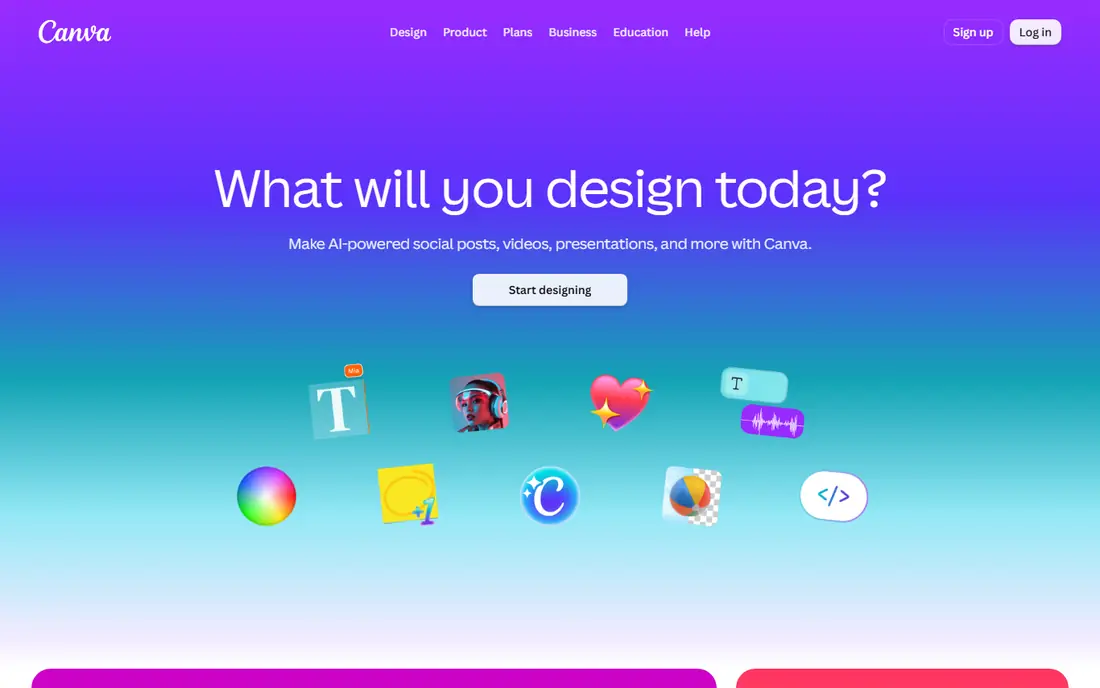
Canva is the easiest place to start for most people. Upload your own photos, pick a video template, add pan, zoom, and transition effects, then add text and music and export a short video for social media or a presentation. The free tier covers many templates and elements, and Canva Pro, listed at $120 per year in recent comparisons, adds premium assets, background tools, and extra storage.
The limit is originality. Template-heavy videos can look similar to other Canva videos unless you change colors, fonts, pacing, and photo order. AI generation features also sit largely in paid plans. For a fast, polished photo video with no editing experience, Canva is our pick for most people, and it is free to test.
- Huge template library
- Easy photo animation and transitions
- Free tier without watermark on free elements
- AI video features need paid plans for full use
- Output can look templated without customization
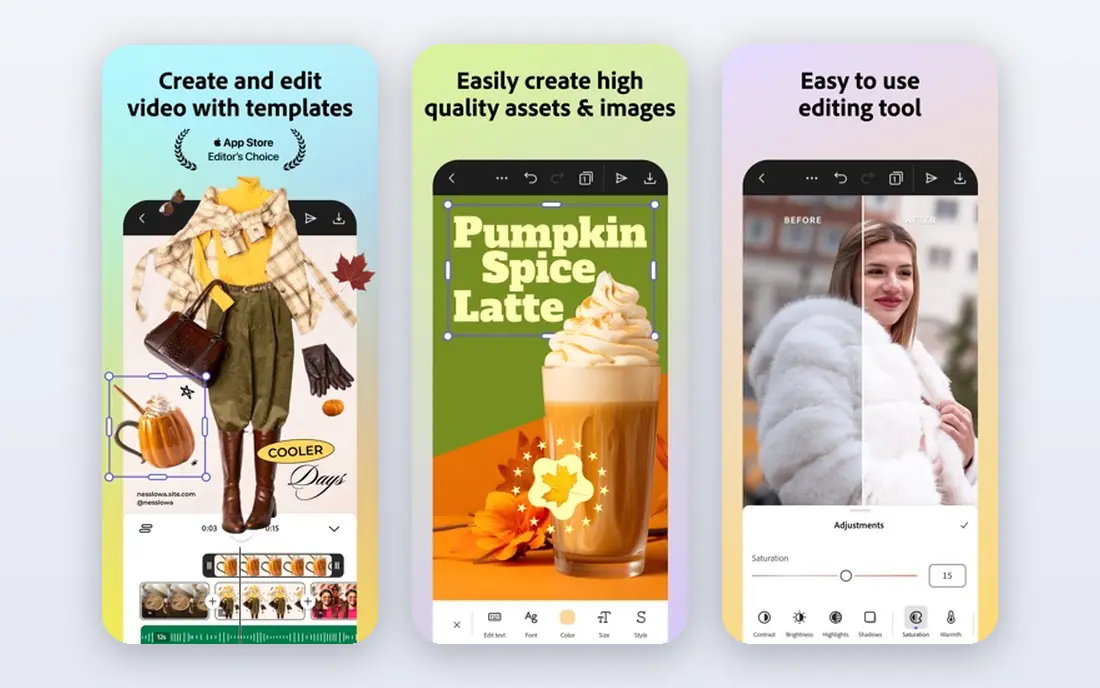
Adobe Express turns photos into short social videos with a clean, professional feel. You can animate photos, add text and music, and resize one video for several social formats in a few clicks. The free plan needs no card and covers many templates and assets, while Premium is listed at $9.99 per month in recent October 2026 checks, with premium templates, Adobe Stock assets, and generative credits.
Free users get fewer templates than Canva Free offers, and brand kits are paid-only, so teams with strict brand rules may need Premium. If you already use Adobe tools, Express fits well, since it works with Adobe files and assets. For polished social videos from your own photos, Adobe Express is a strong, simple choice.
- Free tier with strong templates
- Adobe Stock assets on paid plans
- Easy resize for social formats
- Free plan is leaner than Canva Free
- Brand kits need a paid plan
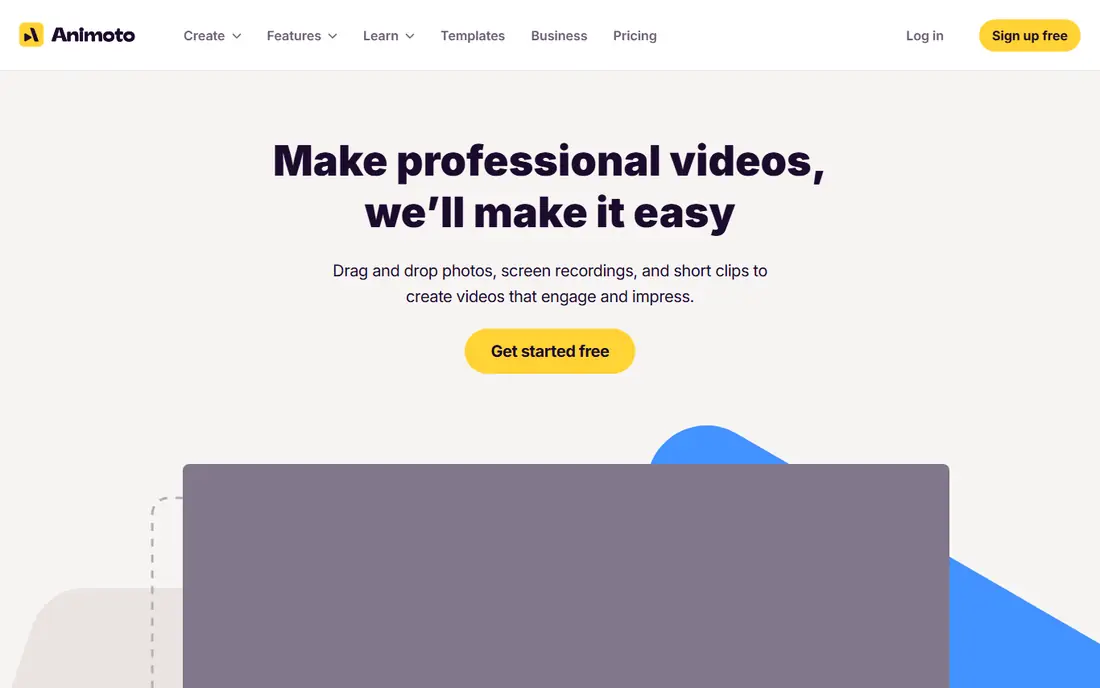
Animoto is built for one job: turning photos and short clips into a tidy slideshow video fast. Pick a template, drop in your photos, add text, choose a licensed music track, and export. Real estate agents use it for listings, schools use it for events, and small businesses use it for promos, all without editing skills.
Free exports carry a watermark, and paid plans start around $16 per month in recent listings, so clean exports need a subscription. Creative control is also limited, since Animoto favors speed over custom motion. If you want a simple slideshow video this afternoon, Animoto is one of the fastest tools here, and its music library removes a common licensing worry.
- Very easy slideshow workflow
- Licensed music library
- Good for listings and events
- Free exports carry a watermark
- Limited creative control compared with full editors
FlexClip sits between a simple slideshow maker and a full editor. Its templates cover business, social, and personal videos, and its timeline lets you adjust photo duration, transitions, text, and music with more control than Animoto offers. A built-in stock library helps when you need extra footage or images next to your own photos.
The free tier is useful for testing, but exports carry a watermark and cap at 720p, with project limits, and paid plans start around $19.99 per month in recent comparisons. For a creator who wants template speed plus timeline control, FlexClip is a good middle ground, and its free tier is enough to judge template quality.
- Large template and stock library
- Easy timeline editing
- Free tier for testing
- Free exports carry a watermark and cap resolution
- Full features need a paid plan
InVideo helps you build a video from photos, text, or a prompt, with AI assistance for script, voiceover, and scene selection, plus manual editing when you want control. Its template library covers marketing, social, and business videos, and its stock library adds footage next to your own photos. Current pricing pages list Starter at $20 per month, with higher Plus and Max tiers, and no free tier advertised.
That lack of a free tier is a real difference from Canva and Adobe Express, so test it only if you are ready to pay for a month. Minute and credit limits also apply, so check how they affect your photo video length before purchase. For marketers who want AI help turning photos and a message into a finished video, InVideo is a capable, if pricier, option.
- AI-assisted video creation from prompts and media
- Large template library
- Strong for marketing videos
- No free tier advertised on current pricing pages
- Minute and credit limits need checking
Kapwing is a browser-based editor that handles photo-to-video work with more control than a slideshow maker. You can arrange photos on a timeline, add transitions, text, captions, and music, and use AI tools for cleanup and subtitles. Since it runs in a browser, it works on most computers without an install, which suits teams sharing a project link.
Free exports carry a watermark, cap at 720p, and face monthly limits, with paid plans starting around $24 per month in recent comparisons. For a creator who wants editing control plus AI help in one browser tab, Kapwing is a strong choice, and its free tier is enough to test a first video.
- Full browser editor
- Smart tools for captions and cleanup
- No install needed
- Free exports carry a watermark and cap resolution
- Monthly export limits apply
VEED suits creators who turn photos into social videos with captions and clean formatting. Upload photos, add motion and transitions, generate subtitles automatically, and export for TikTok, Reels, or YouTube. Its subtitle accuracy and styling are a highlight, since captioned videos perform better when viewers watch without sound.
Free exports carry a watermark and cap at 720p, with a short length limit, and paid plans start around $20 per month in recent comparisons. AI credits on paid plans are pooled, so heavy AI use needs planning. For captioned photo videos for social media, VEED is a polished, beginner-friendly pick.
- Strong auto-subtitles
- Easy social video workflow
- Browser based with no install
- Free exports carry a watermark and cap at 720p
- AI credits are pooled on paid plans
Clipchamp, from Microsoft, is a simple timeline editor that works well for photo videos on Windows. You can import photos, add pan and zoom motion, transitions, text, and music, and export at 1080p on the free tier in many cases without a watermark. Integration with Microsoft services suits users who already store photos in OneDrive.
Some advanced features tie to Microsoft 365, and its template library is narrower than Canva's, so creators who want many ready styles may prefer Canva. For a Windows user who wants a free, straightforward photo video editor with clean exports, Clipchamp is an excellent choice, and it costs nothing to start.
- Free 1080p exports without watermark in many cases
- Microsoft integration
- Simple timeline
- Full features tie to Microsoft 365 in some cases
- Template range is narrower than Canva
Lumen5 helps businesses turn blog posts, product notes, and photos into short videos for social and marketing use. Its AI-assisted workflow suggests scenes, text placement, and pacing, and its templates keep brand colors and fonts consistent. Non-editors in a marketing team can produce a steady stream of videos without learning a full editor.
Lumen5 offers a trial rather than an ongoing free plan in most listings, and pricing is best confirmed on its site. Personal creators who want playful, custom motion may find it too business focused. For a company that needs regular photo and text videos for marketing, Lumen5 is a practical, team-friendly option.
- Turns text and photos into business videos
- Brand-friendly templates
- Easy for non-editors
- No ongoing free plan in most listings
- Business focus limits personal creative control
How we picked these
We compared official pricing pages, feature pages, and free tier terms, plus recent online editor comparisons, for tools live in October 2026. We kept only legitimate creative tools that turn a user's own photos into videos, and we excluded any tool marketed for undressing people or non-consensual imagery. We did not list Sora as a live consumer product. Where pricing was unclear or varied by plan, we wrote See website rather than guessing. Our assessments rest on public documentation and user reports, not hands-on testing.
How to make a good photo video, and how to stay safe
Start with photo quality. Use sharp, well-lit photos you own or have permission to use, and sort them into a story order before you open an editor. Keep each photo on screen long enough to read, use one transition style consistently, and add music you have a license for, such as a track from the tool's own library. Check the final video on a phone, since most photo videos are watched on small screens.
Consent matters as much as quality. Animate only photos you own or have permission to use, and never animate a real person without that person's consent. Do not use these tools to create misleading videos of real people, and do not upload photos of others to a service without permission. If a tool offers face animation or likeness features, use them only with your own photos or with clear, written permission from the person pictured.
Frequently asked questions
What is the best AI tool to generate video from photos?
Canva is the best starting point for most people, since it is free, easy, and packed with templates. Adobe Express is a close second for polished social videos, while Animoto suits simple slideshows. The best pick depends on whether you want template speed, editing control, or AI assistance.
Can I generate a video from a single photo?
Yes, most tools here can animate a single photo with pan, zoom, and text, though the result is short and simple. For a longer video, use several photos, or combine one photo with text, music, and stock footage. AI motion tools that animate one photo work best with your own photos and with clear consent for any person pictured.
What is the best AI tool to generate videos from photos for free?
Canva Free and Clipchamp offer the strongest free paths, with clean exports in many cases. Adobe Express Free is also strong for social videos. Other tools offer free tiers with watermarks or resolution caps, so check export terms before you build a video you plan to publish.
Do these tools work for business videos?
Yes. Animoto, FlexClip, Lumen5, and InVideo all suit business videos, from listings and promos to social posts. Use your own product photos, keep branding consistent, and use licensed music from the tool library. For regular marketing output, a paid plan usually pays for itself in clean exports and extra templates.
Is it safe to animate photos of people?
Only with permission. Animate only photos you own or have permission to use, and never create a video of a real person without that person's consent. This applies to family photos shared publicly, employee photos, and customer photos alike. When in doubt, use your own photos, stock photos, or product images instead.
Sources
See where you really rank - block by block
ProMapRanker scans Google Maps across a grid of your service area. Simple monthly plans from $19, white-label on every plan.
Start freeKeep reading
 zscaler alternatives
Best Zscaler Alternatives in 2026
Looking for zscaler alternatives? We compare 9 SASE and zero trust platforms on architecture, data protection, pricing, and fit for your network and team.
Read → zapier alternatives free
Best Zapier Alternatives Free in 2026
Nine automation tools for zapier alternatives free in 2026, all with genuinely free tiers, plus free plan limits, starting prices and upgrade paths explained.
Read → which platform is best for online reputation
Which Platform Is Best for Online Reputation in 2026
Wondering which platform is best for online reputation? We compare 8 review, listing, and response tools for small and multi-location businesses and agencies.
Read →