 ProMapRanker
Best AI Tools to Generate Video From Image in 2026

Key takeaways
- Kling offers strong value for realistic motion, with daily free credits and a low entry paid plan in recent pricing coverage.
- Runway is the best fit when you also need editing, restyling, and camera control around the generated clip.
- Pika suits fast, stylised social clips, while Luma suits cinematic camera moves from a still image.
- Credits, not the monthly price alone, decide value, so test each tool with the same photo before you commit.
Quick comparison
| Pick | Great for | Pricing starts at | Free tier | |
|---|---|---|---|---|
 Runway | Editing plus generation | $15 per month | Yes | Visit |
 Kling | Realistic motion value | $10 per month | Yes | Visit |
 Pika | Fast social clips | $10 per month | Yes | Visit |
 Luma Dream Machine | Cinematic camera moves | See website | Yes | Visit |
 Google Veo 3.1 via Flow | Realistic clips with audio | See website | Yes | Visit |
 Hailuo MiniMax | Expressive character motion | See website | Yes | Visit |
 PixVerse | Low cost volume clips | See website | Yes | Visit |
 Adobe Firefly Video | Brand safe commercial work | See website | Yes | Visit |
The best ai tools to generate video from image
Image-to-video tools animate a still photo, a product shot, or an illustration into a short moving clip. The best tool depends on whether you need realism, style, editing control, or low cost per clip. We compared tools that accept an image as a starting frame and return a usable video clip, and we note where free output is watermarked or limited to non-commercial use.
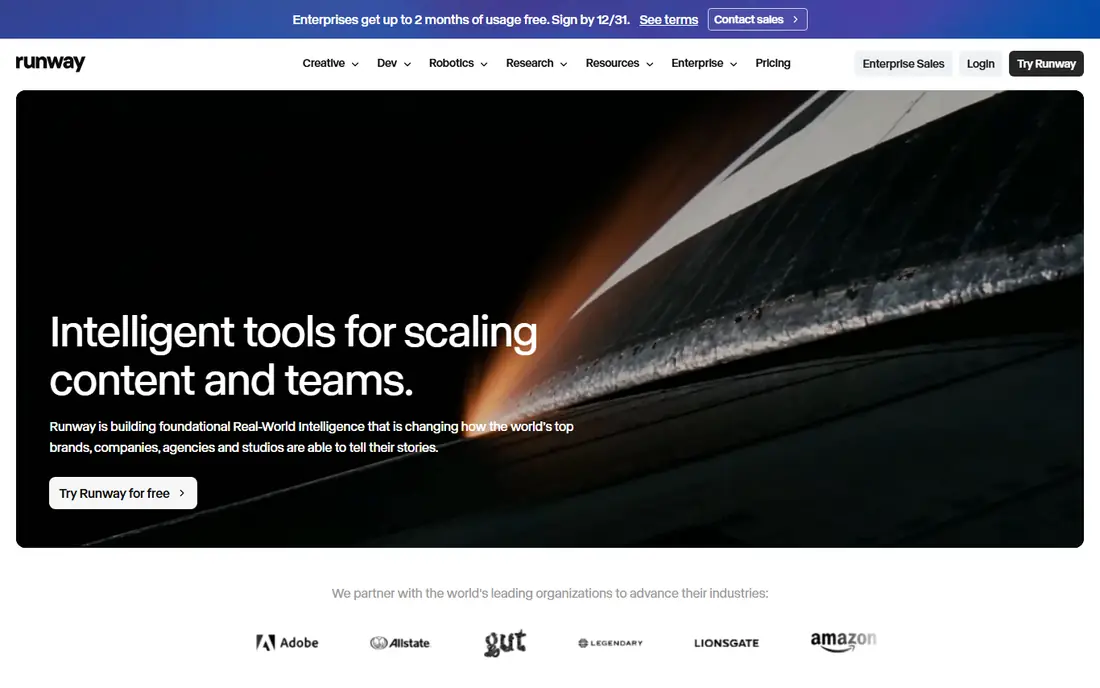
Runway is the tool to pick when generation is only part of the job. You can animate an image, extend a shot, restyle footage, and clean up a clip without moving to a separate editor. That workflow matters for creators who need several versions of one shot, or who want to keep a character or product consistent across edits.
Pricing coverage in 2026 lists Standard at $15 per month, or $12 per month billed annually, with a small one-time free credit allowance. The catch is credit math. Resolution, length, and retries all change how many finished clips a plan yields, so a plan that looks generous can shrink fast if you need many takes. Use the free credits on a real photo from your own work, not a demo image, before you pay.
- Gen-4 models with image-to-video and video editing in one place
- Camera control and restyling tools
- Useful for production workflows
- Credits can run out fast with retries
- Monthly price is higher than the cheapest clip generators
Kling has built a reputation for motion that looks natural rather than wobbly, especially for people, animals, and everyday scenes. Upload a photo, describe the motion you want, and Kling tends to hold the subject together better than cheaper stylised tools. That makes it a good first paid option for creators who need believable movement.
Recent pricing coverage lists a free tier with daily credits and Standard at $10 per month, with first-month promotions sometimes lowering that figure. The honest limits are commercial use and credit expiry. Free clips are for testing, not client work, and daily credits reset. If you generate in bursts, a paid plan with monthly credits may fit better than relying on daily free credits.
- Strong realistic human and animal motion
- Daily free credits in recent coverage
- Good price for the quality
- Free plan output is not for commercial use in vendor terms reported in 2026
- Credits expire and do not roll over
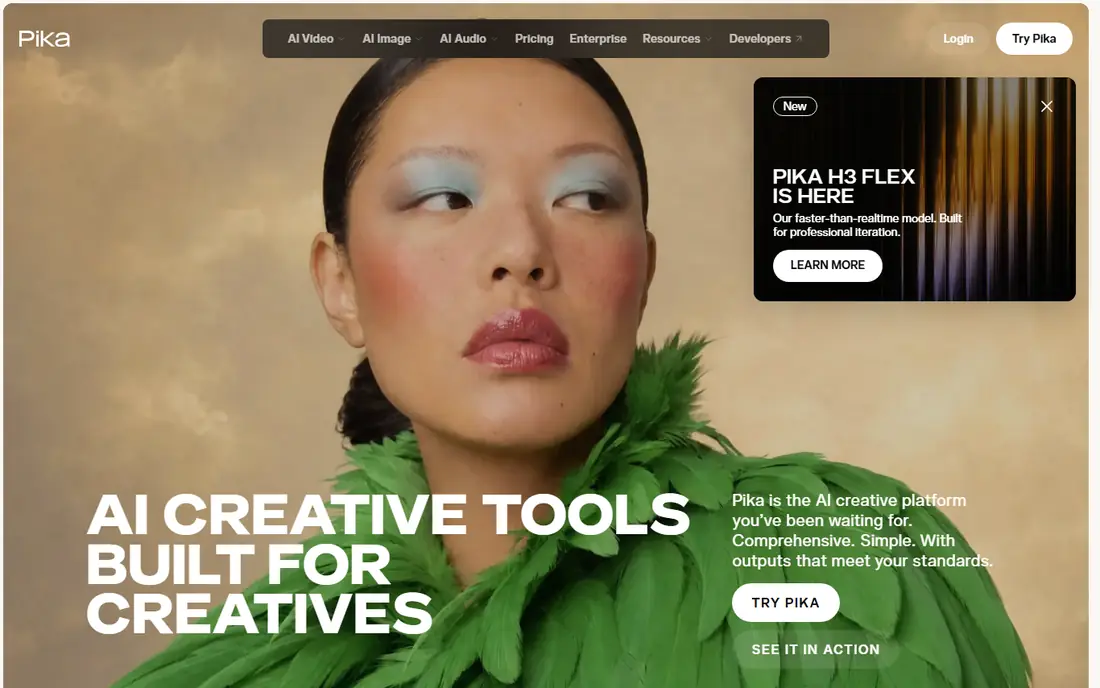
Pika is built for speed and social output. If you want to turn a product photo into a short looping clip, add a playful effect, or test several ideas in an afternoon, Pika gets you there quickly. The interface is simpler than Runway, and generation times suit rapid trial and error.
The trade-off is realism and free output quality. Free clips in recent coverage are watermarked at 480p, and paid plans start around $10 per month. That is fine for social drafts and fun clips, but less ideal for a hero ad or a realistic scene where motion quality matters most. Use Pika when you need many quick ideas, and Kling or Veo when you need one polished realistic clip.
- Fast iteration and simple interface
- Effects and stylised looks for social video
- Lower learning curve
- Free clips are watermarked and low resolution in recent coverage
- Less suited to long realistic scenes
Luma Dream Machine suits creators who think in camera moves. A slow push-in, a gentle orbit, or a reveal from a still product shot can turn a flat image into a clip that feels shot rather than generated. Keyframe and first-to-last-frame options help when you want the motion to start and end in specific places.
Pricing is the main reason we list See website. Recent coverage reports different entry prices across 2026, including a Plus plan at $30 per month in one roundup and lower figures in others, which suggests plan changes. Do not rely on an old review for Luma pricing. Open the current pricing page, check how many credits a five-second clip at your target resolution costs, and test a camera move before you subscribe.
- Strong camera movement from still images
- First and last frame control on supported models
- Useful for concept shots
- Pricing has changed several times in 2026 coverage, so check the current page
- No free plan was listed on some recent pricing pages
Veo 3.1, reached through Google Flow and related Google tools, is a strong choice for realistic image-to-video clips that also need sound. Dialogue, ambient sound, and music can be generated with the scene, which saves a separate audio step for short ads and concept videos. Image input gives you control over composition, while the model handles motion and sound together.
The catch is access. Veo is bundled with Google AI plans rather than sold as a single standalone price in most cases, and credit limits vary by plan and region. That makes See website the honest starting price here. If you already use Google AI tools, Veo is easy to test. If you only need silent clips, a cheaper tool may give you more generations for the same money.
- Realistic motion with native synced audio on supported generations
- First and last frame support
- Strong for cinematic scenes
- Access and credits depend on Google AI plans and region
- Clip length is short per generation
Hailuo, from MiniMax, is worth trying for character-led clips. Faces, gestures, and stylised characters often move with more expression than a generic realism tool gives, which suits animation, storytelling, and social content where personality matters more than photographic realism. Upload a character illustration or a portrait, describe the action in plain words, and test a few takes.
Pricing coverage in 2026 reports a range rather than a single stable entry price, so we list See website. Trial credits are limited, which means you should test with your best image first. Hailuo is not the best pick for strict product realism, but for expressive character motion it is a useful alternative to the larger US and China-based realism tools.
- Expressive faces and character movement
- Useful for animation and storytelling clips
- Trial credits for testing
- Pricing and plan names vary by promotion and region
- Output quality varies with prompt detail
PixVerse suits creators who need volume. If you animate many product photos, test many ad hooks, or produce daily social clips, a low cost per generation matters more than one perfect cinematic shot. PixVerse is built for that pattern, with fast generation and social formats that fit short-form feeds.
The limit is consistency. Faces and hands can still warp, and complex motion may need several retries. That is true of most tools in this list, but it matters more when you are generating at volume. Keep a simple quality check: does the subject stay recognisable, does the motion match the prompt, and does the clip end cleanly. If PixVerse passes that check for your images, its value is hard to beat.
- Low cost per clip for volume work
- Fast social formats
- Useful for testing many image-to-video ideas
- Quality can be less consistent than Kling or Veo
- Paid tiers and credit packs vary
Adobe Firefly Video is the safest pick for brand and client work where rights and provenance matter. Adobe positions Firefly as commercially safe, with content credentials that help show how a clip was made. That matters for agencies, publishers, and brands that need to answer questions about sources and use rights.
The trade-off is price clarity and specialisation. Firefly Video is often bundled with Creative Cloud or Firefly plans, so the cost depends on what you already pay Adobe. Pure image-to-video quality is strong, but Kling may beat it on realism per dollar and Runway may beat it on editing depth. Pick Firefly when commercial safety and Adobe workflow matter more than the lowest clip price.
- Designed for commercial use with Adobe provenance tools
- Integrates with Creative Cloud workflows
- Multi-model options in some plans
- Pricing is bundled with Adobe plans and changes often
- Less specialised for pure image-to-video than Kling or Runway
How we picked these
We compared official product pages, pricing pages, and recent 2026 roundups for tools that accept an image input and return video. We favoured tools with a working free or trial route, clear image-to-video support, and a distinct strength, such as realism, editing, camera control, or commercial safety. We did not list face-swap tools or tools aimed at non-consensual imagery. Use only images you own or have rights to use, and get consent before animating a photo of a real person.
What to check before you pay
Start with credits, not headlines. A plan price means little until you know how many credits a clip at your length and resolution costs, and how many retries you usually need. Generate the same photo in two or three tools, compare motion, face stability, and ending frames, and count how many generations it took to get one usable clip. That test is worth more than any demo reel.
Check commercial rights next. Free tiers often limit use to personal testing, and some tools require a paid plan for client or ad work. Check the terms on the vendor page for your plan, not just a review summary. Also check output format, aspect ratio, and watermark rules, since a watermarked or wrong-ratio clip can be unusable even if the motion looks good.
Prompting an image well
Write the motion, not just the subject. A good prompt names the subject, the action, the camera move, and the speed, such as a slow push-in while a person turns toward the camera. Keep the first frame clean, with the subject fully in view and no text that the model might distort. If a clip fails, change one thing at a time, such as motion speed or camera direction, rather than rewriting the whole prompt.
A practical workflow
Use a cheap or free tool to test ideas, then move the winning image and prompt to a higher quality tool for the final clip. Save the image, prompt, model, and credit cost for each keeper, so you can repeat a good result and compare costs over time. For longer videos, plan in short clips and edit them together, since most image-to-video tools generate only a few seconds per clip.
Frequently asked questions
What are the best ai tools to generate video from images for beginners?
Pika and PixVerse are good beginner starts because they are fast and simple to test. Kling is a good next step when you want more realistic motion, and Runway suits beginners who also want to edit the result in the same place.
What are the best ai tools to generate videos from images for realistic motion?
Kling and Google Veo 3.1 are strong for realistic motion in 2026 coverage. Kling offers better value per clip in many comparisons, while Veo adds native audio for scenes that need sound with the motion.
Do free plans allow commercial use?
Often no. Many free tiers are for personal testing, with watermarks or non-commercial terms. Check the vendor terms for your exact plan before using a free clip in an ad, client project, or product page.
How long are image-to-video clips?
Most tools generate short clips, often around five to ten seconds per generation, with some models reaching longer lengths on paid tiers. For a longer video, generate several clips from related images and edit them together.
Why do faces and hands look wrong sometimes?
Generative video models still struggle with fine detail, fast motion, and hands. Slower motion, a clean first frame, and a simple action usually help. If a subject keeps distorting, try a different model or simplify the prompt.
Can I animate a photo of a real person?
Only with that person's consent, and only where the tool allows it. Do not animate photos of people without permission, and do not use these tools to create misleading or intimate imagery of real people.
Sources
- https://runwayml.com/
- https://klingai.com/
- https://pika.art/
- https://lumalabs.ai/
- https://labs.google/fx/tools/flow
- https://hailuoai.video/
- https://pixverse.ai/
- https://www.adobe.com/products/firefly.html
- https://brightseotools.com/post/best-luma-ai-alternatives-for-text-to-video
- https://higgsfield.ai/blog/best-ai-video-generators-2026
- https://convly.ai/best-ai-video-generators-2026/
See where you really rank - block by block
ProMapRanker scans Google Maps across a grid of your service area. Simple monthly plans from $19, white-label on every plan.
Start freeKeep reading
 outreach alternatives
Outreach Alternatives in 2026
Compare outreach alternatives for 2026, from Salesloft and Apollo to HubSpot and Lemlist, with pricing, channels, features, limits, and honest trade-offs.
Read → best web conference tools
Best Web Conference Tools in 2026
Compare the best web conference tools for meetings, webinars and team calls, with current pricing, free plans and honest limits for each option here today.
Read → best voice cloning tools
Best Voice Cloning Tools in 2026
Compare the best voice cloning tools in 2026, from ElevenLabs and Descript to Resemble and Cartesia, with consent rules, pricing, licenses, and limits.
Read →