 ProMapRanker
6 AI Tools to Convert Photo to Video Options Ranked for 2026


Realistic motion at a low starting price · Pricing starts at: See website
Key takeaways
- Top of the list is Kling AI, which targets realistic motion at a low starting price.
- 6 of the 6 tools have a free plan, including Kling AI, Adobe Firefly, Runway and CapCut.
- PixVerse is the one to check for daily free credits for fast drafts.
- PixVerse is the lowest-priced starter here at $8 per user/month.
- One limit worth knowing about Kling AI: credit math can be confusing across models and lengths.
Direct answer
Kling AI leads the list, best for realistic motion at a low starting price. Adobe Firefly fits client work inside Adobe tools; Runway fits professional image to video with editing tools. The other 3 tools in the list cover narrower or pricier cases.
Quick comparison
| Pick | Great for | Pricing starts at | Free tier | |
|---|---|---|---|---|
| Kling AI | Realistic motion at a low starting price | See website | Yes | Visit |
 Adobe Firefly | Client work inside Adobe tools | $9.99 per user/month | Yes | Visit |
 Runway | Professional image to video with editing tools | $12 per user/month (billed annually) | Yes | Visit |
 CapCut | Social video with built-in editing | See website | Yes | Visit |
 Canva | Straightforward video inside a design workflow | $15 per user/month (Pro, billed yearly) | Yes | Visit |
 PixVerse | Daily free credits for fast drafts | $8 per user/month (billed annually) | Yes | Visit |
Tool-by-tool breakdown
Choosing AI tools to convert photo to video usually comes down to price, fit and limits. This ProMapRanker guide sets 6 tools side by side on those three points, with the facts kept short and checkable.
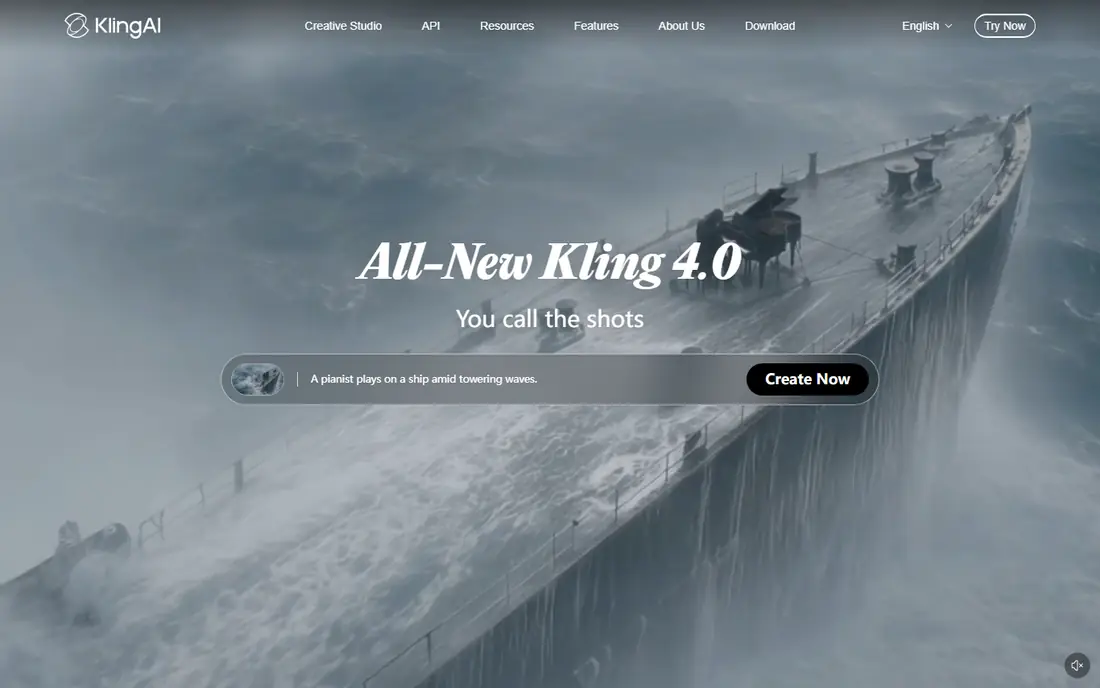
Kling AI is built with realistic motion at a low starting price in mind. A portrait can turn its head, a product shot can rotate. A scene can gain slow camera movement without the warping that weaker models produce.
Drawbacks to consider: Credit math can be confusing across models and lengths.
In practice, Kling suits best for creators who animate photos commonly, want realistic results, and prefer a lower monthly cost over a full editing suite. The trade-off is complexity. Different models, clip lengths, and quality settings use credits at different rates, so budgeting takes a little practice. Kling AI does not show a starting price in this comparison, so check the vendor site for current pricing. Kling AI has a free plan.
- Daily free credits for regular testing
- Decent price-to-quality balance for realistic motion
- Top models and features need higher plans
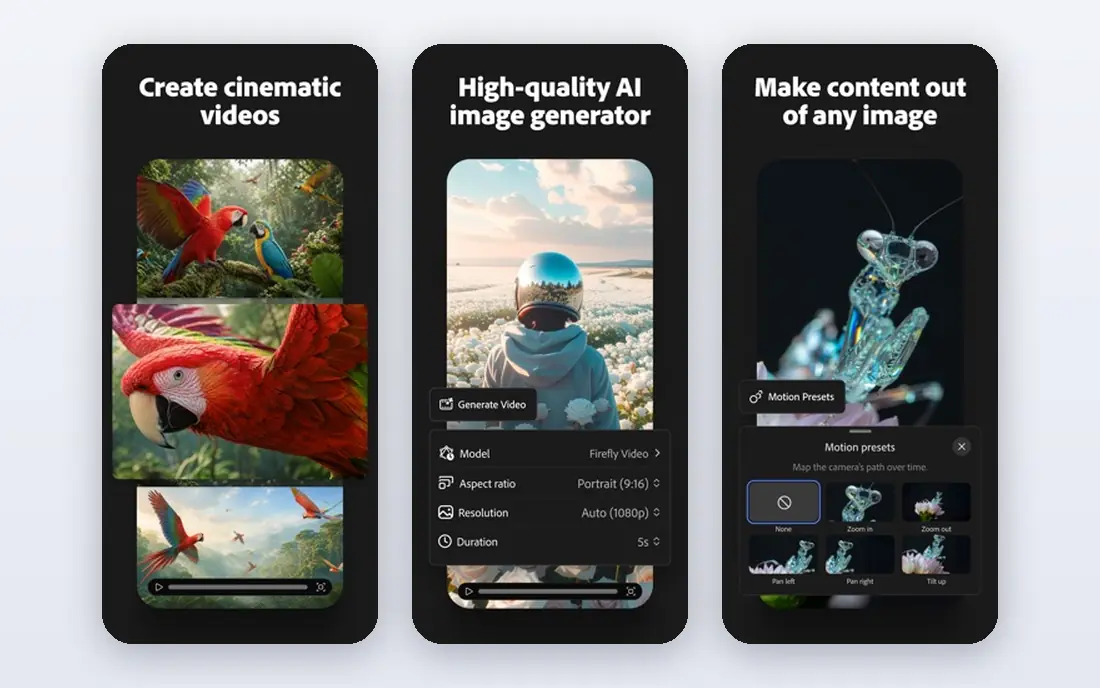
Pick Adobe Firefly if this describes you: client work inside Adobe tools. A photo can be animated, then moved into Premiere Pro or another Adobe tool for finishing, without changing file habits or team permissions. As for the details, Firefly suits best for designers and agencies already paying for Adobe, who require short, usable video from photos as part of a wider project.
For client work, the clearer approach to training content and commercial use also helps in conversations with cautious clients. Also, Firefly is not a full video production system, and longer stories need multiple generations stitched together. For everyday use, the limit is clip length and scope. Adobe Firefly starts at: $9.99 per user/month. Adobe Firefly offers a free plan.
The main drawbacks: Clips are short; around five seconds on plenty of settings.
- Free daily generations for testing
- Built for commercial use with clearer content sourcing
- Not a standalone studio
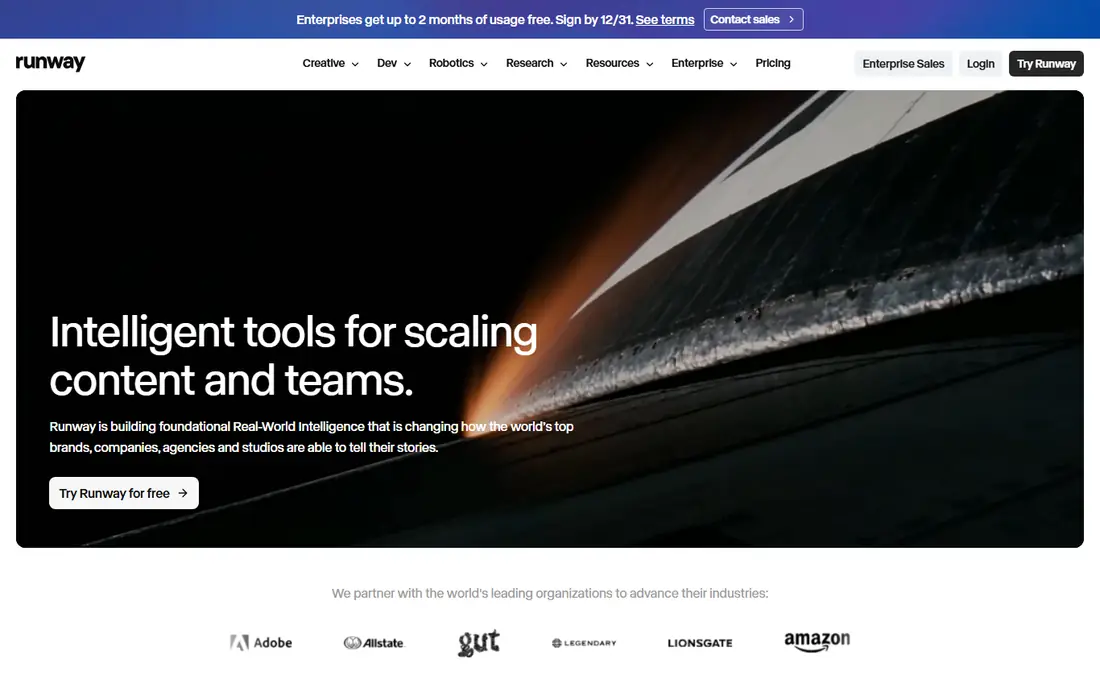
In short, Runway is for professional image to video with editing tools. The Standard plan begins at $12 per user a month billed yearly. The free level provides a one-time credit allowance instead of a monthly refill.
More specifically, Runway suits best for creators and small production teams that require steady motion, editing tools. A workflow they can repeat, instead of a single free experiment. The cost reflects that breadth. What you pay to start with Runway: $12 per user/month. You can start on Runway without paying.
Where it falls short: Free credits are one-time only, with no monthly refill.
- Capable motion quality and character consistency
- No watermark on premium plans
- Higher levels are needed for the newest models
CapCut targets social video with built-in editing. CapCut is the most social-first tool here.
Points against: Best video features and higher quality exports sit on Pro.
Also, CapCut suits best for creators who live on short-form video and want generation plus editing in one place, instead of a standalone generator. No starting price is listed for CapCut here; confirm pricing on the vendor site. CapCut offers a free plan.
- Free level includes lots of editing work
- Solid for TikTok and Reels formats
- Web and app pricing can vary by region and store
Canva is built with straightforward video inside a design workflow in mind. The shared AI allowance is the catch.
The main drawbacks: AI allowance is shared across Magic Studio tools.
From a buyer's view, Canva suits best for marketers and small companies that already design in Canva and need straightforward, branded video from photos. Canva pricing: $15 per user/month. Free access exists with Canva.
- Simple to add text, branding, layouts
- Well suited to teams that already use Canva
- Video quality and control are below dedicated generators
PixVerse serves daily free credits for fast drafts. PixVerse is a practical draft tool. From a buyer's view, PixVerse suits best for hobbyists, students, and social creators who want a low-cost way to animate photos on a regular basis, with a simple upgrade path when volume grows.
premium plans start at $8 per user a month billed annually, with higher levels for better resolution and more credits. From a buyer's view, daily free credits let you test a photo, try a different motion prompt, and compare results without paying for each attempt. What you pay to start with PixVerse: $8 per user/month. You can start on PixVerse without paying.
Trade-offs to know: Entry plan caps resolution on some settings.
- Low starting price for a premium plan
- Daily free credits for regular practice
- Credit limits can run out rapidly on longer clips
How the list was put together
Each tool was reviewed on what its vendor publishes: price, plan limits, core features and stated drawbacks. We did not run hands-on tests. Where a price is missing, the vendor does not list one publicly or ties it to a quote. Always confirm before budgeting. The order reflects how well each tool fits the most common buying scenario for AI tools to convert photo to video, then price clarity, then free plan access. It is a starting point, not a verdict.
Before you commit
- Get a written quote from Kling AI and CapCut; the list shows no starting price for them.
- Check what the free option really includes: Kling AI, Adobe Firefly, Runway and others offer a free plan, and usage caps differ.
- Read the limits listed for Kling AI first: credit math can be confusing across models and lengths.
- Check the integration list for Kling AI against the tools you run today, and note which ones need a higher plan.
- See whether CapCut offers onboarding or training, and whether it is included in the price.
Frequently asked questions
Can AI really turn a single photo into a video?
Yes, within limits. The tool animates the photo by predicting motion for the subject, background, and camera, based on your prompt. As for the details, results are best for short clips with straightforward motion.
Do these tools publish their prices?
Not all of them. Kling AI and CapCut publish no starting price, so expect a quote request for those. The rest, Adobe Firefly included, show a starting price, though seats and billing terms still change the final cost.
How are the tools for AI tools to convert photo to video ordered?
Kling AI sits first and PixVerse last because the order follows typical fit for AI tools to convert photo to video, then price clarity and free access. It is a judgement call, so read each profile for fit and limits.
Can I try these tools before paying?
Often, yes. Kling AI, Adobe Firefly, Runway and others have a free plan. Use your own data and a real task during the test, and check what the free tier or trial limits before you rely on it.
Is Kling AI the right pick for everyone comparing AI tools to convert photo to video?
No single tool suits every team. Kling AI comes first because it fits realistic motion at a low starting price, while Adobe Firefly suits client work inside Adobe tools and Runway suits professional image to video with editing tools. Match the tool to your own size, budget and workflow before deciding.
Sources
See where you really rank - block by block
ProMapRanker scans Google Maps across a grid of your service area. Simple monthly plans from $19, white-label on every plan.
Start freeKeep reading
 zoho inventory alternatives
6 Alternatives to Zoho Inventory, Compared on Price and Fit
Zoho Inventory alternatives: 6 tools compared on price, free plans and fit. Katana leads the list for manufacturers. Fit and flaws are laid out for each entry.
Read → zoho crm alternatives
Best Zoho CRM Alternatives (2026)
Need Zoho CRM alternatives? We compare 7 tools on cost, free access and who each suits. Every pick gets a straight assessment. Built for quick decisions.
Read → zelle alternatives
Best Zelle Alternatives in 2026
Compare the best Zelle alternatives for sending money to friends, paying sellers and moving funds abroad, with honest notes on fees, speed and safety in 2026.
Read →