 ProMapRanker
Best AI Tools to Animate Static Images in 2026

Key takeaways
- Kling, Runway, and Luma Dream Machine lead for realistic motion from a single still, while Pika and PixVerse suit playful social clips.
- Camera controls, motion brushes, and prompt control matter more than headline resolution, because a still image needs direction to move well.
- Most tools use credits, so compare cost per clip and clip length, not just the monthly subscription price.
- Only animate images you own or have permission to use, and never animate a real person without that person consent.
Quick comparison
| Pick | Great for | Pricing starts at | Free tier | |
|---|---|---|---|---|
 Kling | Realistic motion from a still | $8.80 per month | Yes | Visit |
 Runway | Art directed motion and editing | $15 per month | Yes | Visit |
 Luma Dream Machine | Fast natural motion | $9.99 per month | Yes | Visit |
 Pika | Playful effects and social clips | $8 per month | Yes | Visit |
 Hailuo AI | Expressive character animation | $14.99 per month | Yes | Visit |
 PixVerse | Stylized social clips | See website | Yes | Visit |
 Kaiber | Artistic music driven motion | $8 per month | No | Visit |
 Adobe Firefly | Adobe users animating brand images | See website | Yes | Visit |
 Canva | Simple animation for business content | See website | Yes | Visit |
The best ai tools to animate static images
These are the best AI tools to animate static images we found for turning a photo, illustration, or product still into a short video clip. We compared official product pages, pricing pages, and recent image to video comparisons, and we kept only legitimate creative tools with a live image to video feature in October 2026. Only animate images you own or have permission to use, and never animate a real person without that person consent.
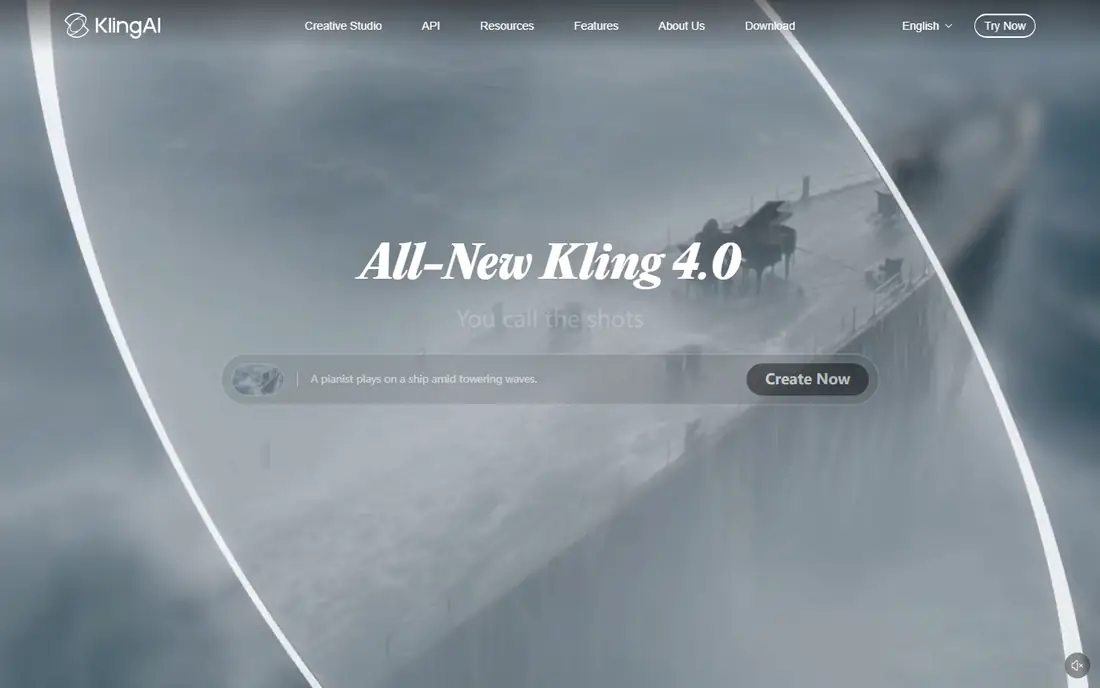
Kling is our pick for most creators who want a still photo to move in a believable way. Upload an image, describe the motion, and the model keeps the subject and background fairly steady while adding movement. That steadiness matters, because many image to video tools drift away from the original image after a few seconds. Kling also supports reference images for a recurring subject, which helps when you animate the same character or product across clips. The pricing catch is credits. The $8.80 standard figure in published October 2026 comparisons reflects a first month or annual style rate, and higher models cost more credits, so check the current pricing page and credit calculator before a large project.
- Strong motion coherence
- Multiple video models
- Image to video with prompt control
- Free tier output has commercial limits in published guidance
- Credit costs vary by model and length
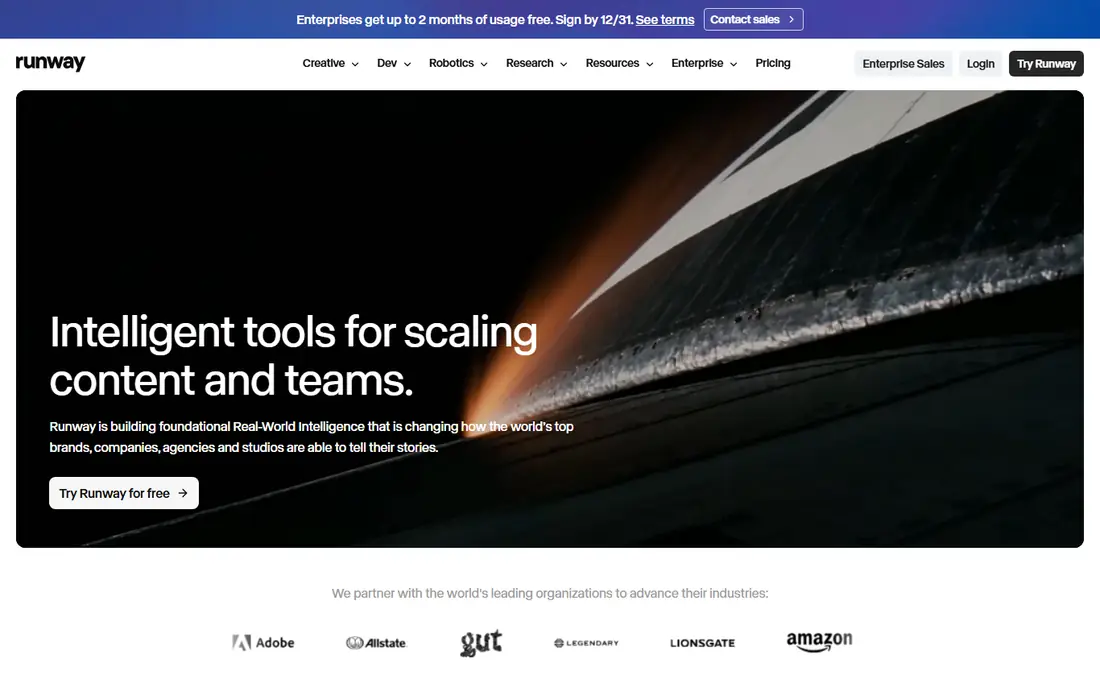
Runway suits creators who want to direct motion, not just describe it. Its motion brush lets you paint movement onto parts of an image, so a flag can wave while a building stays still, or a subject can walk while the camera holds steady. That control makes it a better fit for short films, ads, and product spots than for quick social experiments. The wider workspace also helps when a clip needs trimming, captions, or further edits after generation. The trade-off is price and credits. The $15 standard plan in published comparisons includes a set credit balance, and longer clips or higher settings use it faster, so budget per finished clip.
- Motion brush for per region movement
- Broader video editing workspace
- Strong creative controls
- Higher entry price than some rivals
- Credit use rises with longer or higher quality clips
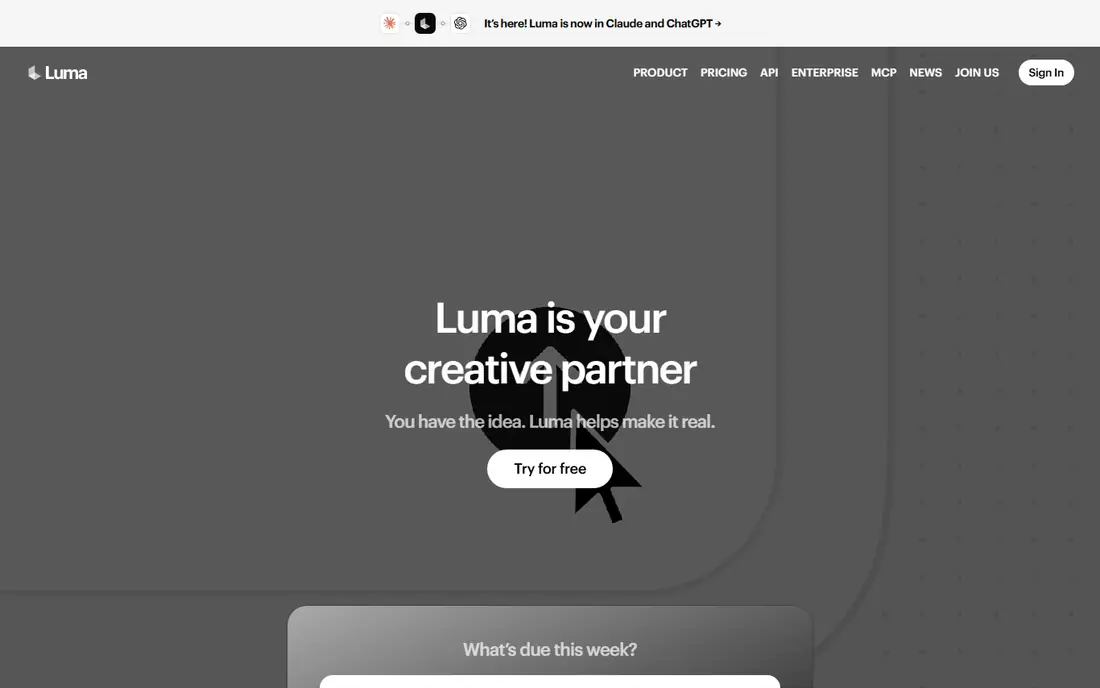
Luma Dream Machine is a good choice when you want a clean animation quickly and do not need deep per region control. The workflow is simple. Upload a still, write a short motion prompt, and generate a short clip. Results often look natural for outdoor scenes, products, and everyday scenes, which makes it useful for social posts and concept work. The simplicity is also the limit. If you need precise camera paths or region by region motion, Runway or Kling will give you more to work with. Use the free or trial credits first to see how it handles your own images, since results vary by subject and prompt.
- Fast generation
- Natural looking motion
- Simple image to video workflow
- Less granular control than Runway
- Paid plan details change by tier
Pika is the fun pick in this list. Its effects let a still image transform, stretch, melt, inflate, or react in ways that suit short social videos and memes, while its standard image to video mode handles more normal motion too. That makes it popular with creators who want shareable clips rather than cinematic footage. The weakness is realism over longer scenes. A playful effect clip works well at a few seconds, but a longer photoreal scene will usually look better in Kling or Runway. If your goal is social engagement from your own illustrations or product photos, Pika gives you a lot of creative range for a low entry price.
- Distinctive effects on stills
- Fast social style clips
- Easy prompt workflow
- Less suited to photoreal long scenes
- Effect heavy clips can look stylized
Hailuo AI, from MiniMax, is a strong option for animating characters and portraits from a still image. It handles expressive movement and camera moves well for short narrative clips, which makes it useful for storyboards, character concepts, and social storytelling. Published pricing near $14.99 per month for a standard credit plan gives a clear starting point, but the number of finished clips you get depends on length and settings. Keep clips short and test one character first, because facial movement can vary between generations. As with every tool here, use only images you own or have permission to use, and get consent before animating a real person.
- Strong character and portrait motion
- Cinematic camera tools
- Short story style clips
- Credit system needs checking per clip
- Output length is short by design
PixVerse suits creators who want fast, stylized clips for social feeds without a long setup. Templates and effects help turn a still into a short moving post quickly, and free credits let you test the style before paying. That speed is the main appeal, and it works well for product teasers, illustrations, and casual content. The downside is consistency for precise work. If you need a specific camera move or a long coherent scene, a more controlled tool will serve you better. Pricing is listed as See website here because PixVerse credit plans change often, so check the current plan page and your credit balance before a campaign.
- Fast stylized generation
- Effects and templates for social content
- Free credits to test
- Pricing and credit terms change often
- Less control for precise cinematic work
Kaiber fits musicians, artists, and brands that want a still image to move in an artistic, music driven way rather than look like camera footage. Its styles suit album visuals, lyric videos, and stylized social content, where mood matters more than realism. The entry price near $8 per month in published comparisons is low, but there is no free plan to test with, so start with the shortest commitment that lets you judge output on your own images. If you need photoreal motion of a real scene, Kling, Runway, or Luma will be a better match.
- Artistic styles for music and visuals
- Good for stylized brand content
- Simple upload workflow
- No free plan in published comparisons
- Less photoreal than leading video models
Adobe Firefly suits creators already working in Photoshop, Illustrator, or Premiere Pro. Animating a brand image or product still can stay inside the Adobe workflow, which saves export and import steps, and Adobe positions Firefly as built for commercial use. That workflow benefit is real for teams with Adobe subscriptions. The catch is that video generation credits and features depend on the Adobe plan you hold, so the cost is not a single standalone price. Check your current Adobe plan and credit allowance before you assume Firefly covers a large video project, and compare a dedicated video tool if motion quality is the top priority.
- Fits Adobe Creative Cloud workflows
- Commercially safer training approach in Adobe messaging
- Image and video tools in one place
- Video features and credits depend on Adobe plan
- Less specialized than dedicated video models
Canva is the right pick when animation means making a business post, presentation, or ad move, not creating cinematic AI video. Its animation tools add motion to text, elements, and images inside familiar templates, and a free plan covers basic use. Small business owners, teachers, and social managers can produce a moving post in minutes without learning a video model. The limit is depth. Canva will not match Kling or Runway for realistic motion from a complex still, and its AI video features are more limited than a dedicated generator. Use Canva for fast everyday content, and a dedicated tool for hero video work.
- Very easy for non designers
- Animation inside presentations and social templates
- Large template library
- Less advanced AI video generation than dedicated tools
- Motion is template driven
How we picked these
We compared official product pages, pricing pages, and recent image to video comparisons, and we kept only tools with a live image to video or animation feature in October 2026. We favoured a mix of photoreal models, artistic tools, and simple business tools, and we excluded tools whose main use is face swapping or non-consensual imagery. We did not claim hands-on testing, and we used See website where pricing or credit terms change too often to quote safely.
What to check before you pay
Start with the source image. A sharp, well lit still with a clear subject animates better than a crowded or low resolution photo, and a simple motion prompt usually beats a long list of actions in one clip. Next, check credits per clip. Monthly price, clip length, resolution, and model choice all change how many finished videos you actually get. Then test the same image in two tools during a trial, because motion quality varies by subject. Finally, check commercial use terms for your plan, especially on free tiers, before using clips in ads or client work.
Consent and safe use
Only animate images you own or have permission to use, and never animate a real person without that person consent. Do not use these tools to create misleading videos of real people, and do not upload photos of others, children, or private individuals without clear permission. If a tool offers a face animation feature, use it only for your own image, a licensed character, or a person who has agreed in writing. When in doubt, choose an illustration, product photo, or an outdoor scene instead of a portrait.
Frequently asked questions
What is the best AI tool to animate a static image?
Kling is a strong default for realistic motion, Runway suits creators who want precise motion control, and Luma Dream Machine is a fast simpler option. The best choice depends on whether you need realism, control, or speed, so test the same still in two tools before you commit.
Can I animate a photo for free?
Yes, several tools here offer free credits or a free plan, including Kling, Runway, Luma Dream Machine, Pika, Hailuo AI, PixVerse, Adobe Firefly, and Canva. Free output often has limits on resolution, commercial use, or watermarking, so check the plan terms before using a free clip in paid work.
How long are AI animated clips?
Most image to video clips in this list run about five to ten seconds, depending on the tool and plan. Longer scenes usually need several clips joined in an editor, and each extra second uses more credits, so plan a short clip length for social posts and a joined sequence for longer stories.
Can I animate a picture of a real person?
Only with that person consent, and only if you own the image or have permission to use it. Never animate a real person without consent, and never use animation tools to create misleading or intimate imagery of someone else. Use your own photos, licensed images, or illustrations when consent is not clear.
Do I need video editing skills?
No for basic use. Upload a still, write a motion prompt, and export the clip. Editing skills help when you join clips, add music, or add captions, and tools such as Runway and Canva make those next steps easier than starting in a separate editor.
Which tool is best for social media clips?
Pika and PixVerse suit playful stylized social clips, while Luma Dream Machine and Kling suit cleaner realistic posts. For business templates and fast posts, Canva is often faster than any AI video model, because text, branding, and sizing are already built in.
Sources
See where you really rank - block by block
ProMapRanker scans Google Maps across a grid of your service area. Simple monthly plans from $19, white-label on every plan.
Start freeKeep reading
 zscaler alternatives
Best Zscaler Alternatives in 2026
Looking for zscaler alternatives? We compare 9 SASE and zero trust platforms on architecture, data protection, pricing, and fit for your network and team.
Read → zapier alternatives free
Best Zapier Alternatives Free in 2026
Nine automation tools for zapier alternatives free in 2026, all with genuinely free tiers, plus free plan limits, starting prices and upgrade paths explained.
Read → which platform is best for online reputation
Which Platform Is Best for Online Reputation in 2026
Wondering which platform is best for online reputation? We compare 8 review, listing, and response tools for small and multi-location businesses and agencies.
Read →