 ProMapRanker
Best AI Tools to Animate Old Photos in 2026


Old family portraits · Pricing starts at: See website
Key takeaways
- MyHeritage Deep Nostalgia is the most direct tool for old family portraits, with one click face animation built for that exact job.
- General image to video tools such as Runway, Pika, and Luma give more creative control, but they need clearer prompts and more tries.
- Only animate photos you own or have permission to use, and take extra care with photos of identifiable people, living or deceased.
- Results vary with photo quality, so enhance, crop, and pick a clear frontal face before you animate.
- Free plans are useful for testing, but exports, length, and quality limits usually require a paid plan for a finished project.
Quick comparison
| Pick | Great for | Pricing starts at | Free tier | |
|---|---|---|---|---|
| MyHeritage Deep Nostalgia | Old family portraits | See website | Yes | Visit |
 Runway | Creative control over motion | See website | Yes | Visit |
 Pika | Simple image to video clips | See website | Yes | Visit |
 HeyGen | Photo avatars with voice | See website | Free trial | Visit |
 D-ID | Talking photo videos | See website | Free trial | Visit |
 CapCut | Quick social clips | Free | Yes | Visit |
 Kaiber | Stylized photo animation | See website | Free trial | Visit |
 Luma Dream Machine | Cinematic photo motion | See website | Yes | Visit |
The best AI tools to animate old photos
These tools turn a still photo into a short moving clip, either by animating a face or by generating motion from the whole image. We compared official feature pages, pricing pages, and app store listings, and we kept only legitimate creative tools. Please use them only for photos you own or have permission to use, and get consent where a photo shows an identifiable living person. Do not use photo animation tools to create misleading, harassing, or non consensual imagery of real people.
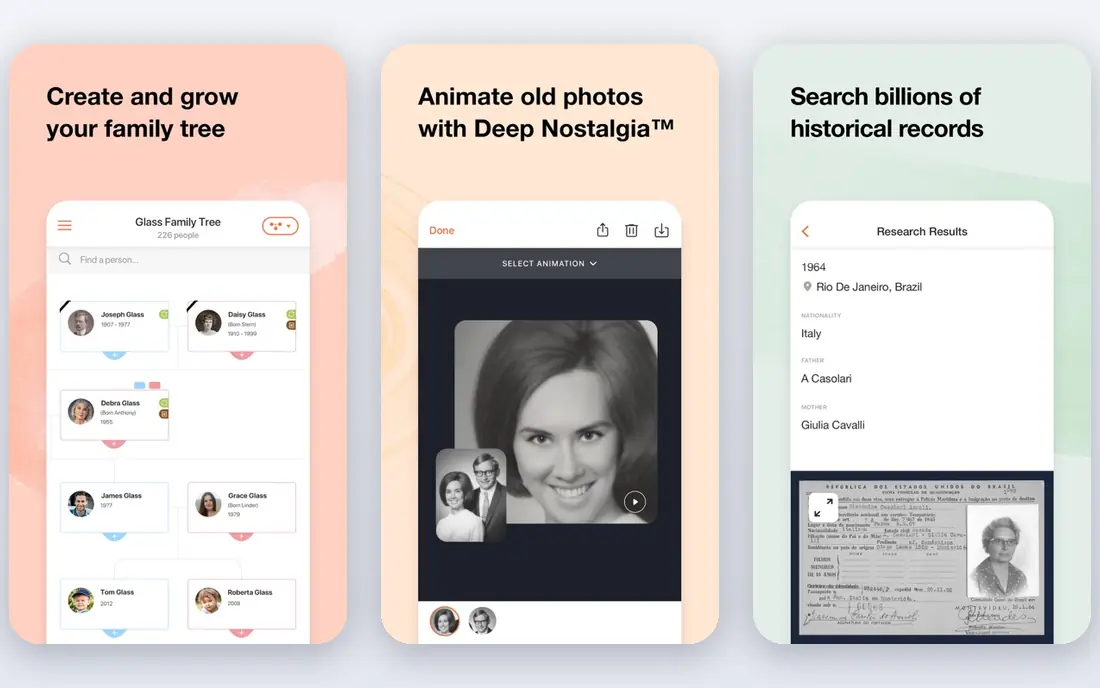
MyHeritage Deep Nostalgia was made for this exact task, and it still feels the most direct for family history. Upload an old portrait, and the tool animates the face with blinking, smiling, and head movement, using preset sequences matched to the face. Built in enhancement and color tools help faded or damaged prints look clearer before animation, which improves the result.
The free allowance is small, only a few animations per account, and ongoing use sits inside a paid MyHeritage plan. Motion also stays within presets, so you cannot direct a specific gesture or story beat. For a family album or a memorial project, that simplicity is a strength, not a weakness.
- One click face animation
- Built in enhance and colorize tools
- Simple sharing
- Limited free animations
- Full access requires a MyHeritage subscription
- Motion presets cannot be freely directed

Runway suits creators who want to direct motion, not just press one button. Upload an old photo, describe the motion, and use tools such as motion brush to control which parts of the image move. That control helps with scenes, not just faces, such as a street scene, a scenic view, or an object in a still life.
The trade off is cost and patience. Good results often take several generations, and credits are spent on each try. We would pick Runway when the project is creative rather than purely nostalgic, and when the user is willing to iterate to get a tasteful result.
- Image to video models
- Motion brush for region control
- Editing tools after generation
- Credit costs add up with retries
- Learning curve for new users

Pika turns a photo into a short clip from a text prompt, which makes it easy to test ideas fast. An old portrait can gain subtle movement, or a whole scene can shift, pan, or change mood, depending on the prompt. The interface stays simple, so beginners can get a first clip without learning an editor.
Quality varies, and faces can distort when motion is too strong or the source photo is low resolution. Keep prompts gentle, start with a clear photo, and expect to retry. Pika fits social and creative projects where a short clip is enough.
- Easy image to video workflow
- Prompt based motion
- Quick social ready clips
- Clip length and quality limits on lower plans
- Results vary by prompt
HeyGen is best known for avatars, but its photo avatar feature can animate a portrait with speech, which suits narrated family stories or educational clips. A photo can deliver a short script in several languages, with templates that keep the output tidy. That voice feature sets it apart from pure motion tools.
Because the output can look like a real person speaking, consent matters even more here. Use it for your own photos, for historical figures in clearly labeled educational work, or for avatars you have permission to create, and avoid putting words into the mouth of a real person in a misleading way.
- Photo avatars with voice and lip sync
- Many languages
- Templates for presenters
- Business pricing focus
- Photo avatar use needs care with consent for real people
D-ID turns a photo into a talking video from text or audio, with lip sync that suits training, storytelling, and museum style presentations. The studio gives control over script, voice, and framing, and an API option helps teams that need many clips. For a narrated ancestor story, that talking format can feel more personal than silent motion.
Lower plans limit resolution and add watermarks, so a polished final video usually needs a paid plan. As with HeyGen, label the result clearly when it shows a real person speaking, and do not present generated speech as a real recording.
- Photo to talking video with audio
- Studio and API options
- Realistic lip sync
- Higher tiers needed for high resolution and API scale
- Watermarks on lower tiers
CapCut is the quickest route to a shareable clip. Its talking photo and photo animation features sit inside a full editor, so you can trim, add captions, add music, and export for social platforms without switching apps. For a short family post or a classroom clip, that all in one flow saves time.
It is not built for archival restoration, and quality will not match a dedicated restoration workflow. We would pick CapCut when speed and sharing matter most, and when the clip is a casual creative piece rather than a preserved family record.
- Free to start
- Talking photo features
- Full mobile and web editor for trimming and effects
- Advanced features need CapCut Pro
- Social first design, not archival quality
Kaiber leans toward stylized animation, which suits creative reinterpretations of old photos rather than faithful restoration. A photo can gain painterly motion, dreamlike movement, or music driven flow, depending on the prompt and style settings. That makes it fun for art projects, album covers, or short creative films.
For a realistic family portrait, that style can feel wrong, and faces may change more than a family historian wants. We would pick Kaiber when the goal is art, not likeness, and when the user accepts that the output is a reinterpretation, not a record.
- Stylized motion and effects
- Music video style outputs
- Prompt driven creativity
- Stylized results may not suit realistic portraits
- Credits limit experimentation
Luma Dream Machine handles whole scenes well, which helps when an old photo shows a place, a group, or an activity, not just a single face. Camera moves, gentle scene motion, and atmospheric changes come out cleanly in short clips, and the prompt workflow stays simple for beginners.
Faces remain the weak point in longer or more active clips, where features can drift. Keep clips short, keep motion gentle, and check the face frame by frame before sharing. For scenic old photos and short creative clips, Luma is a strong, easy option.
- Image to video with cinematic motion
- Good scene handling
- Simple prompt workflow
- Face detail can shift in longer clips
- Paid plans needed for higher quality and volume
How we picked these
We compared official feature pages, pricing pages, and app store listings for tools that animate still photos through face animation or image to video generation. We kept only legitimate creative tools, and we excluded tools marketed for undressing people or for non consensual imagery. We did not claim hands on testing, and we used See website for prices where vendor pricing depended on credits, seats, or plan tiers that change often.
What to check before you pay
Start with the source photo. A clear, frontal, well lit face animates far better than a small, blurred, or side on face, and a quick enhance or crop before animation often beats a more expensive plan. Test the same photo on two free plans before paying, since each tool handles faces and scenes differently.
Next, decide what kind of motion you want. Face presets suit family portraits, talking avatars suit narration, and image to video suits scenes and creative work. Buying a talking avatar tool for silent portrait motion, or a stylized tool for realistic restoration, wastes money and disappoints.
Finally, check exports. Look at clip length, resolution, watermarks, and commercial use terms on the plan you would actually buy. A free clip that cannot be exported cleanly is not a finished project, and a paid plan that still watermarks exports is a poor fit for sharing.
Frequently asked questions
Can I animate a photo of a deceased relative?
Yes, if you own the photo or have family permission to use it, and you present the result honestly as an animation. Label it as AI generated motion, avoid adding invented speech that could mislead viewers, and share it in a family or memorial context, not as a real recording.
Do I need permission to animate someone else's photo?
Yes, in most cases you should have permission from the person in the photo, or from the rights holder, before animating and sharing it. This matters most for living people, for photos used in public posts, and for any talking avatar that adds speech.
Why does my animated face look strange?
Low resolution, side angles, glasses, shadows, and heavy motion all increase distortion. Use a clear frontal photo, keep motion gentle, and try a face preset tool such as MyHeritage before a general video tool if likeness matters most.
Are free plans enough for a family project?
Free plans are enough to test and to make a few clips, but they often limit exports, length, or quality. For a larger album or a polished video, budget for one month of a paid plan, finish the clips, then cancel if you do not need ongoing use.
Can these tools restore a damaged old photo?
Some tools enhance and colorize before animating, and MyHeritage includes those steps in its photo workflow. For heavy damage, tears, or missing parts, a dedicated photo restoration service or editor will do better than an animation tool alone.
Sources
See where you really rank - block by block
ProMapRanker scans Google Maps across a grid of your service area. Simple monthly plans from $19, white-label on every plan.
Start freeKeep reading
 zoro.to alternatives
Best Zoro.to Alternatives in 2026
We compare the best zoro.to alternatives in 2026, listing only legal licensed anime streaming services, from Crunchyroll to free options for fans today.
Read → zip alternatives
Best Zip Alternatives in 2026
We compare the best zip alternatives for buy now, pay later in 2026, covering pay-in-4 plans, fees, spending limits, and credit reporting options today.
Read → yesware alternatives
Best Yesware Alternatives in 2026
Compare the best yesware alternatives for sales email tracking, templates, and sequences, with current pricing and honest tradeoffs for small sales teams.
Read →