 ProMapRanker
Best AI Tool for Recoloring Images in 2026


Automatic black-and-white colorization · Pricing starts at: $49 for 75 credits
Key takeaways
- Palette.fm is our pick for automatic colorization of black-and-white photos, thanks to its focused filters and credit options.
- Adobe Photoshop and Adobe Illustrator suit people who need precise control over individual objects, rather than one automatic result.
- MyHeritage In Color is a strong free starting point for family photos, but continued use may need a subscription.
- Automatic color is a guess, not a record, so treat restored colours as plausible rather than historically exact.
- Only recolor images you own or have permission to edit, and be careful with photos of identifiable people.
Quick comparison
| Pick | Great for | Pricing starts at | Free tier | |
|---|---|---|---|---|
| Palette.fm | Automatic black-and-white colorization | $49 for 75 credits | Yes | Visit |
 Adobe Photoshop | Precise manual recoloring | $22.99 per month | Free trial | Visit |
 Adobe Illustrator | Vector recoloring | $22.99 per month | Free trial | Visit |
 MyHeritage In Color | Family photo colorization | See website | Yes | Visit |
 Fotor | Quick browser recoloring | See website | Yes | Visit |
 VanceAI Photo Colorizer | Batch colorization | See website | Yes | Visit |
 AKVIS Coloriage AI | Guided manual colorization | $75 one-time | Free trial | Visit |
 PicWish Photo Colorizer | Simple one-click colorization | See website | Yes | Visit |
 Photoroom | Product photo recoloring | $11.99 per month | Yes | Visit |
The best ai tool for recoloring images
Recoloring covers two different jobs. Some tools guess plausible colours for a black-and-white photo. Others let you change the colour of an object in a colour photo, such as a shirt, a car or a product pack. The tools below cover both jobs, and we note which job each one does best. Our pick for most people starting with old photos is Palette.fm, because it focuses on one task and keeps the workflow short.
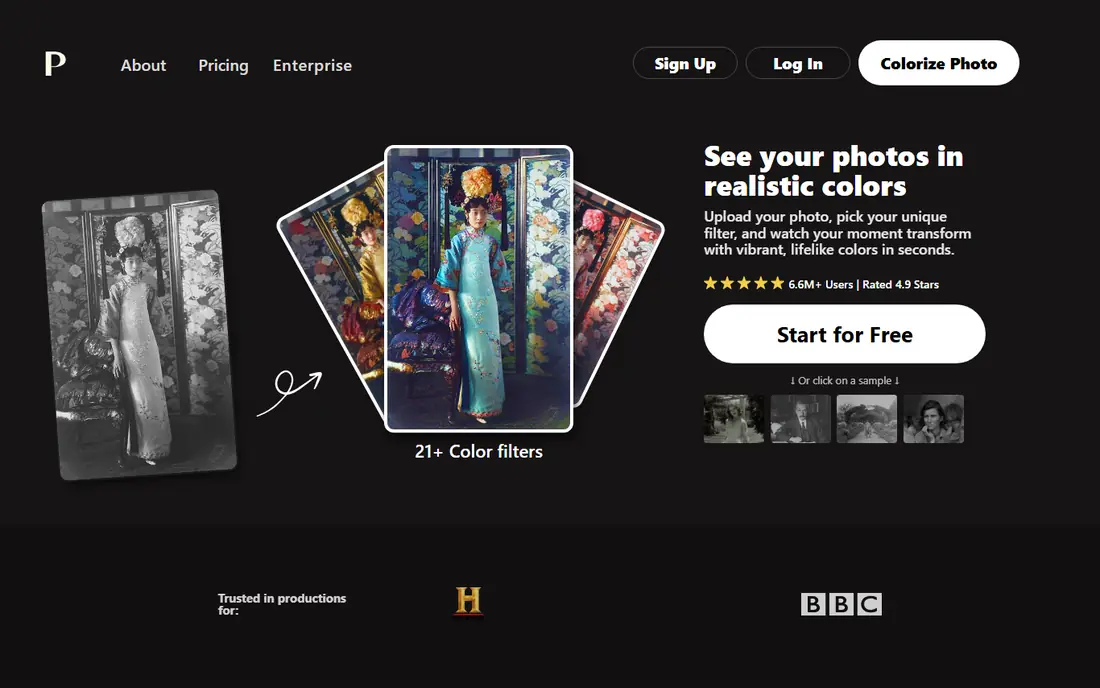
Palette.fm uploads a black-and-white image and returns a colour version with natural-looking skin tones and scene colours in many cases. Filters let you shift the mood, and text prompts can guide the result toward a warmer or cooler look. That control helps when the first result feels too flat or too vivid. Batch processing also helps people working through a set of archive photos.
The limits are clear. Free previews carry a watermark and lower resolution, so a clean high-resolution file needs credits. The tool also does not repair tears, scratches or missing detail on its own. Use it for colour, and use a separate repair tool if the original is damaged. For a focused colorization job, the one-task design is a strength rather than a drawback.
- Focused colorization filters
- Batch processing
- Prompt and filter controls
- Free previews are watermarked and lower resolution
- Colorization only, not full repair
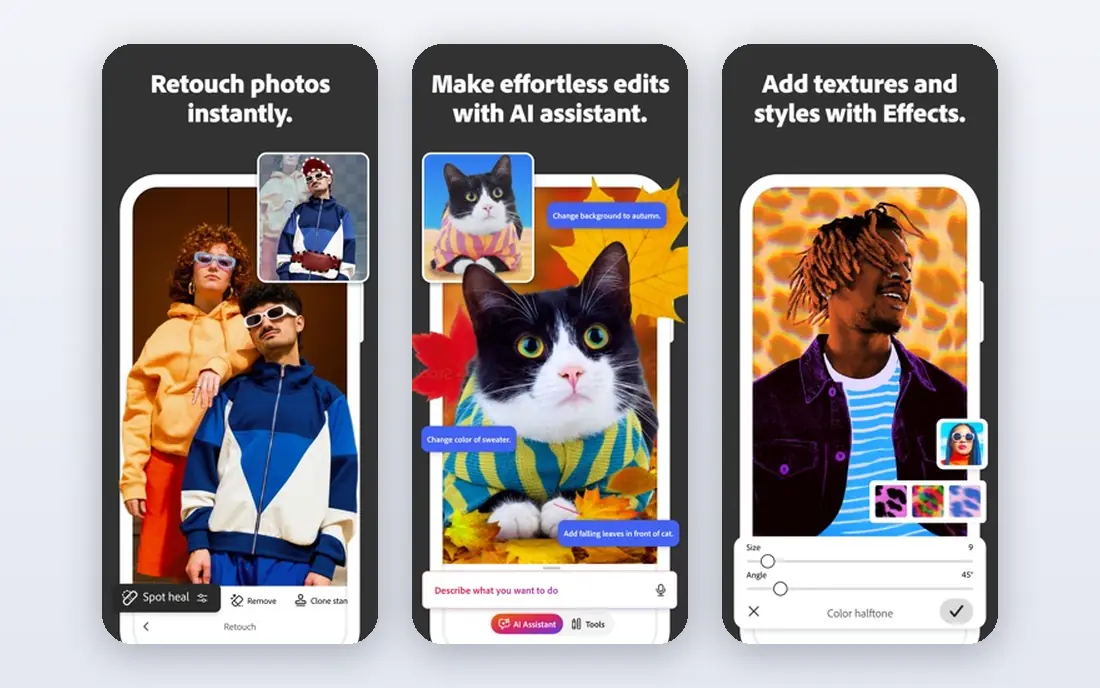
Photoshop is the choice when automatic colour is not enough. You can select an object, adjust hue and saturation, paint a new colour on a separate layer and keep the original intact. Generative Recolor can also suggest new colours for selected objects, which speeds up design mockups. That control matters for product photos, portraits and artwork where a single wrong shade ruins the result.
The cost and learning curve are real. A monthly subscription makes sense for regular editors, but it is heavy for one family photo. Beginners should start with adjustment layers and masks, and save a copy before major changes. Photoshop is not the fastest way to colorize a shoebox of photos, but it is the most precise tool on this list for a single important image.
- Layer control and selections
- Generative Recolor for objects
- Huge editing depth
- Subscription cost
- Learning curve for beginners
- AI features use credits

Illustrator fits a different kind of recoloring. Logos, icons, patterns and illustrations are made of shapes, so you can change a whole colour group at once and test palettes in seconds. That is useful for brand work, print design and social graphics where the same artwork needs several colour versions. The Recolor Artwork tools also help designers check contrast and harmony before export.
It is not a photo tool. A scanned photo will not gain realistic colour simply by opening it in Illustrator. People who need photo results should pick Palette.fm, Photoshop or MyHeritage instead. For vector work, though, Illustrator gives cleaner and more repeatable results than a raster editor. Check the trial first if you only need one logo set recolored.
- Recolor artwork tools for vectors
- Clean colour groups
- Ideal for logos and illustrations
- Not suited to photo colorization
- Subscription cost
- Vector workflow takes practice
MyHeritage In Color is built for family historians. Upload a black-and-white photo and the tool returns a colour version, often with muted and plausible tones for clothing and settings. It also works alongside enhancement tools in the same account, which helps when an old scan is faded or soft. For a first try, the simple workflow is a clear advantage over a full editor.
Free use is limited, and continued colorization may need a paid plan. That matters for large archives, so test a few representative photos before committing. As with all automatic tools, the colours are plausible rather than proven. A dress that looks grey in the original may not have been grey in life, so label colorized family photos as colorized when you share them.
- Very simple upload workflow
- Good for family archives
- Part of a wider photo suite
- Free use is limited
- Full features sit inside a genealogy subscription
- Colours are AI guesses
Fotor suits people who want a quick browser edit without installing software. You can adjust colours, apply filters and use AI tools for photo enhancement and colorization, then export for social media or print. The template library also helps when a recolored image needs a frame, caption or post layout. For casual creators, that all-in-one approach saves time.
The trade-off is depth. Fotor does not match Photoshop for precise selections or Illustrator for vector palettes. Some advanced tools and higher-resolution exports sit behind a paid plan, so check the export options before a large project. If your goal is a fast, good-looking result for sharing online, Fotor is a practical pick.
- Browser-based editing
- Simple colour tools
- Templates for social posts
- AI colorization is one feature among many
- Some tools need a paid plan
VanceAI Photo Colorizer is useful when you have many photos to process. The web tool accepts batch uploads and returns colour versions without desktop software. It sits inside a wider suite of enhancement tools, so a faded or low-resolution photo can be cleaned up in the same workflow. That combination helps archive projects where colour is only one part of the job.
Credit pricing needs attention. A few test photos cost little, but a large archive can use credits quickly. Image quality also matters. Sharp, well-scanned originals tend to colorize better than blurry phone photos of prints. Test a small batch first, check skin tones and backgrounds, and then decide whether to process the full set.
- Batch uploads
- Photo enhancement tools in the same suite
- Straightforward web workflow
- Credit pricing can add up
- Results vary by image quality
- Free tier has limits
AKVIS Coloriage AI takes a middle path between automatic and manual work. You mark areas with colour strokes, and the software fills those areas with realistic shading and texture. That guidance helps when an automatic tool guesses the wrong colour for a uniform, a car or a building. It is a good fit for people who know the true colours and want to apply them by hand.
The workflow takes practice. Strokes need to cover each area without crossing edges, and large photos take time. A one-time purchase may suit people who dislike subscriptions, though you should confirm the current licence terms on the vendor page. For careful restoration work where accuracy matters more than speed, this guided approach is worth the extra effort.
- Manual colour strokes for control
- One-time purchase option
- Works as standalone and plug-in
- Desktop software to learn
- Automatic results need guidance
- Price is per product
PicWish Photo Colorizer is a straightforward web tool for people who want a result in a few clicks. Upload a black-and-white photo, wait for processing and download the colour version. The same site offers background removal, enhancement and other photo tools, which can help finish a project without switching services. That simplicity is the main selling point.
Manual control is limited, so if the automatic colours look wrong, you may need a different tool to fix them. Free use also has limits, and high-resolution or batch use may need a paid plan. PicWish is best for quick tests, social sharing and small sets of photos, rather than careful archival restoration.
- Simple upload and result flow
- Other photo tools in the same site
- No install needed
- Limited manual control
- Free use has limits
- Quality depends on the source photo
Photoroom is built for sellers who need consistent product photos. Its Recolor tool can change the colour of a product in a photo, which helps listings that offer several colour variants without a new photo shoot for each one. Batch editing and background tools in the same app make it useful for small shops with many listings. The free plan lets you test the workflow before paying.
It is not the best pick for black-and-white family photos. The product focus means its strengths sit in commerce, templates and batch exports, not historical restoration. Paid features also matter for high-resolution and batch work. If you sell products and need colour variants fast, Photoroom is a strong fit. If you restore archives, start with Palette.fm or AKVIS instead.
- Recolor tool for product images
- Batch editing
- Marketplace-ready exports
- Commerce focus, not archive colorization
- Paid plan needed for full features
- Mobile-first workflow
How we picked these
We compared official feature pages, pricing pages and app listings, and we favoured tools that still work in October 2026 and clearly state whether they colorize black-and-white photos or recolor objects in colour photos. We left out tools that only change filters without true recoloring, and tools where pricing or availability could not be confirmed. Where a price varied by plan or region, we wrote See website rather than guessing a single figure.
How to choose the right recoloring tool
Start by naming the job. For black-and-white photos, pick an automatic colorizer and accept that colours are plausible, not proven. For a product or design image, pick a manual tool that lets you set exact colours and keep layers separate. For a large archive, test batch pricing on a small set first, since credit costs grow fast. Always keep the original file untouched and save colorized versions as new files.
Check resolution and export terms before paying. Free previews may be watermarked or low resolution, and that matters if you plan to print. Also check consent and rights. Only recolor images you own or have permission to edit, and do not use colorization to mislead viewers about a historical photo. When sharing restored family photos, add a short note that colours were added by software.
Frequently asked questions
What is the best ai tool for recoloring images?
Palette.fm is our pick for automatic black-and-white colorization, while Photoshop is the pick for precise manual recoloring. The best tool depends on whether you need a fast automatic result or exact control over each object. For vector artwork, Illustrator is the better choice.
What are the best ai image recoloring tools for old photos?
Palette.fm, MyHeritage In Color, VanceAI and PicWish all colorize old photos, with different free limits and batch options. Test the same photo in two tools before processing a full archive, since skin tones and backgrounds can differ. Keep the original scan and label colorized copies as colorized.
Can AI recoloring show the true original colours?
No. Automatic colorization guesses plausible colours based on patterns in training images and scene context. It can look convincing while still getting a dress, a car or a wall colour wrong. Guided tools such as AKVIS Coloriage AI let you apply known colours by hand, which is more accurate when you have that information.
Is there a free ai image recoloring tool?
Yes. Palette.fm, MyHeritage In Color, Fotor, VanceAI and PicWish all offer free tiers or trials, but free exports may be watermarked, lower resolution or limited in number. For a small project, a free tier may be enough. For a large archive or print work, expect to pay for credits or a plan.
Can I recolor only part of an image?
Yes, in Photoshop you can select one object and change its hue while leaving the rest untouched. AKVIS Coloriage AI also lets you mark specific areas with colour strokes. Automatic web tools usually recolor the whole image, so use a manual editor when only one object needs a new colour.
Do I need permission to recolor a photo?
Yes, in practical terms. Only recolor images you own, took yourself or have permission to edit. Be careful with photos of identifiable people, private images and copyrighted work. Do not present a colorized image as an unedited original, especially for historical or news photos.
Sources
See where you really rank - block by block
ProMapRanker scans Google Maps across a grid of your service area. Simple monthly plans from $19, white-label on every plan.
Start freeKeep reading
 zoho inventory alternatives
6 Alternatives to Zoho Inventory, Compared on Price and Fit
Zoho Inventory alternatives: 6 tools compared on price, free plans and fit. Katana leads the list for manufacturers. Fit and flaws are laid out for each entry.
Read → zoho crm alternatives
Best Zoho CRM Alternatives (2026)
Need Zoho CRM alternatives? We compare 7 tools on cost, free access and who each suits. Every pick gets a straight assessment. Built for quick decisions.
Read → zelle alternatives
Best Zelle Alternatives in 2026
Compare the best Zelle alternatives for sending money to friends, paying sellers and moving funds abroad, with honest notes on fees, speed and safety in 2026.
Read →