 ProMapRanker
Best AI Text Effects Software in 2026

Key takeaways
- Canva is the easiest all-round choice for social posts, with templates, animated text, and brand kits in one editor.
- Adobe Express gives strong typographic control and Adobe fonts, plus AI image generation for backgrounds and title art.
- Jitter is the best pick for design-led motion, with Figma import and flexible exports including Lottie.
- Ideogram suits still images where exact wording matters, since AI video tools often misspell text.
- CapCut, Kapwing, Renderforest, and Kittl cover quick mobile edits, captions, templates, and custom lettering respectively.
Quick comparison
| Pick | Great for | Pricing starts at | Free tier | |
|---|---|---|---|---|
 Canva | Fast social and brand graphics | See website | Yes | Visit |
 Adobe Express | Typographic control and Adobe fonts | $9.99 per month | Yes | Visit |
 Jitter | Design-led motion and Lottie export | $18 per month | Yes | Visit |
 Ideogram | Accurate AI typography stills | See website | Yes | Visit |
 Kittl | Custom lettering and vector type | See website | Yes | Visit |
 CapCut | Free desktop and mobile text animation | Free | Yes | Visit |
 Kapwing | Animated captions on existing video | $16 per month | Yes | Visit |
 Renderforest | Template-based animated titles | See website | Yes | Visit |
The best ai text effects software
AI text effects software covers two different jobs: creating striking lettering, and animating it. Some tools generate a still image with glowing, 3D, or handwritten type, while others add motion, timing, and export options for video and web. The best workflow often uses one tool for exact wording and another for motion, since AI video generators still struggle with spelling.
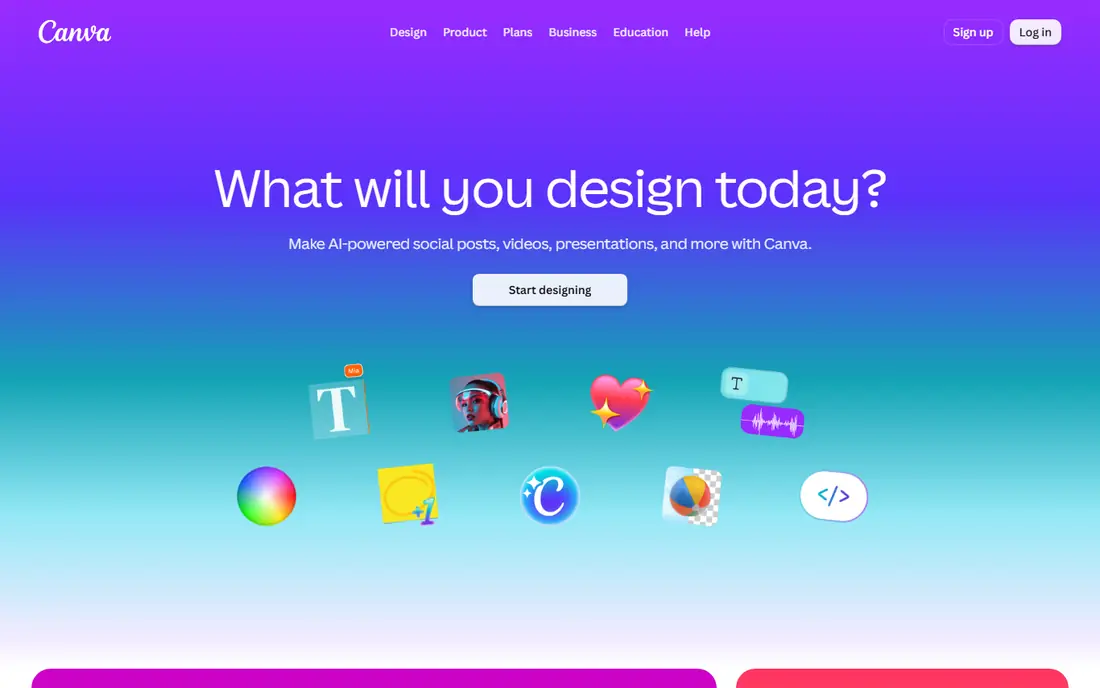
Canva is the fastest route from an idea to a finished social post with animated text. Templates cover intros, announcements, sales, and stories, and text effects such as shadows, outlines, curves, and animation presets can be applied without design training. Brand kits keep colors and fonts consistent, and the content planner helps schedule posts after export.
Motion control is simpler than a dedicated animation tool, so designers who need frame-by-frame timing will hit limits. Pricing also varies by monthly or annual billing, so check the current page before subscribing. For small businesses and creators who need good-looking text effects quickly, Canva is the most practical starting point.
- Huge template library
- Animated text presets
- Brand kits and scheduling
- Paid pricing varies by billing period
- Advanced motion control is limited
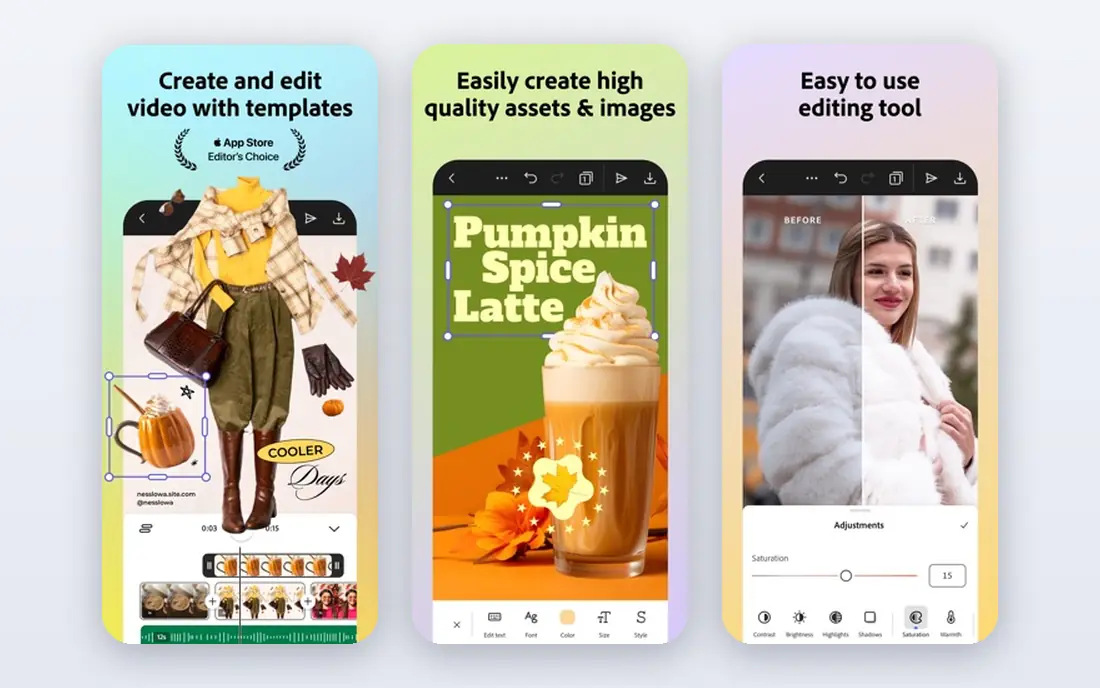
Adobe Express combines templates, fonts, and AI generation in a browser editor that suits branded social content. Its font library gives typography more range than many rivals, and text effects can be paired with AI-generated backgrounds for title cards and announcements. Video templates add simple motion without leaving the editor.
It is not a replacement for a professional motion tool, and complex kinetic typography still belongs in After Effects or a dedicated animator. The free plan covers basic design work, while Premium adds more fonts, assets, and brand features. For teams already in the Adobe ecosystem, Express is a natural and affordable choice.
- Large Adobe font library
- AI text effects and backgrounds
- Template and video tools
- Less template depth than Canva for some formats
- Complex motion needs After Effects
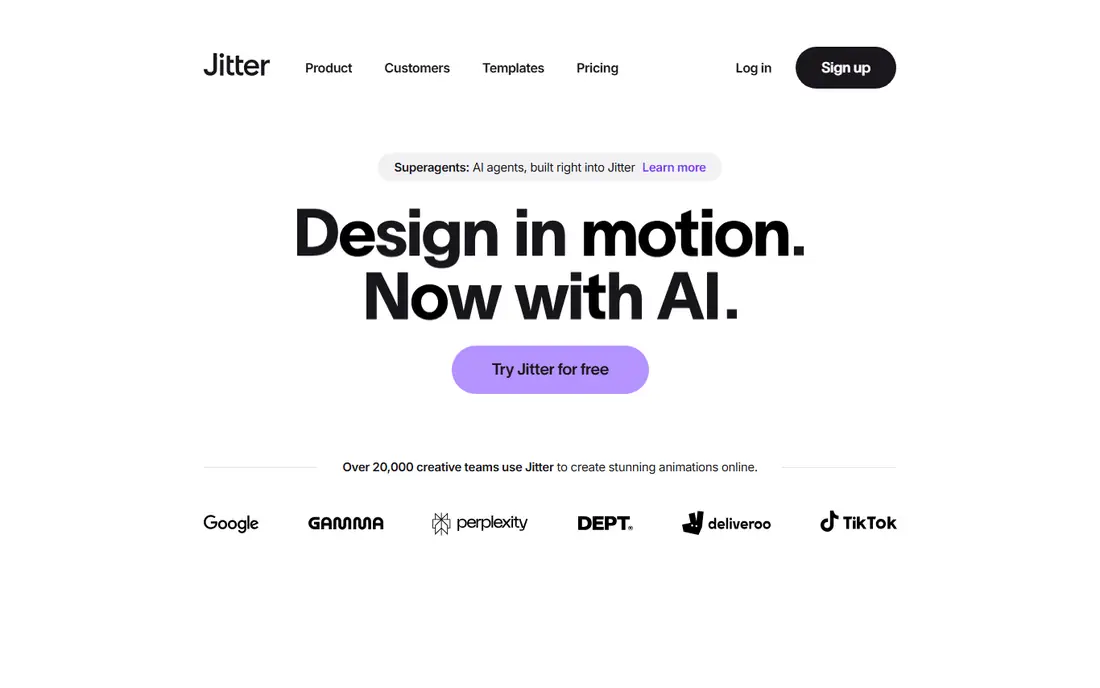
Jitter is a browser-based motion design tool built for animated text that looks designed rather than templated. Its Figma plugin imports a design directly, so animated titles match existing brand assets instead of approximating them. Exports include GIF, video, and Lottie, which makes Jitter useful for social posts, websites, and app interfaces alike.
The free plan caps exports at lower resolution with a watermark, so delivery work needs a paid plan. Beginners may also ramp slower than with template-heavy tools, since Jitter expects more design judgment. For designers and brand teams who care about motion quality, Jitter is the strongest tool in this list.
- Figma import
- GIF, video, and Lottie exports
- Clean, designer-grade motion
- Free exports are capped in resolution and carry a watermark
- Fewer templates than Canva
Ideogram is an AI image generator known for rendering words more accurately than many rivals, which matters when a poster, thumbnail, or title card must spell a name correctly. Creators can prompt for neon, vintage, 3D, or handwritten styles and use the result as a still, or bring it into an animation tool for motion. That two-step workflow avoids the misspelled titles that pure AI video tools often produce.
It does not animate text itself, so motion still needs another editor. Results also vary with prompts, and commercial use terms should be checked before using generated type in client work. For accurate AI lettering as a starting point, Ideogram is a useful specialist tool.
- Better text accuracy in generated images
- Useful for posters and title art
- Prompt-based styles
- Output is a still image, not animation
- Style control varies by prompt
Kittl is built for custom typography, logos, and merch-style designs, with tools for lettering, textures, and vintage effects. Its vector output suits print-on-demand products, posters, and apparel, where clean shapes matter more than animation presets. Designers who want distinctive wordmarks rather than generic templates will find more creative room here than in Canva.
Video animation is not its main strength, so creators who need kinetic type for social video should pair Kittl with a motion editor. The free plan limits export resolution, which is fine for drafts but not for final print work. For lettering-led design, Kittl is a strong and distinctive option.
- Strong custom lettering tools
- Vector output
- Print and merch-friendly designs
- Less focused on video animation
- Paid plans needed for high-resolution exports
CapCut is a popular free video editor for social content, and its text tools cover animated titles, captions, stickers, and template packs. Creators can add kinetic type to a clip in minutes, adjust timing on a timeline, and export for TikTok, Reels, and YouTube Shorts. The desktop editor gives more room than the phone app for longer projects.
Some effects, assets, and cloud features sit behind the paid Pro tier, and heavy template use can make videos look similar to other creators. For fast, free text animation on social video, CapCut is hard to beat, especially for beginners and mobile-first creators.
- Free desktop editor
- Many text animation templates
- Works on mobile and desktop
- Advanced features need a paid Pro tier
- Template-heavy results can look generic
Kapwing is a browser video editor that shines for captions and kinetic text on footage you already shot. Automatic subtitles can be styled, animated, and timed to speech, which helps social videos hold attention with sound off. Collaboration features let teams review and edit in the same browser project without installing software.
Free exports include a watermark, so regular publishing needs a paid plan. It is not a full motion design suite, so complex custom animation belongs elsewhere. For creators whose main text job is captions and simple animated titles on real footage, Kapwing is efficient and easy to learn.
- Automatic subtitles with animated styles
- Browser-based editing
- Team collaboration
- Free exports carry a watermark
- Long-form motion design is limited
Renderforest offers template-based animated text videos for intros, logo reveals, announcements, and promos. Users pick a template, change the wording, colors, and logo, and export a finished video without learning animation software. That speed suits small businesses that need a polished title video for a launch or event.
The trade-off is originality. Template-based output can look familiar, and fine control over timing and motion is narrower than in a dedicated motion tool. Pricing varies by plan and export quality, so check the current page. For fast, branded title videos from templates, Renderforest is a reliable choice.
- Large template library
- Logo and title reveals
- No design software needed
- Results can feel templated
- Customization is narrower than Jitter or After Effects
How we picked these
We compared official feature and pricing pages, documentation, and public reviews, and we favored tools that are available in October 2026 and that create or animate text effects rather than only editing plain text. We included still-image generators, motion tools, and template editors so readers can match the tool to the job: exact lettering, social video, or brand motion. We did not claim hands-on testing, and we used See website where pricing varies by billing period.
How to get text effects that look professional
Start with the wording, not the effect. A glowing or bouncing title cannot fix a confusing message, and AI tools work best when the text is short, exact, and checked before export. Choose one or two effects per video, keep colors readable against the background, and test the result on a phone screen, where most social viewers will see it.
Separate lettering from motion
Create exact typography first in a tool such as Ideogram, Kittl, Adobe Express, or Canva, then animate it in Jitter, CapCut, or Kapwing. This avoids misspelled AI video titles and gives you a clean still to reuse across formats. Keep the original text layer editable where possible, so a typo fix does not mean rebuilding the whole video.
Match the export to the destination
Social clips need vertical video and readable type at small sizes, websites may need Lottie or GIF, and print needs high-resolution vector or image output. Check export limits on free plans, including watermarks and resolution caps, before promising a deliverable to a client. A tool that looks free can become costly once clean, high-resolution export is required.
Keep brand type consistent
Set a small set of fonts, colors, and motion styles, and reuse them across posts. Brand kits in Canva and Adobe Express help, and Figma import in Jitter keeps motion work aligned with design files. Consistency makes even simple text effects look intentional, while a new style on every post looks scattered.
Frequently asked questions
Which ai text effects platform is best for beginners?
Canva is the best starting point for most beginners because templates, presets, and brand kits remove most setup work. CapCut is a good free alternative for video-first creators. Both let you produce usable animated titles on day one without learning motion design software.
What is the best ai text effects platform for brand work?
Jitter suits brand work best when motion quality and Figma alignment matter, while Adobe Express suits teams that need Adobe fonts and template speed. Canva also works for brand teams that value fast production and scheduling. Pick based on whether design control or speed matters more.
What are the best ai text effects tools for social video?
CapCut and Kapwing lead for social video, since both handle animated titles and captions on real footage quickly. Renderforest suits template-based intros, while Jitter suits higher-end animated titles. Test exports on a phone before choosing, since small-screen readability decides most social results.
Can AI generate animated text with correct spelling?
AI video generators still misspell words often, so the safer workflow is to create exact lettering in a typography tool first, then animate it. Ideogram helps for still images, and editors such as Canva, Adobe Express, and Kittl keep text editable. Always proofread the final export frame by frame.
Are free text effect tools good enough for business use?
Free plans work for drafts, testing, and occasional posts, but watermarks, resolution caps, and limited assets often block client delivery. Paid plans in this list remove those limits and add brand features. Start free to learn the workflow, then upgrade the tool you actually use weekly.
Sources
See where you really rank - block by block
ProMapRanker scans Google Maps across a grid of your service area. Simple monthly plans from $19, white-label on every plan.
Start freeKeep reading
 zoho inventory alternatives
6 Alternatives to Zoho Inventory, Compared on Price and Fit
Zoho Inventory alternatives: 6 tools compared on price, free plans and fit. Katana leads the list for manufacturers. Fit and flaws are laid out for each entry.
Read → zoho crm alternatives
Best Zoho CRM Alternatives (2026)
Need Zoho CRM alternatives? We compare 7 tools on cost, free access and who each suits. Every pick gets a straight assessment. Built for quick decisions.
Read → zelle alternatives
Best Zelle Alternatives in 2026
Compare the best Zelle alternatives for sending money to friends, paying sellers and moving funds abroad, with honest notes on fees, speed and safety in 2026.
Read →