 ProMapRanker
Best AI Photo Enhancement Tools in 2026


Serious desktop upscaling, denoise, and sharpening · Pricing starts at: See website
Key takeaways
- Topaz Photo AI is our pick for serious upscaling, denoise, and sharpening on desktop.
- Adobe Lightroom suits photographers who want AI masking and editing in one workflow.
- Luminar Neo and Fotor suit casual users who want fast, one click style improvements.
- Upscayl is the best free, local option for upscaling without uploading photos.
- Only enhance your own photos, or photos you have permission to use, and keep original files safe.
Quick comparison
| Pick | Great for | Pricing starts at | Free tier | |
|---|---|---|---|---|
| Topaz Photo AI | Serious desktop upscaling, denoise, and sharpening | See website | Free trial | Visit |
 Adobe Lightroom | Photographers who want AI editing in one workflow | $9.99 per month | Free trial | Visit |
 Luminar Neo | Fast creative enhancements without a steep learning curve | See website | Free trial | Visit |
 Remini | Mobile restoration of old and blurry photos | See website | Yes | Visit |
 LetsEnhance | Online upscaling with batch processing | $9 per month | Yes | Visit |
 Upscayl | Free local upscaling with privacy | Free | Yes | Visit |
 Fotor | Quick browser enhancements for casual users | $8.99 per month | Yes | Visit |
 Pixlr | Browser editing with Photoshop style tools | See website | Yes | Visit |
 Canva | Social and marketing photos with quick fixes | Free | Yes | Visit |
 PhotoRoom | Product photos and clean backgrounds | $12.99 per month | Yes | Visit |
The best AI photo enhancement tools
These tools use AI to sharpen, denoise, upscale, retouch, and colour correct photos, often with one click or a few sliders. The best ai photo enhancement software for you depends on your setup, desktop, browser, or phone, and on your need for print quality output or fast social posts. The best ai photo enhancement apps in this list also differ on privacy, since some process photos on your device and others upload them to a server.
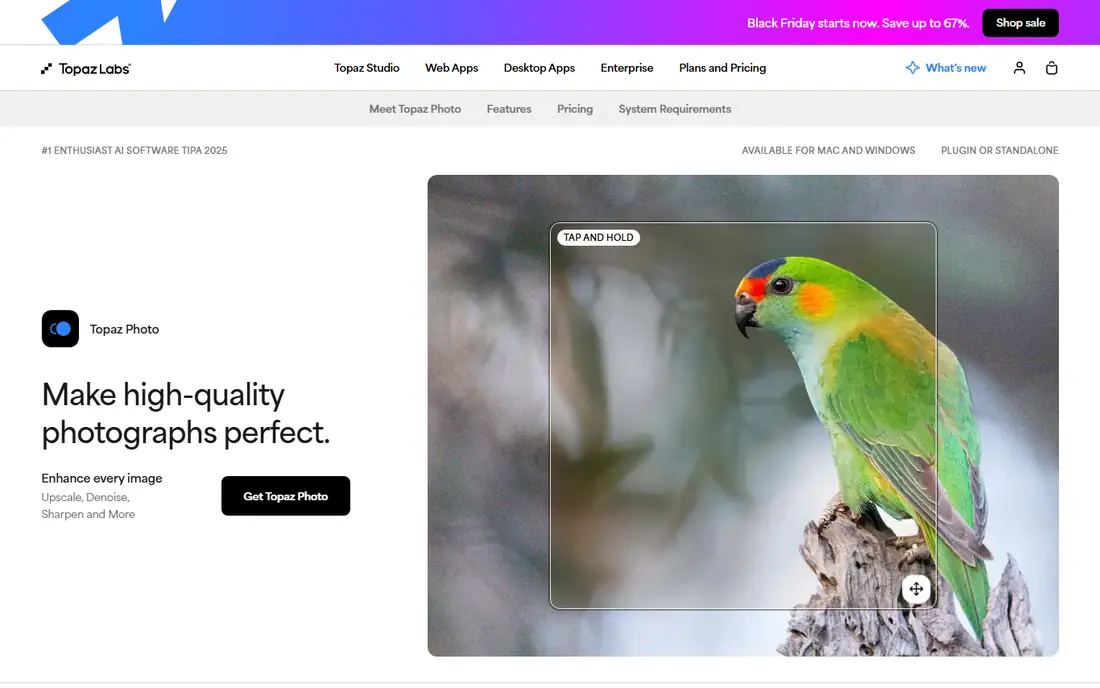
Topaz Photo AI is the desktop standard for enhancement quality. It can remove noise from high ISO photos, sharpen soft details, and upscale low resolution images while keeping faces and textures natural. Because much processing runs locally, you keep control of your files and can batch process folders without uploading every photo.
The trade off is price and hardware. Recent plans moved to subscription pricing, so check the current annual rate on the vendor site, and large batches need a modern computer with a good graphics card. For photographers who sell prints or restore old photos, the quality justifies that cost.
- Strong AI denoise, sharpen, and upscale in one app
- Local processing on your computer
- Plugin support for Lightroom and Photoshop
- Subscription pricing in recent plans
- Needs a capable computer for large batches
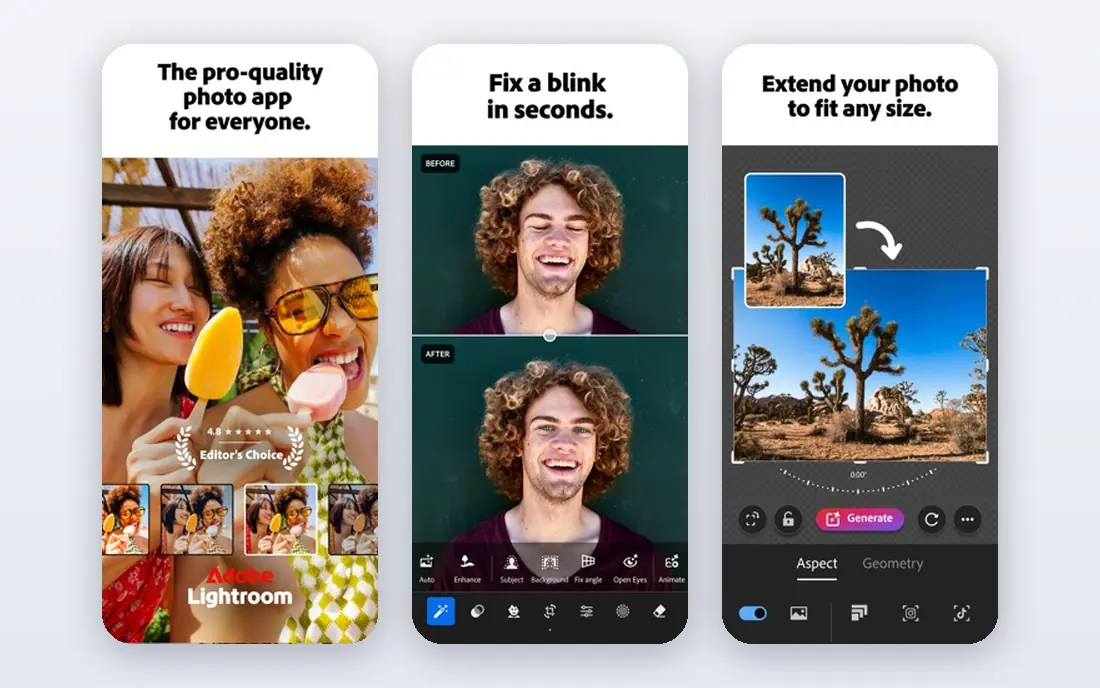
Adobe Lightroom is more than an enhancer, since it also organises, edits, and exports large photo libraries. Its AI masking can select a subject, sky, or background in one click, and its Denoise tool cleans up noisy photos without leaving the catalogue. That workflow suits photographers who edit hundreds of photos from a shoot.
The Photography plan starts at $9.99 per month on annual billing in recent roundups, including Photoshop and Lightroom with 20 GB of cloud storage. Casual users who only need one quick fix may find Lightroom heavy. For regular photographers, it is the most complete enhancement and editing system in this list.
- AI masking for subjects, skies, and backgrounds
- Denoise and lens blur tools
- Catalogue and cloud sync for large libraries
- Subscription only
- Full power takes time to learn

Luminar Neo is built for speed. Its AI tools can replace a dull sky, relight a portrait, remove power lines, and enhance a photo with a few sliders, without manual masking. That makes it a good fit for hobby photographers and content creators who want polished results fast.
Pricing has included both perpetual licences and subscriptions, so check the current offer on the Skylum site before buying. Luminar is less of a library manager than Lightroom, so photographers with huge archives may still need Lightroom for organisation. For enhancement alone, Luminar is quick and enjoyable to use.
- One click AI enhancements for skies, portraits, and scenery in photos
- Relight and atmosphere tools
- Works as a plugin
- Perpetual and subscription options can confuse pricing
- Less catalogue depth than Lightroom
Remini is best known for restoring old, blurry, or low quality phone photos. You upload a photo, tap enhance, and get a sharper, cleaner version, often with improved faces. That simplicity makes it popular for family photos, where the goal is a clearer memory, not a professional edit.
Free use is limited, and app store billing can include weekly options, so check the plan and billing period before subscribing. Results vary with the original photo, and very damaged photos may still look artificial. For quick mobile fixes, Remini is a useful tool to keep on your phone.
- Strong mobile enhancement for faces and old photos
- Simple one tap workflow
- Popular for family photo restoration
- Free use is limited
- Weekly billing options on some app stores need careful checking
LetsEnhance is a strong online upscaler for users who do not want desktop software. It offers different AI models for general photos, old photos, and text heavy images, plus batch processing and DPI controls for print. That flexibility suits small businesses that need product or archive photos enlarged for web or print.
The free plan gives a small number of credits, so regular users will need a paid plan starting at $9 per month on annual billing in recent roundups. Since it runs in a browser, you must upload photos, which matters if you work with sensitive images. For general online upscaling, it is a flexible and reliable choice.
- Several AI models for different photo types
- Batch processing
- Print ready DPI controls
- Browser based, so it needs uploads
- Subscription needed for meaningful volume
Upscayl is the best free option in this list for privacy conscious users. It is open source, runs locally on your computer, and upscales photos without uploading them or adding watermarks. That local approach is ideal for personal photos you do not want to send to a server.
The interface is simpler than Topaz or Luminar, and choosing the right AI model takes a little trial and error. For a free tool, though, the results are strong, especially for web use and moderate enlargements. If budget is zero and privacy matters, start here.
- Free and open source
- Fully local processing with no uploads
- No watermarks on output
- Interface is simpler than paid tools
- Model choice needs some learning
Fotor is a friendly browser editor that covers the basics well. Its AI tools can retouch portraits, upscale images, remove backgrounds, and apply one click enhancements, all without installing software. That makes it a good choice for social media managers and casual users who edit in a browser.
Free use comes with limits, including watermarks on some exports and capped AI credits. Paid Pro plans start at $8.99 per month in recent roundups, with Pro Plus higher for unlimited AI credits. For quick, everyday enhancements, Fotor is easy to learn and fast to use.
- Browser based with AI retouch, upscale, and background tools
- Easy for beginners
- Mobile apps too
- Free exports may carry a watermark
- Full AI credits need a paid plan
Pixlr suits users who want more control than a one click app, but still in a browser. It offers layers, AI generative expand, background removal, and object removal, in an interface that feels familiar to Photoshop users. That control helps when an automatic enhancement gets a detail wrong and you want to fix it by hand.
The free version is usable, but it includes ads and limits on some exports, and premium plans remove those limits. Check current premium pricing on the vendor site, since plans have changed. For browser based editing with real control, Pixlr is a strong free starting point.
- Free browser editing with AI expand and background tools
- Familiar layer based interface
- Mobile apps
- Free version shows ads and pushes upgrades
- Some exports are limited on free plans
Canva is not a specialist enhancer, but it is where many small businesses actually fix photos. Its Magic Edit, Magic Eraser, and background remover can clean up a product or social photo in seconds, inside the same tool used to design the post. That integration saves time for marketing teams.
For print quality upscaling or serious restoration, Topaz or Lightroom will do better. For social posts, ads, and presentations, Canva is fast and collaborative, and the free plan covers basic enhancements. Pro adds more AI credits and features for heavier users.
- Free plan with Magic Edit and background tools
- Huge templates for social posts
- Easy sharing and collaboration
- Not a dedicated photo enhancer for print quality work
- Best features need Pro
PhotoRoom is built for sellers and small businesses that need clean product photos. It removes backgrounds instantly, adds shadows and studio style backdrops, and can batch process catalogue images. That product focus makes it faster than a general editor for shop listings.
It is less suited to portrait restoration or scenery enhancement, where Topaz or Luminar do better. Free exports are watermarked or limited, and Pro starts at $12.99 per month in recent roundups. For product photography, PhotoRoom is a practical, time saving tool.
- Instant background removal and shadows for products
- Batch editing for catalogues
- Mobile and web apps
- Focused on product photos rather than general restoration
- Pro needed for high resolution exports without limits
How we picked these
We compared official feature and pricing pages, plus public product descriptions, for AI photo tools live in October 2026. We favoured tools with real enhancement features such as denoise, upscale, sharpen, and retouch, and we mixed desktop, browser, and mobile options. We did not claim hands on testing, and prices that could not be verified are shown as See website. Only enhance your own photos or photos you have permission to use, and do not use enhancement tools to create misleading images of other people.
How to get better results from AI enhancement
Start with the best original you have. AI tools can sharpen and upscale, but they cannot recover detail that was never captured, and pushing enhancement too far creates artificial textures, especially on faces. Enhance in small steps, compare with the original often, and keep the original file untouched.
Next, match the tool to the job. Use Topaz or Upscayl for upscaling, Lightroom for a full shoot, Luminar for fast creative fixes, and PhotoRoom for products. A single tool rarely does every job best, and using the wrong tool is the main reason enhancements look fake.
Finally, check output size and licence before publishing. Free plans may limit resolution or commercial use, and some tools add watermarks. If you will print or sell an image, confirm that your plan allows that use and that the export resolution is high enough for the final size.
Frequently asked questions
What are the best AI photo enhancement tools?
Topaz Photo AI is our pick for serious desktop work, Adobe Lightroom for photographer workflows, and Upscayl for free local upscaling. The best ai photo enhancement tools for casual users are Luminar Neo, Fotor, and Canva, which favour speed and simplicity over print level control.
What is the best AI photo enhancement software for printing?
Topaz Photo AI and LetsEnhance are strong for print, thanks to high resolution upscaling and DPI controls. Adobe Lightroom also suits print workflows, since it manages resolution and export settings for large libraries. Always check the final export size against your print size.
Are there free AI photo enhancement apps?
Yes. Upscayl is free and local, Canva and Fotor have free plans, and Remini offers limited free use. The best ai photo enhancement apps for free use depend on your need for upscaling, restoration, or quick social fixes, since free plans limit credits, resolution, or exports.
Can AI tools fix very blurry photos?
AI tools can improve many blurry photos, especially faces and general sharpness, but they cannot fully restore a photo with no detail. Results are best when the original is only slightly soft or noisy. For very damaged photos, expect a cleaner image, not a perfect recovery.
Is it safe to upload photos to AI enhancement tools?
Browser and mobile tools usually upload photos to servers for processing, while Upscayl and Topaz process locally. If a photo is private or sensitive, prefer a local tool, read the privacy policy, and delete uploads after processing where the tool allows it.
Should I enhance photos of other people?
Only enhance your own photos or photos you have permission to use. Do not use enhancement, face, or editing tools to alter images of other people without consent, and do not create misleading images that present an edited photo as an unedited record.
Sources
See where you really rank - block by block
ProMapRanker scans Google Maps across a grid of your service area. Simple monthly plans from $19, white-label on every plan.
Start freeKeep reading
 zoho inventory alternatives
6 Alternatives to Zoho Inventory, Compared on Price and Fit
Zoho Inventory alternatives: 6 tools compared on price, free plans and fit. Katana leads the list for manufacturers. Fit and flaws are laid out for each entry.
Read → zoho crm alternatives
Best Zoho CRM Alternatives (2026)
Need Zoho CRM alternatives? We compare 7 tools on cost, free access and who each suits. Every pick gets a straight assessment. Built for quick decisions.
Read → zelle alternatives
Best Zelle Alternatives in 2026
Compare the best Zelle alternatives for sending money to friends, paying sellers and moving funds abroad, with honest notes on fees, speed and safety in 2026.
Read →