 ProMapRanker
Best AI Image Upscaling Tools in 2026

Key takeaways
- Topaz Gigapixel is our top pick for photographers who need faithful detail, while Magnific leads for creative AI art upscaling.
- Upscayl is the best free option, since it runs locally and costs nothing, though it needs a decent computer.
- Let's Enhance and VanceAI suit online, batch-friendly workflows, and Aiarty suits buyers who prefer a one-time license.
- Match the tool to the image type, since a model built for photos will treat AI art and anime very differently.
Quick comparison
| Pick | Great for | Pricing starts at | Free tier | |
|---|---|---|---|---|
 Topaz Gigapixel | Faithful photo detail | See website | Free trial | Visit |
 Magnific | Creative AI art upscaling | $39 per month | Free trial | Visit |
 Let's Enhance | Cloud upscaling for print and shops | $9 per month | Yes | Visit |
 Upscayl | Free local upscaling | Free | Yes | Visit |
 VanceAI | Quick web upscaling | $9 per month | Yes | Visit |
 Icons8 Smart Upscaler | Simple batch upscaling | $9 per month | Yes | Visit |
 ON1 Resize AI | Large-format printing | See website | Free trial | Visit |
 Aiarty Image Enhancer | Local batch work without subscription | $59 per year | Free trial | Visit |
 Adobe Photoshop | Upscaling inside a photo workflow | $22.99 per month | Free trial | Visit |
The best ai image upscaling tools
We compared these tools on output quality for photos versus AI art, maximum upscale size, batch handling, privacy, and published pricing. Upscaling cannot invent detail that was never in the photo, and creative models may change content, so test each tool on your own images before buying. Prices change often, so confirm the current plan on the vendor site.
Topaz Gigapixel remains the benchmark for photographers who want an enlarged photo to still look like the original photo. Its models recover face detail, fur, and texture better than most web tools, and it handles batch jobs and large outputs, including tiled upscales for very large prints. For a photographer preparing files for print or for a client, that fidelity is the whole point.
The change to subscription pricing is the main drawback, since buyers who once paid once now pay ongoing fees. Large jobs also need decent hardware or cloud credits. If you upscale photos every week and quality matters more than price, Gigapixel is still the tool to beat. If you only upscale a few images a year, a credit-based web tool will cost less.
- Strong face and texture detail
- Batch processing
- Desktop app with local and cloud rendering
- Subscription pricing replaced the old one-time license
- Needs a capable computer for large jobs
Magnific is the pick for AI art, where the goal is not strict fidelity but a larger, richer image. Its generative models add plausible detail to Midjourney-style art and illustrations, and controls let you steer how creative the result should be. For artists preparing AI work for print or display, the results can look far better than a plain resize.
The warning is that Magnific can alter content. Faces, hands, and small details may shift, so it is a poor choice for documentary photos or product shots where accuracy matters. It is also credit-metered at $39 per month to start, and a single high-setting upscale can use a meaningful share of credits. Use it for art, not for evidence.
- Striking detail for AI-generated art
- High upscale sizes
- Style and creativity controls
- Can change content noticeably
- Credit-metered, so heavy use gets costly
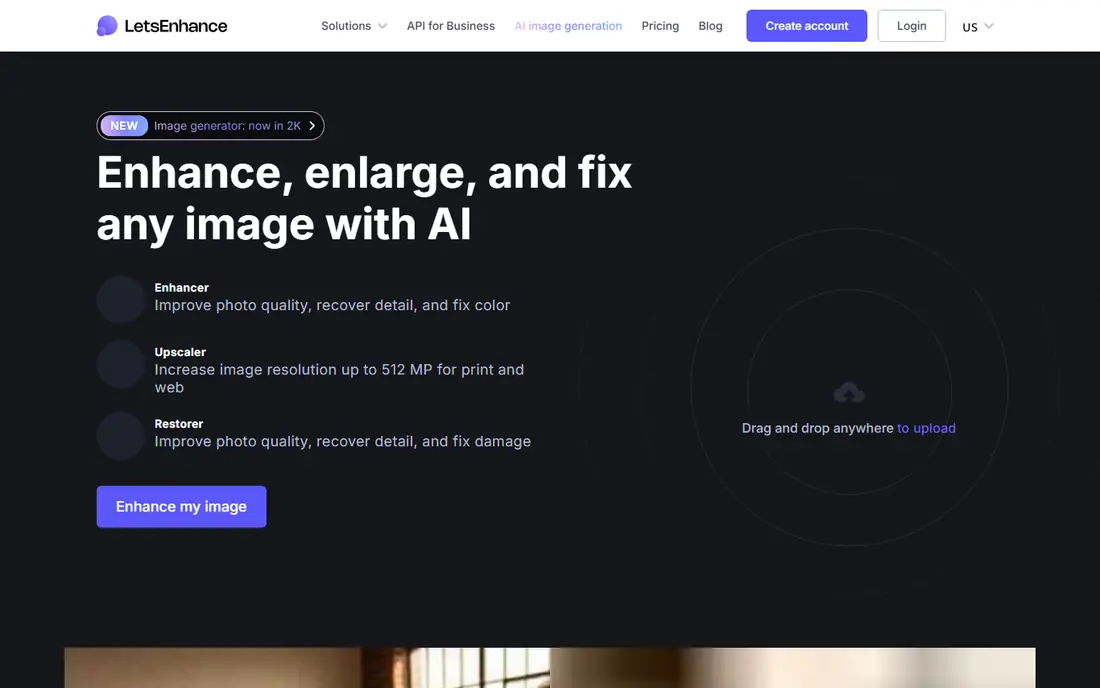
Let's Enhance is a strong all-rounder for online workflows. It offers separate models for photos, digital art, and old photos, batch processing for up to 20 images at once, and print presets that help with output size and resolution. Paid plans start at $9 per month, and new accounts get free credits to test the tool before paying.
The trade-off is privacy and limits. Files go to the cloud, so sensitive images need care, and the free allowance runs out quickly on a real job. For ecommerce sellers, print shops, and marketers who need reliable cloud upscaling without installing software, Let's Enhance is a practical pick.
- Multiple models for photos, art, and old images
- Batch processing
- Print presets
- Cloud-only, so files must be uploaded
- Free credits are limited
Upscayl is our pick for anyone who wants free upscaling without watermarks, credits, or uploads. It is open source, runs on your own computer, and upscales up to 4x with its standard models, with higher sizes possible by chaining runs. For students, hobbyists, and privacy-conscious users, that combination is hard to beat.
The limits are speed and quality. Without a decent graphics card, large batches take time, and complex photos can look slightly painted compared with Topaz output. If you have a capable computer and a modest budget, start with Upscayl and only pay for a commercial tool when its output clearly beats the free result on your images.
- Free and open source
- Runs locally, so images stay private
- No subscription or credits
- Needs decent hardware for speed
- Quality lags Topaz on complex photos
VanceAI suits casual users who want a quick web fix without installing software. Its web plans start at $9 per month when billed annually, with a small free credit allowance each month, and it upscales up to 8x. A desktop version is also available for local batch work, which helps users who prefer not to upload every file.
The quality caveat is texture. On fine detail, VanceAI output can look smoothed or slightly unnatural compared with Topaz or Let's Enhance, so test it on your hardest images first. For quick social, listing, or presentation images, it is fast and affordable. For print-critical photos, look higher on this list.
- Simple web workflow
- Up to 8x upscaling
- Desktop version for local batch work
- Quality can look smoothed on fine texture
- Web plans are credit-based
Icons8 Smart Upscaler is a straightforward cloud tool for designers and teams that need to upscale many images at once. It processes batches of up to 500 images, supports common formats, and offers a $9 per month plan for 100 images, plus a prepaid option of $10 for 50 images and an unlimited plan at $99 per month. That range suits both occasional users and busy design teams.
The limits are file size and control. Individual uploads are capped, and you get fewer model and tuning options than a desktop app. For bulk catalog, icon, or web images where speed matters more than fine tuning, Icons8 is a solid, no-fuss choice.
- Batch processing up to 500 images
- Supports JPG, PNG, and WebP
- Simple pricing options
- File size limits on uploads
- Less control than desktop tools
ON1 Resize AI is built for print. It upscales up to 10x, includes tiling for large murals, gallery wrap margins for canvas, and DPI presets with soft proofing, which helps photographers judge how a file will look at a given size. It works as a standalone app or as a plugin for Photoshop and Lightroom Classic, so it fits an existing photo workflow without forcing a new one.
Pricing needs a careful read, since ON1 sells both a one-time license path and subscription bundles that include Resize AI. Confirm which option you are buying and if future upgrades are included. For print-focused photographers, the print tools alone make it worth a trial.
- Upscales up to 10x
- Tiling for murals and gallery wraps
- Works standalone or as a plugin
- Pricing varies between one-time and subscription options
- Interface assumes photo experience
Aiarty Image Enhancer is a desktop tool for Windows and Mac that combines denoising, deblurring, face restoration, and upscaling in one pass, with models for different image types and upscales up to 8x or higher by resolution. Yearly pricing starts at $59, and a lifetime license is also offered, which appeals to buyers tired of subscriptions. Because it runs locally, sensitive images never leave your machine.
The downsides are platform and hardware. There is no web or mobile version, and CPU-only computers will process large batches slowly, so a graphics card helps. For photographers and sellers with regular batch work who want to avoid monthly fees, Aiarty is one of the best value desktop picks.
- Local processing, so files stay private
- Batch work without fixed caps
- One-time lifetime license option
- Desktop only
- CPU-only use can be slow on large batches
Photoshop is the pick for users who already pay for Adobe software, since upscaling then costs nothing extra. Super Resolution handles RAW and photo upscales, and Generative Upscale can enlarge images up to 4x with added detail, all inside the same app where you retouch, crop, and export. That workflow saves time compared with moving files between tools.
The catch is that Photoshop is a full subscription at $22.99 per month for the single-app plan, so buying it just for upscaling is poor value. Generative upscale can also alter fine details, so check output closely on photos where accuracy matters. If you already use Photoshop, use its built-in tools first and only buy a specialist upscaler when they fall short.
- Super Resolution and Generative Upscale inside Photoshop
- Full editing tools in one app
- RAW workflow support
- Subscription cost covers a full app, not just upscaling
- Generative upscale can alter details
How we picked these
We compared official product pages, pricing pages, and recent upscaler comparisons, focusing on output type, maximum upscale, batch support, privacy, and published pricing. We kept only tools that are actively sold and that genuinely upscale with AI models, and we wrote "See website" where pricing varied by billing option or was not clearly published. We did not claim hands-on tests we did not run; our findings come from published features, pricing, and reviews.
Choosing the right upscaler for your images
Start with the image type. Photos need a faithful model, AI art benefits from a creative model, and anime or illustration often needs a dedicated model. A tool that excels on portraits may do poorly on architecture or text, so test with your own files, not just sample images on a vendor site.
Decide between local and cloud
Local tools like Upscayl, Topaz Gigapixel, and Aiarty keep files private and avoid per-image fees, but they need decent hardware. Cloud tools like Let's Enhance, Magnific, and VanceAI run on any computer but require uploads and credit or subscription costs. For sensitive client work, local processing is usually the safer default.
Watch credits, caps, and output limits
Many web tools meter by credits, and a single high-resolution upscale can cost more than one credit. Check the monthly allowance, the cost of overages, the maximum output size, and any file size caps before subscribing. A cheap monthly plan with a small credit pool can cost more per finished image than a pricier plan.
Test at your target size and print size
Upscale to the size you actually need, then view the result at full size and, for print, at the intended DPI. Small previews hide artifacts that become obvious in print. Compare two or three tools on the same hard image, such as a noisy low-light photo or a detailed product shot, before you commit to one.
Frequently asked questions
What is the best ai image upscaling software overall?
Topaz Gigapixel is the best overall pick for faithful photo upscaling, while Magnific is best for creative AI art. Upscayl is the best free option, and Let's Enhance is a strong cloud all-rounder. The best tool depends on your image type, photos, AI art, or product shots, and on if you print them.
What is the best rated ai image upscaling software for photos?
Topaz Gigapixel rates highest for photo detail in most comparisons, thanks to its face and texture recovery. ON1 Resize AI and Aiarty are also strong for print and batch photo work. Test each on your own photos, since results vary by image type and noise level.
Is there a free ai image upscaling tool that works well?
Yes. Upscayl is free, open source, and runs locally with no watermark or credit limit. Let's Enhance, VanceAI, and Icons8 also offer free credits or limited free plans for testing. Free tools usually cap resolution or speed, so they suit occasional use better than heavy batch work.
Can AI upscaling fix a very blurry photo?
Only partly. AI upscaling can sharpen and add plausible detail, but it cannot recover detail that was never captured, and creative models may invent details that were not there. For important photos, keep expectations modest, test at full size, and avoid using a creative model on images where accuracy matters.
What upscale size should I choose?
Choose the size your output needs, not the maximum the tool offers. For web use, 2x is often enough, while print needs enough pixels for your target size at 200 to 300 DPI. Pushing past 4x on a low-quality source often adds artifacts rather than real detail, so stop when the image stops improving.
Sources
- https://www.topazlabs.com
- https://www.magnific.ai
- https://www.letsenhance.io
- https://www.upscayl.org
- https://www.vanceai.com
- https://www.icons8.com
- https://www.on1.com
- https://www.aiarty.com
- https://www.adobe.com
- https://zoviz.com/blog/best-ai-image-upscaler
- https://letsenhance.io/blog/all/best-ai-image-enhancers/
See where you really rank - block by block
ProMapRanker scans Google Maps across a grid of your service area. Simple monthly plans from $19, white-label on every plan.
Start freeKeep reading
 outreach alternatives
Outreach Alternatives in 2026
Compare outreach alternatives for 2026, from Salesloft and Apollo to HubSpot and Lemlist, with pricing, channels, features, limits, and honest trade-offs.
Read → best web conference tools
Best Web Conference Tools in 2026
Compare the best web conference tools for meetings, webinars and team calls, with current pricing, free plans and honest limits for each option here today.
Read → best voice cloning tools
Best Voice Cloning Tools in 2026
Compare the best voice cloning tools in 2026, from ElevenLabs and Descript to Resemble and Cartesia, with consent rules, pricing, licenses, and limits.
Read →