 ProMapRanker
Best AI Image Upscaler Tools in 2026


Professional photo printing · Pricing starts at: $29 per month
Key takeaways
- Topaz Gigapixel is our pick for photographers who print, while Lets Enhance is the simpler browser choice for batches.
- Free tools can handle occasional enlargements, but large prints and high-volume work usually need a paid plan or a desktop app.
- Upscale only images you own or have permission to use, and check faces, text, and small details at full size before you publish.
- AI detail is predicted detail, not recovered detail, so very blurry originals will still look soft or changed after upscaling.
Quick comparison
| Pick | Great for | Pricing starts at | Free tier | |
|---|---|---|---|---|
| Topaz Gigapixel | Professional photo printing | $29 per month | Free trial | Visit |
 Magnific | Creative and AI art enlargement | $20 per month | Yes | Visit |
 Lets Enhance | Browser batches for print and products | $9 per month | Free trial | Visit |
 VanceAI | Flexible web and desktop work | $9 per month | Yes | Visit |
 Upscayl | Free offline upscaling | Free | Yes | Visit |
 Upscale.media | Quick occasional enlargements | See website | Yes | Visit |
 ON1 Resize AI | Large-format print output | $69.99 one-time | Free trial | Visit |
 HitPaw FotorPea | All-round photo repair and enlargement | $22.39 per month | Free trial | Visit |
 ImgUpscaler | Simple browser upscaling | $9.90 per month | Yes | Visit |
The best ai image upscaler tools
We looked for tools that enlarge a photo without turning it into a smooth blur, and we checked pricing on vendor pages and recent listings. The list below mixes desktop power, browser convenience, and free options, so you can match the tool to the job rather than paying for features you will not use.
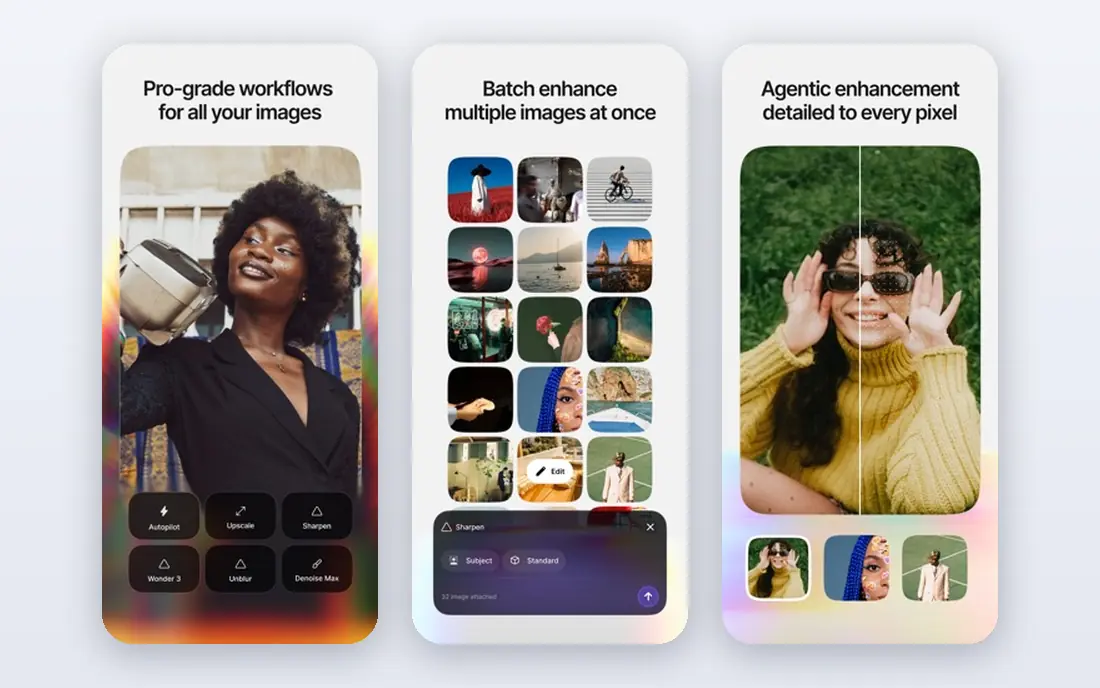
Gigapixel sits at the top of this list for a clear reason: it is built around photography, not general image play. Its models handle faces, text shapes, and fine texture with more care than a basic enlarger, and the batch workflow suits a photographer with a full shoot to prepare. If you print large, the ability to push to high multiples without obvious softening matters, and Gigapixel is the tool we would shortlist first for that job.
The catch is cost and hardware. Local processing can be slow on an older machine, and the subscription price adds up if you only enlarge a few images a month. Try the trial on your own hardest files, especially skin, hair, and printed text, before you commit. For most people, that test will settle the choice faster than any feature list.
- Strong detail recovery for photos
- Multiple models for different image types
- Batch processing and cloud rendering
- Needs a capable computer for local work
- Monthly pricing is high for occasional use
Magnific takes a different path from Gigapixel. Instead of only sharpening what is there, it can rebuild plausible texture and detail, which makes it a strong choice for AI art, illustrations, and images that need to look rich at poster size. The creativity controls let you decide how much new detail the tool should add, and that control is the point: a low setting stays closer to the original, while a higher setting produces a more finished look.
That same strength is also the risk. On a real photograph, added detail can change a face, a sign, or a fabric pattern in ways you did not intend. Use Magnific when the goal is a striking creative result, and check the output closely when accuracy matters. Pricing is credit based, so read the current plan page and estimate how many images you will run each month.
- Strong generative detail for artwork
- Creativity controls
- Very high output sizes
- Credit use can be hard to predict
- Paid plans are part of a wider creative suite
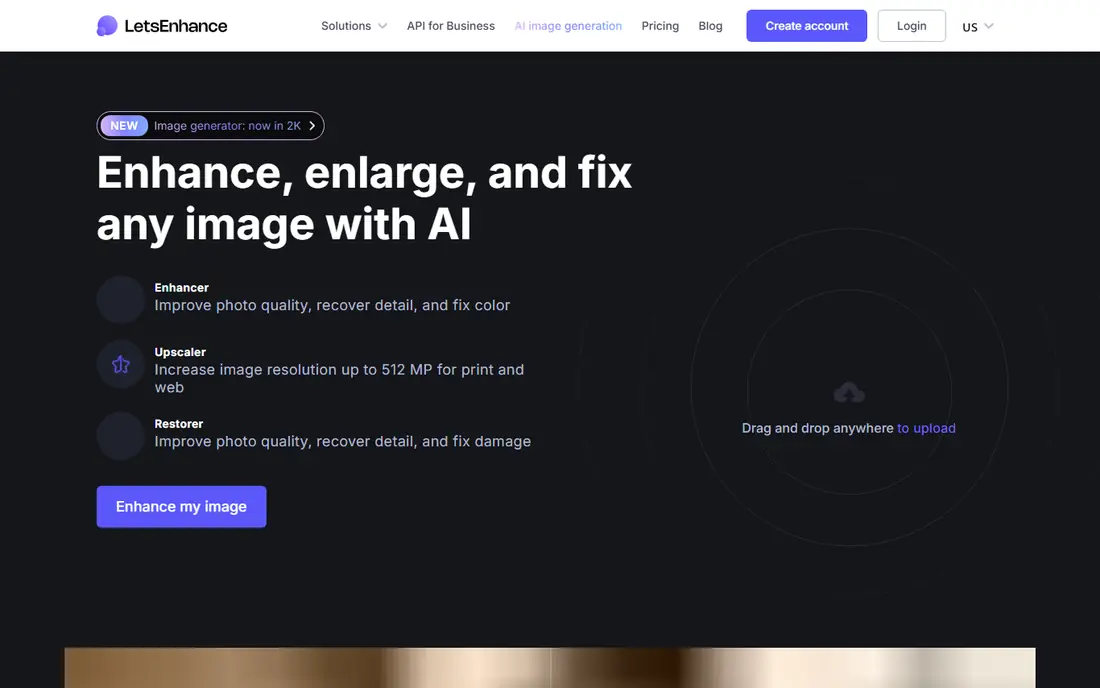
Lets Enhance is the browser tool we would point most readers to first. You upload, pick a model for the image type, and get a result without installing desktop software or tuning a graphics card. Product sellers will like the e-commerce model, photographers will like the print-sized outputs, and small teams can batch a set of images in one pass.
The credit system needs a little care. One credit usually covers one standard image, but very large outputs can use more, so a big print job can eat a monthly allowance faster than expected. Start with the 10 free credits, test your typical files, and only then pick a plan. For steady, moderate use, the Starter plan at $9 per month is a fair entry point.
- No install needed
- Models for photos, art, and products
- Credits roll over on personal plans
- Credit costs rise with very large outputs
- Free trial is limited to 10 credits
VanceAI suits readers who want one account for several repair jobs. An old scan may need denoising before it needs enlarging, and a product photo may need sharpening as well as a larger size. VanceAI puts those steps in one place, with models for photos, anime, and text-heavy images, plus a desktop option for batch work.
We would still test it against a simpler tool on your own images. Some results can look a little too clean, with skin or paper texture smoothed more than you wanted. The free credits are enough for a fair trial, and the $9 per month annual rate for the web Starter plan is a reasonable step up if you use it weekly.
- Separate tools for upscaling, denoising, and sharpening
- Web and desktop options
- Pay-per-credit choices
- Interface covers many tools, which can feel busy
- Some outputs can look over-processed
Upscayl is our pick for readers who want a free tool and do not want to upload personal photos to a server. It runs on Windows, macOS, and Linux, uses established open models, and handles batch jobs without a subscription or a credit meter. For a family archive, a blog post, or a social image, the results are often close enough to paid tools at moderate sizes.
The trade-off is setup and speed. You need to install the app, and large batches will be slower on a weak machine. It also gives you less hand-holding than a paid browser tool, so you may need to try two models to find the best result for a given photo. If privacy and price matter most, those are fair costs.
- Free and open source
- Processing stays on your computer
- Batch support
- Needs a desktop install and a decent graphics card
- Fewer guided models than paid tools
Upscale.media is the tool for the reader who needs one image enlarged today and does not want a new account, a download, or a tutorial. Upload a PNG, JPEG, WebP, or HEIC file, pick a scale up to 8x, and download the result. That simplicity is its main selling point, and it is why it stays on this list despite a modest free allowance.
For regular work, the free tier will run out fast, and you should check the current credit packs before you rely on it. It is not the best choice for large print jobs or for images that also need noise removal or face repair. For a quick fix, though, it is hard to beat for speed.
- Very simple browser workflow
- Mobile apps
- No install for a single image
- Small free allowance
- Paid credit pricing varies by pack
ON1 Resize AI speaks directly to photographers who print. It upscales up to 10x and adds the practical print steps that other tools skip, such as tiling for murals, gallery wrap margins, and DPI presets for soft proofing. If your end product is a framed print or a canvas, those details save time and reduce costly reprints.
For screen-only use, much of that value goes unused, and a cheaper browser tool may serve you just as well. The $69.99 price shown on the vendor page is a one-time purchase rather than a monthly bill, which suits readers who dislike subscriptions. Use the trial to check how it handles your largest intended print size.
- Print-focused tools including tiling and gallery wrap
- Works standalone or as a plugin
- Batch processing
- One-time price is higher than a month of a browser tool
- Print features matter less for screen-only work
HitPaw FotorPea is a wider editor that happens to upscale well, rather than a single-purpose enlarger. That breadth helps when a photo has several problems at once, such as blur, noise, and low resolution. The face model and blur repair models are useful for old portraits, and the app can output up to 8K, which covers most print and screen needs.
The price is the honest catch. At $22.39 per month, it costs more than Lets Enhance for a reader who only needs enlargement, and the free tier does not let you export a finished file. Choose it when you will use the repair and editing tools regularly, not when you only need a larger image once in a while.
- Upscaling plus denoise, face repair, and color tools
- Windows and Mac support
- High-resolution output
- Monthly price is high for upscaling alone
- Free tier blocks export
ImgUpscaler keeps the job narrow: enlarge a photo in the browser, preview it, and download it. The free plan gives 50 credits per month, which is more generous than several rivals for occasional use, and the Premium plan at $9.90 per month adds 500 credits and paid batch access. That makes it a sensible middle choice between a tiny free allowance and a full desktop purchase.
The 4x web limit is the main constraint. If you need 8x or 16x for a very large print, you will need another tool on this list. For blog images, listings, and standard prints from a decent source file, 4x is usually enough, and the simple workflow is a real advantage.
- Clear browser workflow
- 50 free credits per month
- Paid batch access
- 4x limit on the web tool
- Limited repair features compared with wider editors
How we picked these
We compared official feature pages, pricing pages, and app store listings, and we favored tools that are live and working in October 2026. We kept only legitimate creative tools, and we left out any tool built for undressing images or for non-consensual imagery. We also checked that each tool states a clear upscale range and a real price or free tier, rather than hiding both behind a signup wall.
We did not claim hands-on testing that did not happen. Our method was to compare published models, output limits, platforms, and prices, and to weigh those facts against the job: print, product listings, old photos, or quick social use. A tool that excels at one job can be a poor fit for another, and the notes above say which is which.
What to check before you pay
Start with the source file, not the tool. A sharp, well-lit original at a modest size will upscale far better than a heavily compressed screenshot, and no tool can restore detail that was never captured. If the image is already blurry at 100 percent, expect a cleaner large image, not a magically sharp one.
Next, test faces and text first. Those are the areas where AI tools most often invent the wrong detail, and a small error in an eye or a letter is more visible than a soft background. Compare the original and the result side by side at full size, and use a lower creativity setting when accuracy matters more than polish.
Then match the plan to your volume. A free tool is fine for a few images a month. A credit plan suits uneven use, while a desktop purchase suits steady print work. Check whether credits expire, whether batch processing is included, and whether the export is watermarked on the free tier. Those three details decide the real cost more than the headline price.
Finally, respect ownership and permission. Upscale only images you own or have permission to use, and do not use an upscaler to create misleading images of real people. If you plan to sell or publish the result, keep the original file and a note of the tool and settings you used.
Frequently asked questions
What is the best free ai image upscaler tool?
Upscayl is the strongest free choice for most readers, since it is free, runs offline, and handles batches without credits. Upscale.media and ImgUpscaler are useful free browser options for occasional images, but their free allowances are small. If you need large prints every week, a paid tool will save time and give more consistent results.
What is the best ai image upscaler software for printing?
Topaz Gigapixel and ON1 Resize AI are the strongest print picks here, since both are built around high-resolution output and batch work. Gigapixel suits general photography, while ON1 adds print-specific steps such as tiling and gallery wrap margins. Test both trials on your largest intended print size before you buy.
What is the best ai image upscaler app for old photos?
HitPaw FotorPea and VanceAI are useful for old photos because they combine upscaling with denoising and face repair. Lets Enhance also has an old-photo mode for faded or damaged images. For very precious originals, work on a copy, keep the original untouched, and compare several settings before you settle on a final version.
Can AI upscalers really add detail that was not in the photo?
They can predict plausible detail, but they cannot recover detail the camera never captured. That distinction matters for faces, text, and evidence-style images, where invented detail can mislead. Treat the output as an improved presentation of the original, not as a true record of what was in front of the lens.
Do free ai image upscaler tools add watermarks?
Some do and some do not, so check before you rely on a free tier for published work. Upscayl does not watermark in the same way a credit-based web tool might, while some browser tools limit resolution or add a mark on free exports. The product notes above flag the main limits, but the current pricing page is the final check.
Is it safe to upload personal photos to a browser upscaler?
It depends on the tool and the photo. Desktop tools such as Upscayl keep processing on your computer, which is the safer choice for private family photos. Browser tools need an upload to work, so read the privacy policy, avoid sensitive images when you can, and delete uploads from the service if that option is offered.
Sources
See where you really rank - block by block
ProMapRanker scans Google Maps across a grid of your service area. Simple monthly plans from $19, white-label on every plan.
Start freeKeep reading
 zoho inventory alternatives
6 Alternatives to Zoho Inventory, Compared on Price and Fit
Zoho Inventory alternatives: 6 tools compared on price, free plans and fit. Katana leads the list for manufacturers. Fit and flaws are laid out for each entry.
Read → zoho crm alternatives
Best Zoho CRM Alternatives (2026)
Need Zoho CRM alternatives? We compare 7 tools on cost, free access and who each suits. Every pick gets a straight assessment. Built for quick decisions.
Read → zelle alternatives
Best Zelle Alternatives in 2026
Compare the best Zelle alternatives for sending money to friends, paying sellers and moving funds abroad, with honest notes on fees, speed and safety in 2026.
Read →