 ProMapRanker
Best AI Generative Recolor Service in 2026

Key takeaways
- Adobe Illustrator Generative Recolor is the clearest match for vector artwork, because it recolors editable shapes from a text prompt.
- Adobe Photoshop and Adobe Firefly cover photo and image recoloring, with more control for layered edits.
- Canva, Fotor, Picsart, and Pixlr suit fast social and marketing edits, with lower prices and simpler controls.
- Recraft and Luminar Neo add useful options for vector-style images and photo color work, but they are not one-size-fits-all recolor tools.
- Edit only images you own or have permission to use, and keep the original file so you can return to it if a recolor looks wrong.
Quick comparison
| Pick | Great for | Pricing starts at | Free tier | |
|---|---|---|---|---|
 Adobe Illustrator | Vector artwork recoloring | See website | No | Visit |
 Adobe Photoshop | Layered photo recoloring | See website | No | Visit |
 Adobe Firefly | Prompt-based image generation | See website | Yes | Visit |
 Canva | Fast social and marketing edits | See website | Yes | Visit |
 Fotor | Beginner photo color edits | $8.99 per month | Yes | Visit |
 Picsart | Mobile photo recoloring | See website | Yes | Visit |
 Recraft | Vector-style image recoloring | See website | Yes | Visit |
 Pixlr | Browser photo editing | See website | Yes | Visit |
 Luminar Neo | Photo color and tone work | See website | No | Visit |
The best AI generative recolor service
Generative recolor tools change colors from a prompt, a palette, or a selection, instead of asking you to repaint each shape by hand. The tools below differ in an important way: some recolor vector shapes that stay editable, while others recolor pixels in a photo. Pick the type that matches your file first, then compare price and control.
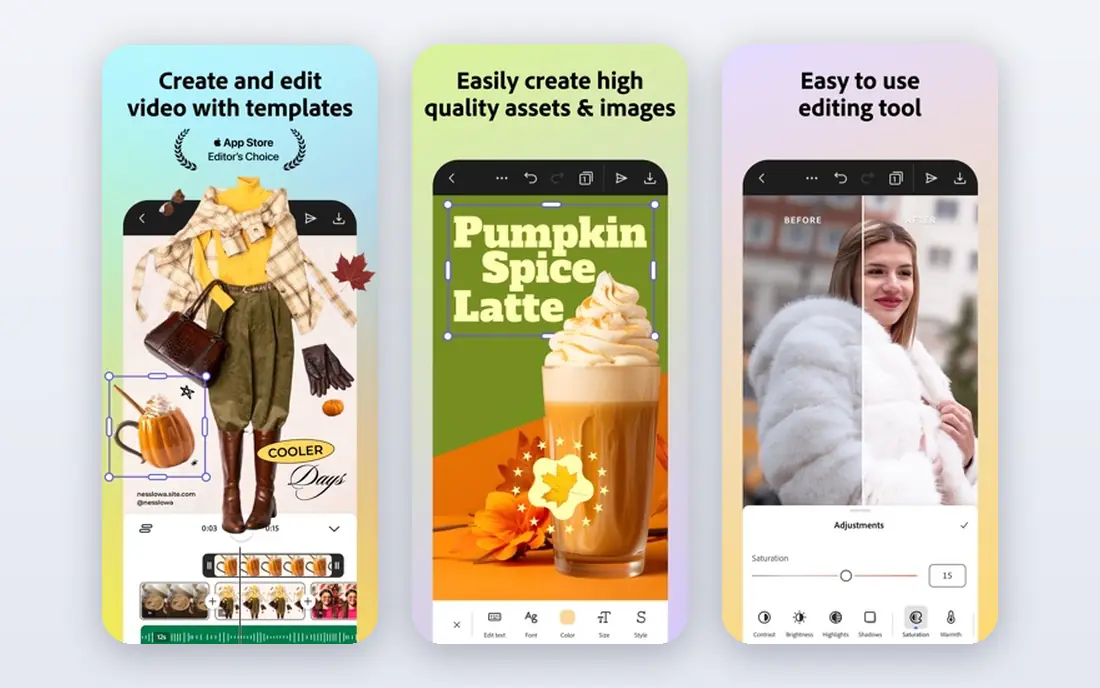
Adobe Illustrator is the tool this topic was built around, because its Generative Recolor feature takes a text prompt and applies color variations to selected vector artwork. You can try a mood such as a desert palette or a night palette, generate several options, and apply the one that fits, then refine saturation and brightness in the recolor dialog. Because the result stays vector, logos, icons, and packaging art remain sharp at any size.
The limits are file type and price. Generative Recolor works on vector artwork in Illustrator, so a flat photo will not get the same treatment, and access comes through a Creative Cloud subscription with a free trial rather than a free plan. For brand and illustration work, though, it is the most direct recolor tool on this list.
- Generative Recolor from text prompts
- Output stays as editable vectors
- Strong palette controls
- Subscription pricing
- Best for vector files, not photos
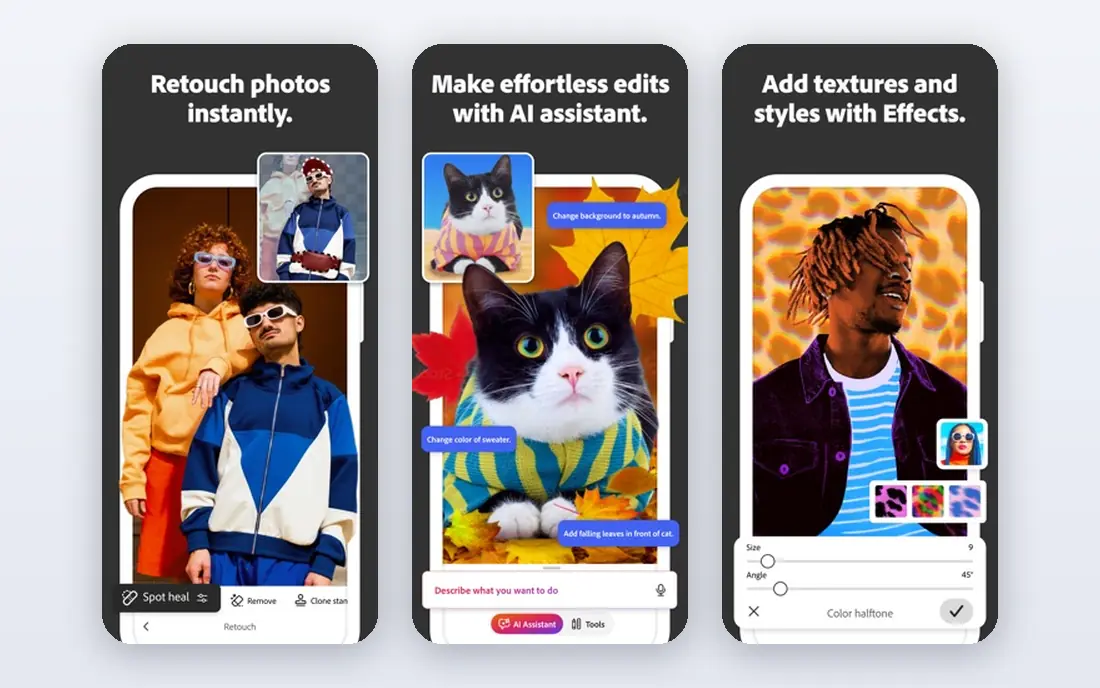
Photoshop is the pick when the image is a photo and you need control over exactly what changes color. Selections and masks let you recolor a shirt, a wall, or a product without touching the rest of the scene, and layered edits let you compare versions and undo a step without losing the original. Generative features can also fill or extend parts of a scene when a recolor needs more than a hue shift.
That control comes with a steeper learning curve than a one-click app, and Photoshop is sold by subscription with a trial rather than a free tier. If you already work in Photoshop, it is the natural place to do careful recolor work. If you only need a quick palette swap, a simpler tool below will be faster.
- Precise selections and masks
- Generative Fill and color tools
- Layered, non-destructive edits
- Subscription pricing
- Learning curve for new users
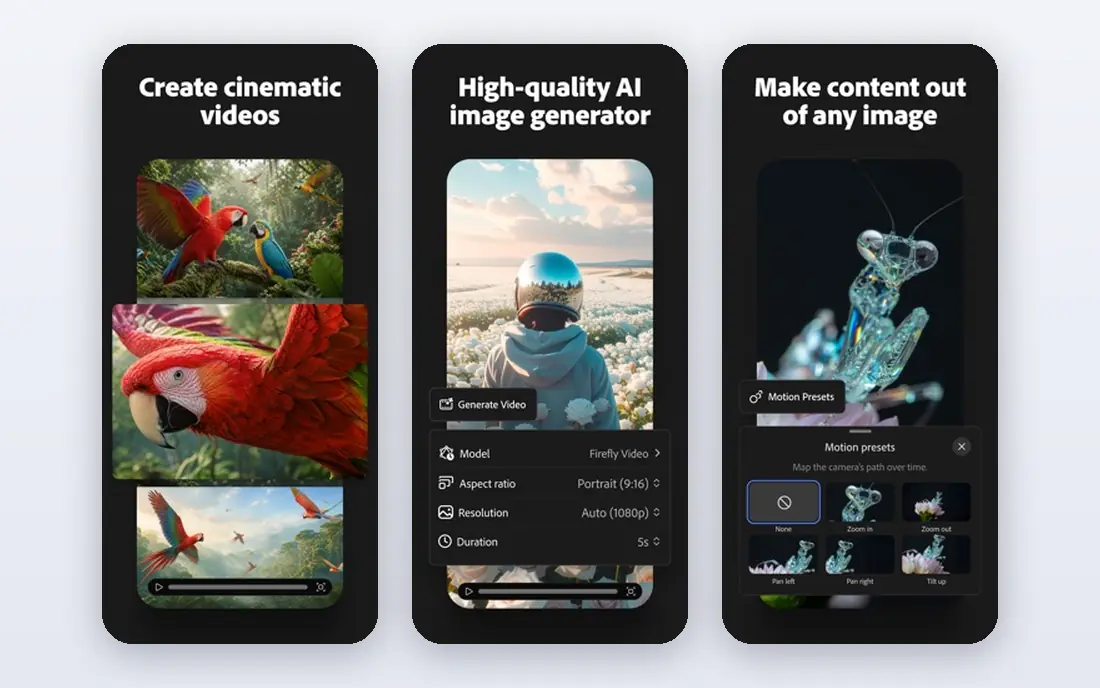
Adobe Firefly is Adobe's family of generative models, and it powers features such as Generative Recolor in Illustrator and Generative Fill in Photoshop. As a standalone web tool, it lets you generate and adjust images from prompts, which is useful when you want a new color direction for an illustration or a marketing visual, rather than only editing an existing file.
The catch with any prompt tool is control. A prompt can produce a pleasing palette but also change details you wanted to keep, so check the result at full size before you publish it. Firefly offers free access with limits, with paid plans for more credits and features, so confirm the current plan on Adobe's site before a large project.
- Prompt-based generation and editing
- Designed for commercial use cases
- Ties into Adobe apps
- Generated output may need cleanup
- Credits and plan limits vary
Canva is the fastest option for a social post, ad, or presentation that needs a color change in minutes. Its Magic Edit and related AI tools let you describe a change or select an area, and templates give you a finished layout without starting from a blank page. The free tier covers a lot of basic design work, which makes it a low-risk first try.
Precision is the trade-off. Canva is not a replacement for layered photo editing or vector recoloring in Illustrator, and some AI features sit behind the Pro plan. For marketing teams that need many variations quickly, that speed matters more than pixel-level control, and Canva is easy to hand off to non-designers.
- Easy templates and Magic Edit tools
- Large free tier
- Good for teams and social posts
- Less precise than Photoshop
- Some AI features need a Pro plan
Fotor suits beginners who want a clear path from upload to a recolored photo without learning layers and masks. The web editor covers cropping, color adjustment, effects, and AI enhancement in one place, and the free tier lets you test the workflow before paying. Pro is listed at $8.99 per month in recent listings, with higher tiers for more features.
The limit is depth. Fotor will handle everyday color changes well, but it does not match Photoshop for complex selections or Illustrator for vector work. Use it when speed and simplicity matter, and move to a pro tool when a job needs precise masks or print-ready vector output.
- Simple web and mobile editor
- AI tools for color and enhancement
- Low starting price
- Fewer advanced controls than pro suites
- Some features need Pro
Picsart is the mobile-first pick on this list. It offers AI editing, color effects, and filters on a phone, which makes it useful for creators who shoot, recolor, and post from the same device. The free tier covers basic edits, so you can test whether its color tools fit your style before subscribing.
The downside is that a phone screen and touch controls are not ideal for detailed work, and the fuller feature set sits behind the paid Gold plan. For social content and quick product photos, Picsart is a good fit. For large, precise jobs, a desktop editor will give you more room to work.
- Strong mobile editing
- AI effects and color tools
- Easy sharing to social apps
- Many features need Gold
- Mobile workflow is less suited to large print jobs
Recraft is useful when you want to generate or restyle an illustration with a consistent color direction, rather than only recoloring a photo you already have. It can produce vector-style images and lets you adjust style and color, which helps for icon sets, spot illustrations, and marketing graphics that need a matched palette.
Because it is a newer generative tool, plans and credit limits can change, so check the current pricing page before a client project. Also review every output closely: generated illustrations can include small errors in shapes or details, and a recolor that looks fine at thumbnail size may need cleanup at full size.
- Generates vector-style images
- Color and style controls
- Useful for icons and illustrations
- Newer tool with changing plans
- Generated art still needs review
Pixlr is a good browser option when you cannot install software or you work on more than one computer. It offers layers, masks, and color tools in a web editor, with AI features for quick edits, and a free tier for basic work. That makes it a practical backup editor for recolor jobs on a shared or borrowed machine.
The trade is that the free tier and lower plans do not include every AI feature, and the interface packs a lot into one screen, which can feel busy at first. For a straightforward photo recolor in a browser, though, Pixlr is a solid choice, and it keeps your original file intact if you export a copy rather than overwriting it.
- Runs in a browser with no install
- Layers and masks
- Free tier for basic edits
- AI features vary by plan
- Interface can feel busy for beginners
Luminar Neo is for photographers who want strong color and tone control without the full Photoshop workflow. Its AI tools can adjust skies, skin tones, and overall color mood, and the desktop editor suits larger photo libraries. It is a good fit when a recolor is really a color grade: shifting the mood of a photo rather than swapping one flat color for another.
It is not a vector tool, and it does not offer a general free plan, though a trial is offered. If your file is a logo or an icon set, Illustrator or Recraft will serve you better. If your file is a photo that needs a new color mood, Luminar Neo is worth a trial.
- AI color and tone tools for photos
- Good for portraits and outdoor shots
- Desktop editor
- No general free plan
- Not a vector recolor tool
How we picked these
We compared official product pages, Adobe documentation for Generative Recolor, and recent 2026 reviews of AI photo editors, and we kept only tools that can change colors with AI help, a prompt, or a palette, rather than only manual hue sliders. We favored tools that are live and available in October 2026, with a free tier or trial where offered, and we left out tools whose main purpose is face swapping or editing photos of other people. We also kept the list to legitimate creative tools, and we note the consent rule again below.
How to get a clean recolor
Start with a copy, not the original. Duplicate the file, name the copy clearly, and keep the original untouched so a bad recolor never costs you the source image. Then decide whether you need vector or pixel editing: vector for logos and icons, pixel for photos, because the wrong tool will either flatten your artwork or give you a blurry result.
Next, be specific in your prompt or palette choice. A vague prompt such as a warm look can produce many different results, while naming the colors, the mood, and the parts that must stay unchanged gives the tool a better target. After generation, check edges, skin tones, text, and small details at full size, and refine with masks or manual color controls where the AI missed.
Finally, respect ownership and permission. Edit only images you own or have permission to use, and do not use a recolor tool to alter photos of people without their consent, or to imply that a person endorsed a product or a claim they did not make. When in doubt, use your own photos, stock images with a proper license, or artwork you created yourself.
Frequently asked questions
What is the best AI generative recolor service?
For vector artwork, Adobe Illustrator Generative Recolor is the most direct match. For photos, Adobe Photoshop gives the most control, while Canva and Fotor are faster for simple social and marketing edits.
Can AI recolor a photo and a logo the same way?
No. Logos and icons are usually vector files, where colors live in editable shapes. Photos are pixel files, where colors live in the image itself. Use Illustrator or Recraft for vector work, and Photoshop, Luminar Neo, or a photo editor for photos.
Do I need a paid plan for generative recolor?
Not always. Canva, Fotor, Picsart, Pixlr, Recraft, and Firefly offer free tiers with limits, while Illustrator, Photoshop, and Luminar Neo are paid tools with trials. Check credit and export limits before a large project, because free tiers often cap resolution or monthly use.
Will a prompt recolor keep my brand colors exact?
Not by itself. A prompt gives a direction, not a hex code guarantee, so check the result against your brand palette and adjust with manual color controls. For exact brand work, set the palette by hand after the AI gives you a starting point.
Can I recolor any image I find online?
No. Edit only images you own or have permission to use, and respect licenses for stock and client artwork. Do not alter photos of people without consent, and do not use a recolor to mislead viewers about a product, a person, or a claim.
Is Generative Recolor in Illustrator still available in 2026?
Yes. Adobe documents Generative Recolor in Illustrator as a Firefly-powered feature that recolors vector artwork from text prompts, found under Edit Colors. It is part of Illustrator, not a separate product, so you access it through an Illustrator subscription.
Sources
- https://www.adobe.com/products/illustrator.html
- https://www.adobe.com/products/photoshop.html
- https://www.adobe.com/products/firefly.html
- https://www.canva.com
- https://www.fotor.com
- https://picsart.com
- https://www.recraft.ai
- https://pixlr.com
- https://skylum.com/luminar
- https://www.adobe.com/cc-shared/fragments/products/illustrator/generative-recolor/faq
See where you really rank - block by block
ProMapRanker scans Google Maps across a grid of your service area. Simple monthly plans from $19, white-label on every plan.
Start freeKeep reading
 zscaler alternatives
Best Zscaler Alternatives in 2026
Looking for zscaler alternatives? We compare 9 SASE and zero trust platforms on architecture, data protection, pricing, and fit for your network and team.
Read → zapier alternatives free
Best Zapier Alternatives Free in 2026
Nine automation tools for zapier alternatives free in 2026, all with genuinely free tiers, plus free plan limits, starting prices and upgrade paths explained.
Read → which platform is best for online reputation
Which Platform Is Best for Online Reputation in 2026
Wondering which platform is best for online reputation? We compare 8 review, listing, and response tools for small and multi-location businesses and agencies.
Read →