 ProMapRanker
Best AI App to Edit Photos in 2026


Large photo libraries and RAW editing · Pricing starts at: $11.99 per month
Key takeaways
- Adobe Lightroom is our pick for photographers who manage large libraries, while Photoshop suits detailed retouching and compositing work.
- PhotoRoom is the strongest choice for product photos, and Topaz Photo AI is the best specialist for fixing noise, blur, and low resolution.
- Free plans from Canva, Pixlr, Fotor, and Picsart cover everyday edits well, so paid plans are only needed for larger volumes or advanced controls.
- AI edits work best on photos you own or have permission to use, and results should be checked closely before you publish them.
Quick comparison
| Pick | Great for | Pricing starts at | Free tier | |
|---|---|---|---|---|
| Adobe Lightroom | Large photo libraries and RAW editing | $11.99 per month | Free trial (7 days) | Visit |
 Adobe Photoshop | Detailed retouching and compositing | $22.99 per month | Free trial (7 days) | Visit |
 Luminar Neo | Fast AI photo edits without a subscription focus | See website | Free trial | Visit |
 PhotoRoom | Product photos and listings | Free | Yes | Visit |
 Topaz Photo AI | Fixing noise, blur, and low resolution | $199 one-time | Free trial | Visit |
 Canva | Social and marketing images | Free | Yes | Visit |
 Pixlr | Browser editing with layers | Free | Yes | Visit |
 Fotor | Quick one-click enhancements | Free | Yes | Visit |
 Picsart | Mobile creative edits | Free | Yes | Visit |
The best ai app to edit photos
We compared editors that use AI for masking, object removal, enhancement, and background work, and we kept only tools that are live and useful in October 2026. Edit only photos you own or have permission to use, and avoid using AI tools to alter photos of other people without their clear consent.
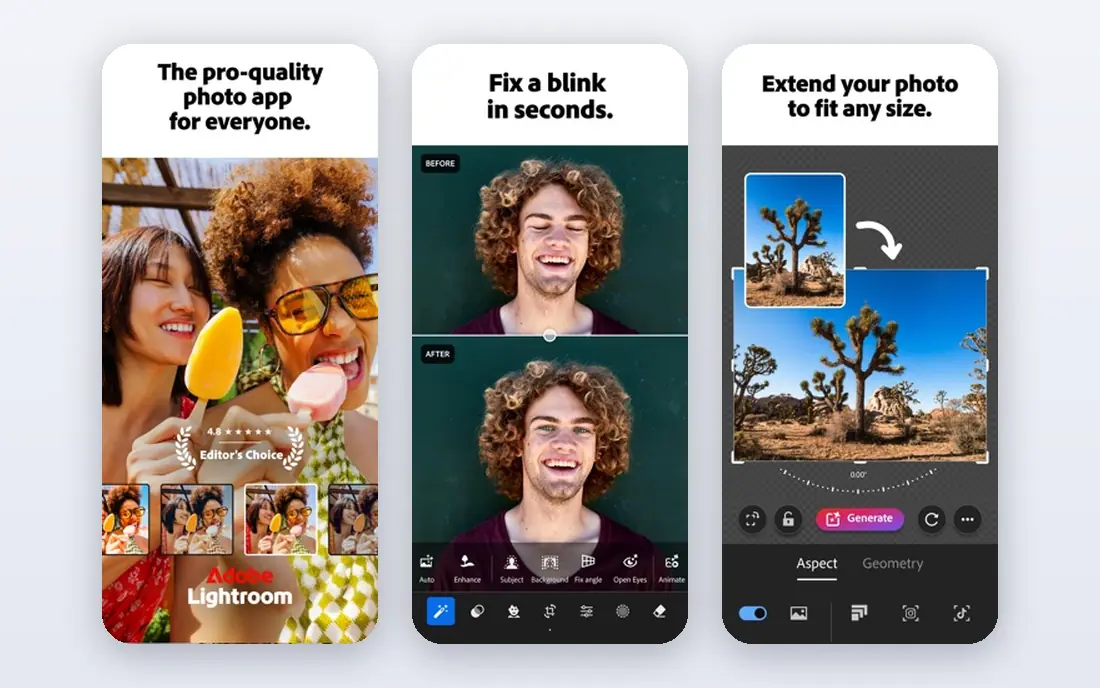
Lightroom is the editor we would start with if you take a lot of photos and need to keep them organized. Its AI tools can select skies, people, and backgrounds with a few clicks, which makes local adjustments much faster than manual masking. Batch presets and cloud sync also help when you edit the same style across many images.
The catch is cost and scope. If you only edit a handful of photos each month, a free browser or mobile editor will do the job for less. Lightroom also works best as part of a regular photo routine, so casual users may not use enough of it to justify the monthly plan.
- Strong AI masking and removal tools
- Good RAW handling and batch editing
- Syncs across desktop and mobile
- Subscription only for full access
- Can feel heavy for one-off edits
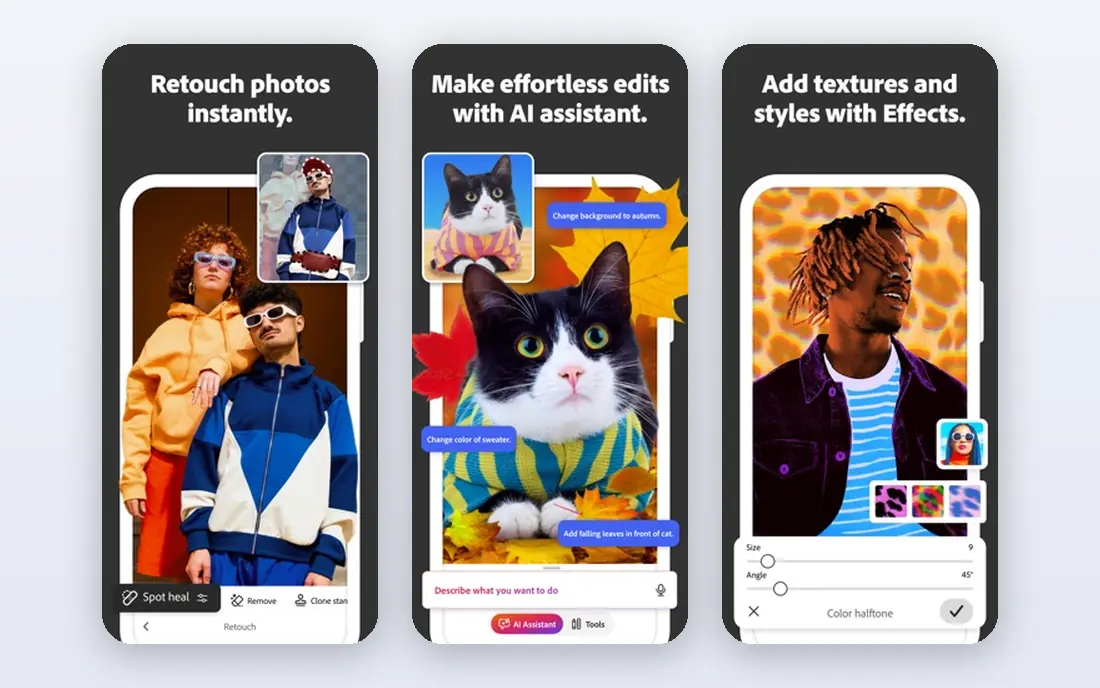
Photoshop remains the standard when an edit needs precision rather than a quick fix. You can rebuild backgrounds, blend exposures, clean up complex edges, and control every layer in a composite. Its AI fill tools are useful for extending a scene or removing an unwanted object, but they still need a careful eye for realistic results.
Beginners should expect a learning period, and the interface can feel crowded at first. For simple brightness, crop, and color fixes, Photoshop is more tool than you need. It earns its place here for people who edit professionally or who want full control over the final image.
- Deepest control over layers and selections
- Strong generative fill and removal tools
- Wide plugin and format support
- Steep learning curve
- Subscription price adds up over time
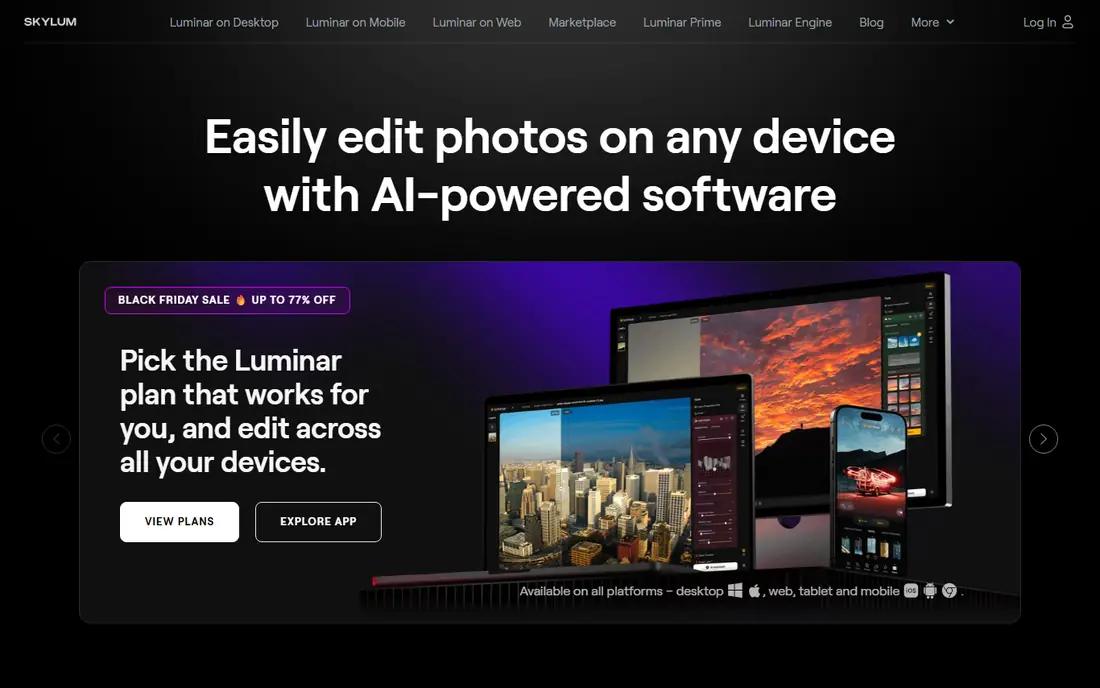
Luminar Neo suits photographers who want strong results without spending a long time on sliders. Its AI tools can relight a scene, replace a flat sky, and tidy a portrait in a small number of steps. That makes it a good middle ground between a simple phone app and a full professional suite.
Catalog and batch workflow is not its main strength, so photographers with very large libraries may still prefer Lightroom. Pricing also varies by license type, so check the current Skylum page before you buy. For single-image creative edits, though, it is fast and approachable.
- One-slider AI enhancements for light and color
- Sky replacement and portrait tools
- Works as a standalone editor
- Pricing and plan options change often
- Less suited to large catalog management than Lightroom
PhotoRoom is built around one job, and it does that job well: turning a plain product photo into a clean listing image. Background removal is quick, templates keep listings consistent, and batch editing helps sellers who photograph many items. Small sellers can start on the free plan and see real value before paying.
It is not a general replacement for Lightroom or Photoshop, and it has fewer tools for creative portrait or outdoor work. If your main need is selling products online, that focus is a strength. If you want a full photo editor, pair it with a broader app instead.
- Fast background removal
- Product templates and batch editing
- Free plan covers basic cutouts
- Less suited to general creative editing
- Higher tiers needed for large teams and advanced automation
Topaz Photo AI is a specialist, and specialists are worth paying for when the problem is specific. Old photos, high ISO shots, and small images that need printing all benefit from its denoise and upscale tools. It can rescue images that a general editor would leave soft or grainy.
It does not replace a full editor, since it focuses on image quality rather than creative editing. You should also dial back the automatic settings on portraits, where heavy sharpening can look unnatural. Used with restraint, it is the best repair tool in this list.
- Strong denoise, sharpen, and upscale models
- Works standalone or with Lightroom
- One-time purchase
- Processing can be slow on older computers
- Defaults can over-smooth skin if left untouched
Canva is the best choice when the photo is part of a design rather than the whole project. You can edit an image, drop it into a template, add text, and export for social media without switching apps. That speed matters for small business owners who post often and need consistent branding.
Serious photographers will find its controls limited, especially for RAW files and fine color work. It is also easy to overuse templates, which can make posts look similar. For everyday marketing images, though, Canva is hard to beat for speed and simplicity.
- Very easy to use
- Templates for social, ads, and presentations
- AI background remover and Magic Edit on paid plans
- Less precise than desktop photo editors
- Some AI tools sit behind the Pro plan
Pixlr is a good pick when you need a real editor on a computer that is not yours, or when you do not want to install software. It runs in the browser, supports layers, and includes AI tools for background removal and enhancement. The free plan is generous enough for routine edits, crops, and color fixes.
The trade-off is polish. Free users see ads and some limits, and the workspace is less refined than a paid desktop app. It also works best on a larger screen. For quick, capable, no-install editing, Pixlr is a strong free option.
- No install needed
- Layer support in the browser
- Free plan covers many common edits
- Ads and limits on the free plan
- Interface can feel busy on small screens
Fotor is aimed at people who want a better photo in seconds, not a long editing session. Its AI enhancer can lift a dull image, and its batch tools help when you have many similar shots. The interface is plain and easy to follow, which suits beginners and busy sellers.
That simplicity has limits. Fine retouching, detailed masking, and complex composites are outside its comfort zone. Paid plans add more, but if you need that level of control, a desktop editor is a better buy. For fast improvements, Fotor is a solid choice.
- Simple one-click AI enhancement
- Batch editing and headshot tools
- Free plan for basic use
- Advanced tools require a paid plan
- Less control than Lightroom or Photoshop
Picsart is the most playful editor in this list, and that is a genuine strength for social content. Filters, stickers, collages, and AI background tools make it easy to produce eye-catching posts on a phone. The free plan covers a useful range of edits, so you can test the style before paying.
It is not the best tool for careful color work or large RAW libraries, and the Gold plan gates some of the more useful AI features. For mobile creators who value speed and creative options over precision, Picsart fits well.
- Large sticker, filter, and effect library
- AI tools for background and object edits
- Strong mobile workflow
- Many features sit behind Gold
- Desktop editing is less complete than mobile
How we picked these
We compared official feature pages, pricing pages, and app store listings, plus public reviews, and we kept only editors that are live in October 2026 and that truly use AI for editing tasks. We looked for a mix of professional editors, product specialists, and free options, and we favored tools with clear pricing and a free plan or trial. We did not claim hands-on testing, and we treated vendor claims about quality as claims to check against your own photos.
What to check before you pay
Start with the job, not the app. Product sellers need background removal and batch tools, photographers need RAW handling and masking, and social creators need templates and speed. Pick the tool that matches your most common edit, then add a specialist only if a clear gap remains, such as noise repair or product listings.
Test on your own photos
Run the same three photos through two or three apps before you subscribe. Check skin texture, hair edges, and text in the image, since those areas show AI mistakes first. Also check export quality at the size you actually publish, because a preview can hide softness that shows up in print or on a large screen.
Watch the subscription math
Free plans are real, but they often limit exports, resolution, or AI credits. Add up the monthly cost over a year and compare it with a one-time purchase like Topaz Photo AI if you edit steadily. If you edit rarely, a free plan plus an occasional month of a paid plan is usually cheaper than a year-long subscription.
Frequently asked questions
What is the best ai app to edit photos for beginners?
Canva and Fotor are the easiest starting points, since both offer one-click enhancements and clear templates. Pixlr is a good next step if you want layers in a browser without installing software. Move to Lightroom or Luminar Neo only when you need RAW editing, masking, or batch work.
What are the best ai tools to edit photos for products?
PhotoRoom is our pick for product photos because background removal, templates, and batch editing are built for listings. Canva also works well when the photo sits inside a marketing design. For damaged or low-resolution product shots, run the image through Topaz Photo AI first.
Which is the best ai tool to edit photos on a phone?
Picsart is the strongest mobile-first option for creative edits and social posts. Canva also works well on mobile for branded images. For phone photos that need serious repair, export to Topaz Photo AI or Lightroom on desktop when quality matters most.
What is the best app to ai edit photos for free?
Pixlr, Canva, Fotor, and Picsart all offer useful free plans for everyday edits. PhotoRoom also has a free plan for basic product cutouts. Free plans usually limit some AI features or exports, so check those limits before you rely on one tool for paid work.
Do AI photo editors replace Photoshop?
No, not for detailed work. AI tools handle common fixes faster, but Photoshop still leads for layers, composites, and precise retouching. Most photographers we would point to a mix: a fast AI editor for routine shots and Photoshop when an image needs full control.
Sources
See where you really rank - block by block
ProMapRanker scans Google Maps across a grid of your service area. Simple monthly plans from $19, white-label on every plan.
Start freeKeep reading
 zscaler alternatives
Best Zscaler Alternatives in 2026
Looking for zscaler alternatives? We compare 9 SASE and zero trust platforms on architecture, data protection, pricing, and fit for your network and team.
Read → zapier alternatives free
Best Zapier Alternatives Free in 2026
Nine automation tools for zapier alternatives free in 2026, all with genuinely free tiers, plus free plan limits, starting prices and upgrade paths explained.
Read → which platform is best for online reputation
Which Platform Is Best for Online Reputation in 2026
Wondering which platform is best for online reputation? We compare 8 review, listing, and response tools for small and multi-location businesses and agencies.
Read →