 ProMapRanker
Best 3D Modeling Software for Beginners in 2026

Key takeaways
- Tinkercad is the easiest first step, because it runs in a browser and lets a beginner make a printable shape within an hour.
- Blender is the best free long-term tool, but its learning curve is steep, so it suits beginners who plan to stick with 3D work.
- SketchUp Free suits rooms, furniture, and simple buildings, while FreeCAD and Fusion 360 suit precise mechanical parts.
- Onshape Free is good for learning collaborative CAD, with the trade-off that free documents are public.
- Start with the project type first: a character, a room, and a mechanical bracket each point to a different tool.
Quick comparison
| Pick | Great for | Pricing starts at | Free tier | |
|---|---|---|---|---|
 Tinkercad | Absolute beginners in a browser | Free | Yes | Visit |
 Blender | Free all-round 3D for committed learners | Free | Yes | Visit |
 SketchUp Free | Rooms, furniture, and simple buildings | Free | Yes | Visit |
 FreeCAD | Free parametric CAD for parts | Free | Yes | Visit |
 Fusion 360 | Engineering parts with a free personal tier | Free | Yes | Visit |
 Onshape Free | Browser CAD with collaboration | Free | Yes | Visit |
 Shapr3D | Tablet-first parametric modeling | See website | Free trial | Visit |
 Nomad Sculpt | Sculpting on a tablet | See website | Free trial | Visit |
 Wings 3D | Simple subdivision modeling | Free | Yes | Visit |
The best 3D modeling software for beginners
Beginner 3D software should let you make something real on day one, without a long install or a confusing interface. We compared official product pages, free-tier terms, and published learning resources, and we favored tools that are free or offer a genuine free tier for personal learning.

Tinkercad is the tool we recommend to anyone who has never modeled before. It runs in a browser, uses simple shapes that you combine and cut away, and needs no install or powerful computer. Most people can build a first bracket, keychain, or phone stand in under an hour, then export it for 3D printing.
The limit is ceiling, not ease. Organic characters, detailed sculptures, and precise engineering assemblies will outgrow Tinkercad quickly. That is fine for a first tool: learn the basics of shape, scale, and export here, then move to Blender or FreeCAD when a project needs more control. For schools and first-time makers, Tinkercad is still the clearest start.
- No install, drag-and-drop shapes
- Exports for 3D printing
- Strong classroom resources
- Limited for complex or organic shapes
- No advanced parametric controls

Blender is the best free tool a beginner can grow into, because it covers the full 3D pipeline in one free download. You can model hard surfaces, sculpt organic shapes, texture, render, and animate without paying for a license or worrying about commercial restrictions. The tutorial community is large, with beginner series that walk through the interface step by step.
The honest catch is the first two weeks. The interface packs many editors and shortcuts into one window, and a new user can feel lost before making a first model. Start with a focused beginner course, learn navigation and basic mesh editing first, and ignore animation and advanced rendering until the basics feel natural. If you plan to stay with 3D work, that effort pays off for years.
- Free and open source for commercial use
- Modeling, sculpting, animation, and rendering in one app
- Huge tutorial community
- Steep learning curve
- Interface can overwhelm a first-time user
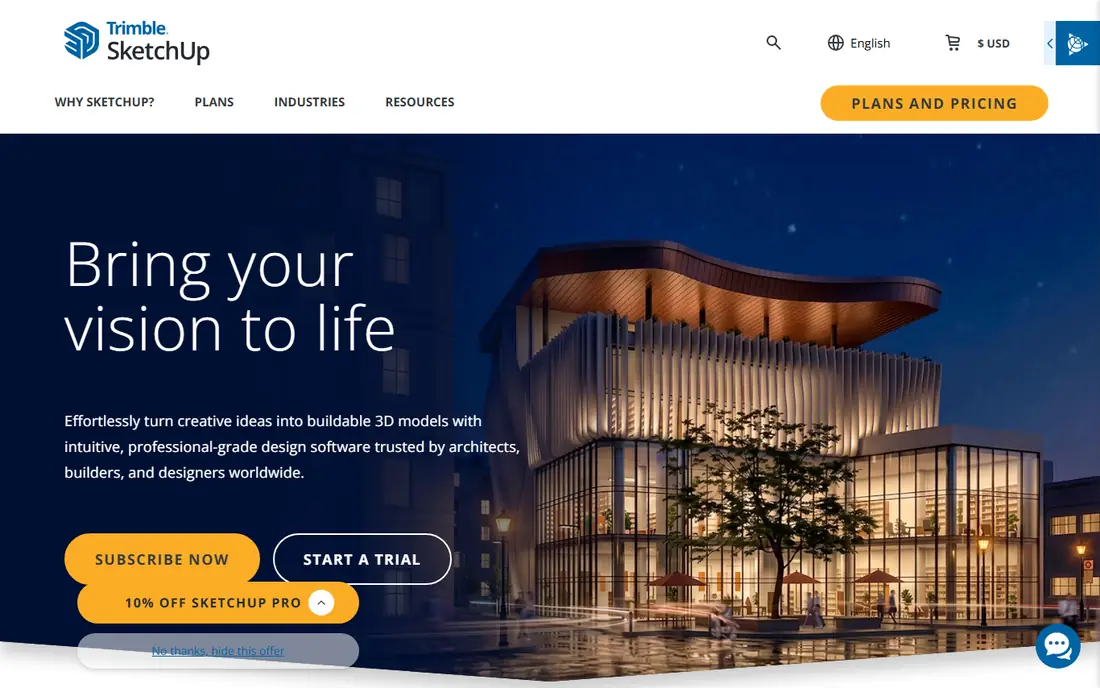
SketchUp Free suits beginners who think in rooms and objects rather than in engineering drawings. You draw a shape, pull it into 3D, and push or cut parts away, which feels natural for a bookshelf, a kitchen layout, or a garden shed. The component library lets you drop in doors, windows, and furniture without modeling each piece from scratch.
The free web version is for personal use and has limits on exports and advanced tools, while desktop apps and professional features sit on paid plans. That is fine for learning and for home projects. If you later need construction documents or commercial use, compare a paid SketchUp plan against FreeCAD or Fusion 360 for your project type.
- Intuitive push-and-pull modeling
- Large component library
- Browser version needs no install
- Free web version has export and feature limits
- Desktop and pro features are paid
FreeCAD is the free CAD pick for beginners who need precise parts. Its parametric workflow means you set dimensions and constraints, and the model updates when you change a number, which is exactly how a mechanical bracket or a mounting plate should be designed. It exports clean files for 3D printing and works on Windows, Mac, and Linux.
The interface is less polished than Fusion 360, and some operations need more steps or a forum search to get right. Start with a simple part, such as a bracket with holes, and learn sketches and constraints before tackling an assembly. For a maker who wants full control without a subscription, FreeCAD is a strong and honest choice.
- Fully free and open source
- Parametric dimensions you can edit later
- Good for 3D printing parts
- Interface feels rougher than commercial CAD
- Workflow can be less forgiving for beginners
Fusion 360, from Autodesk, gives beginners a professional CAD workflow with a free personal-use tier. You can sketch, model parametrically, render, and prepare parts for machining or printing in one app, which is why many maker courses teach it. The workflow transfers well if you later move into engineering or product design work.
The free tier has limits, including a cap on active editable documents and reduced CAM features, and it is for non-commercial personal use with renewal terms. Keep your active project count low, archive finished work, and read the current personal-use terms before relying on it for a business. For a beginner who wants industry-style CAD for free, Fusion 360 is still one of the best routes in.
- Parametric CAD plus CAM and rendering
- Clean export for printing
- Industry-style workflow
- Free personal tier limits active documents and some features
- Renewal and eligibility rules apply
Onshape Free is a good classroom and team-learning tool, because it runs in a browser and lets several people edit the same document at once. The parametric CAD tools cover sketches, parts, and assemblies, and version history makes it easy to see who changed what. A beginner can learn CAD on a Chromebook or a shared computer without installing software.
The main trade-off is privacy: documents on the free plan are public, so do not model a product idea you want to keep private. Paid plans add private documents and deeper features. If you are learning, teaching, or working on an open project, Onshape Free is an excellent and modern way to start CAD.
- Runs in a browser with real-time collaboration
- Parametric CAD
- No install needed
- Free documents are public
- Advanced features need paid plans
Shapr3D suits beginners who prefer a tablet to a desktop mouse. You sketch with a stylus, extrude shapes, and build parametric models in an interface that feels simpler than a full desktop CAD app. That touch workflow makes it a good fit for concept sketches, product ideas, and on-site measurements that later become a precise model.
The full product needs a paid plan after the trial, and the desktop experience is secondary to the tablet one. If you already own an iPad and a stylus, Shapr3D is a pleasant way to learn CAD. If you work mainly on a desktop, Fusion 360 or FreeCAD will give you more for less money.
- Touch and stylus workflow on iPad
- Parametric modeling with a clean interface
- Good for concept work on the move
- Paid plans needed for full use
- Best experience needs a tablet and stylus
Nomad Sculpt is the beginner sculpting pick for tablet users. Instead of drawing precise dimensions, you push, pull, smooth, and carve a digital clay form, which suits characters, miniatures, and organic props. The interface is far simpler than desktop sculpting tools, and models export for 3D printing.
It is not a replacement for CAD. If you need a bracket with exact hole spacing, use FreeCAD or Fusion 360. If you want to sculpt a creature, a bust, or a decorative piece on a tablet, Nomad Sculpt is accessible and fun, and it pairs well with Blender for rendering or cleanup on a desktop later.
- Intuitive sculpting on iPad and Android
- Good for characters and organic shapes
- Exports for printing
- Not a CAD tool for precise parts
- Mobile screen limits large scenes
Wings 3D is a quiet, focused option for beginners who want to learn subdivision modeling without the full weight of Blender. You build a model by selecting edges, faces, and vertices and applying simple operations, which teaches the core ideas of mesh modeling clearly. It runs on Windows and Mac and costs nothing.
The scope is narrow: Wings 3D does modeling only, so you will need another tool for sculpting, texturing, animation, or rendering. That focus is also its strength for a first month of learning. If you want a simple free tool for low-poly game assets or basic props, Wings 3D is worth a try before committing to Blender.
- Free and open source
- Simple interface focused on modeling only
- Good for low-poly models
- No sculpting, animation, or rendering depth
- Smaller community than Blender
How we picked these
We compared official product pages, free-tier terms, and published beginner resources for tools that a new user can start without a paid license or a powerful workstation. We favored browser tools for the easiest start, free open-source tools for long-term value, and tablet tools where touch input genuinely helps. We excluded professional-only tools that need a steep setup for a first model.
How to choose your first 3D tool
Match the tool to the first project, not to the tool with the longest feature list. A printable bracket points to Tinkercad or FreeCAD, a room layout points to SketchUp Free, a character points to Blender or Nomad Sculpt, and a product concept on a tablet points to Shapr3D. One finished project teaches more than three half-finished tutorials in different apps.
Learn in small, finished steps
Pick a beginner course for one tool and finish a small project each week, such as a cup, a bracket, and a simple character. Save each file with a clear name, and export a test print or render early, so you learn export settings before a deadline. Switching tools every few days slows progress, while finishing small projects builds the core skills that transfer to any 3D app.
Check your computer and your budget first
Browser tools such as Tinkercad, SketchUp Free, and Onshape Free work on modest computers, while Blender and Fusion 360 benefit from a stronger machine for rendering and large scenes. Free tools remove budget risk, but check the free-tier terms for commercial use and document privacy before you use a model in a business. A free tool that fits your project and your computer is better than a paid tool you cannot run well.
Frequently asked questions
What is the best 3D modeling software for beginners?
Tinkercad is best for a first model today, because it runs in a browser and uses simple drag-and-drop shapes. Blender is best for a beginner who wants one free tool to grow into, while SketchUp Free is best for rooms and furniture. Choose by project type, then stick with one tool for your first few projects.
What is the best free 3D modeling software for beginners?
Tinkercad, Blender, FreeCAD, SketchUp Free, Onshape Free, and Wings 3D all offer free use for beginners. Tinkercad is easiest, Blender is most complete, FreeCAD is best for precise parts, and SketchUp Free is best for architecture-style models. All of them let you learn without paying, though paid tiers add features or privacy.
Is Blender good for beginners?
Blender is good for committed beginners, but it is not the easiest first tool. Its interface and shortcut-heavy workflow take time to learn, and a structured beginner course helps a lot. If you want to model, sculpt, and render in one free app and you plan to stay with 3D work, Blender is worth that learning time.
Is Fusion 360 free for beginners?
Fusion 360 offers a free personal-use tier for non-commercial use, with limits on active documents and some features. It is a good way to learn industry-style parametric CAD without paying, as long as you read the current personal-use terms and keep your active project count within the limit. Commercial users need a paid plan.
Do I need a powerful computer for 3D modeling?
Not for your first models. Tinkercad, SketchUp Free, and Onshape Free run in a browser on modest computers, and simple Blender or FreeCAD models also run well on average hardware. Rendering, large scenes, and complex simulations benefit from a stronger graphics card and more memory, but those needs come later in learning.
What is the easiest 3D software to learn for 3D printing?
Tinkercad is the easiest for 3D printing, because it exports directly to common print formats and uses simple shapes. For precise printable parts, FreeCAD or Fusion 360 are the next step, and for organic printable models, Blender is the free standard. Start in Tinkercad, then move up when a project needs tighter dimensions or organic detail.
Sources
See where you really rank - block by block
ProMapRanker scans Google Maps across a grid of your service area. Simple monthly plans from $19, white-label on every plan.
Start freeKeep reading
 zscaler alternatives
Best Zscaler Alternatives in 2026
Looking for zscaler alternatives? We compare 9 SASE and zero trust platforms on architecture, data protection, pricing, and fit for your network and team.
Read → zapier alternatives free
Best Zapier Alternatives Free in 2026
Nine automation tools for zapier alternatives free in 2026, all with genuinely free tiers, plus free plan limits, starting prices and upgrade paths explained.
Read → which platform is best for online reputation
Which Platform Is Best for Online Reputation in 2026
Wondering which platform is best for online reputation? We compare 8 review, listing, and response tools for small and multi-location businesses and agencies.
Read →