 ProMapRanker
Best 3D Modeling Software for 3D Printing in 2026

Key takeaways
- Tinkercad is the fastest first step for beginners, with browser-based modeling and direct STL export.
- Blender suits organic shapes and miniatures, while Fusion 360 and FreeCAD suit precise mechanical parts.
- Several strong tools are fully free, so most hobbyists do not need to pay to start printing.
- Check export format, file privacy, and document limits before choosing a free CAD tier.
- Match the tool to the model type, since CAD and sculpting tools solve different design problems.
Quick comparison
| Pick | Great for | Pricing starts at | Free tier | |
|---|---|---|---|---|
 Tinkercad Tinkercad | Beginner browser modeling | Free | Yes | Visit |
 Blender Blender | Organic sculpting and miniatures | Free | Yes | Visit |
 Fusion 360 Fusion 360 | Professional mechanical CAD | Free | Yes | Visit |
 FreeCAD FreeCAD | Free parametric engineering | Free | Yes | Visit |
 SketchUp SketchUp | Fast concept modeling | Free | Yes | Visit |
 Onshape Onshape | Cloud CAD collaboration | Free | Yes | Visit |
 Shapr3D Shapr3D | Tablet and touch modeling | Free | Yes | Visit |
 OpenSCAD OpenSCAD | Code-based parametric design | Free | Yes | Visit |
The best 3d modeling software for 3d printing
The best 3d modeling software for 3d printing below ranges from drag-and-drop beginner tools to full parametric CAD, so you can start simple and move up as skills grow.
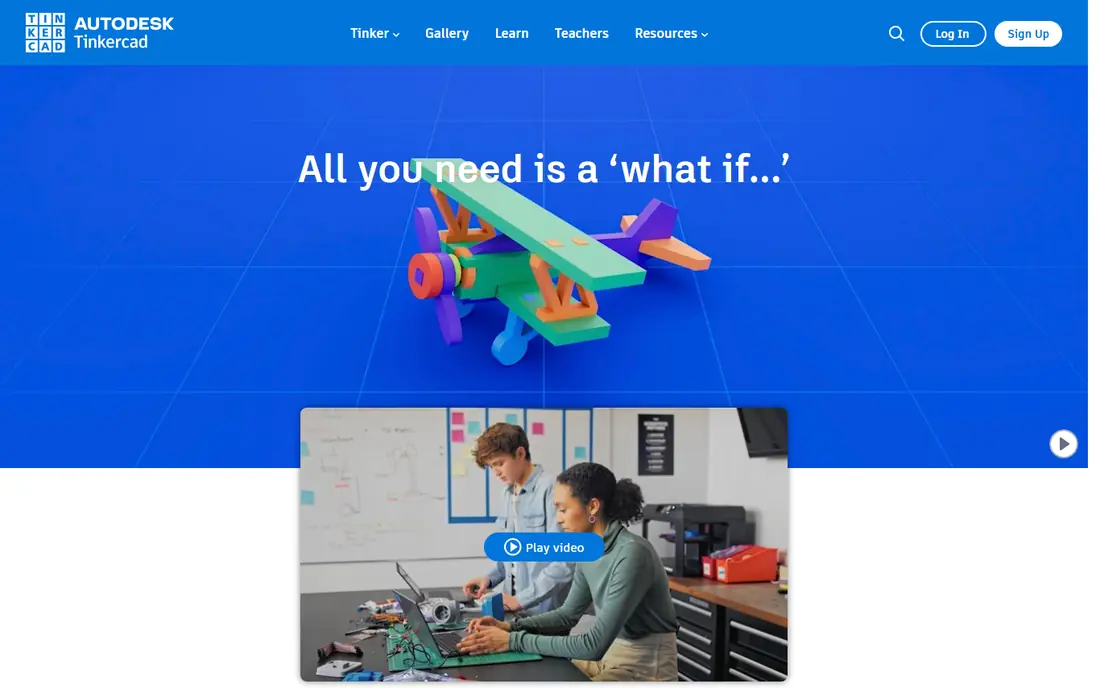
Tinkercad lets beginners build models by combining, cutting, and grouping simple shapes in a browser window, with no software to install. That low barrier means a first printable model is often ready within an hour, which helps students, hobbyists, and anyone testing whether 3D design appeals to them. Export to STL or 3MF keeps the path to a slicer short and simple. The limits appear quickly for dimension-critical work, since Tinkercad lacks full parametric sketches, constraints, and detailed measurement tools. Complex organic shapes are also harder to build than in a sculpting tool. For first models, classroom projects, and simple brackets or holders, it remains the easiest place to start.
- Runs in a browser with no install
- Drag-and-drop shapes
- Exports STL and 3MF files
- Limited precision for mechanical parts
- No advanced sculpting tools
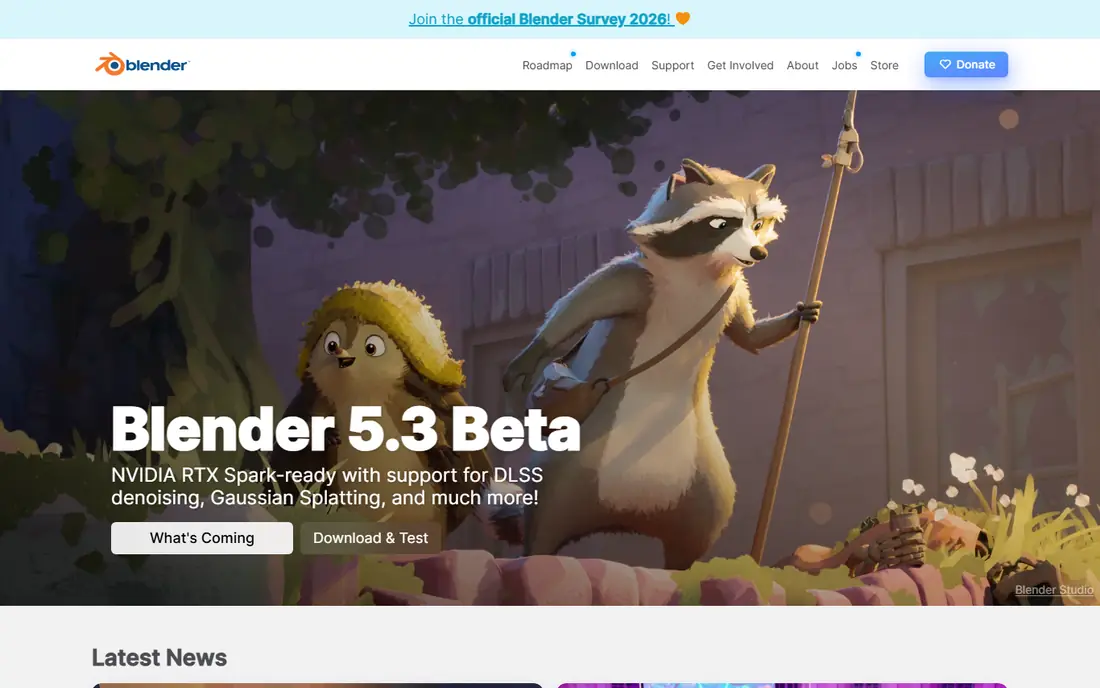
Blender is a free, open source 3D tool best known for sculpting, modeling, animation, and rendering, and it has become a standard choice for miniatures, figures, and organic prints. Sculpting brushes, mesh editing, and add-ons such as the 3D Print Toolbox help users check wall thickness and fix common mesh problems before export. The community produces a huge library of tutorials for beginners and advanced users alike. Blender is not parametric CAD, so changing a dimension later is less direct than editing a sketch in Fusion 360 or FreeCAD. The interface also takes time to learn, with many panels and shortcuts to master. For artistic and organic models, however, no other free tool matches its depth.
- Free and open source
- Powerful sculpting tools
- Large community and tutorials
- Steep learning curve
- Not a parametric CAD tool for precise engineering
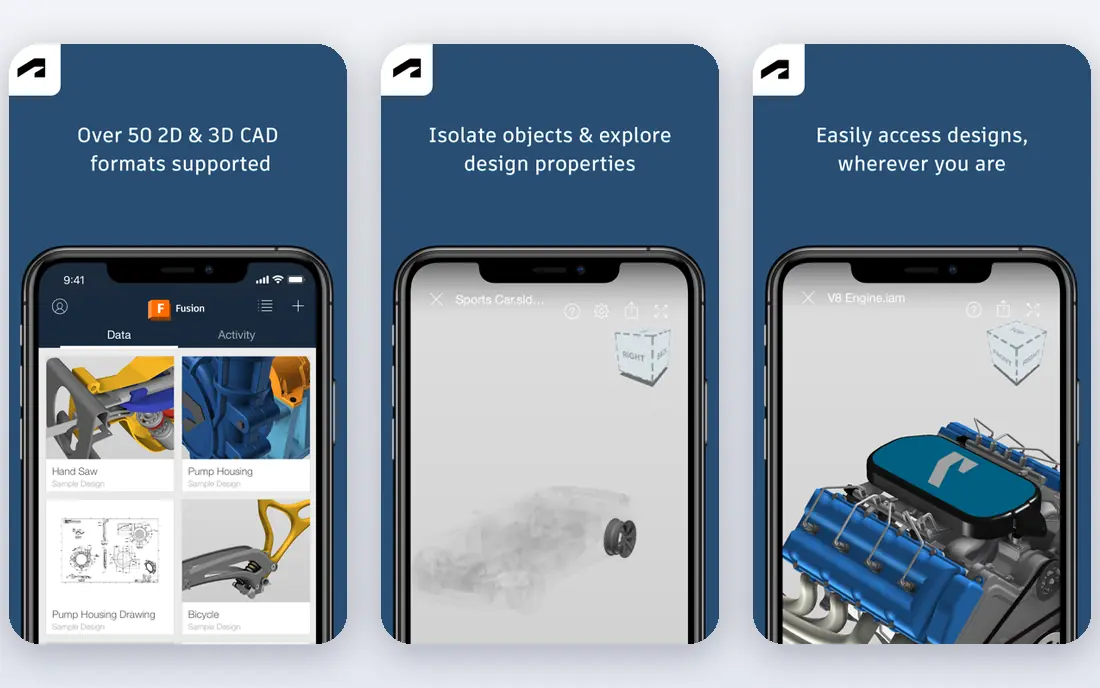
Fusion 360 is a professional CAD tool that lets users build precise parts from sketches, constraints, and parametric features, then revise dimensions without rebuilding the model. That workflow suits functional prints such as brackets, enclosures, adapters, and mechanical parts where fit matters. Export to STL, 3MF, and STEP covers most slicers and manufacturing partners. The free personal-use tier has limits, including a cap on active editable documents and reduced CAM features, and it is for non-commercial use under set terms. Beginners also need time to learn sketching and feature history. For serious hobbyists moving toward engineering work, Fusion 360 is the closest free route to professional CAD.
- Full parametric CAD with sketches and constraints
- Clean STL and STEP export
- Strong CAM tools
- Free personal tier limits active documents
- Learning curve is moderate for beginners
FreeCAD offers true parametric modeling without cost, document caps, or forced public files, which makes it a strong choice for users who want full control over their work. Sketches, constraints, and part design tools support mechanical parts, and the open source community adds workbenches for sheet metal, assemblies, and other tasks. Files stay local unless the user chooses to share them. The interface is less polished than commercial CAD, and some tasks take extra steps or require community workbenches. Documentation and tutorials vary in quality, so beginners may need patience. For users who value freedom, privacy, and zero cost over polish, FreeCAD is a capable long-term CAD home.
- Fully free and open source
- True parametric modeling
- No document or privacy limits
- Interface feels less polished
- Some workflows need add-ons or manual fixes
SketchUp is known for fast, intuitive modeling, where users push and pull faces to shape rooms, furniture, props, and concept models quickly. The free web version runs in a browser, and the 3D Warehouse offers ready-made models to study, adapt, or print. That speed suits early design, architecture mockups, and decorative prints where exact tolerances matter less. For mechanical parts, SketchUp lacks the parametric sketch and constraint system found in Fusion 360 or FreeCAD, and STL export may need an extension depending on the plan. Models also need checking for watertight geometry before slicing. For quick concepts and visual design, it remains a friendly and fast tool.
- Fast and intuitive for concept models
- Free web version
- Large 3D Warehouse library
- STL export needs care or an extension on some plans
- Less suited to precise mechanical CAD
Onshape delivers professional parametric CAD entirely in a browser, with real-time collaboration, branching, and version history built into the workflow. Teams and classrooms can work on the same model without installing software or managing files, and changes are tracked clearly. That cloud approach suits group projects, remote teams, and users who switch between computers often. The free plan makes documents public, which is a deal-breaker for private commercial work, and some advanced features sit behind paid tiers. Performance also depends on internet connection quality. For collaborative CAD and education where public files are acceptable, Onshape is a strong and modern choice.
- Full CAD in a browser
- Real-time collaboration
- Version control built in
- Free plan documents are public
- Advanced features require paid plans
Shapr3D brings CAD to tablets and desktops with touch, pencil, and mouse input, letting users sketch and shape models directly on screen. That direct style feels natural for concept work, product sketches, and quick iterations away from a desk. Export to STL and STEP keeps the path to printing and manufacturing open, and the interface is cleaner than many desktop CAD tools. The free Basic plan limits the number of designs, so active users will likely need a paid plan for ongoing work. It also lacks some of the deep parametric history found in Fusion 360. For iPad-first designers and anyone who prefers drawing models by hand, Shapr3D offers a distinct and useful workflow.
- Touch and pencil modeling on tablets
- Direct modeling feels natural
- Exports STL and STEP
- Free Basic plan limits designs
- Full features require a paid subscription
OpenSCAD takes a different approach, letting users write code to define shapes, dimensions, and parameters, then render the result as a printable model. That method shines for parametric parts, such as holders, mounts, and enclosures that need many size variants from one script. Changing a single value can rebuild the whole part, which saves time for repeatable designs. The trade-off is clear, since there is no direct visual modeling and users must think in code rather than dragging shapes. Debugging a model means reading code and checking renders, which suits programmers more than visual designers. For code-friendly makers who value precision and repeatability, OpenSCAD is a powerful free tool.
- Models defined by code for exact repeatability
- Free and open source
- Great for parametric parts
- No visual drag-and-drop modeling
- Preview and rendering workflow takes getting used to
How we picked these
We compared official feature pages, pricing pages, app store listings, privacy policies, and public reviews for 3D modeling tools used for printing. We favored tools with clear STL or 3MF export, a usable free tier, and a distinct fit for beginners, sculptors, or engineers. We did not claim hands-on testing, and prices were left as See website where vendor pricing was not confirmed at the time of writing.
What to look for before you choose
Start by naming the model type you will make most often, since that choice narrows the field fast. Beginners and classroom users should start with Tinkercad, sculptors and miniature makers should look at Blender, and mechanical makers should compare Fusion 360, FreeCAD, and Onshape. Check export format and mesh repair tools early, because a model that cannot export cleanly will waste time in the slicer. Also check free tier limits that affect real work, including document caps, public file rules, and commercial use terms. A free tool that forces public documents may not suit private projects, while a paid tool may be unnecessary for occasional prints. Try one tool for a full project, from sketch to sliced print, before adding a second tool to your workflow.
Before you commit to a tool, print a test part that uses the features you care about, such as holes, threads, or curved surfaces, and measure the result against your design. That single test reveals more than a feature list, since export settings, mesh repair, and slicer behavior all affect the final print. Keep notes on wall thickness and tolerance, so the next model starts from a known good baseline.
Frequently asked questions
What is the best 3d modeling software for 3d printing for beginners?
Tinkercad is the easiest start, since it runs in a browser and uses drag-and-drop shapes with direct STL export. Most beginners make a first printable model within an hour. Move to Fusion 360 or FreeCAD when precise dimensions matter.
What is the best free 3d modeling software for 3d printing?
FreeCAD suits parametric mechanical work, Blender suits organic models, and Tinkercad suits first projects, all at no cost. Onshape and Fusion 360 also offer free tiers with limits. Pick based on model type, not price alone.
Is Blender good for 3d printing?
Yes, Blender works well for organic models, figures, and miniatures, with sculpting tools and mesh checking add-ons. It is less direct for precise mechanical parts than parametric CAD. Check mesh quality before slicing any Blender export.
Do I need CAD software to 3d print?
No, you can print ready-made models from model libraries using only a slicer. CAD software becomes useful when you want custom parts, repairs, or original designs. Start with downloads, then learn modeling when you need a part that does not exist.
What file format should I export for 3d printing?
STL is the most widely supported format, while 3MF preserves more model and project information. Use 3MF when your slicer supports it, and STL when a tool requires it. Always check that the exported mesh is watertight before printing.
Sources
See where you really rank - block by block
ProMapRanker scans Google Maps across a grid of your service area. Simple monthly plans from $19, white-label on every plan.
Start freeKeep reading
 zendesk alternatives
Best Zendesk Alternatives in 2026
Compare the best Zendesk alternatives in 2026, from budget help desks to AI-first support tools, with current pricing, free plans, and honest trade-offs.
Read → wordpress alternatives
Best WordPress Alternatives in 2026
Looking for the best WordPress alternatives? We compare 8 free and paid options for blogs, business sites, stores, and developer-led projects in 2026.
Read → which real estate company has the best training
Best Real Estate Company Training in 2026
Compare which real estate company has the best training, from Keller Williams and eXp to Compass and Coldwell Banker, by program, mentor, and fit in 2026.
Read →