 ProMapRanker
Best Backblaze Alternatives in 2026

Key takeaways
- IDrive gives the most device coverage for one storage allowance, while CrashPlan keeps the focus on unlimited endpoint backup.
- Acronis suits people who want backup and endpoint security in one product, but its storage add-ons need careful budgeting.
- Carbonite and CrashPlan suit set-and-forget users, while pCloud and Sync.com suit people who mainly want stored files they can reach anywhere.
- Per-device pricing can become expensive fast for households and small teams, so count devices before you compare headline prices.
- A backup is not the same as file sync, so check version history, restore options, and encryption before you switch.
Quick comparison
| Pick | Great for | Pricing starts at | Free tier | |
|---|---|---|---|---|
 IDrive | Many devices on one storage plan | $79.50 per year | Yes | Visit |
 CrashPlan | Unlimited endpoint backup for small teams | $8 per user per month | No | Visit |
 Acronis Cyber Protect Home Office | Backup plus endpoint security in one product | $49.99 per year | No | Visit |
 Carbonite Safe | Simple unlimited backup for one computer | $6 per month | No | Visit |
 pCloud | Cloud storage with optional lifetime plans | See website | Yes | Visit |
 Sync.com | Private storage for sensitive documents | See website | Yes | Visit |
 SpiderOak One | Privacy focused computer backup | See website | No | Visit |
 Druva | Business backup for endpoints and SaaS apps | See website | No | Visit |
 MSP360 Backup | Backup to storage you already own | See website | Yes | Visit |
The best Backblaze alternatives
We compared official pricing pages, feature pages, and plan limits for services that back up computers, store files in the cloud, or both. Backblaze itself is not listed here, since this guide covers replacements for it.
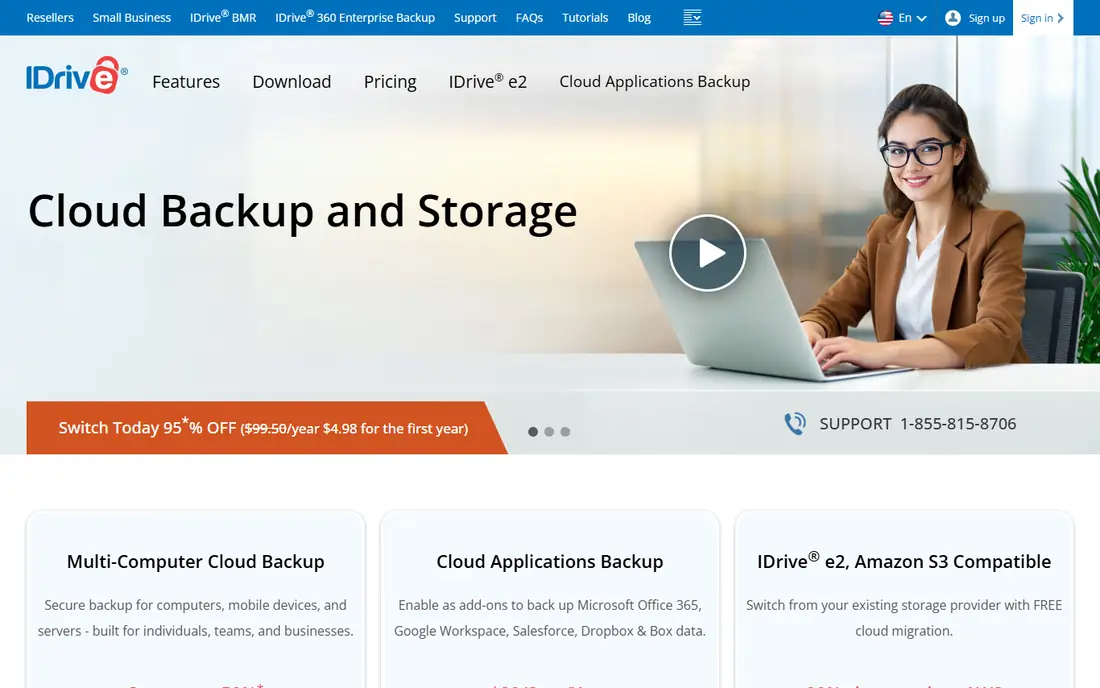
IDrive stands out when one household or small team has several computers and phones to protect. Instead of paying per computer, you buy a storage allowance and use it across the devices on your account. That structure can keep costs lower than per-device plans once you pass two or three machines.
The trade-off is that you must watch total storage, not just device count. A plan that looks generous can fill up quickly with photos, video, and system backups. Check the version history and the restore process before you commit, and confirm the renewal price, since introductory pricing is common in this category.
- Covers many computers and mobile devices under one allowance
- Includes file versioning and disk image style backup options on supported plans
- Offers a physical restore option
- Storage is capped by plan, so large collections need a larger tier
- The first-year price can differ from renewal pricing
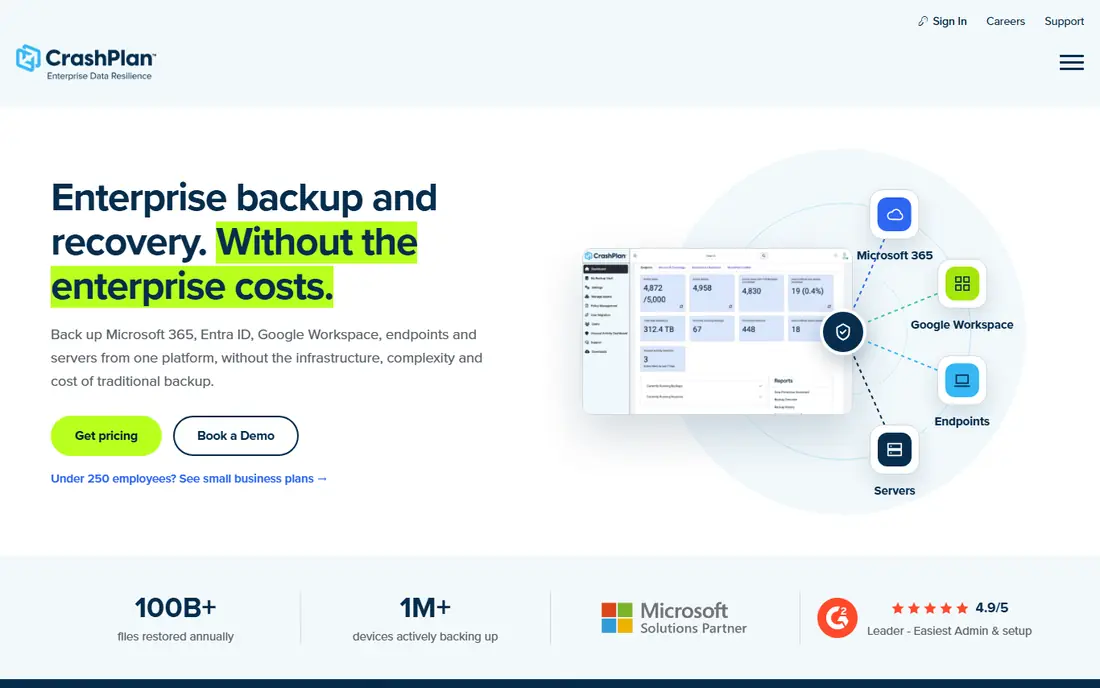
CrashPlan takes a narrower approach than a full business backup suite, and that focus is its main appeal. Each covered user gets unlimited endpoint storage, which removes the need to guess how much data a laptop will hold next year. Version history also helps when a file was changed or damaged weeks ago and only noticed later.
The limit to weigh is scope. CrashPlan is not a general replacement for server backup, virtual machine recovery, or a broad disaster recovery platform. Small teams that mainly need laptops and desktops protected will find it a clean fit, while teams with servers should pair it with a separate tool or choose a broader platform.
- Unlimited cloud storage for covered endpoints on its small business plans
- Keeps a long version history
- Simple per-user pricing is easy to model
- Focused on endpoints rather than servers or full infrastructure
- Add-ons for other data sources cost extra
Acronis Cyber Protect Home Office
Great for: Backup plus endpoint security in one product
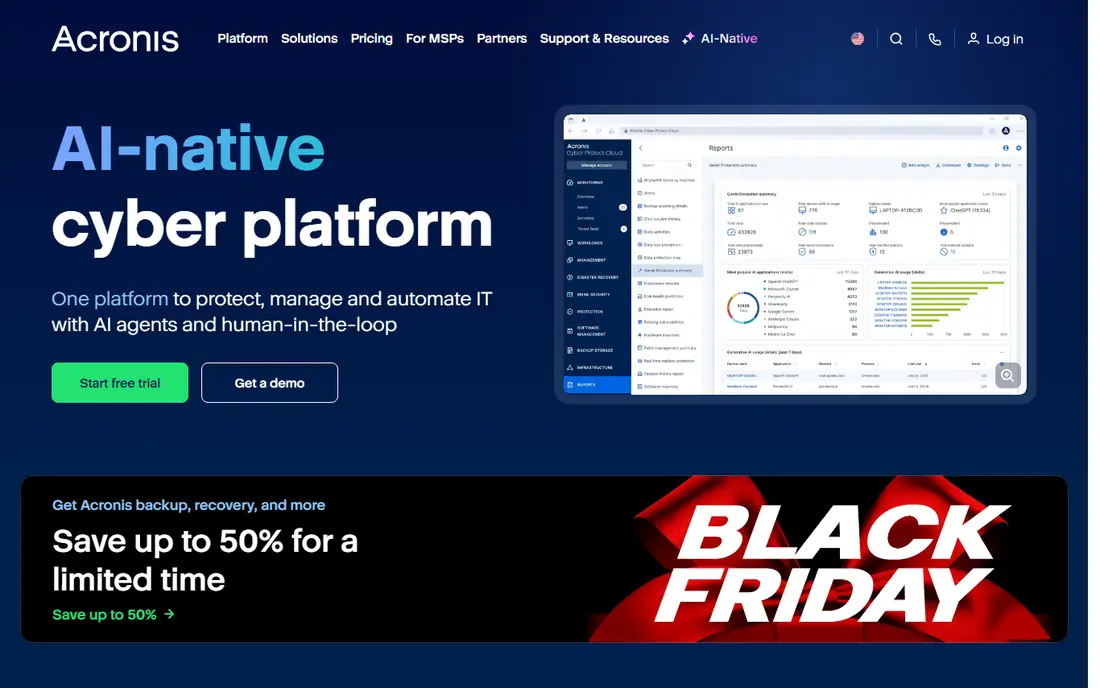
Acronis appeals to people who want one product to cover both backup and device security. Disk imaging means you can restore a whole system, not just individual files, which matters after a drive failure or a serious malware incident. The security features add a second reason to keep the software installed and running.
Complexity is the price of that breadth. Plans differ by storage amount, device count, and security features, so read the tier carefully rather than assuming the entry price covers everything. Households that only need documents and photos backed up may pay for features they never open.
- Combines disk imaging, file backup, and security features
- Supports full system restore to different hardware on supported plans
- Includes ransomware protection features
- Cloud storage is limited on lower tiers and extra storage costs more
- The feature set can feel large for people who only want simple file backup
Carbonite is a good match for someone who wants backup to happen in the background with little setup. The basic idea is simple: install it, let it back up the computer, and restore files when something goes wrong. That simplicity still has value, even as other products add more features.
The main weakness is scaling. A home with three computers needs three covered machines, and the bill grows with each one. People with external drives, large video files, or a mix of computers and phones should check which tier covers those items before signing up.
- Unlimited cloud backup for a covered computer on its basic plans
- Runs automatically once set up
- Straightforward plan structure for home users
- Per-computer pricing adds up for multi-device homes
- Higher tiers are needed for external drive backup and other extras
pCloud fits a different need from a pure backup tool. It stores files you choose, syncs them across devices, and lets you share them, which makes it useful for people who work from more than one machine. Lifetime plans can also appeal to buyers who dislike ongoing subscriptions, provided they read the terms first.
Do not confuse stored files with a complete backup. pCloud will not, by itself, image a whole system or back up every application setting in the same way a dedicated backup product does. It works best as a storage and access tool, or alongside a dedicated backup product for full system protection.
- Offers lifetime storage plans alongside monthly and annual options
- Includes file sharing, media playback, and sync across devices
- Optional client-side encryption add-on
- Storage is not a full computer backup replacement on its own
- The encryption add-on costs extra and lifetime plans need careful long-term reading of terms
Sync.com puts privacy at the center of its pitch, with encryption that keeps file contents private from the provider as well as from other people. For documents, contracts, and personal records, that design is a real advantage over a basic sync folder. Sharing controls and version history help when a file is sent to the wrong person or changed by mistake.
The catch is the same as with other storage services: you buy a fixed amount of space. Sync.com is excellent for documents and a modest photo library, but it is less suited as the only backup for several computers full of video. Use it for the files that need privacy and access, and use a dedicated backup tool for full device coverage.
- Uses end-to-end encryption for stored files
- Includes sharing controls and version history
- Simple plans for individuals, families, and teams
- Storage limits apply, so it is not unlimited backup
- Large media libraries can outgrow entry plans quickly
SpiderOak One is built for people who care more about who can read their stored data than about the lowest price per gigabyte. Its approach keeps your data encrypted in a way that limits what the provider itself can access, which matters for sensitive work files and personal archives. It still functions as a backup tool, not just a storage folder.
That privacy focus comes with a smaller storage allowance for the money and a less polished first-run experience than some rivals. If you want the cheapest unlimited backup, this is not the pick. If you want a backup product with a clear privacy stance, it deserves a shortlist spot.
- Uses a zero-knowledge style approach to stored data
- Backs up selected folders across supported devices
- Includes sharing and sync features for backed-up files
- Storage is capped and pricing is higher per gigabyte than mass-market backup
- The interface and setup feel more technical than consumer rivals
Druva belongs on a business shortlist rather than a home shortlist. It protects laptops and desktops while also covering SaaS data that many endpoint tools leave out, which is a common gap when a company relies on cloud apps for daily work. Central management helps an IT team see coverage, set policy, and run restores without touching each machine.
For a single user, Druva is usually too much product and too much process. Pricing is quoted for business use, and the value shows up when you manage many users and need consistent policy. Small teams with a mix of endpoints and SaaS apps should still ask for a quote, but home users should look elsewhere.
- Covers endpoints plus widely used SaaS applications
- Built for central management by IT teams
- Includes compliance and recovery features for business use
- Priced and sold for business use, so it is not a home backup pick
- Setup and contracts suit larger teams better than a single user
MSP360 Backup suits people who already have cloud storage or who want to choose the storage region and provider themselves. Instead of bundling storage into the price, it provides the backup software and connects to storage you control. That separation can lower long-term costs and gives clear control over data location.
The downside is that total cost has two parts, and the first quote may show only one of them. You also need to make choices about storage class, retention, and restore testing that an all-in-one service hides. Technical users and IT providers often prefer that control, while casual users may prefer a single bill and a simpler setup.
- Lets you back up to major cloud storage providers you choose
- Supports servers and workstations on supported plans
- Gives control over where data lives
- You pay separately for the cloud storage itself
- Setup needs more decisions than an all-in-one backup service
How we picked these
We compared official feature pages, pricing pages, and plan descriptions for products that back up computers, protect endpoints, or store files with version history and restore options. We left out services that only sync a folder with no backup or versioning story, and we left out products that are retired or no longer sold to new customers. Where a price could not be verified on the vendor site or in a current listing, we wrote See website rather than guessing.
What to check before you switch
Start by counting devices, then by estimating storage. A per-device price that looks cheap for one laptop can cost more than a storage plan once you add a second computer, a phone, and an external drive. Write down what must be protected, including photos, documents, application data, and any server or SaaS data, before you compare plans.
Next, test a restore before you rely on a new service. Restore one folder, then one older version of a file, and note how long each step takes and whether the process is clear. A backup you cannot restore quickly is not a backup, and this test often reveals limits that a feature page hides.
Finally, read the encryption and retention terms in plain language. Check whether you can set a private encryption key, how long old versions are kept, and what happens to your data if you cancel. Those three answers matter more over years of use than a small difference in monthly price.
Frequently asked questions
Is a cloud storage service the same as cloud backup?
No. Storage services keep copies of files you place in a folder and sync them across devices, while backup services are built to capture a computer, keep versions over time, and restore after loss or damage. Some products do both, but check version history and full-system restore before you treat storage as backup.
How much storage do I need for home backup?
Add up the used space on each computer you plan to protect, then add room for growth and for older versions. Photos and video grow fastest, so a plan that fits documents today may feel small in a year. A storage-based plan with a clear upgrade path is safer than a tight plan you must replace soon.
Does unlimited backup really mean unlimited?
It usually means unlimited for the covered device or user under fair-use terms, not unlimited for every device you own. Read the device limit, the file-size rules, and any exclusions for external drives or servers. The headline word matters less than the plan details.
Should I use a private encryption key?
A private key can keep your backup contents private even from the provider, but losing the key can make restore impossible. Only choose that option if you have a safe place to store the key outside the backed-up computer. If you are unsure, use the provider-managed option and keep strong account security.
Can I back up an external drive?
Some plans cover external drives and some do not, and higher tiers often add that coverage. Check the plan page for external drive support and for any file-size limits before you buy. If external drives hold your photo archive, this one feature can decide the purchase.
What happens to my backup if I cancel?
Most services keep data for a limited grace period and then delete it, while others stop restores at once. Export or restore the files you still need before the account closes, and confirm the retention window in writing. Do not cancel an old service until the new backup has completed and a test restore has worked.
Sources
See where you really rank - block by block
ProMapRanker scans Google Maps across a grid of your service area. Simple monthly plans from $19, white-label on every plan.
Start freeKeep reading
 zyte alternatives
Best Zyte Alternatives in 2026
These zyte alternatives cover managed scraping APIs, proxy networks and no code tools for lawful collection from your own or consented sources only in 2026.
Read → zerto alternatives
Best Zerto Alternatives in 2026
Compare the best zerto alternatives for disaster recovery and replication, with recovery targets, cloud options and honest trade-offs for teams in 2026.
Read → zerofox alternatives
Best ZeroFox Alternatives in 2026
We compared 9 zerofox alternatives for brand protection, phishing takedowns, dark web monitoring, and social impersonation, with clear coverage notes.
Read →