 ProMapRanker
Acronis Alternatives in 2026

Key takeaways
- Free tools such as Veeam Agent, Clonezilla and Paragon Community Edition cover whole-drive imaging at no cost, though they ask more of the user.
- Paid tools such as Macrium Reflect X and EaseUS Todo Backup add scheduling, incremental backups and bootable rescue media in a friendlier package.
- Cloud-only tools such as Backblaze and IDrive suit people who want off-site copies without managing a local drive.
- Acronis True Image is now sold as Acronis Cyber Protect Home Office, and none of the tools below is that product.
- Test a restore before you rely on any backup, because a backup you cannot restore is not a backup at all.
Quick comparison
| Pick | Great for | Pricing starts at | Free tier | |
|---|---|---|---|---|
 Veeam Agent | Free whole-PC imaging | Free | Yes | Visit |
 Macrium Reflect X | Dependable scheduled imaging | See website | Free trial | Visit |
 EaseUS Todo Backup | Friendly backup for beginners | See website | Yes | Visit |
 AOMEI Backupper | Budget backup with a free tier | Free | Yes | Visit |
 Paragon Backup and Recovery | Free imaging without an account | Free | Yes | Visit |
 Carbon Copy Cloner | Mac cloning and scheduling | See website | Free trial | Visit |
 Clonezilla | Free expert cloning | Free | Yes | Visit |
 Backblaze | Hands-off cloud backup | See website | Free trial | Visit |
 IDrive | Cloud backup for several devices | See website | Free trial | Visit |
The best acronis alternatives
If you are moving away from Acronis, the right replacement depends on what you actually need to protect. Some people need a full image of a Windows PC, others need a cloud copy of family photos, and Mac owners often need a bootable clone. The nine tools below cover those jobs, and we left Acronis itself off the list on purpose.
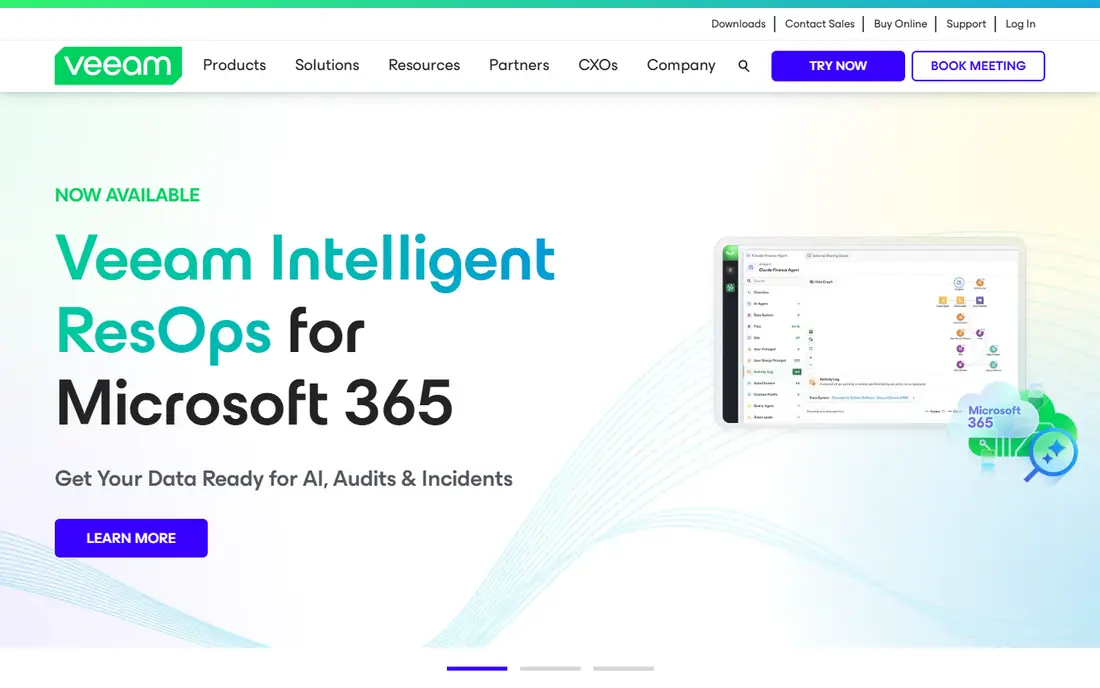
Veeam Agent is our pick for Windows users who want a capable free tool and do not mind a plain interface. The free edition can back up a whole computer, selected volumes or individual files, and it can write to a local drive, a network share or external media. That combination is rare at no cost, and it is the reason Veeam shows up so often in technician recommendations.
The catch is the learning curve. Menus use backup-industry terms, and setting up a recovery drive takes a few careful steps. If you are comfortable following a setup guide, that is a fair trade for free imaging. If you want the simplest possible first backup, one of the friendlier paid tools below may suit you better.
- Free edition covers whole-computer backup
- Scheduling and recovery media included
- A mature backup engine from a business-focused vendor
- The interface assumes more technical confidence than home tools
- Cloud backup needs a paid setup or a separate target
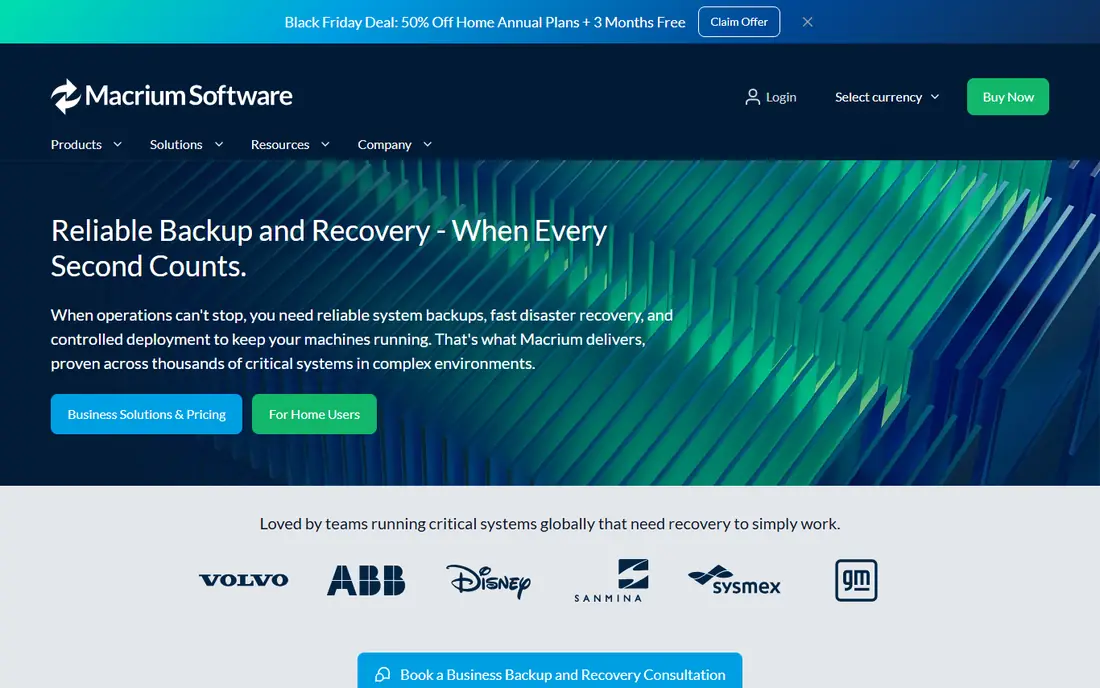
Macrium Reflect X is the tool we point to when reliability matters more than price. It creates full, incremental and differential images, it schedules them without fuss, and its rescue media lets you boot a failed PC and restore an image. Those are the features that matter on the worst day, not on the day you install the software.
The downside is cost and scope. Reflect X is a paid Windows product, and you still need your own external drive or network location to hold the images. For a household with one or two Windows PCs and a USB drive, though, it is a clear and focused choice.
- Long record of reliable imaging and restores
- Scheduled and incremental backups
- Bootable rescue media builder
- Paid only, with a subscription model
- No bundled cloud storage
- Windows only
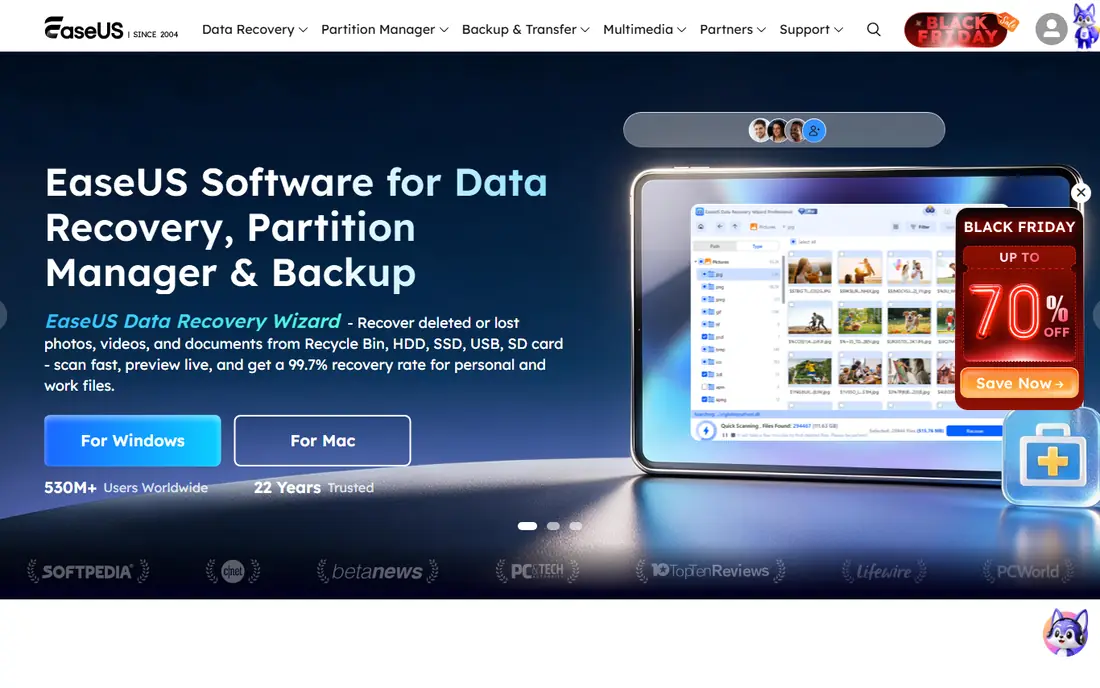
EaseUS Todo Backup is a good first tool for someone who has never made a system image before. The steps are laid out in plain language, and you can choose file backup, system backup or a full disk backup from one screen. That clarity matters, because many people put off backups simply because the software looks daunting.
The free edition is usable, but it is a starting point rather than the full product. Scheduled and advanced options, plus larger cloud allowances, sit behind paid plans. Check the pricing page for the plan that matches your machine count before you settle in, and keep a local copy as well as any cloud copy.
- Clear interface and guided setup
- Free edition covers basic imaging
- File, system and disk backup in one place
- The most useful features sit on paid plans
- Cloud options are tied to the vendor's own service
- Upsell prompts appear in the free edition
AOMEI Backupper gives home users a lot for no money. The free Standard edition handles system backup, disk backup, partition backup and cloning, and it works with local, external and network targets. For a Windows user who wants scheduled images without a subscription, it is one of the strongest free starting points we found.
Paid editions add features such as universal restore and command-line tools, and the pricing page lists both yearly and lifetime options. Read those options carefully, because the edition names and the feature lists change from time to time. The interface is less polished than EaseUS, but the core backup job is solid.
- Free Standard edition covers system, disk and file backup
- Cloning included
- Lifetime paid licences have been offered
- Paid tiers can be confusing to compare
- The interface is busy
- Some advanced features need the paid edition
Paragon Backup and Recovery Community Edition is worth a look if you dislike accounts and sign-ups. It offers imaging for personal use without requiring an account, and it covers the basics that most home users need: full backups, incremental backups and restore from bootable media. That simplicity is its main appeal.
The trade-off is polish. Help material is sparser than the big commercial tools, and the product line has several editions, so confirm that you are downloading the Community Edition for personal use. If you want hand-holding, EaseUS or Macrium will feel smoother. If you want free and private, Paragon is a genuine option.
- Community Edition is free for personal use
- No account needed for the free edition
- Full and incremental imaging
- The free edition is Windows focused
- Documentation can feel thin
- Paid features are easy to confuse with free ones
Carbon Copy Cloner is the Mac answer to the Windows imaging tools above. It makes bootable copies of a Mac drive, schedules regular backups, and lets you set up tasks in a readable layout. For Mac owners who find Time Machine too opaque, it adds control over what gets copied and when.
Be aware of the limits Apple places on booting newer Macs from external clones, which apply to every cloning tool, not just this one. Check the vendor's current notes for your macOS version before you buy. Within those limits, Carbon Copy Cloner remains the most widely recommended third-party Mac cloning tool we found.
- Bootable Mac clones with scheduling
- Clear task setup
- Strong record on macOS
- Mac only
- Paid licence required after the trial
- Cloning a modern Mac has limits set by Apple
Clonezilla is the tool technicians reach for when they need to clone many machines or rescue a drive at no cost. It boots from USB, copies disks and partitions, and handles a wide range of file systems. There is no licence fee and no account, and the project has been maintained for years.
It is not a tool for a first-time backup user. The interface is text based, the options use technical terms, and a wrong target choice can overwrite the wrong disk. Use it if you are confident with bootable media and drive names. Everyone else should pick a guided tool from earlier in this list.
- Completely free and open source
- Supports many file systems
- Fast disk to disk cloning
- Text-based interface that puts off beginners
- No built-in scheduling in the live edition
- Restore mistakes can wipe a drive
Backblaze Computer Backup takes a different approach from the imaging tools above. Instead of an image you restore to a new drive, it keeps a continuous cloud copy of your files and runs in the background once installed. That suits people who want protection against theft, fire or a dead drive without managing an external disk.
It is not a replacement for a bootable image if you need to be running again within the hour. Downloading a large restore takes time, although the vendor also offers a mailed drive option on some plans. For off-site protection, though, few tools are simpler to leave running.
- Unlimited cloud backup for one computer on its computer backup plan
- Automatic and continuous
- Simple setup
- Not a disk imaging tool
- Restoring a very large backup takes time
- Per-computer pricing adds up for several machines
IDrive suits households and small offices with more than one machine. A single plan can back up several computers, and the apps cover Windows, Mac, iOS and Android, so phones and tablets can join the same account. Versioning means you can pull back an earlier copy of a file, not just the latest one.
The breadth of features is also the weakness. The dashboard has many sections, and first-time users can take a while to find the backup sets and schedules they need. Check the storage tier against the total size of your devices before subscribing, and keep a local image as well if fast recovery matters to you.
- One account can cover several computers and mobile devices
- Versioning and file sync included
- Physical drive options for large restores
- The interface packs in many features
- Storage limits depend on the plan
- Pricing varies by storage tier
How we picked these
We compared official product pages, pricing pages and documentation for backup and imaging tools that are still sold and supported in October 2026, and we left out any tool that had clearly stopped working or that duplicated Acronis itself. We favoured tools with a clear free tier or trial, a working restore path, and a homepage that matched the product. We did not claim hands-on testing, and we treated vendor claims about speed and security as claims to check, not as proven facts.
What to decide before you pay
Start with the failure you fear most. A dead drive calls for a local image and bootable rescue media, while theft or fire calls for an off-site cloud copy. Many households end up with both: a weekly image on an external drive and a continuous cloud backup for files. That pairing costs more in time, but it covers the two failures that actually happen.
Next, count your machines and your storage. Per-computer cloud pricing grows quickly with three or four PCs, while a single imaging licence plus one large external drive may cover a Windows household for less. Check the operating systems in your home too, because several tools here are Windows only and Carbon Copy Cloner is Mac only.
Finally, test the restore. Make a small backup, restore one file, and boot the rescue media once, before you trust the setup with anything important. A backup plan that has never been restored is only a hope. Write down where the backups live and where the rescue USB is kept, so someone else in the household can find them.
Frequently asked questions
What is the best free alternative to Acronis?
Veeam Agent and AOMEI Backupper are strong free starting points for Windows imaging, while Clonezilla suits confident users who want a free open-source tool. Paragon Community Edition is another free option for personal use. Free tools usually need your own external drive, and they offer less hand-holding than paid tools.
Is Acronis True Image still available?
Acronis True Image is now sold as Acronis Cyber Protect Home Office, which is the current name for the consumer product line. That is why searches for Acronis True Image alternatives and alternatives to Acronis now point to the same product family. The tools in this article are separate products, not rebranded Acronis editions.
Do I need cloud backup or a local image?
A local image gives the fastest full recovery after a drive failure, while cloud backup protects against theft, fire and flood. If you can only pick one, pick the risk that worries you more, then add the other when you can. Many people use a local image weekly and cloud backup continuously for files.
Can I back up a Mac with these tools?
Carbon Copy Cloner is the Mac-focused choice here, and Backblaze and IDrive also support Mac. Most of the Windows imaging tools do not run on macOS, so Mac owners should not assume a Windows tool will work for them. Check the vendor's macOS support page for your version before buying.
How often should I back up?
For files you change daily, continuous or daily backup is sensible, and a full system image once a week covers most households. If you work on important documents every day, shorten that gap rather than lengthening it. The schedule only helps if it actually runs, so pick a tool whose scheduling you will leave switched on.
Sources
See where you really rank - block by block
ProMapRanker scans Google Maps across a grid of your service area. Simple monthly plans from $19, white-label on every plan.
Start freeKeep reading
 zscaler alternatives
Best Zscaler Alternatives in 2026
Looking for zscaler alternatives? We compare 9 SASE and zero trust platforms on architecture, data protection, pricing, and fit for your network and team.
Read → zapier alternatives free
Best Zapier Alternatives Free in 2026
Nine automation tools for zapier alternatives free in 2026, all with genuinely free tiers, plus free plan limits, starting prices and upgrade paths explained.
Read → which platform is best for online reputation
Which Platform Is Best for Online Reputation in 2026
Wondering which platform is best for online reputation? We compare 8 review, listing, and response tools for small and multi-location businesses and agencies.
Read →