 ProMapRanker
Top Font Recognition Software

Key takeaways
- Font recognition tools compare letter shapes in your image against a database of typefaces, then return possible matches rather than proof of the exact font.
- WhatTheFont, WhatFontIs, Fontspring Matcherator and Font Squirrel Matcherator are all free to use, so most identification jobs cost nothing.
- No tool is exact every time. In one published test, WhatTheFont matched 3 of 6 fonts while WhatFontIs matched all 6, so try two tools before you settle.
- A match does not include permission to use the typeface. Check the licence before you use an identified font in client work.
Quick comparison
| Pick | Great for | Pricing starts at | Free tier | |
|---|---|---|---|---|
 WhatTheFont | Fast identification from a photo | Free | Yes | Visit |
 WhatFontIs | Accurate matches with guided input | Free | Yes | Visit |
 Fontspring Matcherator | Quick image-based matching | Free | Yes | Visit |
 Font Squirrel Matcherator | Free fonts and quick matching | Free | Yes | Visit |
 Identifont | Identification by answering questions | Free | Yes | Visit |
 Fonts Ninja | Identifying and installing web fonts | $29/year | Free trial (15 days) | Visit |
 Adobe Capture | Identifying type on the go with a phone | Free | Yes | Visit |
 Adobe Fonts | Visual search inside the Adobe library | Free | Yes | Visit |
The top font recognition software
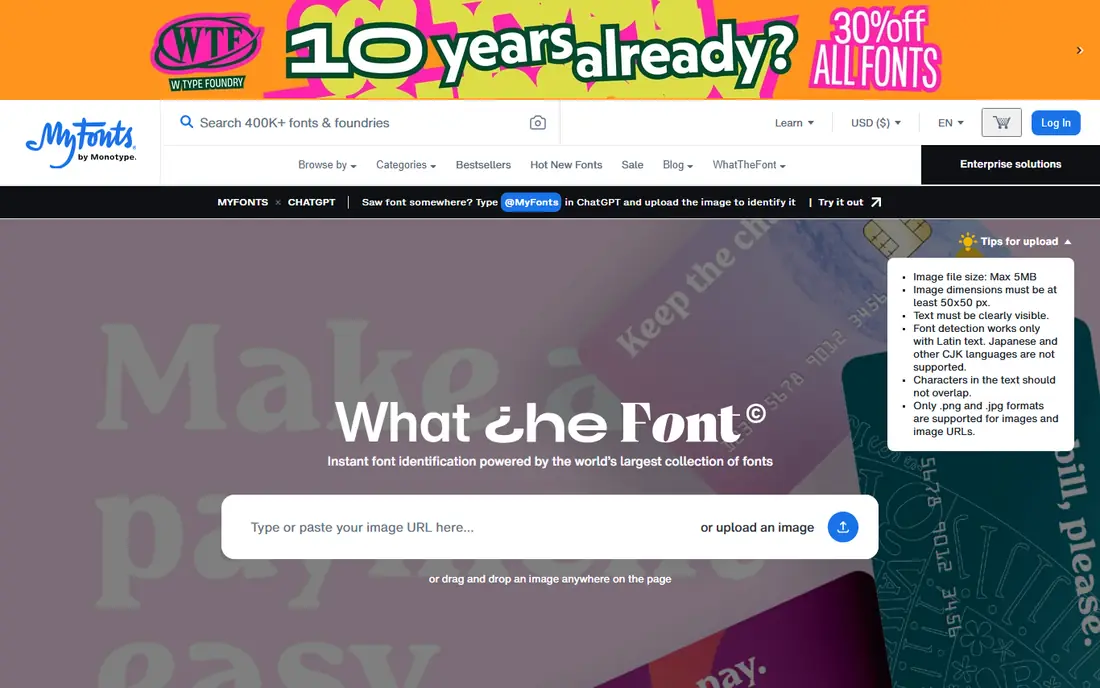
WhatTheFont is an online service from MyFonts, built by Monotype, and it is the best-known font identifier in this list. You upload an image with the text you want to identify, crop to the words or characters you want analysed, and the tool compares the letter shapes against a database of over 230,000 fonts. The process has three steps, upload, crop and display result, and the answer arrives in seconds. A free mobile app for iOS and Android lets you take a photo of a design and identify fonts on the go.
The limit is accuracy. Even the best identifier in one published test was hit and miss, recognising Adobe Caslon but failing on Roboto, and WhatTheFont delivered a match in 3 of 6 cases in another test. The site also lists commercial fonts, so a free alternative may not appear in the results. Use WhatTheFont first for speed, then confirm the match with WhatFontIs before you buy or use the font.
- Largest database here with over 230,000 fonts
- Free web tool and mobile app
- Results in seconds
- Results are hit and miss, and one test found it recognised Adobe Caslon but not Roboto
- The Android app has recent crash complaints
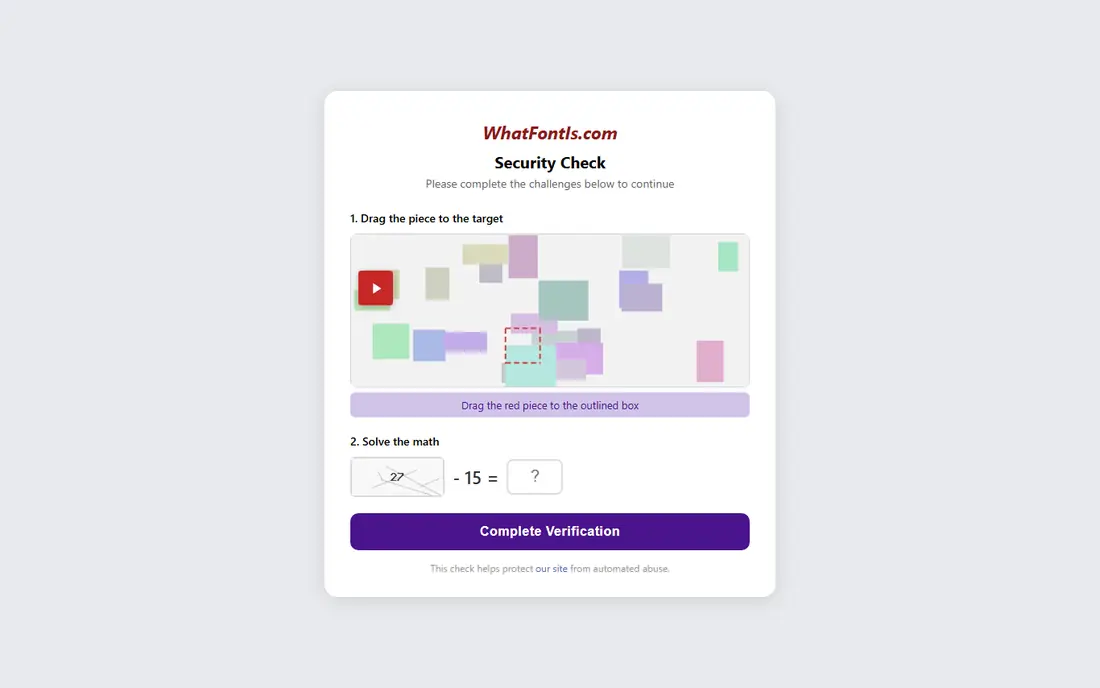
WhatFontIs has identified free and commercial fonts since 2010, and it is the accuracy pick in this list. You upload an image or submit a picture by URL, then the tool asks you to enter the characters in the image and draw lines between letters that touch. That guided input takes more time than WhatTheFont, but it pays off. In one published test across serif, sans serif and ornate fonts, WhatFontIs correctly identified all of the fonts, while its rivals missed several. A browser extension for Chrome and Firefox lets you send images from the web straight to the tool.
The trade-off is effort. The manual steps slow down a quick check, and the free tier suits occasional use, with a premium tier for people who run more than 5 searches a day. For a designer who needs the right answer rather than a fast guess, WhatFontIs is the tool to trust, and the free tier covers most jobs.
- Strong accuracy in published tests
- Covers free and commercial fonts
- Browser extension for Chrome and Firefox
- Needs more manual input than rivals, including typing characters and splitting touching letters
- Heavy users need the premium tier
Fontspring Matcherator is an image-based font recognition tool from Fontspring. You upload an image, click to match, and the tool analyses the glyphs and suggests matching typefaces. The workflow is simple, the tool is free to use, and results link straight to Fontspring purchase pages, which suits a designer who wants to buy the font at once. It is a good second check after WhatTheFont, because a different matching engine sometimes finds what the first one missed.
The limit is accuracy on unusual styles. In one published comparison, the Matcherator recognised a lot of glyphs but did not deliver a single hit, while its rivals matched several fonts. That result does not mean the tool is weak on common typefaces, but it does mean you should not trust it alone on ornate or handmade styles. Use it as a quick first pass, then confirm with WhatFontIs.
- Simple upload and match workflow
- Free to use
- Links straight to font purchase pages
- Accuracy varies by font style, and one test found it recognised glyphs but delivered no match
- Downloading a matched font costs extra
Font Squirrel Matcherator is a free font identification tool from Font Squirrel, a site built around fonts that are free to use. You add a picture with the font you want to identify, or paste the image URL, highlight the text you want to match, and the tool suggests typefaces that fit. It is quick, it costs nothing, and it is especially useful when your budget is small, because the matches skew toward fonts you can download and use without a licence fee.
The limit is the catalog. Font Squirrel places high value on free fonts, so a commercial typeface may not appear in the results even when the match is close. That makes it a poor first choice for identifying a font in a brand or a magazine layout. For personal projects, student work and free-font hunting, it is one of the best free tools here.
- Totally free to use
- Strong focus on fonts that are free to use
- Upload an image or paste an image URL
- Results lean toward free fonts, so commercial matches may not appear
- Smaller catalog than WhatTheFont
Identifont takes a different route from every other tool in this list. Instead of uploading an image, you answer questions about the font you see, such as the shape of the letters, the presence of serifs and the style of key characters. The tool narrows the options with each answer until it suggests a match. It is free to use, and the question flow teaches you the features that define a typeface, which helps the next time you need to identify one by eye.
The limit is speed and scope. A question-based search takes longer than an image upload, and Identifont suits a patient user more than a designer in a hurry. There is no mobile app and no image analysis, so it cannot help with a photo of a sign or a poster. Use it when you have a clear view of the letters and time to work through the questions, or when image tools return nothing useful.
- Works without an image, by answering questions
- Free to use
- Teaches you the features of a typeface
- Slow, manual process with no image upload
- Smaller scope than image-based tools
- No mobile app
Fonts Ninja has two parts. First, an application you install on your Mac. Second, an extension that works with Chrome, Safari or Firefox. Together they identify the typeface on any webpage and offer to install it for you when it sits in the Fonts Ninja collection. The library holds 3,000 fonts, and when it lacks an exact match it offers something comparable. It is free for 15 days with 20 free font installs, and after that it costs $29 a year.
The limit is the library. At 3,000 fonts, Fonts Ninja covers far fewer typefaces than WhatTheFont or WhatFontIs, so it misses many fonts that the free tools find. The Mac-only app is another limit for Windows users. Fonts Ninja is best for a Mac user who browses the web and wants to install the fonts they spot, not for identifying a font in a photo or a print layout.
- Identifies fonts on any webpage and offers to install them
- Mac app plus browser extension
- Free for 15 days
- Library holds only 3,000 fonts, far fewer than rivals
- Mac app only, with no Windows version
- Subscription needed after the trial
Adobe Capture is a free mobile app from Adobe with a Type feature that identifies fonts from photos. You point your phone at a sign, a poster or a screen, and Capture finds matching typefaces from the Adobe Fonts library. It suits a designer who spots type in the real world and wants an answer on the spot, and it links into Adobe Fonts for use in Creative Cloud apps.
The limit is availability. Adobe documentation from July 2026 says Capture remains available as a free iOS download but is no longer offered for new installations through Google Play, so Android users cannot start with it now. Full access to the matched fonts needs a Creative Cloud subscription, and the matching covers the Adobe Fonts library rather than every typeface. For an iPhone user inside the Adobe workflow, it is a useful free tool. For anyone else, the web tools in this list are better.
- Free iOS app for on-the-go identification
- Type capture finds fonts from photos
- Links into Adobe Fonts
- No longer offered for new installs through Google Play
- Needs an Adobe account
- Full font access needs a Creative Cloud subscription
Adobe Fonts offers visual search, which lets you upload an image and find similar fonts inside the Adobe Fonts library. It is free to use with an Adobe account, and the fonts you find sync straight into Creative Cloud apps such as Photoshop and Illustrator. That workflow suits a designer who already works in Adobe apps and wants a match they can use at once, without leaving the ecosystem.
The limit is scope. Visual search covers the Adobe Fonts library only, so a typeface outside that library will not appear, and the full library needs a Creative Cloud subscription. Adobe Fonts is not a standalone identifier like WhatTheFont or WhatFontIs. It is best as a second step, once you have a name or a close match, and you want to find a usable version inside Adobe.
- Visual search finds similar fonts from an uploaded image
- Free with an Adobe account
- Fonts sync to Creative Cloud apps
- Visual search covers the Adobe Fonts library only
- Full library needs a Creative Cloud subscription
- Not a standalone identifier
How we chose
We compared vendor product pages, documentation and published comparison tests for font recognition tools, checked on November 12, 2026. We kept only tools that are live, free or clearly priced, and able to identify a font from an image or a description. We did not claim hands-on testing, and we did not invent prices. Accuracy notes come from published tests, and every price comes from the vendor page or a published pricing note linked in Sources.
What to check before you buy
First, match the tool to the task. A quick photo check needs WhatTheFont or Adobe Capture. A careful identification needs WhatFontIs. A free font hunt needs Font Squirrel. A webpage font needs Fonts Ninja. Use this table to pick.
| Task | First choice | Second check | | Identify a font in a photo fast | WhatTheFont | WhatFontIs | | Identify a font with high accuracy | WhatFontIs | WhatTheFont | | Find a free version of a font | Font Squirrel Matcherator | WhatFontIs | | Identify a font on a webpage | Fonts Ninja | WhatFontIs | | Identify type you see in the street | Adobe Capture | WhatTheFont |
Second, treat accuracy as a range, not a promise. In one published test of six fonts, WhatFontIs matched all 6, WhatTheFont matched 3 of 6, and Fontspring Matcherator matched none. In another test, WhatTheFont recognised Adobe Caslon but could not identify Roboto. Run two tools on the same image before you settle, and check the licence before you use an identified font in client work. A match is a suggestion, not proof of the exact font.
Frequently asked questions
How does font recognition software work?
Font recognition software compares the letter shapes in your image against a database of typefaces. You upload a photo or a screenshot, crop to the text, and the tool measures the shapes of the letters and returns the closest matches. Most tools return several candidates, not one answer, so you compare the results by eye.
Can these tools identify any font?
No. A tool can only match fonts in its own database, and accuracy falls on ornate, handmade or distorted type. Common fonts such as Helvetica and Times New Roman are easy, while custom lettering and low-resolution images often fail. If two tools return nothing, the font may be custom or outside every database.
Are free font recognition tools accurate?
Free tools can be accurate, and the best free tools beat some subscription tools in published tests. WhatFontIs is free and matched all 6 fonts in one test, while Fonts Ninja costs $29 a year and holds only 3,000 fonts. Accuracy depends on the database and the matching engine, not on the price, so test two free tools before you spend money.
What is the difference between image-based and question-based identification?
Image-based tools analyse a photo or a screenshot and match letter shapes against a database. Question-based tools such as Identifont ask you about the features of the letters, such as serifs and letter shapes, and narrow the options with each answer. Image tools are faster, while question tools work when you have no image to upload.
Can I use an identified font commercially?
Not automatically. A match tells you the name of a typeface, not the licence. Many fonts need a commercial licence, and some are free only for personal use. Check the licence on the font page before you use it in client work, a logo or a product, and buy the licence when one is required.
Sources
See where you really rank - block by block
ProMapRanker scans Google Maps across a grid of your service area. Simple monthly plans from $19, white-label on every plan.
Start freeKeep reading
 Up Review alternatives
Up Review Alternatives
Up Review alternatives for local businesses and agencies: 8 review tools with real starting prices, free plans, and the trade offs that decide which one fits.
Read → Uberall vs Yext
Uberall vs Yext compared on listings, reviews, local pages and AI search. See which platform fits your location count, team and budget before you buy.
Read → Uberall vs Birdeye
: Which Local Suite Fits
Uberall vs Birdeye compared on listings, reviews and pricing, with the quote-only trap explained and cheaper picks for single shops and multi-location brands.
Read →