 ProMapRanker
Best Video Editing Software Free and Paid in 2026


Free pro-grade editing and color · Pricing starts at: Free
Key takeaways
- DaVinci Resolve has the strongest free version for serious editing, with professional color, effects, and audio tools at no cost.
- Adobe Premiere Pro remains the common choice for client work and team pipelines, but its subscription cost adds up year after year.
- Final Cut Pro suits Mac editors who want to pay once, while Filmora and CapCut suit creators who want fast results with less learning time.
- Clipchamp, iMovie, and Shotcut cover simple edits free, and hardware matters as much as features, so check graphics and storage needs before paying.
Quick comparison
| Pick | Great for | Pricing starts at | Free tier | |
|---|---|---|---|---|
| DaVinci Resolve | Free pro-grade editing and color | Free | Yes | Visit |
 Adobe Premiere Pro | Professional client and team editing | $22.99 per month | Free trial | Visit |
 Final Cut Pro | Mac editors who want a one-time purchase | $299.99 one-time | Free trial | Visit |
 Filmora | Beginners who want templates and AI help | $49.99 per year | Yes | Visit |
 CapCut | Short-form social video | $19.99 per month | Yes | Visit |
 Clipchamp | Quick browser-based edits | Free | Yes | Visit |
 iMovie | Free starter editing on Apple devices | Free | Yes | Visit |
 Shotcut | Free open-source desktop editing | Free | Yes | Visit |
 CyberLink PowerDirector | Feature-rich enthusiast editing | $79.99 per year | Free trial | Visit |
The best video editing software free and paid
These editors span free desktop tools, one-time purchases, and subscriptions, so you can match the tool to the videos you actually make.
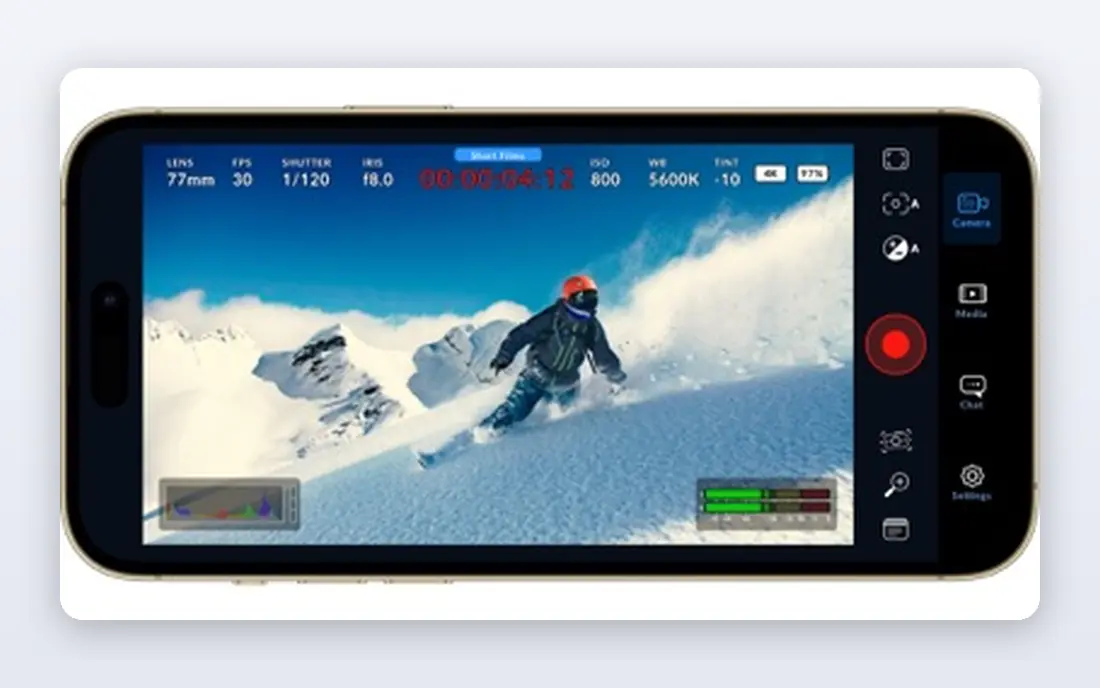
DaVinci Resolve is the rare free tool that professionals use on real projects. The free version includes editing, color grading, visual effects, and Fairlight audio, with 4K exports and no watermark, which makes it hard to justify paying for a basic editor if you are willing to learn it. Color tools in particular are deeper than those in most paid consumer editors.
That depth comes with demands. Resolve rewards a modern graphics card and enough RAM, and its interface can overwhelm a first-time editor. The Studio version, at $295 one-time in many listings, adds advanced AI tools, stereoscopic 3D, and multi-GPU support. Start free, learn the Cut and Edit pages first, and buy Studio only when a Studio feature blocks your work.
- Full editing, color, effects, and audio in the free version
- No watermark on free exports
- Strong color grading tools
- Steep learning curve
- Needs a capable graphics card for smooth 4K work
- Studio features cost extra
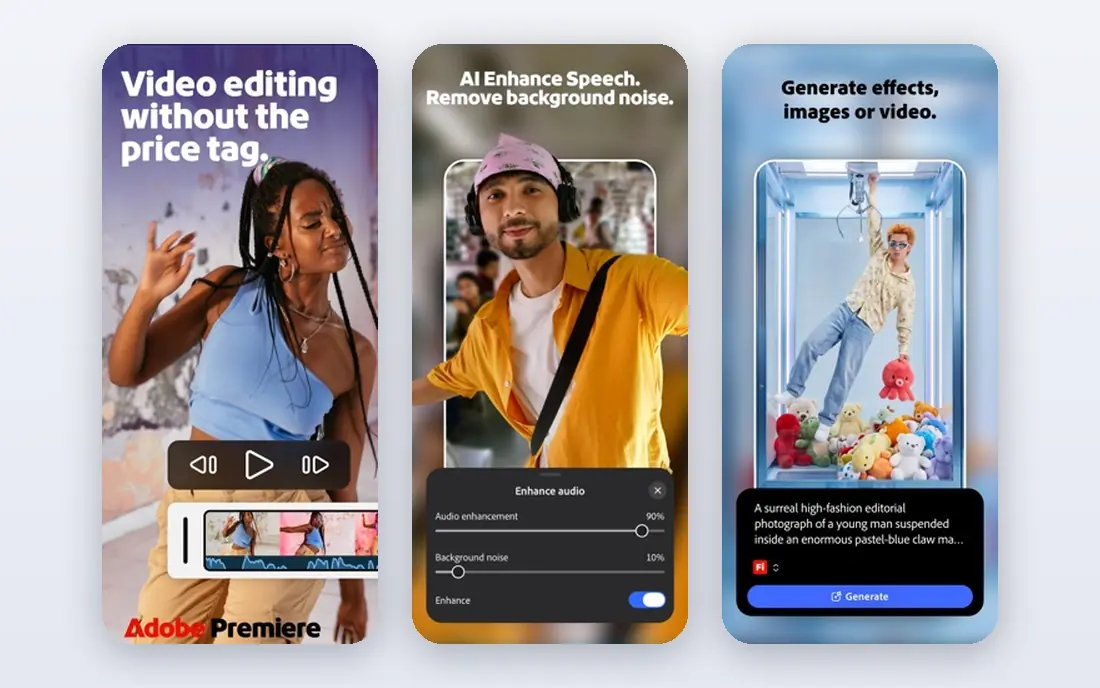
Premiere Pro remains the common choice for agencies, freelancers, and teams that share projects with clients who also use Adobe tools. Its timeline is flexible, its integration with After Effects for motion graphics and Audition for audio keeps post work inside one ecosystem, and its format support covers most cameras without transcoding first. The single-app price is listed at $22.99 per month on an annual plan, with a 7-day trial.
The honest cost is long-term. Over five years, a subscription costs far more than a one-time purchase such as Final Cut Pro or Resolve Studio, and stopping payment ends access to the app itself. Choose Premiere Pro when client compatibility and team pipelines matter more than owning the software outright.
- Industry-standard timeline and team workflows
- Deep After Effects and Audition links
- Broad format support
- Subscription only, so access ends if you stop paying
- Cost adds up over years
- Needs a strong machine for heavy timelines
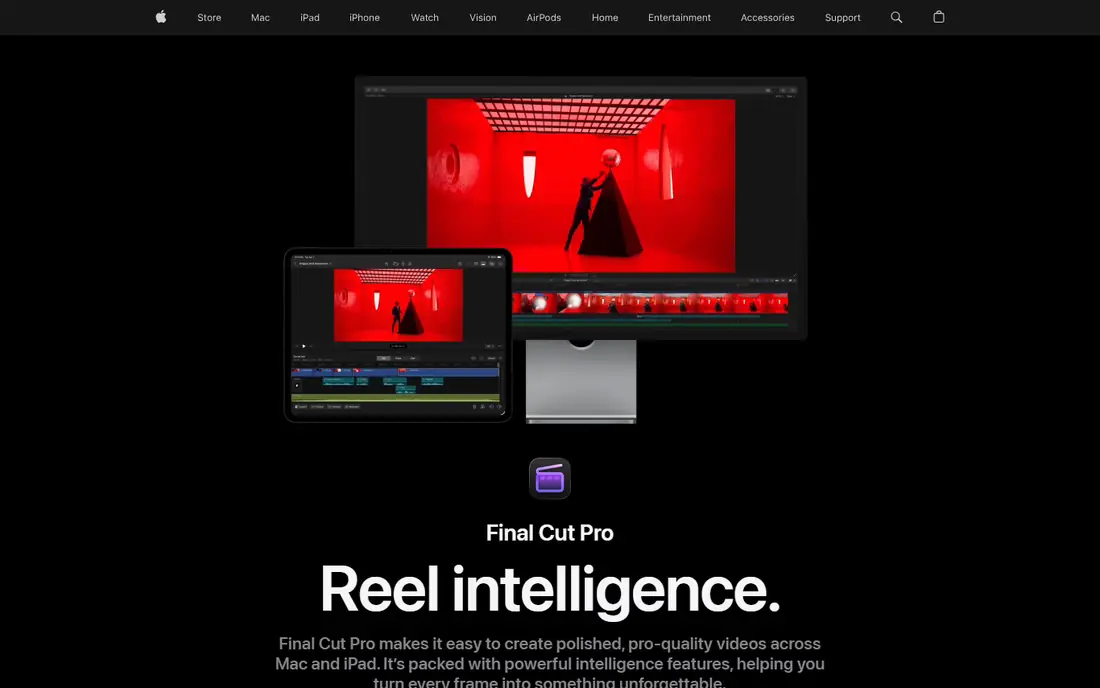
Final Cut Pro is the pick for Mac editors who want to buy once and keep editing without a monthly bill. At $299.99 one-time on the Mac App Store, with a 90-day trial in many listings, it pays for itself against a subscription in just over a year for a regular editor. Its magnetic timeline and Apple silicon optimization make it fast for assembly and export, even on a laptop.
The limits are platform and ecosystem. Final Cut Pro runs only on Mac, and teams built around Premiere Pro project files will face conversion friction. If you edit on a Mac, work mostly alone or with other Final Cut users, and dislike subscriptions, this is the most straightforward pro choice.
- One-time purchase with no subscription
- Very fast on Apple silicon
- Magnetic timeline speeds assembly
- Mac only
- Smaller plugin and collaboration ecosystem than Premiere Pro
- Some pro features need Motion or Compressor
Filmora is built for creators who want a finished video quickly, not a month of training. Templates, transitions, titles, and stock assets help a YouTube video look polished fast, and AI tools for captions, silence detection, and background removal cut repetitive work. Paid plans start from $49.99 per year in many listings, with a free version to test the interface.
The free version exports with a watermark, so budget for a paid plan if you publish regularly. Filmora will not match Resolve for color grading or Premiere Pro for team pipelines, but for solo creators who publish weekly, its speed is the point.
- Easy interface with templates, titles, and effects
- AI tools for captions and background removal
- Good YouTube workflow
- Free exports carry a watermark
- Some AI features cost extra credits
- Less color and audio depth than Resolve
CapCut is the default for TikTok, Reels, and Shorts because it is built around that workflow. Auto-captions, templates, trending effects, and quick trimming get a vertical video from phone to post in minutes, and the free tier is generous enough that many creators never pay. Pro, listed at $19.99 per month in many listings, adds premium effects, cloud storage, and advanced AI tools.
Long-form editors will hit limits sooner, since color grading, audio mixing, and multi-camera work are lighter than in Resolve or Premiere Pro. Use CapCut for short-form volume, and pair it with a desktop editor only if you also publish long-form work.
- Fast short-form editing on phone, web, and desktop
- Templates and auto-captions
- Direct social publishing workflows
- Pro features sit behind a subscription
- Color and audio tools are basic for long-form work
- Some templates are trend-led
Clipchamp, from Microsoft, is the easiest free editor on a Windows PC because it runs in the browser with no install. A user can trim clips, add text, record screen and webcam, and export in 1080p free, which covers school projects, internal videos, and simple social clips. Premium features are available through Microsoft 365 or a paid Clipchamp plan.
It is not a replacement for a desktop pro editor. Heavy timelines, advanced color work, and 4K exports push users toward a paid tier or another tool. For quick edits and for teams already on Microsoft 365, Clipchamp is a low-friction starting point.
- Free editing in the browser on Windows
- Simple timeline and templates
- Microsoft 365 integration
- 4K export and premium assets need a paid plan
- Browser editing depends on connection and machine
- Fewer pro tools
iMovie is the free editor that comes with Apple devices, and it remains the best first step for a Mac or iPhone owner who has never edited before. Drag clips, add titles and music, and export a clean video in an afternoon, with no watermark and no subscription. Trailer templates help beginners produce something watchable on the first try.
The ceiling arrives quickly. Track limits, basic audio mixing, and limited color tools frustrate editors who outgrow simple cuts. When that happens, Final Cut Pro is the natural next step on the same device, since projects can move across and the interface concepts carry over.
- Free on Mac, iPhone, and iPad
- Very easy to learn
- Clean trailers and themes for beginners
- Only two video tracks in practice
- Limited audio and color control
- Infrequent major updates
Shotcut is a free, open-source editor that covers capable desktop editing without any payment, watermark, or time limit. It supports a wide range of formats, offers filters, transitions, and keyframes, and runs on Windows, Mac, and Linux, which makes it a strong choice for Linux users and for classrooms on a zero budget.
The trade-off is polish. Shotcut has fewer templates, fewer AI helpers, and a less guided interface than Filmora or CapCut, so beginners need more patience. Editors who value freedom, privacy, and no subscription over hand-holding will find it a solid long-term tool.
- Free and open-source on Windows, Mac, and Linux
- No watermark or export limits
- Broad format support
- Interface is less polished
- Fewer templates and AI tools
- Performance depends on machine and settings
PowerDirector 365 suits enthusiasts who want many features without a pro learning curve. It packs effects, templates, motion tracking, and AI tools into a timeline that is easier to learn than Resolve, and its rendering speed on Windows is a practical plus for longer projects. The 365 plan is listed at $79.99 per year in several comparisons, with a one-time purchase option for some versions.
The interface can feel crowded, and feature depth varies between Windows and Mac. PowerDirector is a good middle ground for hobbyists and semi-pro creators who publish often and want fresh effects, while pro teams will still prefer Premiere Pro or Resolve for client pipelines.
- Many effects, templates, and AI tools for enthusiasts
- Fast rendering on Windows
- Regular feature updates on 365 plans
- Interface can feel crowded
- Subscription model on 365 plans
- Mac version is more limited than Windows
How we picked these
We compared official pricing pages, feature pages, and public reviews for free and paid editors, and kept only tools live in October 2026 with real desktop or browser editing, not just template-only video makers. We favored tools with a usable free tier or trial, clear export terms, and a track record of updates, and we marked pricing as See website where a vendor varies price by region or bundle. We did not claim hands-on testing, and we did not list tools that watermark every export without a paid path or that have been discontinued.
How to choose between free and paid
Start with the video you make most often. A short-form creator should start with CapCut free, a Mac beginner should start with iMovie, and a Windows beginner should start with Clipchamp or Shotcut. Move to paid only when a specific limit blocks you, such as a watermark, a missing export resolution, or a feature you use every week.
Next, count the five-year cost, not just the first year. A $22.99 monthly subscription costs far more over five years than a $299.99 one-time purchase, even if the monthly figure looks small. Finally, check your machine before you pay: graphics card, RAM, and free storage decide whether 4K editing feels smooth or frustrating, no matter which editor you pick.
A simple decision path
If you need pro color and audio free, pick DaVinci Resolve. If you work with Adobe-based clients, pick Premiere Pro. If you edit on a Mac and dislike subscriptions, pick Final Cut Pro. If you publish short-form daily, pick CapCut. If you are just starting, pick the free tool on your own device and upgrade only when you hit its ceiling.
Frequently asked questions
What is the best free and paid video editing software overall?
DaVinci Resolve is our pick for most people because its free version covers pro editing, color, and audio, while Studio is a one-time purchase for advanced features. Premiere Pro is the stronger pick for client and team work in the Adobe ecosystem.
Is DaVinci Resolve really free?
Yes, the main version of DaVinci Resolve is free with no watermark on exports. The paid Studio version adds advanced AI tools, HDR grading features, and multi-GPU support, but most editors can work for a long time on the free version.
Which free video editor has no watermark?
DaVinci Resolve, Shotcut, iMovie, and Clipchamp free exports do not carry a watermark at their standard free export settings. Filmora free exports do carry a watermark, so check export terms before you publish from a free tier.
Is Premiere Pro or Final Cut Pro better?
Premiere Pro suits teams and clients in the Adobe ecosystem and works on Windows and Mac. Final Cut Pro suits solo Mac editors who want a one-time purchase and fast performance on Apple silicon. The better choice depends on your device and your clients, not on a single feature.
Do I need a powerful computer for video editing?
For 1080p social video, most modern laptops cope well. For 4K work in Resolve or Premiere Pro, a capable graphics card, at least 16 GB of RAM, and fast storage make a clear difference. Check the editor's published system requirements and test with your own footage during the trial.
Sources
- https://www.blackmagicdesign.com/products/davinciresolve
- https://www.adobe.com/products/premiere.html
- https://www.apple.com/final-cut-pro
- https://www.filmora.wondershare.com
- https://www.capcut.com
- https://www.clipchamp.com
- https://www.apple.com/imovie
- https://www.shotcut.org
- https://www.cyberlink.com/products/powerdirector-ultimate
See where you really rank - block by block
ProMapRanker scans Google Maps across a grid of your service area. Simple monthly plans from $19, white-label on every plan.
Start freeKeep reading
 zoho books alternatives
Best Zoho Books Alternatives in 2026
Compare the best zoho books alternatives for small business accounting, from QuickBooks Online and Xero to FreshBooks, Wave, and Sage in 2026, with pricing.
Read → zluri alternatives
Best Zluri Alternatives in 2026
Compare zluri alternatives for 2026, with SaaS management platforms for app discovery, spend tracking, renewals, and automation for IT, finance and procurement.
Read → zerobounce alternatives
Best ZeroBounce Alternatives in 2026
Best zerobounce alternatives for list hygiene: compare 8 email verification tools for bulk cleaning, real-time checks and catch-all handling in 2026 today.
Read →