 ProMapRanker
Best Tools for Print Design in 2026


professional print and publishing teams · Pricing starts at: $22.99 per month
Key takeaways
- Print-ready work needs CMYK, bleed, and PDF export, not only a good screen preview
- Affinity is now free, which changes the value case for paid layout tools
- Canva suits fast marketing pieces, but it is weaker for long, complex print documents
- Free open-source tools can produce professional output with more setup time
- Always test-print one copy before a full run, since screens hide color and resolution problems
Quick comparison
| Pick | Great for | Pricing starts at | Free tier | |
|---|---|---|---|---|
| Adobe InDesign | professional print and publishing teams | $22.99 per month | Free trial | Visit |
 Affinity by Canva Affinity by Canva | designers wanting professional layout for free | Free | Yes | Visit |
 QuarkXPress QuarkXPress | print shops wanting a yearly license | See website | Free trial | Visit |
 Canva Canva | non-designers needing fast print pieces | Free | Yes | Visit |
 Scribus Scribus | zero-budget professional publishing | Free | Yes | Visit |
 Marq Marq | teams needing branded print collateral | $10 per user per month | Yes | Visit |
 VivaDesigner VivaDesigner | mixed-system teams and Publisher switchers | See website | Yes | Visit |
 Swift Publisher Swift Publisher | Mac users wanting cheap page layout | $19.99 one-time | Free trial | Visit |
 Adobe Express Adobe Express | quick social and print graphics | Free | Yes | Visit |
The best tools for print design
We compared layout and design tools that can produce print files, and we weighed CMYK support, bleed and PDF export, template options, collaboration, and price. We favored tools with clear print output options over screen-only design tools.
For professional print and publishing teams, Adobe InDesign is a practical first choice. It remains the print standard for magazines, books, and catalogs, with precise typography, styles, and preflight checks before export. Its main strengths are industry-standard print controls; advanced typography; strong preflight and packaging. For many readers, that combination covers the most common jobs without adding extra steps or a steep learning curve.
In daily use, the workflow stays short for repeat jobs, and most settings are easy to find without a manual. On the other side, subscription cost adds up; learning curve for beginners. The catch is worth weighing before you commit, especially if you work with sensitive files every day.
- Industry-standard print controls
- Advanced typography
- Strong preflight and packaging
- Subscription cost adds up
- Learning curve for beginners
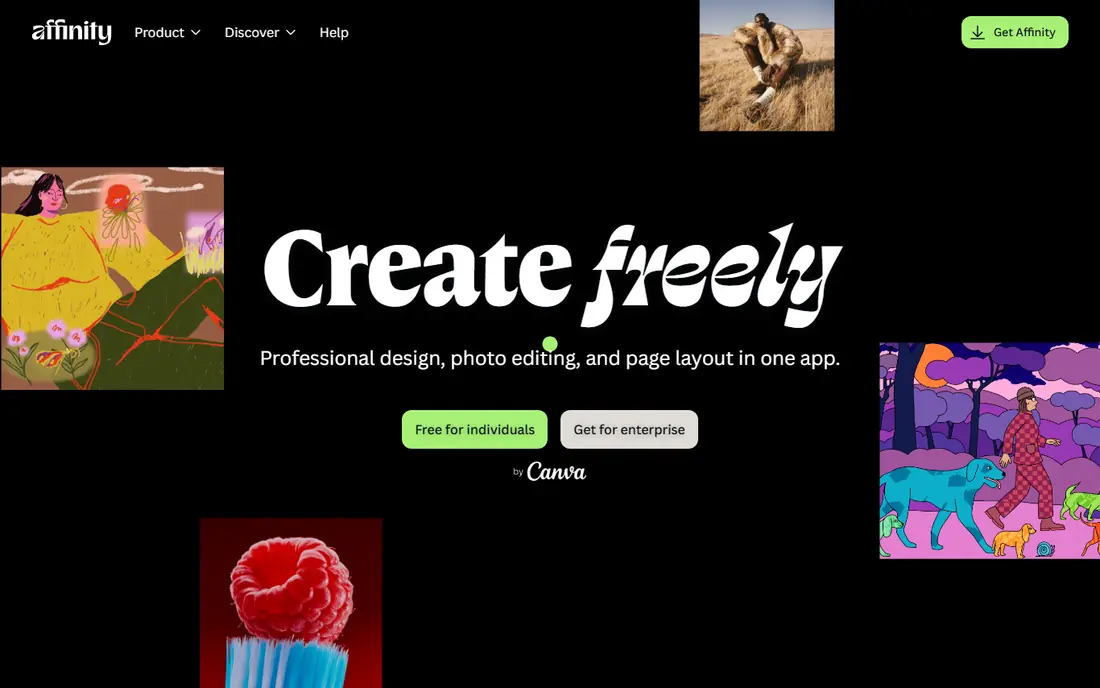
If designers wanting professional layout for free describes your work, Affinity by Canva deserves a close look. It now gives professional layout, photo editing, and vector design free in one app, which makes it the strongest no-budget pick for real print work. Its main strengths are free professional layout, photo, and vector tools; cmyk and pdf export; cross-platform. For many readers, that combination covers the most common jobs without adding extra steps or a steep learning curve.
In daily use, the workflow stays short for repeat jobs, and most settings are easy to find without a manual. On the other side, ai features may cost extra; smaller template library than canva. That balance of strength and limits is what should drive your choice, not the headline feature list.
- Free professional layout, photo, and vector tools
- CMYK and PDF export
- Cross-platform
- AI features may cost extra
- Smaller template library than Canva
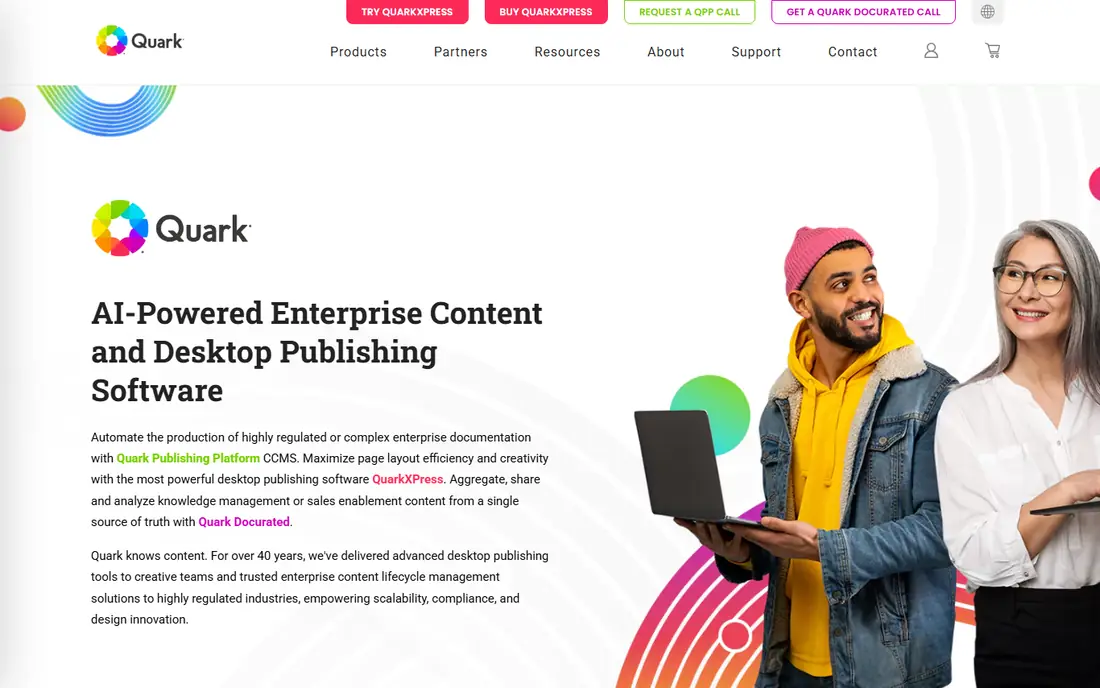
QuarkXPress stands out for print shops wanting a yearly license, and it is easy to see why. It offers deep print controls and multilingual layout, which suits print shops and publishers that want to own their license rather than rent monthly. Its main strengths are full prepress controls; multilingual layout; long print history. For many readers, that combination covers the most common jobs without adding extra steps or a steep learning curve.
In daily use, the workflow stays short for repeat jobs, and most settings are easy to find without a manual. On the other side, pricing varies by license type; interface feels dated to some users. Check the current plan details before you pay, since limits and included tools change over time.
- Full prepress controls
- Multilingual layout
- Long print history
- Pricing varies by license type
- Interface feels dated to some users
People who need non-designers needing fast print pieces often land on Canva after comparing a few options. It lets non-designers make flyers, posters, and cards quickly from templates, with print ordering built in for common sizes. Its main strengths are huge template library; easy drag-and-drop editing; team collaboration. For many readers, that combination covers the most common jobs without adding extra steps or a steep learning curve.
In daily use, the workflow stays short for repeat jobs, and most settings are easy to find without a manual. On the other side, print color control is basic; best for short pieces, not long books. If that trade-off fits your daily work, it is a solid pick; if not, another tool below may fit better.
- Huge template library
- Easy drag-and-drop editing
- Team collaboration
- Print color control is basic
- Best for short pieces, not long books
Scribus is built with zero-budget professional publishing in mind, rather than as an afterthought. It gives professional print features free, including color management and PDF export, which suits freelancers and educators on any operating system. Its main strengths are free and open-source; cmyk and pdf export; runs on windows, mac, and linux. For many readers, that combination covers the most common jobs without adding extra steps or a steep learning curve.
In daily use, the workflow stays short for repeat jobs, and most settings are easy to find without a manual. On the other side, interface is less polished; setup takes more patience. The catch is worth weighing before you commit, especially if you work with sensitive files every day.
- Free and open-source
- CMYK and PDF export
- Runs on Windows, Mac, and Linux
- Interface is less polished
- Setup takes more patience
Among tools for teams needing branded print collateral, Marq keeps the workflow short and clear. It helps marketing teams keep flyers and brochures on brand, with locked templates that stop off-brand edits before printing. Its main strengths are cloud collaboration; brand templates and locks; web-based workflow. For many readers, that combination covers the most common jobs without adding extra steps or a steep learning curve.
In daily use, the workflow stays short for repeat jobs, and most settings are easy to find without a manual. On the other side, print controls are lighter than desktop layout tools; needs internet access. That balance of strength and limits is what should drive your choice, not the headline feature list.
- Cloud collaboration
- Brand templates and locks
- Web-based workflow
- Print controls are lighter than desktop layout tools
- Needs internet access
For mixed-system teams and Publisher switchers, VivaDesigner is a practical first choice. It runs on desktop and web across systems, which helps mixed teams that need the same layout file on Windows, Mac, and Linux. Its main strengths are desktop and web versions; cross-platform layout; free edition available. For many readers, that combination covers the most common jobs without adding extra steps or a steep learning curve.
In daily use, the workflow stays short for repeat jobs, and most settings are easy to find without a manual. On the other side, smaller community than larger rivals; commercial pricing varies. Check the current plan details before you pay, since limits and included tools change over time.
- Desktop and web versions
- Cross-platform layout
- Free edition available
- Smaller community than larger rivals
- Commercial pricing varies
If Mac users wanting cheap page layout describes your work, Swift Publisher deserves a close look. It gives Mac users a low-cost layout tool with templates for flyers, brochures, and newsletters without a subscription. Its main strengths are low one-time price; large template library; mac-native design. For many readers, that combination covers the most common jobs without adding extra steps or a steep learning curve.
In daily use, the workflow stays short for repeat jobs, and most settings are easy to find without a manual. On the other side, mac only; less suited to long, complex books. If that trade-off fits your daily work, it is a solid pick; if not, another tool below may fit better.
- Low one-time price
- Large template library
- Mac-native design
- Mac only
- Less suited to long, complex books
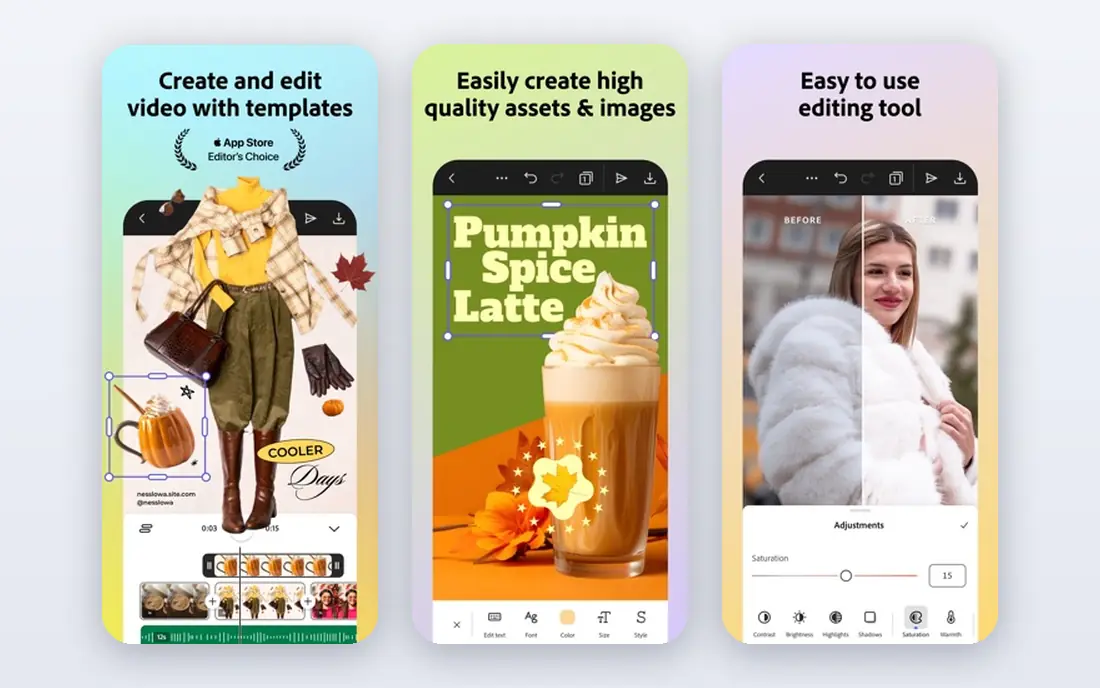
Adobe Express stands out for quick social and print graphics, and it is easy to see why. It covers quick posters, flyers, and social graphics from templates, which suits small teams that need a fast result without learning a layout app. Its main strengths are free tier with templates; adobe font and stock links; easy sharing. For many readers, that combination covers the most common jobs without adding extra steps or a steep learning curve.
In daily use, the workflow stays short for repeat jobs, and most settings are easy to find without a manual. On the other side, print controls are basic; best for short pieces, not long documents. The catch is worth weighing before you commit, especially if you work with sensitive files every day.
- Free tier with templates
- Adobe font and stock links
- Easy sharing
- Print controls are basic
- Best for short pieces, not long documents
How we picked these
We compared vendor pricing, feature pages, and print output documents for each tool, and we favored tools with CMYK, bleed, and PDF export. We marked prices we could not verify as See website, and we noted where a tool is screen-first rather than print-first.
How to choose a print design tool
Check print output first
Confirm CMYK color, bleed settings, crop marks, and PDF export before you fall in love with templates. A tool without these will cause problems at the print shop.
Match the document length
Short flyers suit Canva or Adobe Express. Magazines, books, and catalogs need InDesign, Affinity, QuarkXPress, or Scribus, with styles and master pages.
Decide desktop or cloud
Desktop tools give deeper print control. Cloud tools give easier collaboration and brand control. Mixed teams may need a tool like VivaDesigner that offers both.
Test with a real print
Rebuild one real page, export it as a print PDF, and order a single test print. Check color, image sharpness, and margins before you commit to a full run.
Frequently asked questions
What is the best tool for print design?
Adobe InDesign remains the professional standard, while Affinity by Canva is the best free pick. Canva suits fast, short pieces, and Scribus suits zero-budget professional work.
Can I use Canva for print design?
Yes, for flyers, posters, and cards. It is weaker for long documents and precise color control, so use a desktop layout tool for books, magazines, and complex catalogs.
What does print-ready mean?
It usually means CMYK color, correct bleed and margins, high-resolution images, embedded fonts, and a PDF exported to the print shop's settings.
Is Affinity really free now?
Yes, Affinity by Canva is now free for its core layout, photo, and vector apps, with some AI features paid. Check the current Affinity site for the latest terms.
Do I need a print shop file check?
Yes, for any paid run. Ask the shop to check your PDF for color, bleed, fonts, and image resolution, and order a test print before a full run.
Sources
See where you really rank - block by block
ProMapRanker scans Google Maps across a grid of your service area. Simple monthly plans from $19, white-label on every plan.
Start freeKeep reading
 zeffy payment processor stripe alternatives
Zeffy and Stripe Alternatives for Nonprofits in 2026
Explore zeffy payment processor stripe alternatives for nonprofits. We compare 8 fundraising platforms on fees, donor tools, and nonprofit focus. Check fees.
Read → workday alternatives
Workday Alternatives in 2026
Workday alternatives compared: we review 8 HR and payroll platforms that replace Workday, with pricing, strengths and honest limits for each team size.
Read → what's the best weather app
What's the Best Weather App in 2026
Wondering what's the best weather app? We compare 10 free and paid apps for forecasts, radar, alerts, and Colorado mountain weather for everyday and storm use.
Read →