 ProMapRanker
Best Tool to Unblur Photos in 2026


Photographers who want full control · Pricing starts at: $199 per year
Key takeaways
- Topaz Photo AI gives the most control for photographers, with separate sharpening, noise reduction, and upscaling controls in one desktop app.
- Remini is the fastest route for a blurry face on a phone, though its weekly billing adds up quickly for large batches.
- Free options such as Upscayl and the free tiers of web enhancers work well for occasional fixes, but they often limit resolution or add watermarks.
- No tool can recover detail that was never captured, so badly out-of-focus shots improve only so far, and faces can end up looking smoothed over.
Quick comparison
| Pick | Great for | Pricing starts at | Free tier | |
|---|---|---|---|---|
| Topaz Photo AI | Photographers who want full control | $199 per year | Free trial | Visit |
 Remini Remini | Quick face fixes on a phone | See website | Yes | Visit |
 Adobe Photoshop Adobe Photoshop | Editors who need sharpening inside a full editor | $22.99 per month | Free trial | Visit |
 Fotor Fotor | Budget editing with one-click enhancement | $39.99 per year | Yes | Visit |
 VanceAI Photo Enhancer VanceAI Photo Enhancer | Browser-based batch enhancement | $9 per month | Yes | Visit |
 PicWish PicWish | Fast web enhancement and batch jobs | $6.99 per month | Yes | Visit |
 LetsEnhance LetsEnhance | High-quality upscaling for print | $9 per month | Free trial | Visit |
 HitPaw FotorPea HitPaw FotorPea | One-click desktop enhancement | $22.39 per month | Free trial | Visit |
The best tools to unblur photos
Blur comes in several forms, from camera shake to soft focus to heavy compression, and the right fix depends on which kind you have. The eight tools below cover phones, browsers, and desktops, so you can pick by device rather than by hype.
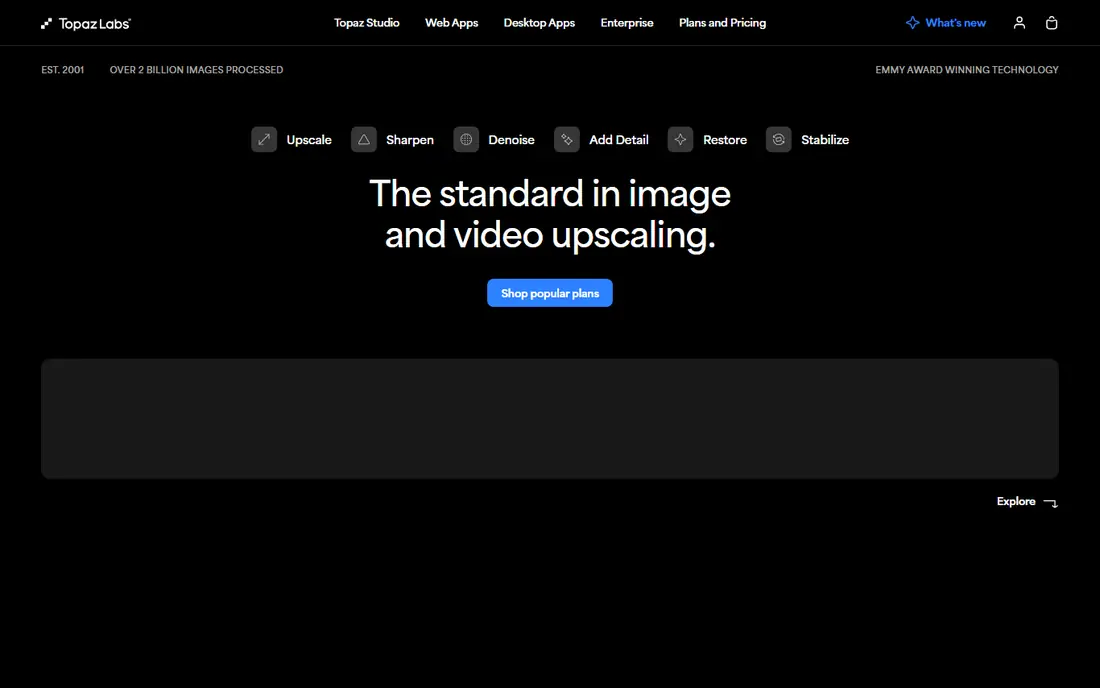
Topaz Photo AI sits at the top of this list because it treats blur as a problem with parts, not as a single button. You can sharpen motion blur, reduce noise, and upscale in one pass, then dial each effect back with sliders when the result looks too processed. For a wedding photo shot at high ISO or a sports shot with slight camera shake, that control is the difference between a usable image and a waxy one.
The trade-off is cost and hardware. The app runs slowly on older laptops, and the yearly price only makes sense if you edit photos often. If you process a handful of images a year, a web tool will do. But for photographers who already edit in Lightroom, Topaz fits into the workflow cleanly, and the trial lets you check the output on your own files before paying.
- Separate sharpen, denoise, and upscale models
- Works as a standalone app and as a plugin
- Handles RAW files well
- Needs a fairly strong computer
- Full price is high for occasional use
- Default settings can over-smooth skin
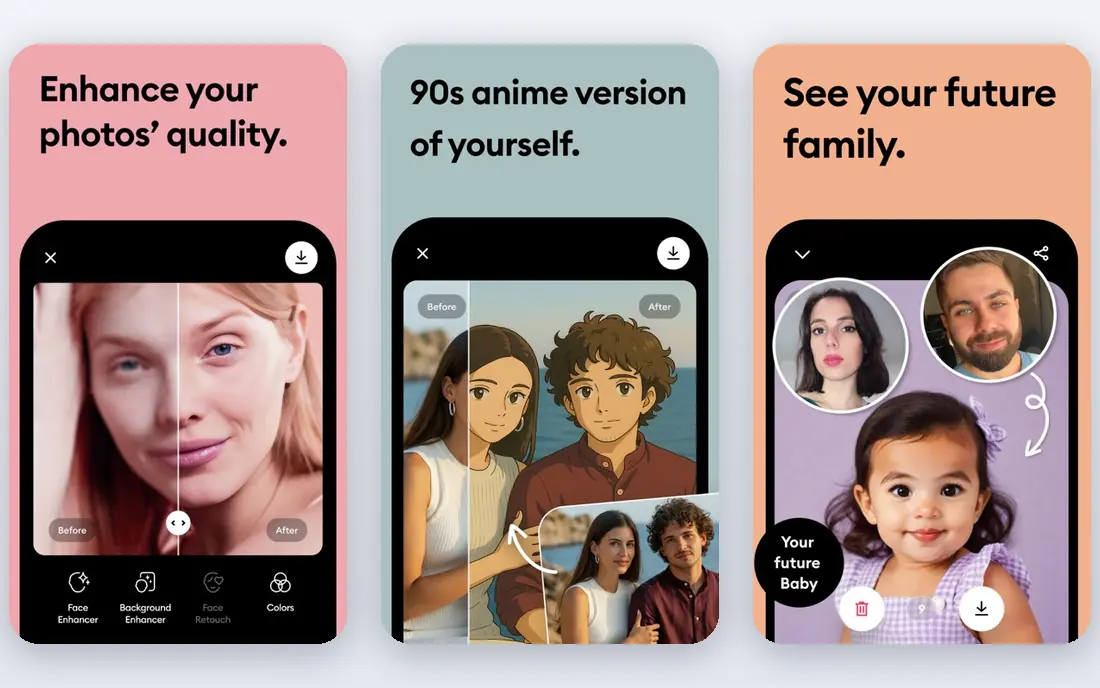
Remini built its name on one job: taking a blurry face and rebuilding it in seconds. Open the app, pick a photo, tap enhance, and eyes, skin texture, and hair come back sharper than most people expect. For a single faded portrait you want to share with family, few tools get you there faster, and the mobile-first design means no desktop software to learn.
The catch is the business model and the look. Weekly subscriptions are steep if you have hundreds of photos to process, and the free tier limits how many you can run per day. Results can also look over-smoothed, especially on older faces, so check the output at full size before printing. Skip anything highly sensitive, since processing happens on Remini servers rather than on your phone.
- Very fast face enhancement
- Simple mobile workflow
- Good for old family photos
- Weekly billing adds up fast
- Free tier has ads and daily limits
- Photos upload to its servers
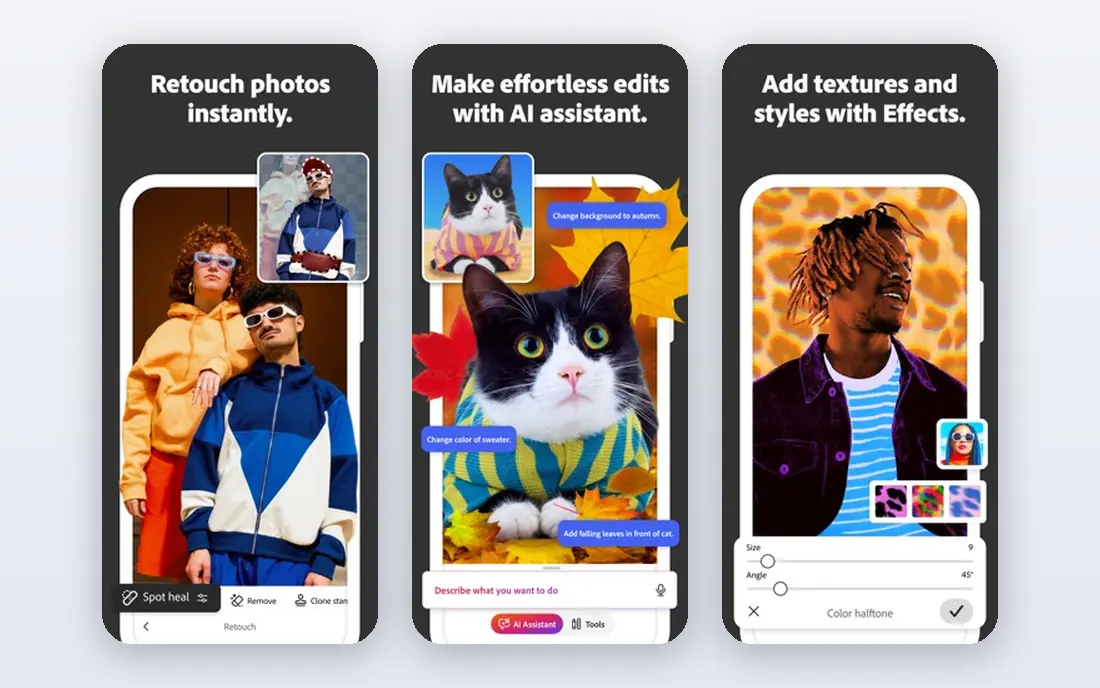
Photoshop earns its place here for a different reason than the one-click tools. Its sharpening sits inside a complete editor, so you can fix blur, then retouch, crop, and correct color without switching apps. Features such as Super Resolution and the sharpening filters in Camera Raw give experienced editors fine control over exactly which areas get sharpened and which stay soft.
That power comes with a learning curve and a subscription. A beginner who only wants to rescue a blurry snapshot will find Photoshop slow going, and the monthly price is hard to justify for that job alone. But if you already subscribe for other editing work, the unblur tools are already in your hands, and they pair well with masks and layers for careful, local fixes.
- Full editing suite around the sharpening tools
- Neural Filters and Super Resolution
- Precise local control
- Monthly subscription cost
- Steep learning curve for beginners
- Overkill for one-click fixes
Fotor is the sensible pick for people who want a decent fix without paying specialist prices. Its AI enhancer sharpens and cleans up a photo in one click, and the same account covers basic editing, collages, and simple design work. At under forty dollars a year, it costs less than a month of some desktop tools, which makes it easy to recommend to casual users.
Do not expect Topaz-level recovery on a badly blurred shot. Fotor handles mild softness and compression artifacts well, but heavy motion blur stays visible, and the free tier limits some exports. Think of it as a good everyday editor with a useful enhancer built in, rather than a rescue tool for damaged photos. For family snapshots and social posts, that is usually enough.
- Low yearly price
- One-click AI enhancer
- Includes design and collage tools
- Enhancement quality trails specialist tools
- Some features need the paid plan
- Web interface can feel crowded
VanceAI suits anyone who dislikes installing software. Everything runs in the browser, so a Chromebook or a work laptop handles it fine, and batch processing lets you run a whole folder of product photos or scans through the enhancer in one go. Separate tools for sharpening, denoising, and upscaling mean you can pick the fix that matches the flaw, rather than trusting one generic button.
The credit system is the part to read carefully. Free credits cover only a few images, and paid plans are priced by credits rather than by a flat monthly allowance, so heavy months cost more. Quality is generally solid on portraits and product shots, though very blurry images can pick up artifacts. Try the free credits on your hardest photos first, since those tell you more than the easy wins do.
- Runs fully in a browser
- Batch processing for many images
- Separate tools for sharpening and denoising
- Credit system can confuse new users
- Free credits are limited
- Results vary by image type
PicWish is built for speed. Upload a photo, run the enhancer, and download the result within a minute, with batch mode for sellers who need to clean up dozens of listing images. The same account also covers background removal and compression, which makes it handy for small shops that touch up product photos every week.
The limit is depth. PicWish sharpens mild blur well, but it does not offer the fine-grained model controls of a desktop tool, and heavily blurred shots stay soft. Free users get a small daily allowance, so test it on a typical batch before subscribing. If your photos are mostly fine and just need a lift, PicWish is quick and cheap. If they are badly damaged, look higher up this list.
- Fast web workflow
- Batch enhancement
- Background removal in the same account
- Enhancement depth is limited
- Free tier caps daily use
- Some tools feel basic next to desktop apps
LetsEnhance focuses on a job many unblur tools gloss over: making a small or soft image large enough to print. Its models rebuild detail while upscaling, which matters when a client wants an old photo at poster size or a seller needs a sharp listing image from a phone shot. Credits roll over on some plans, so occasional users do not lose unused allowance at month end.
The browser-only workflow will not suit phone-first users, and credit pricing means you should count images before buying a plan. Results on portraits look natural more often than the plastic look some enhancers produce, though extreme blur still defeats it. For print work and archives, LetsEnhance is one of the strongest web options we found.
- Strong upscaling quality for print
- Credit rollover on some plans
- Good for old and low-resolution photos
- Credit-based pricing
- No phone app for quick fixes
- Slower than one-click mobile tools
HitPaw FotorPea takes the opposite approach to Topaz: instead of sliders, it detects what a photo needs and applies the fix in one click. That makes it friendly for people who want desktop quality without learning a full editor. Upscaling, sharpening, denoising, and face enhancement sit in one app, and batch mode covers folders of images.
Monthly billing is the weak point, since the per-month price runs higher than yearly plans from rivals, and the perpetual license costs more up front. Desktop-only use also rules out quick phone fixes. Still, if you want a simple desktop tool that handles most everyday blur without a learning curve, FotorPea is a solid middle ground between a phone app and a pro editor.
- Automatic detection of what a photo needs
- Upscale, sharpen, and denoise in one app
- Face enhancement included
- Monthly price is high next to yearly rivals
- Desktop only
- Some features need the higher tiers
How we picked these
We compared official feature pages, pricing pages, app store listings, privacy policies, and public reviews for each tool, and we favored products with clear, current pricing and a free way to try the output. Tools made the list only if they still work in October 2026, handle blur or softness directly, and serve a distinct use, from phone face fixes to print upscaling. We did not run hands-on tests for this guide, and we did not accept vendor claims about quality without checking them against public reviews.
What to check before you pay
Start with the kind of blur you have. Camera shake and slight misfocus respond best to sharpening tools, while heavy compression and tiny images need upscaling as well. Run the same three photos through each free trial, including your worst one, and judge the results at full size, not in a small preview. A tool that looks great on a thumbnail can fall apart on skin texture when printed.
Next, check the billing model against your volume. Weekly app billing suits a one-off project but punishes a large archive, while credit plans suit bursts of work and subscriptions suit steady use. Read the privacy policy too, since most web and mobile enhancers upload your photos to their servers. For sensitive family photos, a desktop tool that processes locally is the safer choice. Finally, keep the original file. Enhancement is destructive in the sense that you cannot undo an over-smoothed face later, so save the enhanced copy under a new name.
Frequently asked questions
What is the best app to unblur photos on a phone?
Remini is the fastest phone option for faces, and it works well for old portraits and blurry snapshots. For a free phone route, check the free tiers of web enhancers in a mobile browser, though they are slower than a dedicated app.
What is the best free app to unblur photos?
There is no single free app that beats paid tools on every photo, but free tiers from Fotor, VanceAI, and PicWish cover occasional fixes at no cost. Desktop users can also try free and open-source upscalers, though they need more setup and lack face-specific models.
What is the best tool to unblur photos online?
VanceAI, PicWish, and LetsEnhance are the strongest browser options, since they need no install and handle batches. LetsEnhance leads for print upscaling, while PicWish wins on speed for small batches.
Can an unblur tool fix a completely out-of-focus photo?
Only up to a point. AI tools rebuild plausible detail, but they cannot recover texture that was never recorded, so a heavily out-of-focus shot may look sharper yet slightly artificial. Mild blur and camera shake improve the most.
Do unblur tools work on old scanned photos?
Yes, and this is one of their best uses. Tools such as Remini and LetsEnhance handle scans well, especially portraits, though you should scan at the highest resolution you can first. A low-resolution scan limits what any tool can rebuild.
Will unblurred photos look natural when printed?
It depends on the tool and the settings. Desktop tools with adjustable strength tend to print more naturally than one-click phone apps, which can over-smooth skin. Always check a full-size preview and dial back the effect if faces look waxy.
Sources
See where you really rank - block by block
ProMapRanker scans Google Maps across a grid of your service area. Simple monthly plans from $19, white-label on every plan.
Start freeKeep reading
 zeffy payment processor stripe alternatives
Zeffy and Stripe Alternatives for Nonprofits in 2026
Explore zeffy payment processor stripe alternatives for nonprofits. We compare 8 fundraising platforms on fees, donor tools, and nonprofit focus. Check fees.
Read → workday alternatives
Workday Alternatives in 2026
Workday alternatives compared: we review 8 HR and payroll platforms that replace Workday, with pricing, strengths and honest limits for each team size.
Read → what's the best weather app
What's the Best Weather App in 2026
Wondering what's the best weather app? We compare 10 free and paid apps for forecasts, radar, alerts, and Colorado mountain weather for everyday and storm use.
Read →