 ProMapRanker
Best Scanner App in 2026: 8 Apps Compared

Key takeaways
- Adobe Scan and Microsoft Lens remain the strongest free starting points for clean, searchable PDFs.
- Genius Scan suits people who dislike subscriptions, thanks to its low-cost one-time purchase option.
- CamScanner offers the widest feature set, but its free tier includes ads and some features sit behind a paywall.
- For car diagnostics, a phone scanner app is not a substitute for an OBD2 adapter and a dedicated car app, which we note where relevant.
Quick comparison
| Pick | Great for | Pricing starts at | Free tier | |
|---|---|---|---|---|
 Adobe Scan Adobe Scan | Clean free PDFs | Free | Yes | Visit |
 Microsoft Lens Microsoft Lens | Microsoft 365 users | Free | Yes | Visit |
 Genius Scan Genius Scan | Lightweight scanning | Free | Yes | Visit |
 SwiftScan SwiftScan | Fast everyday scanning | Free | Yes | Visit |
 CamScanner CamScanner | Feature variety | Free | Yes | Visit |
 Apple Notes Apple Notes | iPhone owners | Free | Yes | Visit |
 Google Drive Scan Google Drive Scan | Google Drive users | Free | Yes | Visit |
 Tiny Scanner Tiny Scanner | Simple accurate scans | Free | Yes | Visit |
The best scanner apps
A good scanner app does three jobs well: it finds the page edges, it straightens and cleans the image, and it turns the result into a PDF you can search, share, or file. We compared official feature pages, pricing, app store listings, and public reviews to find apps that still do those jobs well in October 2026.
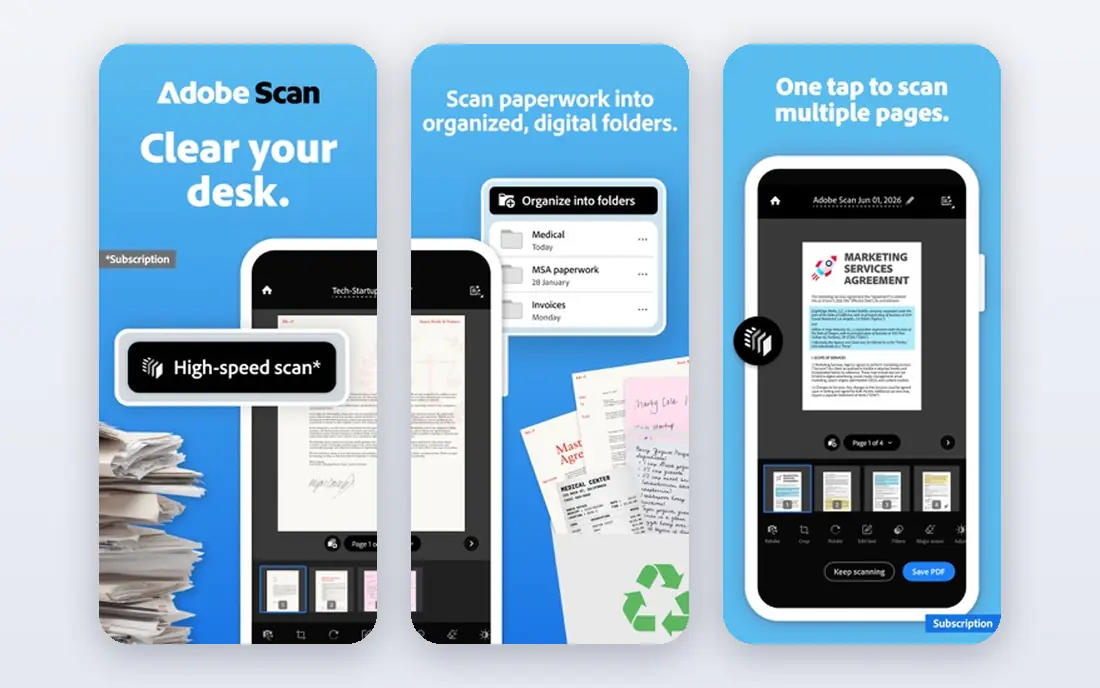
Adobe Scan is our pick for most people because the free version already produces a tidy, searchable PDF. Point the camera at a receipt or letter, and the app finds the edges, flattens the perspective, and cleans up shadows. The result looks far closer to a flatbed scan than a phone photo, which matters when you send documents to an employer, a bank, or a school.
Paid features add extra storage and deeper PDF tools, but casual users may never need them. The main drawback is the pull toward the wider Adobe system, since advanced editing lives in Acrobat rather than in Scan itself. If you want one free app that just scans well, start here and only pay if you hit a specific limit.
- Strong auto crop and cleanup
- Free text recognition
- No watermark on free scans
- Some editing and storage features need a paid plan
- Adobe account needed for cloud features
- File organisation is basic
Microsoft Lens takes a different route: it is free, with no paid tier for the scanner itself, and it slots neatly into OneDrive, OneNote, and Teams. A whiteboard mode turns meeting notes into readable slides, and business card mode can save contact details. For office workers who already live in Microsoft tools, that fit is hard to beat.
Image cleanup is good rather than outstanding, and heavily shadowed pages may need a second try in better light. Lens also does less PDF editing than a paid scanner, so heavy annotators may pair it with another app. For free, fast, office-friendly scanning, though, few apps match it.
- Completely free
- Saves to OneDrive and OneNote
- Whiteboard mode for meetings
- PDF editing is limited
- Image cleanup is less aggressive than Adobe Scan
- Best value stays inside Microsoft apps
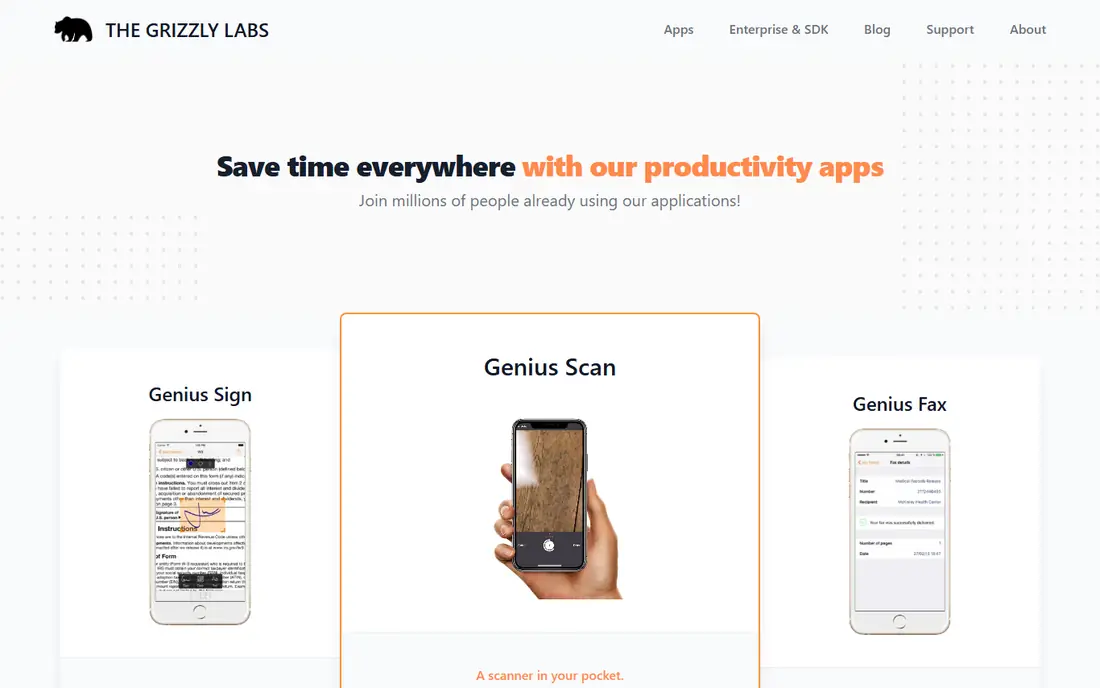
Genius Scan is the quiet option in this list. It opens fast, scans fast, and does not push a subscription at every step. The free version produces clean PDFs without a watermark, and users who want text recognition and extra export options can open them once rather than paying every month. That pricing model alone will appeal to people tired of subscriptions.
The plain design is a trade-off. It lacks the polished extras of Adobe Scan or CamScanner, and its cloud integrations are narrower. For a user who wants a dependable scanner that stays out of the way, that simplicity is a feature. For teams that need deep sharing controls, a larger platform may fit better.
- Fast and light on older phones
- No watermark on free scans
- One-time purchase option
- Text recognition sits in the paid tier
- Cloud options are fewer than big rivals
- Interface is plain
SwiftScan, formerly Scanbot, is built for speed. It captures pages quickly, syncs to cloud storage, and keeps the interface tidy enough for daily use by freelancers and travellers. Edge detection is reliable, and multi-page documents come together without much fuss. If you scan receipts on the move, that speed matters.
The free tier is the catch. Scans carry a watermark, and text recognition sits behind a subscription, so the free version works best as a trial. Paid users get a polished experience, but the monthly cost should be weighed against free rivals. Choose SwiftScan if you scan often and value speed over a free tier.
- Quick capture and cloud sync
- Clean interface
- Good edge detection
- Free scans carry a watermark
- Text recognition needs the paid plan
- Subscription cost adds up over time
CamScanner packs in more modes and export choices than most rivals. It handles batch scans, ID cards, books, and forms, and it offers detailed editing and sharing options. For a user who scans many kinds of documents and wants fine control over output, that breadth is useful.
The free tier shows ads, and the best features require payment, so the experience is less clean than Adobe Scan or Microsoft Lens. Some users also remain cautious after past privacy stories about the app, so it pays to read the current privacy policy before scanning sensitive papers. Used with care, it is a capable all-rounder.
- Wide export and editing options
- Batch scanning
- ID card and document modes
- Free tier includes ads
- Some features need a subscription
- Past privacy concerns still worry some users
Apple Notes is easy to overlook because it is not sold as a scanner, yet its built-in scan tool covers everyday needs well. Open a note, tap scan, and the iPhone captures, crops, and straightens the page. The scan lives inside the note, ready to share as a PDF or file elsewhere. There is nothing to install and nothing to pay.
Dedicated apps still win on batch handling, advanced text recognition, and export controls. Notes also cannot help Android users at all. For iPhone owners who scan occasionally, though, it removes the need for another app entirely, and that convenience is worth a place on this list.
- Built into iOS, no extra app needed
- Scans go straight into notes
- Simple sharing to PDF
- IPhone and iPad only
- PDF editing is limited
- Text recognition is basic compared with dedicated scanners
Google Drive includes a scan tool that suits anyone whose files already live in Drive. Capture a page, and it lands in the folder you choose, ready to share with a link or attach to an email. There is no separate subscription, and the workflow fits students and small teams that already share Drive folders daily.
Editing is limited, and users who need annotation, signing, or advanced export will want a dedicated scanner. The iOS experience also runs through the Drive app rather than a standalone scanner, which feels less direct. For simple, free, Drive-based scanning, it does the job with no extra cost.
- Built into Google Drive
- Free and simple
- Scans save straight to Drive folders
- Fewer editing tools than dedicated apps
- Android experience is stronger than iOS
- Text recognition depends on Drive
Tiny Scanner has stayed popular by keeping its job narrow: capture a page accurately and turn it into a usable PDF. Page detection is reliable, and the app does not bury the scan button under extra tools. For users who found larger apps bloated, that focus is welcome.
The trade-off is a dated look and limited free text recognition. Premium plans add more, and the price should be compared with free rivals before paying. Tiny Scanner still earns its spot for people who want a small, steady scanner that does one job well, without a complex interface.
- Accurate page detection
- Simple workflow
- Useful PDF sharing options
- Text recognition is limited on the free tier
- Design feels dated
- Paid plans are needed for full features
How we picked these
We compared official feature pages, pricing pages, app store listings, privacy policies, and public reviews for scanner apps available on iOS and Android in October 2026. We kept only apps that produce usable PDFs, support multi-page scans, and are still maintained. Where a price could not be verified on the vendor site or store listing, we wrote See website rather than guessing. We did not claim hands-on testing, and we treated review scores as a guide, not as proof.
How to choose a scanner app
Start with where your files need to end up. If you work in Microsoft 365, Lens saves steps. If you live in Google Drive, the Drive scanner saves steps. If you just need a clean PDF to email, Adobe Scan or Genius Scan will do, with no need to change your whole workflow. Pick the destination first, then the app.
Next, check the free tier honestly. Some free scanners watermark pages or lock text recognition behind payment, which matters if you search PDFs later. Test a receipt, a handwritten note, and a page with small print before you commit. Good light and a flat surface help every app, but edge detection and shadow cleanup still vary.
Finally, think about privacy. Scans often include bank details, IDs, medical letters, and contracts, so read how each app stores and processes images. Prefer apps that let you keep scans on your device or in a cloud account you already trust, and avoid uploading sensitive documents to a tool you have not checked. A scanner that fits your workflow and your privacy comfort level is the right one, even if it is not the most feature-packed app here.
Frequently asked questions
What is the best scanner app for free?
Adobe Scan and Microsoft Lens are the strongest free picks, because both produce clean PDFs without a watermark and include text recognition. Adobe Scan edges ahead on image cleanup, while Lens edges ahead for Microsoft 365 users. Genius Scan is another solid free option if you want a lighter app.
What is the best scanner tool for cars?
A document scanner app cannot read a car fault code on its own. For car diagnostics, you need an OBD2 adapter that plugs into the car plus a car app that reads its data. A document scanner is still useful for scanning service receipts, insurance papers, and repair invoices to keep with the car records.
Which scanner app has the best text recognition?
Adobe Scan offers strong free text recognition for printed documents, and paid tiers in other apps add similar features. Accuracy drops on handwriting, faint print, and creased pages, so check results on your own documents. For handwritten notes, a dedicated handwriting app may work better than a general scanner.
Do scanner apps work without internet?
Most scanner apps capture and save PDFs offline, but cloud sync, some text recognition, and sharing need a connection. If you scan in areas with weak signal, confirm that your chosen app saves locally first. You can then sync later when you are back on Wi-Fi.
Is it safe to scan bank and ID documents with a phone app?
It can be, provided you choose a reputable app, keep your phone locked, and check where scans are stored. Avoid free apps with unclear privacy policies for sensitive papers, and delete scans you no longer need. When in doubt, keep highly sensitive documents on your device rather than in a shared cloud folder.
Sources
See where you really rank - block by block
ProMapRanker scans Google Maps across a grid of your service area. Simple monthly plans from $19, white-label on every plan.
Start freeKeep reading
 zeffy payment processor stripe alternatives
Zeffy and Stripe Alternatives for Nonprofits in 2026
Explore zeffy payment processor stripe alternatives for nonprofits. We compare 8 fundraising platforms on fees, donor tools, and nonprofit focus. Check fees.
Read → workday alternatives
Workday Alternatives in 2026
Workday alternatives compared: we review 8 HR and payroll platforms that replace Workday, with pricing, strengths and honest limits for each team size.
Read → what's the best weather app
What's the Best Weather App in 2026
Wondering what's the best weather app? We compare 10 free and paid apps for forecasts, radar, alerts, and Colorado mountain weather for everyday and storm use.
Read →