 ProMapRanker
Best PDF Scanning App in 2026

Key takeaways
- Adobe Scan is our pick for most people because it offers clean scans, strong text recognition, and a generous free tier without a watermark.
- Genius Scan suits people who hate subscriptions, while SwiftScan and Scanner Pro suit frequent scanners who want faster workflows.
- Microsoft Lens is no longer a safe pick, since Microsoft retired it in early 2026, so use the scan tools in Google Drive or Apple Notes instead.
- Before scanning sensitive papers, check whether text recognition runs on your device or in the cloud.
Quick comparison
| Pick | Great for | Pricing starts at | Free tier | |
|---|---|---|---|---|
 Adobe Scan Adobe Scan | Clean scans and text recognition | Free | Yes | Visit |
 SwiftScan SwiftScan | Fast frequent scanning | Free | Yes | Visit |
 Genius Scan Genius Scan | One time purchase | Free | Yes | Visit |
 Scanner Pro Scanner Pro | Apple users who scan often | Free | Yes | Visit |
 CamScanner CamScanner | Feature depth | Free | Yes | Visit |
 iScanner iScanner | AI cleanup and tools | Free | Yes | Visit |
 Google Drive Google Drive | Free built in scanning | Free | Yes | Visit |
 Docutain Docutain | Privacy minded scanning | Free | Yes | Visit |
The best PDF scanning apps
A good scanner app does three things well: it finds the page edge, it cleans up the image, and it turns the result into a searchable PDF. These eight do that job with different trade offs on price and privacy.
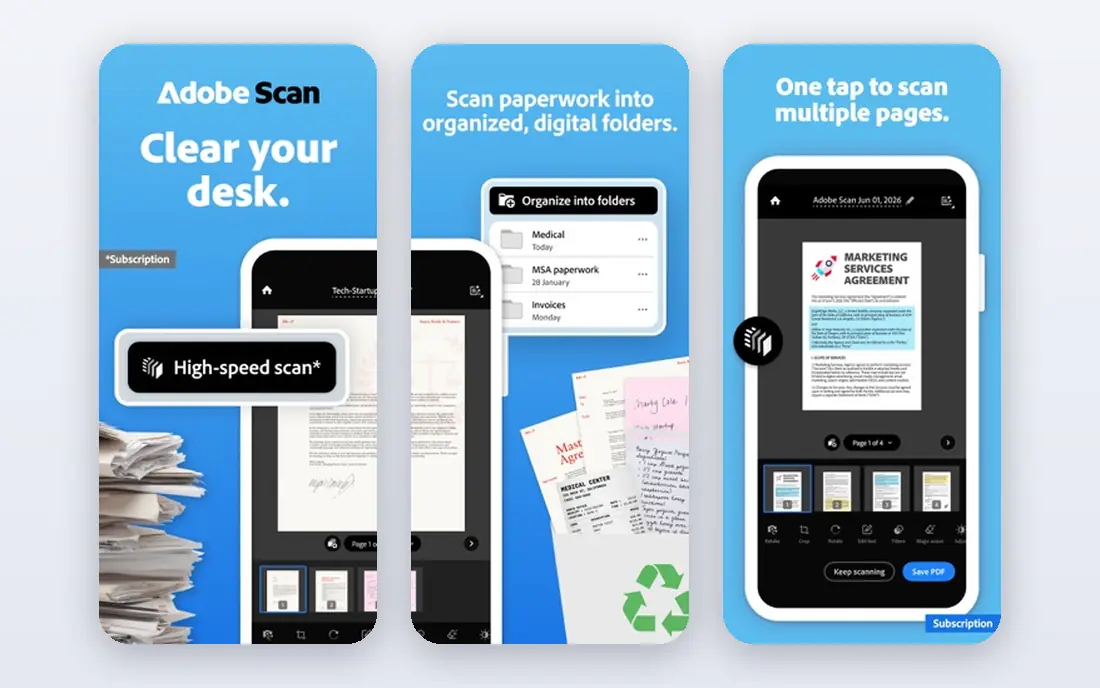
Adobe Scan detects pages quickly, straightens them, and produces PDFs that look clean even from wrinkled receipts. Text recognition makes scans searchable, which matters when you later need to find a contract clause or an invoice number. The free tier covers unlimited scans without a watermark, which is rare.
The catch is the wider Adobe system. Editing PDFs, combining files, and extra cloud storage sit behind Acrobat plans, and cloud sync needs an account. If you only need clean scans, the free app is enough. If you edit PDFs daily, check the Acrobat price before you commit.
- Strong auto capture and cleanup
- Searchable text
- No watermark on free scans
- Full Acrobat features need a subscription
- Account needed for cloud sync
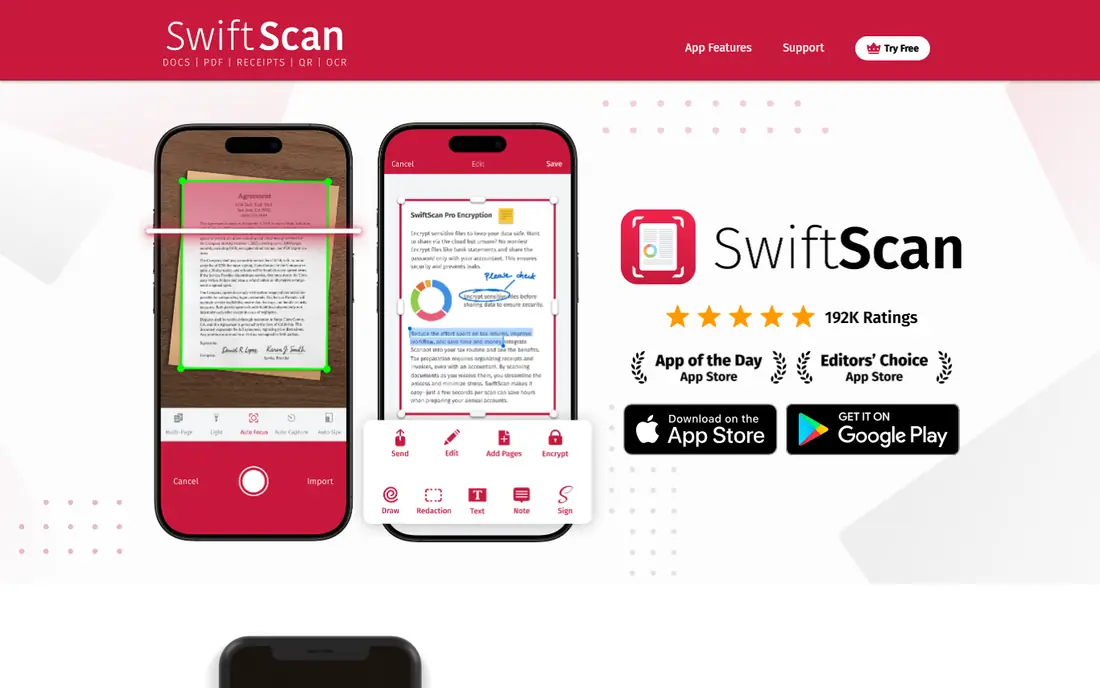
SwiftScan, formerly Scanbot, feels built for people who scan on the move. Capture is fast, edge detection is reliable, and cloud sync sends files where you need them. Automatic file naming and workflow options help freelancers who scan receipts and contracts all week.
The free tier watermarks scans, which rules it out for client facing documents unless you pay. Text recognition also sits behind the subscription. SwiftScan fits frequent scanners who will use the paid features enough to justify the cost.
- Quick capture
- Good edge detection
- Cloud sync and workflows
- Free scans carry a watermark
- Text recognition needs a paid plan
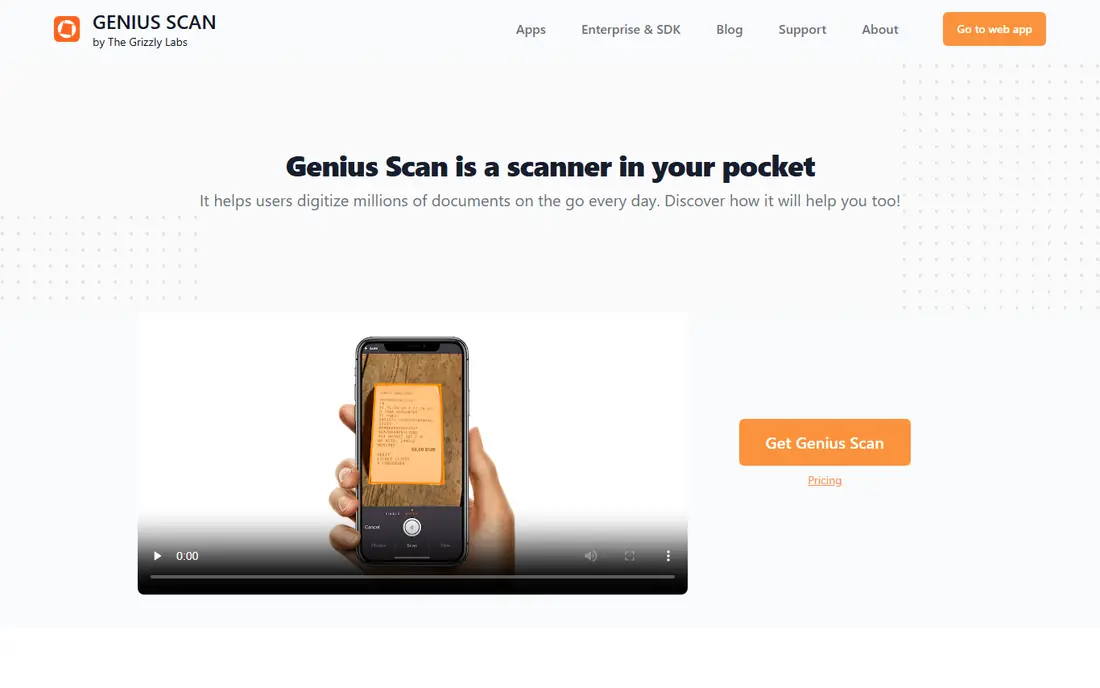
Genius Scan is the quiet workhorse of this list. Scans are fast, edge detection works well, and PDF export is simple. The free tier does not watermark your scans, which makes it useful for occasional use without paying anything.
Text recognition and some export options need the paid purchase, but that purchase is a one time payment rather than a monthly fee in many regions. Check the current in app price, since app store pricing varies. Genius Scan suits people who scan a few times a week and dislike subscriptions.
- Fast scans
- No watermark on free tier
- One time paid purchase option
- Text recognition needs the paid tier
- Fewer cloud workflow tools
Scanner Pro from Readdle is a strong paid all rounder for iPhone, iPad, and Mac users. Text recognition runs on device, which is a privacy plus for sensitive documents, and workflows help you send scans to the right folder or app. The interface feels polished and fast.
It is Apple only, so Android users should look elsewhere. The app is free to download, with paid features behind Scanner Pro Plus. If you scan daily inside the Apple system, the subscription can be worth it. Occasional scanners may prefer a free option.
- On device text recognition
- Strong Apple integration
- Clean workflow tools
- Apple only
- Full features sit behind a subscription
CamScanner packs in more features than most rivals, from batch scanning to text extraction in many languages and document editing. That depth helps with difficult documents, such as books, IDs, and multi page reports, where a simple scanner falls short.
The free tier carries ads and watermarks, and the app faced privacy criticism in the past, so read the current privacy policy before scanning sensitive papers. Paid plans remove ads and open the full set. CamScanner fits power users who need the extra tools and accept the trade offs.
- Wide feature set
- Text recognition in many languages
- Batch scanning
- Free tier has ads and watermarks
- Past privacy concerns need care
iScanner combines scanning with a broad set of document tools, including signing, editing, and file conversion. AI cleanup helps with poor light and skewed pages, which is useful for receipts and old documents. The feature list is wider than most single purpose scanners.
The free tier is limited, so regular users will likely need a subscription. Prices vary by plan and region, so check the in app offer. iScanner suits people who want one app for scanning plus light PDF work, rather than a bare scanner alone.
- AI edge cleanup
- Wide tool set
- Signing and editing options
- Free tier is limited
- Subscription needed for full features
Google Drive includes a document scanner on mobile, and it is the natural replacement for former Microsoft Lens users on Android. Scans save straight to Drive, where text recognition makes them searchable, and sharing is simple. There is no extra app to install if you already use Drive.
Scanner controls are thinner than in dedicated apps, with less control over cleanup and naming. It also ties you to a Google account and cloud storage. For quick, free scans that you want in Drive anyway, it is hard to beat.
- Free
- Scans save straight to Drive
- Text recognition after upload
- Fewer scanner controls than dedicated apps
- Needs a Google account
Docutain focuses on clean scanning with document management built in, including tags that help with tax and expense paperwork. Processing can stay on device for core tasks, which appeals to people who scan financial or medical papers. The app is straightforward and easy to learn.
It has a smaller community than Adobe Scan or CamScanner, so you will find fewer tutorials and third party guides. Some advanced features need a paid plan. Docutain fits privacy minded users who want order, not just a pile of PDFs.
- On device processing options
- Clear document management
- Tax and expense tags
- Smaller user base than leaders
- Some features need a paid plan
How we picked these
We compared official feature pages, pricing pages, app store listings, privacy policies, and public reviews for scanner apps available in October 2026. We favored apps with auto edge detection, searchable PDF output, and a usable free tier. We left out Microsoft Lens because Microsoft retired it in early 2026, and we left out apps with no clear PDF export or no current store listing.
How to pick a scanner app
Start with how often you scan. Occasional scanners should use a free built in tool or a no watermark free app. Daily scanners should pay for speed, batch tools, and text recognition, since those features save real time each week.
Check watermarks and text recognition first
A watermark ruins a scan you need to send to a client or a bank, so test a free scan end to end before you rely on an app. Also test text recognition on your handwriting and on small print, since quality varies by app and by document type.
Think about where scans go
Some apps process images on your device, while others send them to cloud servers for recognition or storage. For passports, medical forms, and signed contracts, prefer on device processing or a provider whose privacy policy you trust. Delete test scans from the cloud if you change apps.
Test with your hardest document
Before you settle on an app, scan a wrinkled receipt, a glossy page, and a multi page contract, then check edge detection, readability, and search. An app that handles your hardest papers will handle everyday papers with ease. If results vary, try better light and a plain background first, since capture conditions matter as much as software.
File naming matters more than most people expect. Use a simple pattern with date, sender, and topic, and file scans the same day you make them. A clean naming habit turns a folder of PDFs into a searchable archive, while a pile of untitled scans stays hard to use.
Frequently asked questions
What is the best PDF scanning app?
Adobe Scan is our pick for most people because it combines clean scans, strong text recognition, and free scans without a watermark. Genius Scan is a strong second pick if you want a one time purchase instead of a subscription.
What are the best PDF scanning apps for iPhone?
Adobe Scan, Scanner Pro, Genius Scan, and SwiftScan all work well on iPhone. Scanner Pro offers the best Apple integration and on device recognition, while Adobe Scan offers the strongest free tier.
What is the best free PDF scanning app?
Adobe Scan and Google Drive offer the strongest free scanning, with no watermark on Adobe free scans and direct Drive storage from Google. Genius Scan is also strong for free use, though text recognition needs the paid purchase.
Can a scanner app make PDFs searchable?
Yes, if it includes text recognition. Adobe Scan, Scanner Pro, Google Drive, and paid tiers of several rivals turn scanned pages into searchable PDFs. Test recognition on your own documents, since accuracy varies with print quality and handwriting.
Is Microsoft Lens still available?
No. Microsoft retired Microsoft Lens in early 2026, removing it from app stores and stopping new scans. Use the scanner in Google Drive, Apple Notes, or a dedicated app from this list instead.
Sources
See where you really rank - block by block
ProMapRanker scans Google Maps across a grid of your service area. Simple monthly plans from $19, white-label on every plan.
Start freeKeep reading
 zeffy payment processor stripe alternatives
Zeffy and Stripe Alternatives for Nonprofits in 2026
Explore zeffy payment processor stripe alternatives for nonprofits. We compare 8 fundraising platforms on fees, donor tools, and nonprofit focus. Check fees.
Read → workday alternatives
Workday Alternatives in 2026
Workday alternatives compared: we review 8 HR and payroll platforms that replace Workday, with pricing, strengths and honest limits for each team size.
Read → what's the best weather app
What's the Best Weather App in 2026
Wondering what's the best weather app? We compare 10 free and paid apps for forecasts, radar, alerts, and Colorado mountain weather for everyday and storm use.
Read →