 ProMapRanker
Best PDF Rotator Services in 2026

Key takeaways
- PDF24 and Sejda are the strongest starting points for a quick, free rotation job, but Sejda caps free use at 3 tasks per hour.
- iLovePDF and Smallpdf are the easiest choices for people who rotate PDFs often and want other PDF tools in the same account.
- A dedicated rotate tool is faster than opening a full PDF editor when the only problem is page direction.
- For private or sensitive files, a desktop tool or a service that deletes uploads quickly is a safer pick than a random free site.
Quick comparison
| Pick | Great for | Pricing starts at | Free tier | |
|---|---|---|---|---|
 PDF24 Tools PDF24 Tools | Free rotation with no daily task cap | Free | Yes | Visit |
 iLovePDF iLovePDF | Simple rotation plus a full PDF toolkit | See website | Yes | Visit |
 Smallpdf Smallpdf | Clean, fast rotation for occasional jobs | See website | Yes | Visit |
 Sejda Sejda | Precise rotation with a desktop option | See website | Yes | Visit |
 PDF2Go PDF2Go | Rotating pages from any browser | See website | Yes | Visit |
 Soda PDF Soda PDF | Rotation inside a fuller online editor | See website | Yes | Visit |
 PDF Candy PDF Candy | Rotation plus conversion tools | See website | Yes | Visit |
 Adobe Acrobat Online Adobe Acrobat Online | Rotation for large or complex files | See website | Free trial | Visit |
The best pdf rotator services
We compared services that rotate PDF pages online, with a focus on page-level control, free limits, and how quickly a file can be fixed and downloaded.
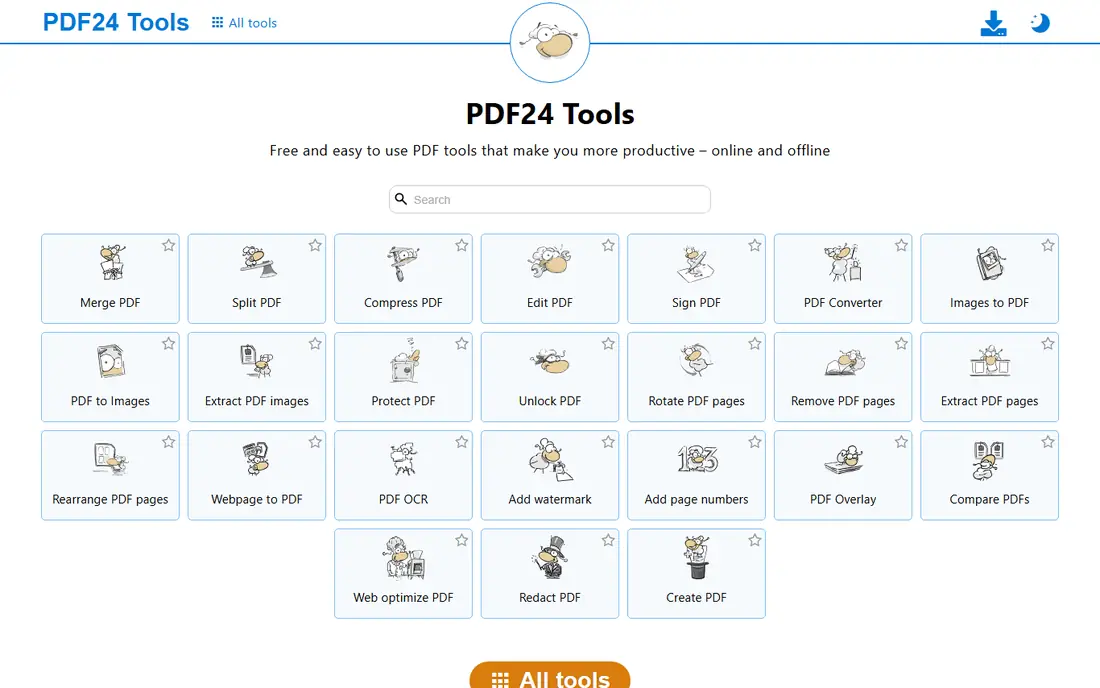
PDF24 Tools is our pick for most people who need a free fix and do not want to count tasks. You upload a PDF, click the pages you want to turn, set the direction, and download the result. The workflow is short, and there is no account step in the way for a basic rotation job. That matters when a scanned form or a report arrives sideways and needs to go out again the same day.
The catch is the usual one for browser tools. Your file is processed on PDF24 servers, so it is not the best choice for a document with highly sensitive personal data. PDF24 states that files are removed after a short time, and a desktop Creator version keeps files on your own computer. For everyday files, the free online tool is hard to beat on value.
- Free online tools with no stated daily task limit
- Rotates single pages or whole files
- Files are deleted from servers after a short time
- Interface is plain compared with paid editors
- Online processing means uploads leave your device
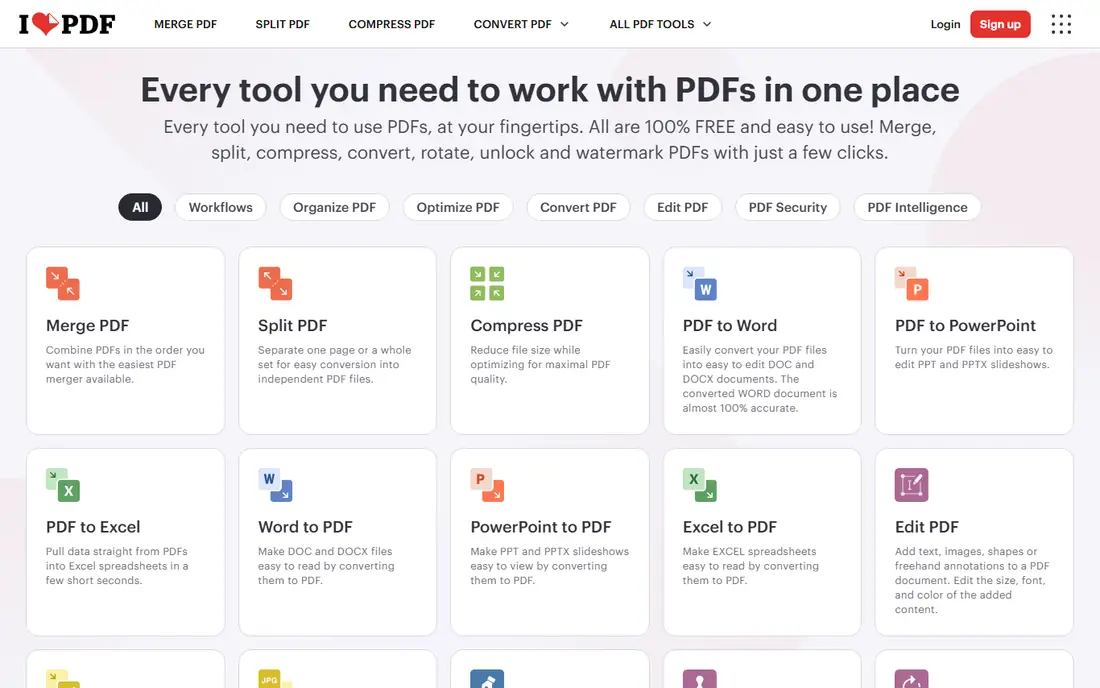
iLovePDF suits people who want one place for most PDF jobs. Rotation is only one tool in a large set, so the same account can also merge pages, compress a large file, or convert a document. The rotate page is easy to follow, and you can rotate several PDFs at once, which helps when a whole batch of scans came out the wrong way.
Free users should expect limits. If you rotate files every day, you may hit the daily task cap and need to wait or pay. For occasional use, the free tier is enough, and the paid plan adds desktop use and other advanced tools. Check the current Premium price on the site before you commit, since pricing pages change.
- Clear rotate tool with whole-file and page options
- Merge, split, and compress tools in the same service
- Works in any modern browser
- Free use is limited by daily tasks
- Some advanced tools sit behind Premium
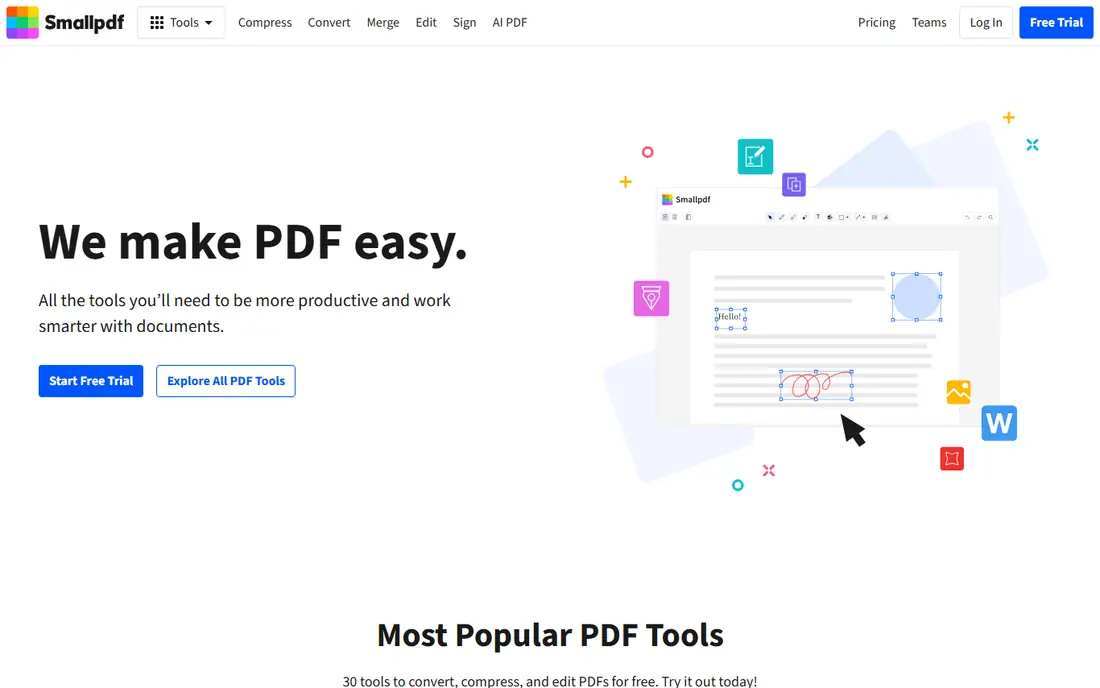
Smallpdf is the calm option. The rotate tool shows your pages, lets you turn one page or every page, and finishes with a download step that needs little explanation. People who are not comfortable with PDF software will find it easier than a desktop editor. It also connects with cloud storage, so a file in Google Drive or Dropbox can be handled without extra downloads.
The limit is the free tier. Smallpdf gives free users a small number of tasks per day, so it is a poor fit for a busy office that rotates files all day. Paid plans remove that limit and add the full tool set. If you only fix a PDF a few times a week, the free tier does the job well.
- Very clear interface
- Rotate single pages or all pages at once
- Strong file handling and cloud connections
- Free use is limited to a small number of tasks per day
- Full access needs a paid plan
Sejda is a good pick when control matters more than volume. You can rotate selected pages, work with page ranges, and use the same service for organizing, splitting, and merging pages. The desktop version is a real plus for private files, since it processes documents on your own computer instead of sending them to a server.
Free users need to plan around the hourly cap. Three tasks per hour sounds generous until a job needs a merge, a rotation, and a compression in one session, since each step can count as a task. For a single rotation, it works well. For heavy daily use, the paid plan or the desktop version makes more sense.
- Page-level rotation with clear controls
- Desktop app keeps files offline
- Files processed online are deleted after processing
- Free online use is limited to 3 tasks per hour and files up to 50 MB or 200 pages
- Some editing tools add a watermark on free output
PDF2Go is a solid all-round online PDF service with a clear rotate tool. You upload a file, choose the pages to turn, and download the corrected PDF. It is useful on a phone or a shared computer, where installing software is not an option. The service also covers conversion, compression, and editing, so it can handle the next step after rotation.
The trade-off is polish and limits. The site carries more options than a single-purpose rotator, so a first-time user may need a minute to find the right button. Free use also has limits that paid plans remove. It is best for occasional jobs on different devices rather than high-volume daily work.
- Works on desktop and mobile browsers
- Rotate single pages or the whole document
- No install needed
- Free tier has file and task limits
- Interface is busier than the simplest rotators
Soda PDF fits people who rotate a page and then need to edit the same file. Instead of downloading a rotated PDF and opening it somewhere else, you can stay in one editor, fix the direction, add text or a signature, and save the result. That saves time on contracts and forms that need more than a simple turn.
For a single sideways page, Soda PDF is more tool than needed. The free online version has limits, and the interface has more buttons than a basic rotator. If rotation is your only task, start with PDF24 or iLovePDF. If you edit PDFs often, Soda PDF earns its place on this list.
- Online editor with rotation, editing, and signing tools
- Works in the browser
- Desktop version available
- Free online use is limited
- The full editor can feel heavy for a one-page fix
PDF Candy is a good middle ground between a single-purpose rotator and a full editor. The rotate tool is simple, and the same site offers conversion, compression, merging, and splitting. That is handy when a rotated file also needs to be smaller or changed into another format. The desktop version helps when you want to keep files off a server.
Free users should note the hourly task limit, which can interrupt a long session. Paid plans lift those limits and add more capacity. For light to moderate use, the free tier is enough, and the tool set is wider than most free rotators offer.
- Large set of free PDF tools
- Simple rotate workflow
- Desktop version available for offline work
- Free online use has hourly limits
- Some tools need a paid plan for heavy use
Adobe Acrobat Online is the safe choice when a file is large, complex, or part of a work workflow that already uses Acrobat. Rotation works in the browser, and the same account can move to the desktop app for deeper editing, forms, and signing. For business documents that must stay exact, that reliability counts.
The cost is the main drawback. The free online tools cover only basic jobs, and the full Acrobat plan is priced as a professional tool. If you rotate one scan a month, a free service on this list will do the same job for less. If you already pay for Acrobat, use its online rotate tool first.
- Strong handling of large and complex PDFs
- Rotate pages in the browser
- Ties into the full Acrobat desktop app
- Free online tools are limited
- Full features need a paid Acrobat subscription
How we picked these
We compared official feature pages, pricing pages, and public help pages for each service, and we checked that each homepage loads and belongs to the product named. We kept only services that rotate PDF pages online in October 2026 and that offer a clear free tier or trial. We favored tools with page-level rotation, a clear download step, and stated file deletion or desktop options for private files. Where a price could not be verified on the vendor site at the time of writing, we wrote See website rather than guessing.
What to check before you rotate a PDF
Start with the size and page count of your file. Free tiers often cap one or both, and a large scan can fail on a service that handles a short report with ease. If your file is over the free limit, try a desktop tool or split the file first. Also check whether you need to rotate one page, a few pages, or the whole document, since some tools only turn the full file on their free tier.
Think about privacy before you upload. A sideways menu or a class handout is low risk. A contract, a medical form, or a file with identity details deserves more care. Use a desktop version when one is available, delete the uploaded file after download if the service allows it, and avoid free sites you cannot identify. Finally, download the result and open it before you send it on, since a rotation can look right in a thumbnail and still leave one page turned the wrong way.
Free limits that catch people out
Daily and hourly task caps are the most common surprise. A task often means one full job, not one page, so a merge plus a rotation can use two tasks. Some services also limit file size, page count, or the number of files per job. If you rotate PDFs as part of a daily routine, pick a service with a high cap or a desktop version, and keep a second free tool as a backup for busy days.
When a full editor is worth it
A rotator is enough when direction is the only problem. Choose a full editor when you also need to fix text, add a signature, fill a form, or reorder many pages. Editors cost more and take longer to learn, but they save the round trip between tools. For most readers, the best setup is a free rotator for quick fixes and one editor for documents that need real changes.
Frequently asked questions
Can I rotate just one page in a PDF?
Yes, most tools on this list let you turn a single page while leaving the rest alone. Look for page thumbnails and a rotate button on each page, and check the result before you download it.
Will rotating a PDF change its quality?
Rotation changes page direction, not the content itself, so text and images should stay sharp. Quality problems usually come from a later compression step, not from rotation alone, so skip compression unless the file is too large to send.
Is it safe to rotate a PDF online?
It is safe for ordinary files, but uploads go to a server, so avoid unknown sites for sensitive documents. Use a desktop tool for private files, and check the service page for how long uploads are kept.
What is the best free PDF rotator for large files?
PDF24 is a strong free choice for larger jobs because its online tools are free with no stated daily task limit. If the file is very large or private, a desktop tool such as Sejda Desktop or PDF24 Creator keeps the work on your own computer.
Do I need to sign up to rotate a PDF?
No, most free rotators work without an account for a basic job. An account is usually needed only for saved files, cloud storage, or paid features, so skip sign-up when you only need one quick fix.
Sources
See where you really rank - block by block
ProMapRanker scans Google Maps across a grid of your service area. Simple monthly plans from $19, white-label on every plan.
Start freeKeep reading
 zeffy payment processor stripe alternatives
Zeffy and Stripe Alternatives for Nonprofits in 2026
Explore zeffy payment processor stripe alternatives for nonprofits. We compare 8 fundraising platforms on fees, donor tools, and nonprofit focus. Check fees.
Read → workday alternatives
Workday Alternatives in 2026
Workday alternatives compared: we review 8 HR and payroll platforms that replace Workday, with pricing, strengths and honest limits for each team size.
Read → what's the best weather app
What's the Best Weather App in 2026
Wondering what's the best weather app? We compare 10 free and paid apps for forecasts, radar, alerts, and Colorado mountain weather for everyday and storm use.
Read →