 ProMapRanker
Best PC Editing App in 2026

Key takeaways
- DaVinci Resolve is the best free PC video editor for serious editing, with professional color and audio tools at no cost.
- CapCut and Filmora are the easiest starting points for social video and YouTube content.
- Premiere Pro suits professionals and teams already in the Adobe ecosystem, despite the subscription cost.
- Check your PC specs first: professional editors need a capable processor, graphics card, and storage for smooth playback.
Quick comparison
| Pick | Great for | Pricing starts at | Free tier | |
|---|---|---|---|---|
 DaVinci Resolve DaVinci Resolve | Free professional editing | Free | Yes | Visit |
 Adobe Premiere Pro Adobe Premiere Pro | Professional and team editing | $22.99 per month | Free trial | Visit |
 CapCut CapCut | Short-form social video | Free | Yes | Visit |
 Filmora Filmora | Beginner-friendly YouTube editing | $49.99 per year | Yes | Visit |
 PowerDirector PowerDirector | Fast consumer editing on PC | $69.99 per year | Free trial | Visit |
 VEGAS Pro VEGAS Pro | Windows professional editing | See website | Free trial | Visit |
 Shotcut Shotcut | Free open-source editing | Free | Yes | Visit |
 OpenShot OpenShot | Simplest free editing | Free | Yes | Visit |
The best pc editing app
This list covers video editing apps for PC, from free open-source tools to professional subscription editors. All run on Windows, and several also run on Mac, so check platform support if you switch machines.
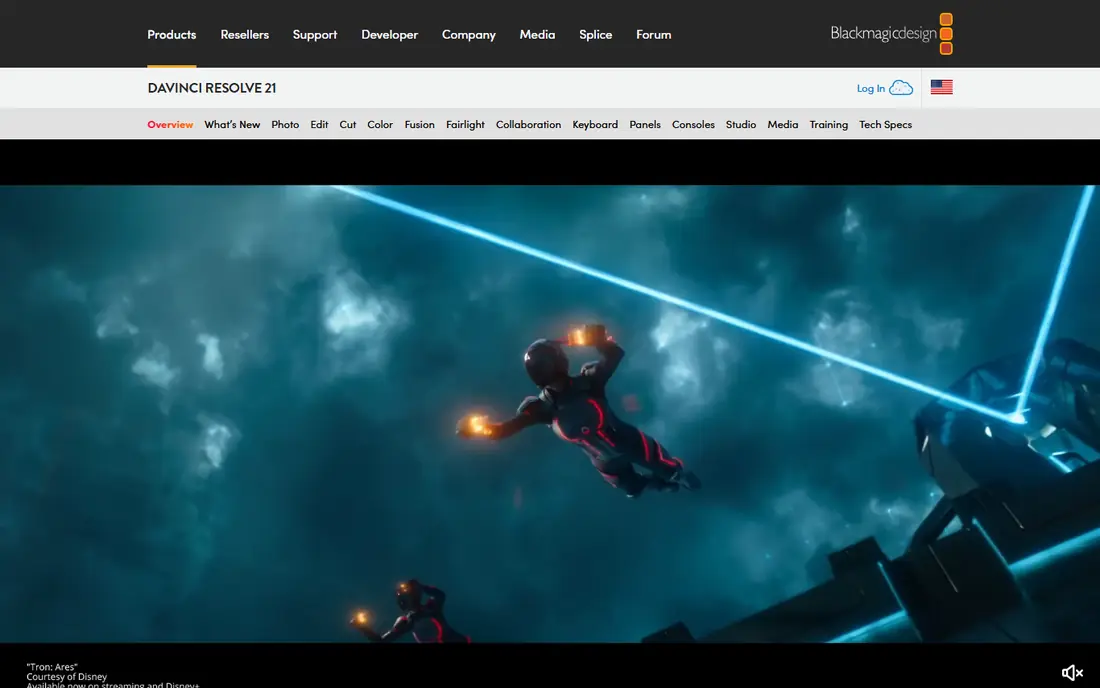
DaVinci Resolve is the strongest free editor you can install on a PC. The free version includes a full timeline editor, respected color grading tools, Fairlight audio, and Fusion effects, which is far more than most free tools offer. For YouTube, short films, and client work at 4K, it covers nearly everything a paid editor does.
The cost is learning time and hardware. Resolve rewards a modern processor and graphics card, and its interface has many panels for new editors. If you are willing to learn it, the free version alone can carry you from first videos to professional work, and Studio, at $295 one-time, removes the remaining limits without a subscription.
- Professional editing, color, audio, and effects in one app
- Free version exports without a watermark
- Studio is a one-time purchase
- Steep learning curve
- Needs a capable PC for smooth playback
- Studio features cost $295
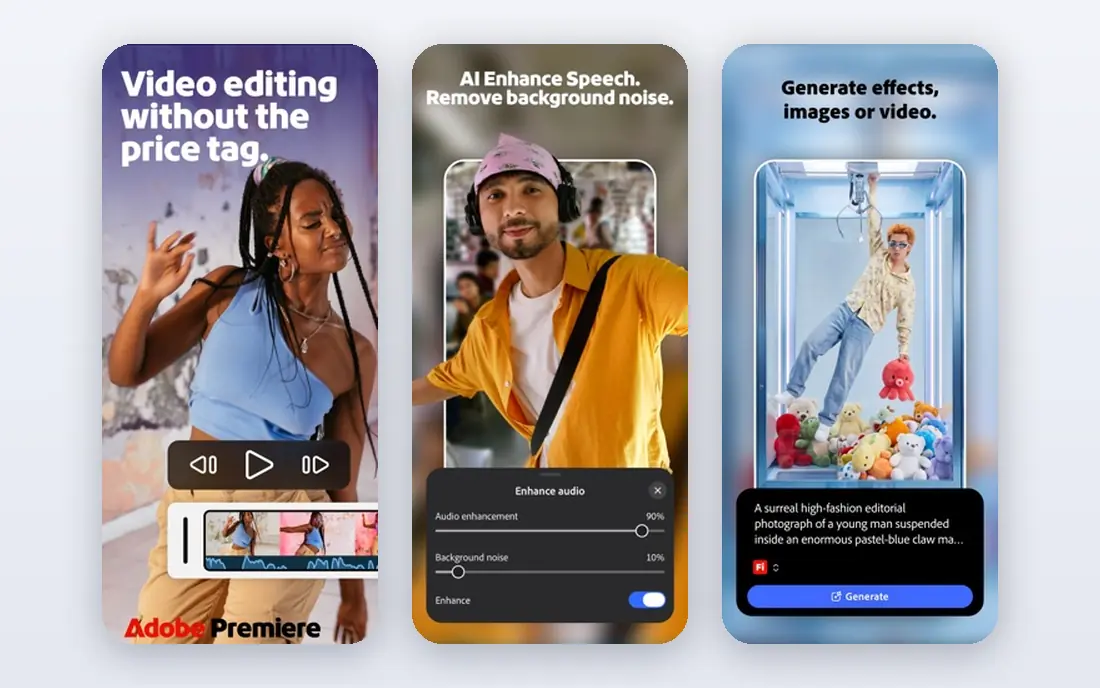
Premiere Pro remains the industry standard for many agencies, broadcasters, and YouTube teams. Its timeline, Lumetri color tools, and integration with After Effects make it easy to move between editing, motion graphics, and audio. Team Projects and Productions also suit larger workflows with shared media.
The subscription is the main drawback. At $22.99 per month on an annual plan, five years of use costs far more than a one-time editor such as DaVinci Resolve Studio. Choose Premiere Pro if you work with Adobe teams, need After Effects daily, or already pay for Creative Cloud; otherwise, test Resolve first.
- Industry-standard timeline
- Strong integration with After Effects and Audition
- Team projects and Productions
- Subscription only
- No free tier beyond a trial
- Cost adds up over years
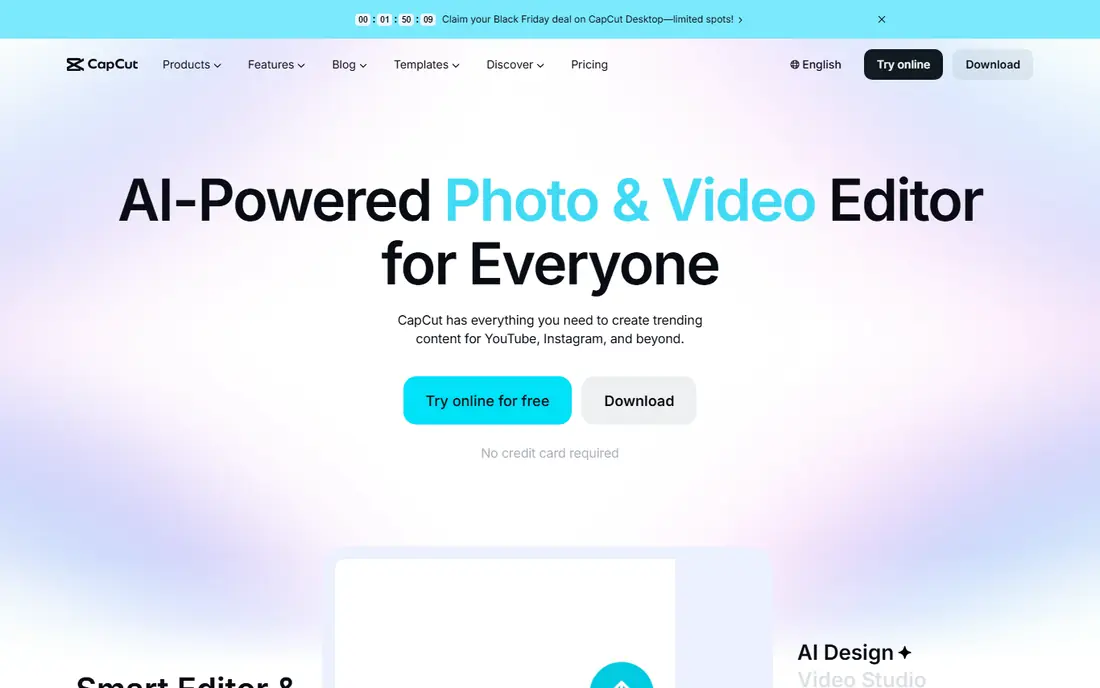
CapCut is the fastest way to make short social videos on a PC. The desktop app offers a simple timeline, auto-captions, effects, keyframes, and templates tuned for vertical video. If your main output is TikTok, Reels, or Shorts, CapCut will get a finished clip out faster than a full professional editor.
Long-form work is less comfortable. Multi-camera edits, deep color work, and complex audio mixes are better in Resolve or Premiere Pro. CapCut is free to start, with a Pro plan for premium assets and features, so it works well as a daily short-form tool alongside a heavier editor for bigger projects.
- Fast for TikTok, Reels, and Shorts
- Auto-captions and templates
- Free desktop app for Windows and Mac
- Pro features and premium assets need a paid plan
- Best for short video rather than long projects
- Some features are cloud-linked
Filmora is a friendly middle ground between CapCut and professional editors. The timeline is easy to learn, the effects library is large, and AI tools help with captions, audio, and scene detection. That mix suits YouTubers and hobbyists who want polished videos without learning a professional interface.
Pricing needs care. Recent listings put the yearly plan around $49.99, with a perpetual option at a higher one-time price that does not include future versions. The free version is useful for learning, but exports carry a watermark, so budget for a paid plan if you publish regularly.
- Easy drag-and-drop timeline
- AI tools for captions and scene cuts
- Large effects and title library
- Free version adds a watermark
- Perpetual license does not include future versions
- Some AI features need credits or plans
PowerDirector is a strong Windows-first choice for creators who want speed and effects without a steep learning curve. It renders quickly on many PCs, offers a large template and effects library, and includes AI tools for common tasks. For family videos, YouTube content, and social clips, it is efficient and forgiving.
The 365 subscription, around $69.99 per year in recent listings, is the main cost to weigh, and perpetual versions are priced higher. Color grading and audio depth do not match Resolve or Premiere Pro, so professionals may find it limiting. For fast consumer editing on a PC, it remains one of the best-balanced options.
- Fast rendering on Windows
- Large effects and template library
- AI tools and 360 video support
- Subscription model for the full 365 version
- Interface can feel busy
- Professional color tools are lighter than Resolve
VEGAS Pro has a long history on Windows and still suits editors who want a fast, flexible timeline without a subscription-only model. Its audio tools are a particular strength, which helps event videographers, podcasters, and creators who mix voice, music, and live sound. The interface is customizable, so experienced editors can shape it to their workflow.
It is Windows only, so Mac users should look elsewhere, and pricing varies by edition, so check the current store page for Edit, Pro, and Suite options. VEGAS Pro is best for Windows editors who want professional depth without joining the Adobe subscription system.
- Fast, customizable Windows timeline
- Strong audio editing heritage
- Good for long-form and event video
- Windows only
- Pricing varies by edition and offer
- Smaller effects ecosystem than Adobe
Shotcut is the best no-cost, no-strings editor after DaVinci Resolve. It is open source, exports without a watermark, and handles a wide range of formats through its underlying media framework. For budget editors, students, and Linux users, it is a reliable workhorse that never asks for a subscription.
The interface is utilitarian, and you will not find the template libraries or AI shortcuts of Filmora or PowerDirector. That is a fair trade for a free tool with no export limits. If you want free editing with more polish, start with Resolve; if Resolve feels too heavy for your PC, Shotcut is the next free step down.
- Free and open source with no watermark
- Wide format support
- Cross-platform for Windows, Mac, and Linux
- Interface looks plain and technical
- Fewer templates and AI tools
- Learning curve for beginners
OpenShot is the simplest free editor on this list, and that simplicity is the point. You can trim clips, add titles, use unlimited tracks, and export a finished video without learning a professional interface. For school projects, family videos, and first YouTube uploads, it removes nearly every barrier.
Larger projects can export slowly, and advanced color, audio, and effects tools are limited compared with Shotcut or Resolve. Treat OpenShot as a starting point: learn the basics here, then move to Shotcut or Resolve when you need more control, better performance, or professional color tools.
- Very easy to learn
- Unlimited tracks
- 3D animated titles
- Free and open source
- Slower exports on larger projects
- Fewer advanced tools
- Can feel basic for growing creators
How we picked these
We compared official product pages, pricing pages, and recent editor comparisons for PC video editors still available in October 2026. We favored a mix of free, one-time, and subscription editors, and we kept only tools with a real Windows desktop app and a working export path. We excluded mobile-only editors and web-only tools with watermarked free exports where a desktop option served the same need better.
How to choose a PC video editor
Start with your video type. Short social clips favor CapCut or Filmora. YouTube and long-form content favor Resolve, PowerDirector, or VEGAS Pro. Professional and team work favors Premiere Pro or Resolve Studio. Matching the editor to the output saves time, since a short-form tool will frustrate a film editor, and a professional tool will slow a social creator.
Next, check your PC. Professional editors need a modern processor, at least 16 GB of memory for comfortable 4K work, a capable graphics card, and fast storage for media. If playback stutters, use proxy media, lower preview quality, or choose a lighter editor such as Shotcut or OpenShot until you upgrade hardware. Test any editor on your own footage before paying, since demo clips hide performance problems.
Finally, weigh total cost, not just the first month. A subscription that looks cheap can cost more than a one-time purchase over three to five years. Free editors such as Resolve, Shotcut, and OpenShot cost nothing to keep, while Filmora and PowerDirector reward yearly plans only if you publish often. Start free, learn the basics, and pay only when a specific feature blocks your work.
Frequently asked questions
What is the best free PC video editor?
DaVinci Resolve is the best free PC editor for serious work, with professional editing, color, and audio tools and no watermark. Shotcut and OpenShot are simpler free options if Resolve feels too heavy for your PC.
Is Premiere Pro worth the subscription?
It is worth it for professionals and teams already in the Adobe ecosystem, especially those using After Effects daily. For solo creators, DaVinci Resolve Studio at a one-time price often delivers similar quality for far less over time.
Which PC editor is easiest for beginners?
OpenShot is the easiest free editor, followed by CapCut for social video and Filmora for YouTube-style editing. All three let you learn trimming, titles, and exports before moving to a professional tool.
Can I edit 4K video on a mid-range PC?
Yes, with care. Use proxy media, lower preview resolution, and keep timelines simple. Resolve and Premiere Pro need stronger hardware for smooth 4K playback, while Shotcut and OpenShot are more forgiving on modest machines.
Do free editors add watermarks?
DaVinci Resolve, Shotcut, and OpenShot export without a watermark on their free versions. Filmora and some other freemium editors add a watermark until you pay, so check export terms before you commit to a project.
Sources
See where you really rank - block by block
ProMapRanker scans Google Maps across a grid of your service area. Simple monthly plans from $19, white-label on every plan.
Start freeKeep reading
 zeffy payment processor stripe alternatives
Zeffy and Stripe Alternatives for Nonprofits in 2026
Explore zeffy payment processor stripe alternatives for nonprofits. We compare 8 fundraising platforms on fees, donor tools, and nonprofit focus. Check fees.
Read → workday alternatives
Workday Alternatives in 2026
Workday alternatives compared: we review 8 HR and payroll platforms that replace Workday, with pricing, strengths and honest limits for each team size.
Read → what's the best weather app
What's the Best Weather App in 2026
Wondering what's the best weather app? We compare 10 free and paid apps for forecasts, radar, alerts, and Colorado mountain weather for everyday and storm use.
Read →