 ProMapRanker
Best Partition Software in 2026


Guided resizing and OS migration · Pricing starts at: Free
Key takeaways
- EaseUS, MiniTool, and AOMEI cover most home and small office jobs, with free editions for basic resizing and paid editions for cloning and conversion.
- GParted and KDE Partition Manager are the free, open-source picks, and they suit Linux users and rescue USB drives.
- DiskGenius and Paragon suit users who also need recovery or full disk management, not just resizing.
- Back up important data before changing partitions, since a power cut or wrong click can still cause loss even with safe tools.
Quick comparison
| Pick | Great for | Pricing starts at | Free tier | |
|---|---|---|---|---|
| EaseUS Partition Master | Guided resizing and OS migration | Free | Yes | Visit |
 MiniTool Partition Wizard | All-round Windows partition work | Free | Yes | Visit |
 AOMEI Partition Assistant | Cloning and disk management | Free | Yes | Visit |
 GParted | Free Linux partition editing | Free | Yes | Visit |
 Paragon Hard Disk Manager | Full disk and backup management | See website | No | Visit |
 DiskGenius | Partition work plus recovery | Free | Yes | Visit |
 NIUBI Partition Editor | Fast, safe resizing on Windows | Free | Yes | Visit |
 KDE Partition Manager | Free partition editing on Linux | Free | Yes | Visit |
The best partition software
We compared Windows, Linux, and cross-platform tools on resizing, moving, merging, cloning, conversion, and safety features. Our pick for most Windows users is to start with a free edition and pay only if cloning or conversion is needed.
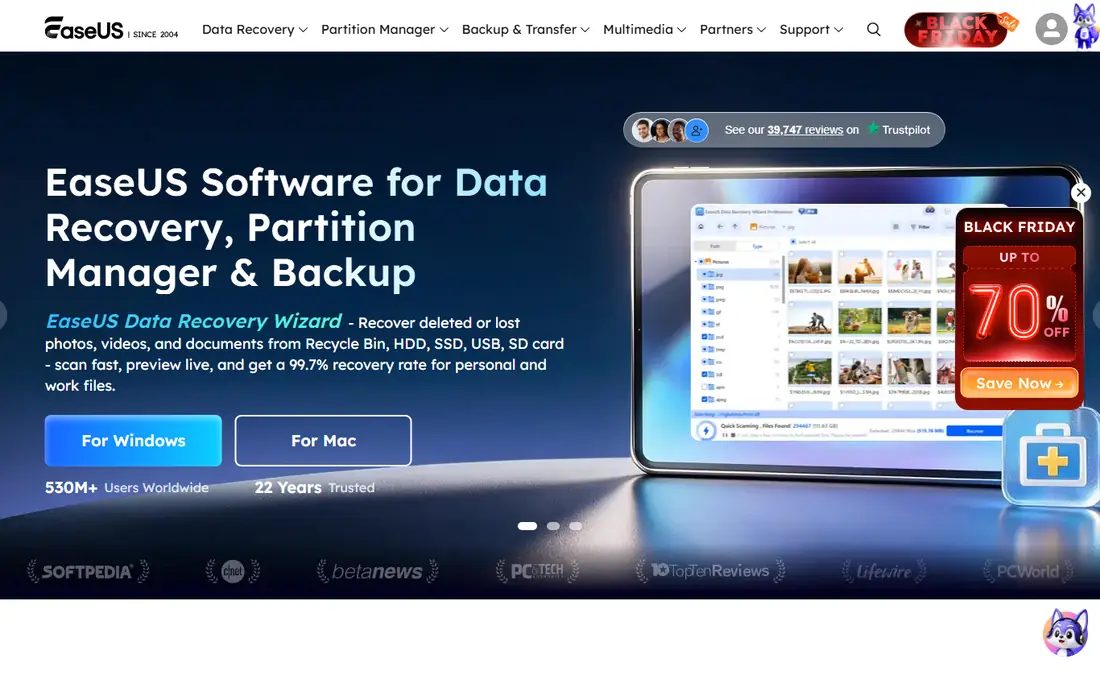
EaseUS Partition Master is a good first tool for Windows users who want clear steps rather than technical detail. Resizing, moving, merging, and formatting are presented as guided tasks, and the OS migration tool helps move Windows to a larger drive or SSD. The interface explains what will happen before changes are applied, which reduces the chance of a mistaken click.
The free edition is enough for basic jobs, but cloning, conversion, and some recovery features sit behind paid plans. Users should check which edition covers the task they need before starting, and should decline any bundled offers during setup. For straightforward home use, it is a dependable starting point.
- Clear guided steps for common tasks
- OS migration to a new drive
- Free edition covers basic resizing
- Many advanced features require a paid plan
- Installer may offer extra software to decline
MiniTool Partition Wizard covers a broad set of jobs in one program, from resizing and merging to converting file systems and checking disks. The disk map gives a clear view of partitions, free space, and unallocated space, which helps when planning a resize. Paid editions add data recovery and more advanced disk tools for users who need them.
The main catch is the gap between free and paid features. A task that looks simple in a guide may require a paid edition, so it pays to confirm the edition before relying on a feature. The program itself is stable and well documented, and it suits users who want one tool for several disk jobs.
- Wide range of partition and disk tools
- Data recovery options in paid editions
- Clear disk map view
- Free edition limits some operations
- Paid pricing varies by edition and term

AOMEI Partition Assistant is a strong choice when cloning is the main job. Disk clone, partition clone, and system migration are central features, and they help when moving to a new SSD or replacing a failing drive. The free standard edition handles resizing, formatting, and basic partition changes for home users.
Paid plans add dynamic disk management, command-line tools, and other professional features. The interface packs in many options, which can feel busy at first, but the main tasks are easy to find. For users who clone drives more than once, it is worth a close look.
- Strong cloning tools for disks and partitions
- Free standard edition for basic work
- Supports Windows and server editions
- Full feature set requires a paid plan
- Interface can feel crowded with many options
GParted is the classic free partition editor for Linux, and it also works from a live USB drive on many PCs. It supports a wide range of file systems, and it handles creating, resizing, moving, copying, and checking partitions. Because it is open source, there is no paid tier or feature lock to work around.
The trade-off is presentation. The interface is functional rather than guided, and beginners may need a guide for their first resize. It is also best run from a live environment when changing a system disk, rather than from within a running system. For cost-free, capable partition work, it is hard to fault.
- Free and open source with no paid tier
- Wide file system support
- Works well from a live USB drive
- Interface is plain and technical
- Not a native Windows program
Paragon Hard Disk Manager is a broader suite than a simple partition editor. It combines partition management with backup, disk copying, and migration tools, which suits IT staff and power users who manage several machines. Support for virtual disks and varied storage setups adds value in mixed environments.
Home users may find it more than they need, and the lack of a simple free edition makes it harder to test for a one-off resize. Pricing should be checked on the vendor site, since editions and terms vary. For a business toolkit rather than a single job, it earns its place.
- Combines partitioning with backup and disk management
- Supports virtual disks and varied hardware
- Suited to business use
- Pricing is not as simple as a free edition
- More tool than most home users need
DiskGenius stands out because it pairs partition tools with recovery tools. Users can resize, clone, and convert partitions, and also work on lost partitions and deleted files when something has gone wrong. That combination suits technicians and users dealing with damaged or complex disks, including RAID setups in paid editions.
The free edition covers basic partition work, but recovery depth increases with paid plans. The interface is capable rather than hand-holding, so beginners should read the guides for their task. When recovery might be needed as well as resizing, DiskGenius is a practical single download.
- Partition management plus file and partition recovery
- RAID recovery options
- Handles varied disk types
- Recovery features are mainly in paid editions
- Interface assumes some technical knowledge
NIUBI Partition Editor focuses on doing common Windows partition jobs safely and quickly. Virtual mode lists planned changes for review, and nothing is written until the user applies them, which gives a chance to catch mistakes. The program is lightweight, and it handles resizing, moving, merging, and converting partitions on home PCs.
The free edition is useful for basic work, but rollback protection and bootable media building are paid features. That matters most when changing a system disk, where a failure is harder to fix. For routine resizing on a Windows PC with a backup in place, it is a solid, focused tool.
- Virtual mode previews changes before applying them
- Rollback protection in paid editions
- Lightweight Windows program
- Free edition lacks rollback and bootable media tools
- Windows only
KDE Partition Manager gives Linux desktop users a clean graphical way to manage disks without the command line. It shows disks, partitions, and free space clearly, and it supports creating, resizing, moving, and formatting partitions. As open-source software, it costs nothing and has no paid tier.
It is not a Windows tool, and it offers fewer guided wizards than the paid Windows editors. Users changing a system partition should still work from a live environment and keep a backup. For everyday Linux partition work, it is a capable and straightforward choice.
- Free and open source
- Clear graphical view of disks and partitions
- Integrates with Linux desktops
- Linux only in practice
- Fewer guided wizards than paid Windows tools
How we picked these
We compared official feature pages, pricing pages, and public documentation for partition tools that are live in 2026. We kept tools that truly resize, move, or manage partitions, and we left out pure backup programs, pure recovery programs, and tools with no current vendor page. We did not list ProMapRanker itself, and we did not claim hands-on testing.
How to change partitions without losing data
Partition work is safe most of the time, but it is not risk-free. A power cut, a failing drive, or a wrong target disk can turn a simple resize into data loss. The steps below reduce that risk and help you pick the right tool for the job.
Back up first, then plan the change
Copy important files to a separate drive or cloud storage before starting, and check that the backup opens. Note the current partition layout, including drive letters and sizes, so you can spot a mistake before applying changes. If the drive already shows errors, fix or replace it first rather than resizing around a failing disk.
Choose by task, not by feature count
Basic resizing suits a free edition from EaseUS, MiniTool, AOMEI, or NIUBI on Windows, or GParted and KDE Partition Manager on Linux. Cloning to a new SSD points toward AOMEI or MiniTool, while recovery needs point toward DiskGenius or Paragon. Paying for a large suite makes sense only if you will use the extra tools more than once.
Apply changes carefully
Use virtual mode or preview where the tool offers it, and check the target disk twice before applying. Avoid resizing a system partition from inside the same running system when a live USB option exists. After the change, reboot, check that files open, and confirm free space matches the plan before deleting any backup.
Frequently asked questions
What is the best partition software?
For most Windows users, EaseUS Partition Master, MiniTool Partition Wizard, or AOMEI Partition Assistant are good starting points, since all offer free editions for basic work. Linux users should start with GParted or KDE Partition Manager. The best pick depends on the task, such as resizing, cloning, or recovery.
Is there free partition software that is safe to use?
Yes. GParted and KDE Partition Manager are free and open source, and the free editions of EaseUS, MiniTool, AOMEI, DiskGenius, and NIUBI cover basic resizing. Free does not mean risk-free, so back up data first and use preview mode where it is offered.
Can partition software move space from one drive to another?
No, partitions can only use free space on the same physical disk. To move space between drives, you need to clone or copy data to the other drive instead. A partition tool can shrink a partition on one drive and extend a partition on the same drive, but it cannot merge space across separate disks.
What does the other keyword best partiton software mean?
It is a common misspelling of partition software, and search engines usually treat it the same way. The tools in this guide cover the same job: creating, resizing, moving, merging, and deleting disk partitions. If you searched with that spelling, start with the free edition that matches your operating system.
Do I need paid partition software?
Not for basic resizing, formatting, or deleting partitions, since free editions cover those jobs. Paid editions are worth it for cloning, system migration, dynamic disk work, and deeper recovery. Check the feature list for the exact task before buying, since free and paid gaps differ by vendor.
Will resizing a partition delete my files?
Resizing should keep files intact when it completes normally, but it can still fail if power is lost or the drive has errors. Back up important files first, close other programs, and do not interrupt the process. After resizing, check that key files open before you rely on the new layout.
Sources
See where you really rank - block by block
ProMapRanker scans Google Maps across a grid of your service area. Simple monthly plans from $19, white-label on every plan.
Start freeKeep reading
 zoho books alternatives
Best Zoho Books Alternatives in 2026
Compare the best zoho books alternatives for small business accounting, from QuickBooks Online and Xero to FreshBooks, Wave, and Sage in 2026, with pricing.
Read → zluri alternatives
Best Zluri Alternatives in 2026
Compare zluri alternatives for 2026, with SaaS management platforms for app discovery, spend tracking, renewals, and automation for IT, finance and procurement.
Read → zerobounce alternatives
Best ZeroBounce Alternatives in 2026
Best zerobounce alternatives for list hygiene: compare 8 email verification tools for bulk cleaning, real-time checks and catch-all handling in 2026 today.
Read →