 ProMapRanker
Best OCR Software in 2026: 8 Tools Compared

Key takeaways
- Adobe Acrobat is our pick for most people who need OCR plus full PDF editing, though it costs more than a one-time purchase tool over time.
- ABBYY FineReader PDF and Readiris suit heavy document work, with one-time licenses instead of a monthly bill.
- Microsoft Lens and Tesseract are the strongest free routes, one for quick phone scans and one for developers and batch jobs.
- The best OCR tool depends on your input: clean typed pages are easy for every tool here, while faded scans, tables and handwriting separate the leaders from the rest.
Quick comparison
| Pick | Great for | Pricing starts at | Free tier | |
|---|---|---|---|---|
 Adobe Acrobat Adobe Acrobat | All-round PDF work with OCR | $19.99 per month | Free trial | Visit |
 ABBYY FineReader PDF ABBYY FineReader PDF | High-volume document conversion | See website | Free trial | Visit |
 Wondershare PDFelement Wondershare PDFelement | Budget PDF editing with OCR | $79.99 per year | Free trial | Visit |
 Foxit PDF Editor Foxit PDF Editor | Business PDF editing | $129.99 per year | Free trial | Visit |
 Readiris Readiris | One-time purchase OCR | $69 one-time | Free trial | Visit |
 Microsoft Lens Microsoft Lens | Free phone scanning | Free | Yes | Visit |
 Tesseract Tesseract | Free open-source OCR engine | Free | Yes | Visit |
 Kofax Power PDF Kofax Power PDF | Office document workflows | See website | Free trial | Visit |
The best OCR software
Good OCR turns a picture of text into text you can search, copy and edit. The tools below all do that job, but they aim at very different users, from a student scanning one handout to an office clearing a filing cabinet.
Adobe Acrobat is the safe default when OCR is one part of a larger PDF job. Its text recognition handles typed documents well, and the result stays inside a PDF you can then edit, sign, search and share without switching apps. That combination is why so many offices already standardize on it, even when a cheaper OCR-only tool would do for scanning alone.
The catch is the billing model. Acrobat Pro runs about $19.99 per month on an annual plan, so a casual user who scans a few pages a month pays a professional price. If you only need to convert scans to text, a free phone app or a one-time purchase tool below will do the same job for far less. Acrobat earns its price when you edit, combine, redact and sign PDFs every week.
- Strong recognition on clean scans
- Full PDF editing, signing and form tools
- Works on desktop and mobile
- Subscription only for most buyers
- Price adds up over years
- Some advanced AI features cost extra
ABBYY FineReader PDF has spent years as the reference point for desktop OCR, and it shows in the output. Multi-column pages, tables and mixed layouts tend to survive conversion better than with lighter tools, which matters when you are turning reports and invoices into editable files rather than just making them searchable. Batch conversion helps when the pile of paper is large.
For a home user with occasional scans, FineReader may be more tool than needed, and the edition choice takes a few minutes of reading. For an office that converts documents daily, the accuracy on tricky layouts is the reason to pay. Try the trial on your own worst documents first, since faded print and unusual fonts are where any OCR tool either proves itself or disappoints.
- Long reputation for accurate recognition
- Strong table and layout handling
- Converts to Word, Excel and searchable PDF
- Perpetual pricing varies by edition, so check the current store price
- Interface packs in many features
- Mac options are limited compared with Windows
PDFelement is the value pick in this list for people who want one app for PDFs and scanning. The yearly plan costs much less than Acrobat Pro, and it covers the usual jobs: recognizing text in a scan, editing the result, filling forms and converting files. Mobile and web access round out a package that suits students and small businesses.
We would not pick it first for archival work with poor-quality originals, where a dedicated OCR engine earns its keep. For everyday office scans, contracts and receipts, though, the gap is small and the savings are real. Check whether you want the yearly plan or the one-time perpetual license, since the perpetual option stays on one major version.
- Lower yearly price than Acrobat
- OCR plus editing, forms and batch tools in one app
- Versions for Windows, Mac, iOS and Android
- OCR accuracy can trail ABBYY on difficult scans
- Perpetual license locks you to one major version
- Promotions make the headline price move around
Foxit PDF Editor sits between the budget tools and Acrobat on price, and it behaves like a serious office application. OCR is built into the editor rather than bolted on, so a scanned contract becomes searchable and editable in the same window where you annotate and sign it. Teams that live in Microsoft Office will find the layout familiar.
The honest question is whether you need that depth. Solo users who mainly scan and read will do fine with a cheaper option, and Foxit's own higher tiers add features many small teams never touch. For a business that wants a dependable Acrobat alternative with admin controls and support, Foxit is a strong middle choice.
- Full-featured PDF editor with OCR
- Familiar ribbon interface for Office users
- Team and enterprise options available
- Costs more than PDFelement for similar everyday work
- AI extras may need a separate add-on
- The range of editions can confuse buyers
Readiris, from IRIS (a Canon company), appeals to buyers who dislike subscriptions. The Essential edition is a one-time purchase, and it still covers the core work: turning scans into editable documents, compressing PDFs and signing them. Language support is broad, which helps households and offices working in more than one language.
New users should expect a learning curve, since the menus pack a lot into a small space. Readiris also shares the weakness of every tool here on handwriting and faint originals, so keep expectations realistic for old letters and notebooks. If you scan typed material and want to pay once, it is one of the best OCR tools for the money.
- One-time license with no subscription
- Supports many languages
- Built-in PDF editing, annotation and signing tools
- Interface feels crowded for first-time users
- Accuracy drops on handwriting and poor scans
- Team pricing needs a quote
Microsoft Lens is the app we suggest first when someone asks for the best OCR app for a phone. Point the camera at a document, whiteboard or business card, and Lens cleans up the image and extracts the text. Saving straight into Word or OneDrive makes it handy for students and anyone who files receipts on the go.
It will not replace a desktop tool for a hundred-page archive, and it offers fewer tuning options for difficult originals. But for the common job, which is scanning a page or two and moving on, Lens is free, fast and already good enough. It is also the best pdf scanning app in this list for people who do most of their work on a phone.
- Free on iOS and Android
- Trims, enhances and reads whiteboards, documents and receipts
- Saves to PDF, Word, PowerPoint, OneNote or OneDrive
- Phone-only, so no desktop batch work
- Needs a Microsoft account for the smoothest saving
- Less control over recognition settings than desktop tools
Tesseract is not an app you open and click through. It is the open-source OCR engine behind many other tools, and it suits developers, researchers and anyone comfortable with a command line. Point it at a folder of images and it will grind through them for nothing, which makes it the best ocr tool for automated or large-scale jobs on a zero budget.
Everyone else should pick a tool above that wraps an engine in a friendly interface. Tesseract rewards patience with control and cost, but it asks for setup time and trial runs on your own documents. If you like that trade, nothing here beats the price.
- Completely free and open source
- Supports many languages
- Scriptable for batch jobs and developer projects
- Command-line tool with no polished interface of its own
- Needs technical comfort to set up
- Layout and handwriting results vary
Kofax Power PDF, now under Tungsten Automation, targets workplaces that process documents all day. It combines OCR with the usual PDF toolkit, so scanned forms and reports can be converted, edited and routed without a second program. Batch handling is the point: a team clearing backlogs cares more about steady throughput than a pretty interface.
For a single user, Power PDF is likely overkill, and the pricing path takes more effort than a simple buy button. For an office that already buys document software by volume and wants one supported vendor, it belongs on the shortlist. Compare its current price against Foxit and PDFelement before committing, since the three overlap heavily.
- OCR plus PDF creation, editing and form tools
- Built for office and team use
- Handles batch conversion jobs
- Pricing is not always published clearly, so expect a quote or store check
- Heavier than a casual user needs
- Windows focus in many deployments
How we picked these
We compared official feature pages, pricing pages and app store listings for OCR software that is available in October 2026, and we kept only tools that genuinely convert scanned images and PDFs into usable text. Products that are only PDF readers, or that had faded into unsupported status, did not make the list. Where a vendor did not publish a clear current price, we wrote "See website" rather than guessing.
We did not claim hands-on testing, and we weighed recognition quality, output formats, batch handling, platform support and pricing model. A tool that only works on one phone platform, or that charges a subscription for a job a free tool does well, had to earn its place with a clear extra benefit.
What to check before you buy OCR software
Start with your worst document, not your best one. A clean laser print will pass through almost any OCR software, while a faded photocopy, a skewed photo or a dense table will show the real differences. Run a trial on the exact material you handle most, and read the output line by line before you pay.
Match the tool to the job
Phone scanning suits receipts, whiteboards and single pages. Desktop software suits archives, books and batch jobs. Developers and IT teams should look at engines like Tesseract or a vendor API instead of a desktop app, since automation matters more than a friendly window.
Watch the pricing model
Subscriptions suit teams that always need the latest version and support. One-time licenses suit steady, unchanging work and cost less over several years, but they may not include major upgrades. Free tools suit light use, though they may lack support and polished output controls.
Mind accuracy limits
No OCR tool reads every handwriting style well, and none fixes a blurry photo into perfect text. If accuracy matters for legal or financial records, plan a proofreading pass no matter which tool you pick. For archival scans, scan at a higher resolution first, since better input beats any software trick.
Frequently asked questions
What is the best OCR software for most people?
Adobe Acrobat is the safest all-round choice because it pairs good OCR with full PDF editing, while PDFelement is the better value if price matters most. For free phone scanning, Microsoft Lens covers the everyday job well. Your own documents should decide, so trial the top two on your hardest pages.
What is the best OCR app for scanning PDFs on a phone?
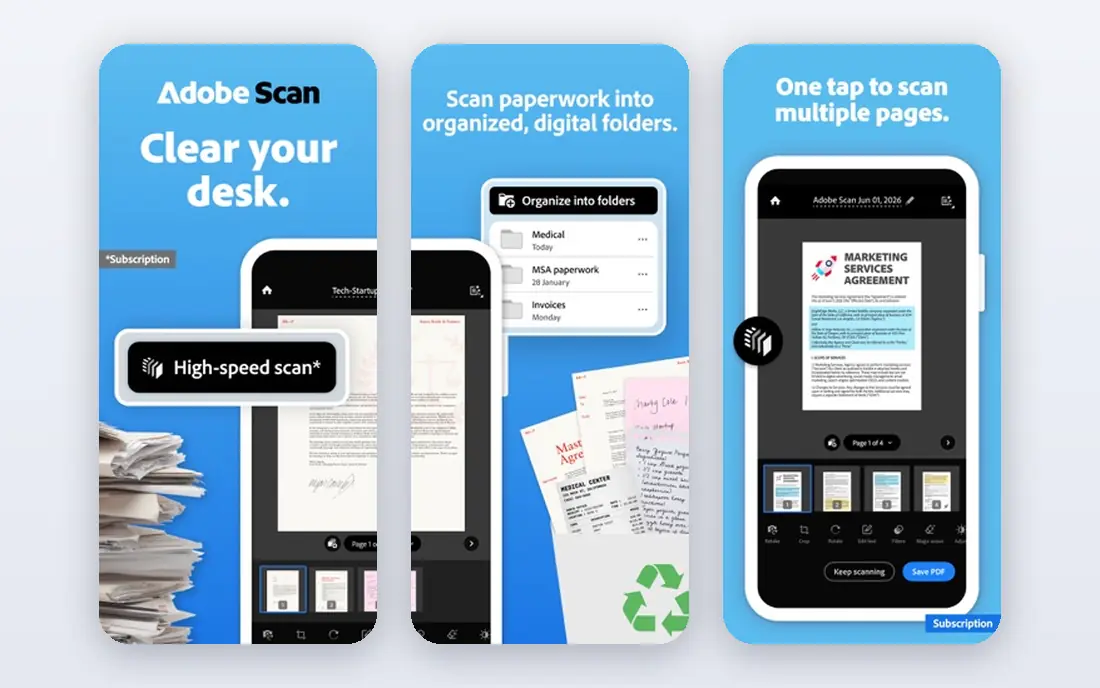
Microsoft Lens is our pick for free phone scanning, since it cleans up photos and saves to PDF, Word or OneDrive. Adobe Scan is a close alternative if you already use Adobe tools. For a large archive, move the files to a desktop tool rather than scanning hundreds of pages by phone.
Is there good free OCR software?
Yes. Microsoft Lens is free for phone scanning, and Tesseract is free for desktop and automated work. Both handle clean typed material well, though Tesseract needs technical setup. Free tiers inside paid apps also help, but they often limit pages or add watermarks, so read the terms.
Which OCR software is best for handwriting?
None of the tools here reads handwriting reliably across different writers, and buyers should treat handwriting claims with care. For printed text, ABBYY FineReader PDF and Adobe Acrobat tend to give the cleanest results in our comparison of feature pages and public reviews. If handwriting is your main input, test a small sample before buying anything.
Does the best OCR software work offline?
Desktop tools such as ABBYY FineReader PDF, Readiris and Foxit PDF Editor process files on your computer, while many phone apps can scan offline and sync later. Cloud-based OCR services need an internet connection and may send your documents to a server, so check the privacy policy for sensitive papers.
Sources
See where you really rank - block by block
ProMapRanker scans Google Maps across a grid of your service area. Simple monthly plans from $19, white-label on every plan.
Start freeKeep reading
 zeffy payment processor stripe alternatives
Zeffy and Stripe Alternatives for Nonprofits in 2026
Explore zeffy payment processor stripe alternatives for nonprofits. We compare 8 fundraising platforms on fees, donor tools, and nonprofit focus. Check fees.
Read → workday alternatives
Workday Alternatives in 2026
Workday alternatives compared: we review 8 HR and payroll platforms that replace Workday, with pricing, strengths and honest limits for each team size.
Read → what's the best weather app
What's the Best Weather App in 2026
Wondering what's the best weather app? We compare 10 free and paid apps for forecasts, radar, alerts, and Colorado mountain weather for everyday and storm use.
Read →