 ProMapRanker
Best AI Tool for Precise Image Editing Sunglasses in 2026


Precise frame and lens editing · Pricing starts at: $22.99 per month
Key takeaways
- Photoshop is our pick for precise sunglasses work because of its selection, masking, and color tools for frames and lenses.
- Affinity and Photopea give you similar layer and mask control at a much lower cost, with Affinity now free as a core editor.
- Lightroom and Capture One suit batch product catalogs, where consistent color and lens correction matter more than pixel-level retouching.
- Sunglasses are hard subjects, since lenses reflect light and show transparency, so zoom in, work on layers, and check edges at full size.
Quick comparison
| Pick | Great for | Pricing starts at | Free tier | |
|---|---|---|---|---|
| Adobe Photoshop | Precise frame and lens editing | $22.99 per month | Free trial | Visit |
 Affinity | Professional editing without a subscription | Free | Yes | Visit |
 GIMP | Free open-source precision editing | Free | Yes | Visit |
 Photopea | Browser-based layered editing | Free | Yes | Visit |
 Adobe Lightroom | Batch catalog color and masks | See website | Free trial | Visit |
 Capture One | Studio color and tethered shooting | See website | Free trial | Visit |
 Pixelmator Pro | Mac editing with AI masks | $49.99 one-time | Free trial | Visit |
 Luminar Neo | Fast AI masks and relighting | See website | Free trial | Visit |
The best ai tool for precise image editing sunglasses
Sunglasses demand more care than a normal product photo. Frames have thin edges, lenses reflect the room, and tinted or mirrored lenses need color work that does not flatten detail. The tools below were judged on selection and masking precision, lens color control, reflection handling, layer editing, and export quality for shops and ads. We compared official feature pages and recent editor comparisons, and we favored tools that let you isolate frames, lenses, and reflections on separate layers. AI selection helps as a starting point, but precise work still needs manual refinement.
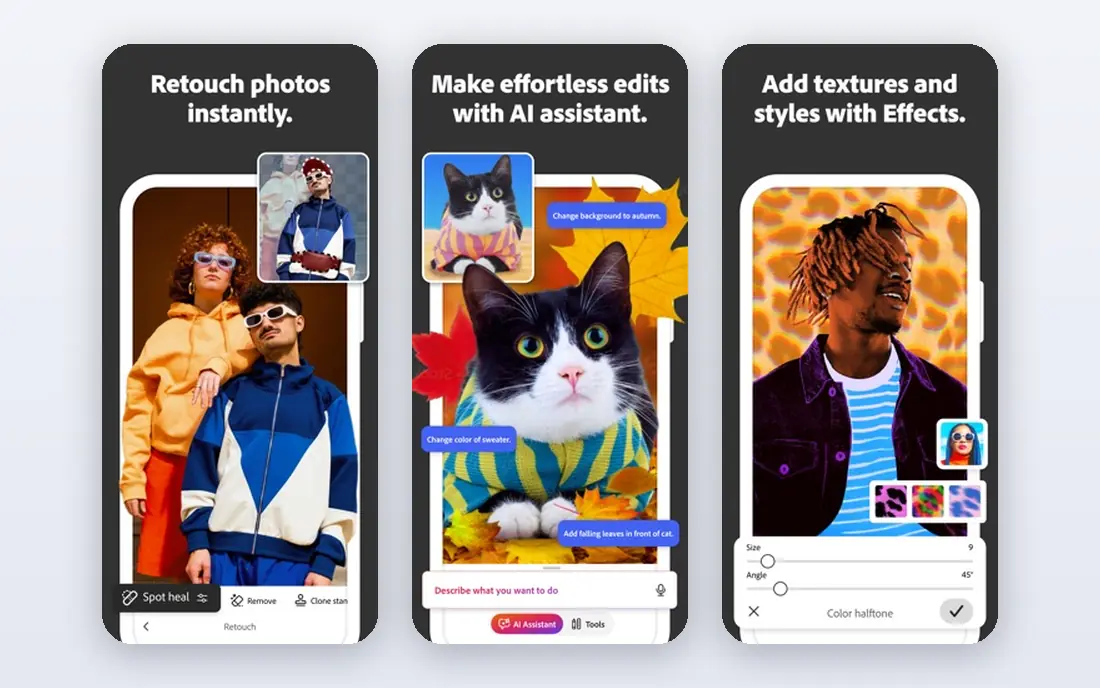
Photoshop remains the reference tool for sunglasses because it gives you control at every step. You can select the frame with the Pen Tool for clean paths, refine lens edges with Select and Mask, and paint a mask by hand where AI selection misses a thin temple arm or a reflective edge. Adjustment layers let you change lens tint, boost contrast in reflections, or darken a frame without touching the original pixels. Generative fill can remove a stray reflection or background distraction, though results need a close check at full size.
The cost and complexity are real drawbacks. A single-app subscription is hard to justify if you edit sunglasses only a few times a year, and the interface can overwhelm a new user. For sellers, photographers, and retouchers who handle eyewear often, however, Photoshop offers the most reliable path from a raw photo to a clean, consistent product image.
- Select Subject and Select and Mask for fine edges
- Layer masks and adjustment layers
- Generative fill for distraction removal
- Subscription cost is high for occasional use
- Learning curve is steep for beginners
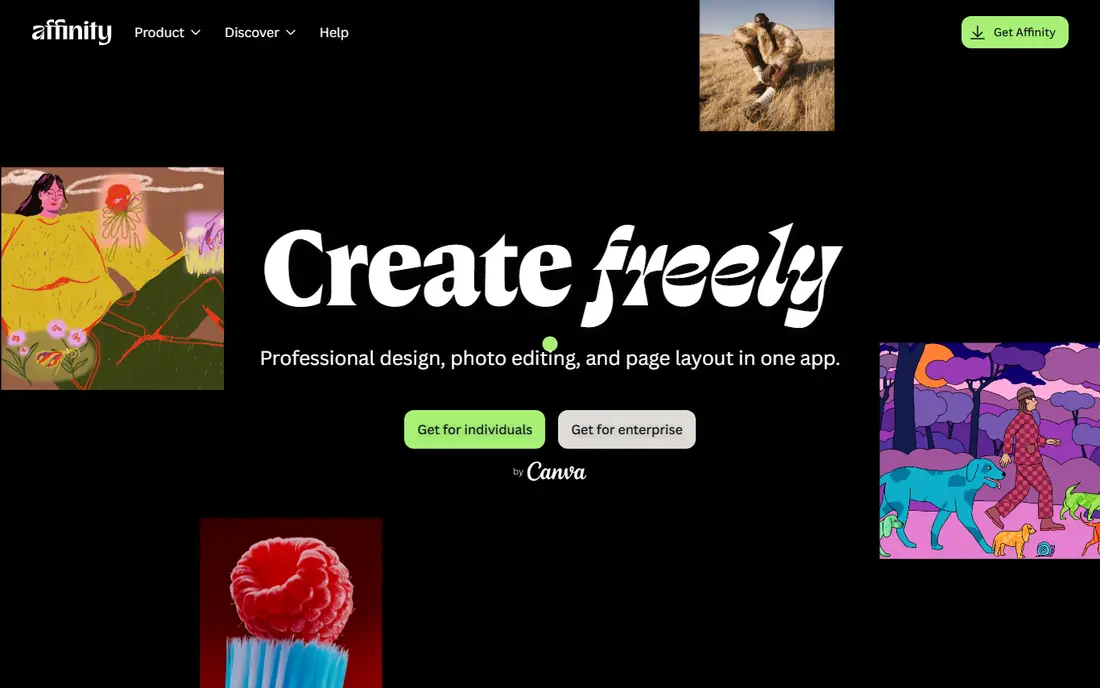
Affinity, now free as a core app under Canva, is the closest low-cost match for Photoshop-style sunglasses work. It offers layers, masks, selection refinement, RAW development, and live adjustment layers, so you can isolate lenses, adjust tint, and clean reflections without destroying the original file. PSD support helps when a client or retoucher sends a layered file, and the interface will feel familiar to Photoshop users. For most product photo tasks, Affinity covers the precision tools that matter.
AI tools are the main gap, since advanced AI features sit behind a paid Canva plan, while the core editor stays free. The plugin library is also smaller than Photoshop, so niche retouching helpers may be missing. If you want professional control without a monthly bill, Affinity is the best value pick in this list.
- Full layer, mask, and RAW editing free as a core app
- Good PSD support
- Live adjustment layers and blend modes
- AI features need a paid Canva plan
- Plugin ecosystem is smaller than Photoshop
GIMP has long been the free answer for precise photo work, and it still handles sunglasses well when you learn its tools. Paths give you clean selections around frames, layer masks let you limit color changes to lenses only, and curves and hue tools let you correct tint without shifting skin tones in a lifestyle shot. A large plugin library adds extra filters and helpers, and the price is zero on every major desktop system. For a seller on a tight budget, GIMP can produce a professional product photo.
The interface is the main hurdle. Tools are arranged differently from Photoshop, RAW files need a plugin workflow, and some tasks take extra clicks. AI selection is also less polished than in paid tools, so expect more manual path work on tricky reflections. With patience, GIMP rewards you with precise, free editing.
- Free and open source on Windows, Mac, and Linux
- Paths, masks, and layer tools
- Large plugin library
- Interface feels dated
- RAW handling needs a plugin
- Some workflows take more steps than in Photoshop
Photopea is the best choice when you need Photoshop-style editing on a borrowed computer or a Chromebook. It runs in the browser, opens PSD files, and offers layers, masks, selection tools, and adjustment layers for frame and lens work. You can cut out sunglasses, place them on a clean background, adjust lens color, and export for a shop listing without installing software. A paid Premium plan removes ads and adds more storage and history steps.
Browser editing has limits. Very large product files can slow down, and offline work is not the point of the tool. The free version also shows ads, which can distract during detailed mask work. For quick, precise edits on any device, Photopea is still a strong and genuinely useful free option.
- Runs in a browser with no install
- Opens PSD, XCF, and RAW files
- Layers, masks, and selection tools included
- Free version shows ads
- Large files can feel slower than a desktop app
- No native app for offline work
Lightroom suits sellers who photograph many sunglasses styles and need consistent color across a catalog. Its masking panel can select a subject, background, or specific object, then let you adjust exposure, color, and clarity only inside that mask. That is useful for lifting a dark frame, warming a lens tint, or cleaning a background without touching the rest of the shot. Lens profiles and RAW controls also help correct distortion and color shifts from studio lenses.
Lightroom is not the tool for a pixel-perfect cutout. Thin frame edges and complex reflections still need Photoshop, Affinity, or GIMP, and Lightroom works best as the first step in a two-tool workflow. If you already use Lightroom for product photography, its masks and batch presets will save time, but do not expect it to replace a layer editor for hero images.
- AI masks for subject, background, and objects
- Consistent color across a whole catalog
- Strong RAW and lens profiles
- Not a full pixel editor
- Precise frame cutouts still need Photoshop
- Subscription cost adds up
Capture One is a studio favorite for product photography, and sunglasses benefit from its color precision. Tethered shooting lets a photographer see each frame on a large screen during a shoot, catch a bad reflection early, and adjust lighting before taking dozens of similar shots. Layered adjustments and masks support local color and exposure work, while RAW processing preserves detail in dark frames and bright lens highlights. For high-end catalogs, that color control is a real advantage.
The price and learning curve limit its audience. Casual sellers will get similar results faster in Lightroom or Affinity, and Capture One assumes a studio workflow with controlled light and a RAW pipeline. If you shoot eyewear in a studio and sell on color accuracy, Capture One earns its place, but it is overkill for a single listing photo.
- Excellent color handling and RAW quality
- Tethered shooting for studio work
- Layered adjustments and masks
- Price is high
- Learning curve is steep for casual sellers
Pixelmator Pro is the best Mac-only pick for precise sunglasses edits at a one-time price. Its AI tools can select a subject or remove a background quickly, giving you a clean starting mask for frames and lenses, and its layer and color tools let you refine tint and reflections by hand. Performance on Apple hardware is fast, and the interface is cleaner than Photoshop for occasional editors. A free trial lets Mac users test mask quality on their own product photos.
The limit is platform. There is no Windows or Android version, and the plugin and automation ecosystem is smaller than Photoshop. For Mac sellers who want AI masks, layer control, and no subscription, Pixelmator Pro balances price, speed, and precision well.
- One-time Mac purchase
- AI-powered subject and background masks
- Fast native performance on Apple hardware
- Mac only
- Fewer plugins and automation options than Photoshop
Luminar Neo suits lifestyle photos where sunglasses sit on a person or in a scene, rather than a strict studio cutout. Its AI masking can isolate a subject, sky, or background, and relighting tools can balance a bright lens reflection against a darker face or scene. Sliders for color, detail, and atmosphere make fast polish easy, which helps sellers who need many social and listing images quickly. A free trial lets you test AI masks on real eyewear photos before buying.
Precision is the trade-off. AI masks in Luminar Neo are fast, but they give less manual control than a Pen Tool path in Photoshop or Affinity, so thin frame edges may need another editor for a hero cutout. Some generative and AI features also depend on plan or credits, so check current terms. For fast, attractive lifestyle edits, Luminar Neo is a useful companion tool.
- AI masking and relighting tools
- Simple sliders for fast product polish
- Good for lifestyle shots with sunglasses
- Less fine-grained mask control than Photoshop or Affinity
- Some AI tools need credits or a higher tier
How we picked these
We compared official feature pages and recent editor comparisons for selection, masking, layer editing, color control, and price. We favored tools that still work in October 2026, support layered non-destructive edits or strong masks, and handle the specific problems of eyewear photos, such as thin edges, reflections, and tinted lenses. We left out simple filter apps without mask or layer control, since they cannot deliver precise sunglasses work.
A precise sunglasses workflow
Start with a clean, well-lit photo, since no editor can fully fix harsh glare or a blurry frame. Duplicate the layer, then build a mask for the whole pair of glasses before you split work into frame, lens, and reflection layers. Adjust lens color with hue and curves inside the lens mask only, and check the result at 100 percent zoom, where halos and rough edges show up. For a shop listing, export a clean background version plus a lifestyle version, and keep the layered file so color changes stay easy later.
Handling reflections and mirrored lenses
Reflections are part of the product, so do not erase every highlight. Reduce distracting room reflections with a local exposure or clone adjustment, but keep a natural highlight that shows the lens shape. For mirrored lenses, adjust color in small steps and compare against the real product under normal light, since a screen can make a tint look stronger than it is in person.
Frequently asked questions
What is the best AI tool for precise sunglasses editing?
Photoshop is the best all-round choice for precise frame and lens work, with Affinity as the best free alternative. Lightroom and Luminar Neo help with masks and color, but a layer editor gives the finest control over thin edges and reflections.
Can AI select sunglasses accurately on its own?
AI selection gives a useful starting mask, but thin temple arms, clear frames, and reflective lenses often need manual refinement. Zoom to full size, paint the mask by hand where needed, and feather edges slightly for a natural cutout.
How do I change sunglasses lens color without affecting the frame?
Put the lens color change on an adjustment layer with a mask limited to the lenses only. Use hue, curves, or color balance inside that mask, and keep the frame on a separate layer so its color stays untouched.
Which free tool is best for sunglasses product photos?
Affinity is the best free core editor for layered, precise work, while Photopea is best when you need browser editing and GIMP is best for open-source desktop work. All three support masks and layers, which matter more than filters for product photos.
Do I need RAW files for sunglasses editing?
RAW files help when you need to recover highlight detail in lenses or lift shadow detail in dark frames, but a high-quality JPEG works for many listings. Shoot RAW for hero and catalog images, and use JPEG for quick social posts.
Sources
- https://www.adobe.com/products/photoshop.html
- https://affinity.serif.com
- https://www.gimp.org
- https://www.photopea.com
- https://www.adobe.com/products/photoshop-lightroom.html
- https://www.captureone.com
- https://www.pixelmator.com/pro/
- https://skylum.com/luminar
- https://imagen-ai.com/valuable-tips/adobe-photoshop-vs-affinity-photo-vs-imagen/
- https://retouchinglabs.com/image-masking-for-product-photo/
See where you really rank - block by block
ProMapRanker scans Google Maps across a grid of your service area. Simple monthly plans from $19, white-label on every plan.
Start freeKeep reading
 best contact center software
Best Contact Center Software in 2026
We compared the best contact center software on channels, AI tools, pricing and scale, so you can pick a platform that fits your team size and budget in 2026.
Read → best compliance management software
Best Compliance Management Software in 2026
Compare the best compliance management software in 2026, with framework coverage, automation, audit support and pricing models explained clearly for teams.
Read → best commercial property management software
Best Commercial Property Management Software in 2026
Compare the best commercial property management software for offices, retail, and mixed portfolios, with pricing, accounting, leasing, and honest trade-offs.
Read →